Setup Guide
3 minute read
This guide will help you set up Rockerbox as a destination in the RudderStack dashboard. It also lists the configuration settings required to correctly send data from the supported sources to Rockerbox.
Setup
- In your RudderStack dashboard, go to Directory > Destinations > Cloud Destinations and search for Rockerbox.
- Connect your source and click Continue.
Connection settings
Configure the following settings to set up Rockerbox as a destination in RudderStack:
- Name: Assign a name to uniquely identify the destination.
- Advertiser Id: Enter your Rockerbox Advertiser ID. It is a required field for sending events to Rockerbox via cloud mode. To obtain this ID, contact your Rockerbox account manager.
Connection mode
| Destination Information | |||
|---|---|---|---|
| |||


In the web device mode integration, that is, using JavaScript SDK as a source, RudderStack loads the Rockerbox native SDK from
https://${host}/assets/${library}.jsdomain. See the source code for obtaining thehostandlibraryvalues.Based on your website’s content security policy, you might need to allowlist this domain to load the Rockerbox SDK successfully.
Send events in hybrid mode
Hybrid mode lets you use a destination in cloud mode and device mode simultaneously, meaning you can route some calls through server-side and others through the client-side SDK.
For the Rockerbox destination, RudderStack supports:
identifyandpagecalls in device modetrackcalls in cloud mode
Configuration settings
After completing the initial setup, configure the following settings to correctly receive your data in Rockerbox.
Web SDK settings
The following settings are applicable only if you are sending events to Rockerbox via web device mode:
- Client Auth ID: Enter your Rockerbox Client Auth ID. You can obtain the Client Auth ID from your Rockerbox All Pages tag available in the Rockerbox Attribution platform. For more information, see Rockerbox documentation.
- Custom Domain: Enter the custom domain from where you want to load the pixels.
Rockerbox lets you use a Custom Tracking Domain to load the Rockerbox trackers and pixels from your website’s domain (for example,rb.mysite.com) instead ofgetrockerbox.com. For more details, see Rockerbox documentation.
- Enable Cookie Sync: Enable this setting if you are using a custom domain. It ensures that the Custom Tracking Domain functionality works as expected.
Other settings
- Client-side event filtering: This setting lets you specify which events should be blocked or allowed to flow through to Rockerbox and is applicable only if you’re sending events via the web device mode. See Client-side Event Filtering guide for more information.
- Consent management settings: Configure the consent management settings for the specified source by choosing the Consent management provider from the dropdown and entering the relevant consent category IDs. See Consent Management in RudderStack for more information on this feature.
Event mapping
- Map your RudderStack events to Rockerbox Events: This setting lets you map the RudderStack events/properties to the Rockerbox custom events and properties. Click Set up mapping and specify the mappings. RudderStack also provides the JSON mapper to set the mappings.
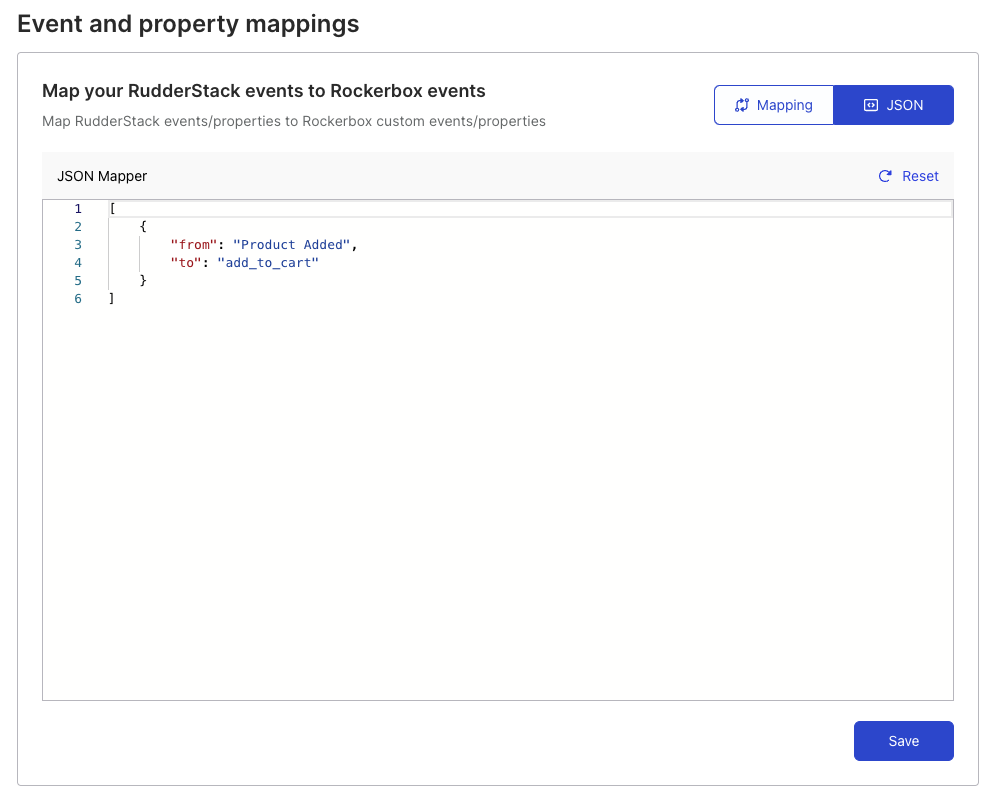
You can map multiple RudderStack events for one Rockerbox event and vice versa.
