Qualtrics
7 minute read
Qualtrics is a popular survey software that lets you create intelligent, real-time user surveys. It lets you get cutting-edge insights into your customers and use them to boost your brand value.
RudderStack lets you configure Qualtrics as a destination to which you can send your event data directly.
Connection compatibility
| Destination Information | |||
|---|---|---|---|
| |||


In the web device mode integration, that is, using JavaScript SDK as a source, RudderStack loads the Qualtrics native SDK from the
http://qualtrics.comdomain.Based on your website’s content security policy, you might need to allowlist this domain to load the Qualtrics SDK successfully.
Get started
Once you have confirmed that the source platform supports sending events to Qualtrics, follow these steps:
- From your RudderStack dashboard, add the source and select Qualtrics from the list of destinations.
- Assign a name to the destination and click Continue.
Configuration Settings
To successfully configure Qualtrics as a destination, you will need to configure the following settings:
- Project ID: Enter your Qualtrics Project ID here.
- Brand ID: Enter your Qualtrics Brand ID here.
Refer to the FAQ section below for steps on obtaining your Qualtrics Project ID and Brand ID.
- Enable Generic Page Title: If this field is enabled, RudderStack sends every
pagecall with the nameViewed a Page.
This field is useful only when using thepagecall.
If this option is disabled, RudderStack will search for the category and name of thepagecall and send the event asViewed <category_field> <name_field> Page. If any of the two fields is absent, RudderStack sends thepagecall asViewed <category_field> / <name_field> Page.
Adding device mode integration
To add Qualtrics to your iOS project, follow these steps:
- In your
Podfile, add theRudder-Qualtricsextension as shown:
pod 'Rudder-Qualtrics'- After adding the dependency followed by a
pod installcommand, add the following imports to yourAppDelegate.mfile:
#import <rudder>
#import <rudderqualtricsfactory.h>
@import Qualtrics;- Then, add the initialization of your
RSClientas shown:
RSConfigBuilder *configBuilder = [[RSConfigBuilder alloc] init];
    [configBuilder withDataPlaneUrl:DATA_PLANE_URL];
    [configBuilder withFactory:[RudderQualtricsFactory instance]];
[RSClient getInstance:<source_write_key> config:[configBuilder build]];- Next, add the following snippet to display the qualified intercept on your
ViewController:
[Qualtrics.shared evaluateProjectWithCompletion:^(NSDictionary<nsstring>* targetingResults){
    for (NSString* interceptID in targetingResults) {
      TargetingResult *result = targetingResults[interceptID];
          if ([result passed]) {
            [[Qualtrics shared] displayWithViewController:self];
          }
    }
}];
For more information, refer to the Qualtrics iOS documentation.
Your Android project must be on version 5.0 (API level 21) or higher for RudderStack to be able to send events to Qualtrics.
Once confirmed, follow these steps to add Qualtrics to your Android project:
- Open your
app/build.gradle(Module: app) file and add the following under thedependenciessection :
implementation 'com.rudderstack.android.sdk:core:1.+'
implementation 'com.rudderstack.android.integration:qualtrics:1.0.0'
implementation 'com.google.code.gson:gson:2.8.6'

// Qualtrics
implementation 'com.qualtrics:digital:2.0.0'- Add a new Maven repository for the App Feedback package. Your
allprojectssection should appear as shown:
allprojects {
    repositories {
        google()
        jcenter()
        maven {
            url "https://s3-us-west-2.amazonaws.com/si-mobile-sdks/android/"
        }
    }
}- Open the
AndroidManifest.xmlfile from thesrc/mainfolder in the project root and add the following XML snippet after the existing activity:
<activity android:name="com.qualtrics.digital.QualtricsSurveyActivity"></activity>
<activity android:name="com.qualtrics.digital.QualtricsPopOverActivity" android:theme="@style/Qualtrics.Theme.Transparent"></activity>- Initialize the RudderStack SDK in your
Applicationclass’onCreate()method as shown:
// initialize Rudder SDK
val rudderClient =
    RudderClient.getInstance(
        this,
        WRITE_KEY,
        RudderConfig.Builder()
            .withDataPlaneUrl(DATA_PLANE_URL)
            .withFactory(QualtricsIntegrationFactory.FACTORY)
            .build()
)- Add a
MyCallbacksubclass. You need to implement a callback for the Qualtrics APIs. This will be used to call thedisplayIntercept()method based on theevaluateIntercept()result. A good place to add this callback is before the last closing brace (}) in yourMainActivity.Javaclass. Add the following code:
private class MyCallback implements IQualtricsProjectEvaluationCallback {
   @Override
   public void run(Map<string targetingresult=""> targetingResults) {
       for (Map.Entry<string> result: targetingResults.entrySet())
           if (result.getValue().passed()) {
               Qualtrics.instance().displayIntercept(MainActivity.this, result.getKey());
           }
   }
}- Add the following snippet to display the qualified intercept in your activity class:
Qualtrics.instance().evaluateProject(new MyCallback());For more information, refer to the Qualtrics Android documentation.
In the iOS device mode implementation, even if the user qualifies for multiple intercepts, only one will be shown. Whereas in Android, all intercepts for the user will be shown.
Page
The page call lets you record your website’s page views with any additional relevant information about the viewed page.
RudderStack passes any tracked events as embedded data to the Qualtrics intercept target. After the page call, the Qualtrics survey is loaded.
You can set the intercepts when a user creates the project or after they have created the project.
A sample page call is as shown:
rudderanalytics.page("category", "name", {
  path: "path",
  url: "url",
  title: "title",
  search: "search",
  referrer: "referrer",
  testDimension: "true"
});
For the above example, The event will be sent as Viewed category name Page, if the Generic Page Title option is disabled in the RudderStack dashboard. If this option is enabled, the event will be sent as Viewed a Page.
If the category field is not mentioned in the page call but specified inside the properties, RudderStack still includes the field while sending the event. For example, refer to the following snippet:
rudderanalytics.page("name", {
  category: "category",
  path: "path",
  url: "url",
  title: "title",
  search: "search",
  referrer: "referrer",
  testDimension: "true"
});
For the above example, the event will be sent as Viewed category name Page, if the Generic Page Title option is disabled in the RudderStack dashboard. If it is enabled, the event will be sent as Viewed a Page.
If category is not specified in the event at all, RudderStack sends the event with only the page name, as shown below:
rudderanalytics.page("name", {
  path: "path",
  url: "url",
  title: "title",
  search: "search",
  referrer: "referrer",
  testDimension: "true"
});
For the above example, The event will be sent as Viewed name Page, if the Generic Page Title option is disabled in the RudderStack dashboard. If enabled, the event will be sent as Viewed a Page.
If both the name and category fields are absent in thepagecall and the Generic Page Title option is disabled, RudderStack will not send the event to Qualtrics.
Track
The track call lets you track how many times a user performs certain actions. RudderStack passes any tracked events as embedded data to the Qualtrics intercept target. After the track call, the Qualtrics survey is loaded.
In Qualtrics, bothpageandtrackcalls have the same functionality.
You can set the intercepts either during or after creating the project.
In this case, the value of event field of the track call will be used as the event name while sending it to Qualtrics.
A sample track call is as shown:
rudderanalytics.track("Test Event");In the above example, the event will be sent to Qualtrics as Test Event.
Identify
Theidentifycall is supported only in the mobile (Android (Java) and iOS (Obj-C)) device mode integration.
When you make an identify call, RudderStack sets the user traits using:
- The Qualtrics
Propertiesclass,setString, andsetNumberAPI in case of Android, and - The
setStringWithStringandsetNumberWithNumberAPI in case of iOS
These user traits can be used as custom properties while setting the Target Logic or Embedded Data for any intercept in your Qualtrics dashboard.
[[RSClient sharedInstance] identify:@"test_user_id"
traits: @{ @"property_key": @"property_value" }];MainApplication.rudderClient.identify(
RudderTraits().put("property_key", "property_value")
)FAQ
How do I get my Qualtrics project ID and brand ID?
- Log into your Qualtrics account.
- Click the project you will be using.
- Click Settings tab, followed by Manage Project option (the right-most dropdown menu in the dashboard).
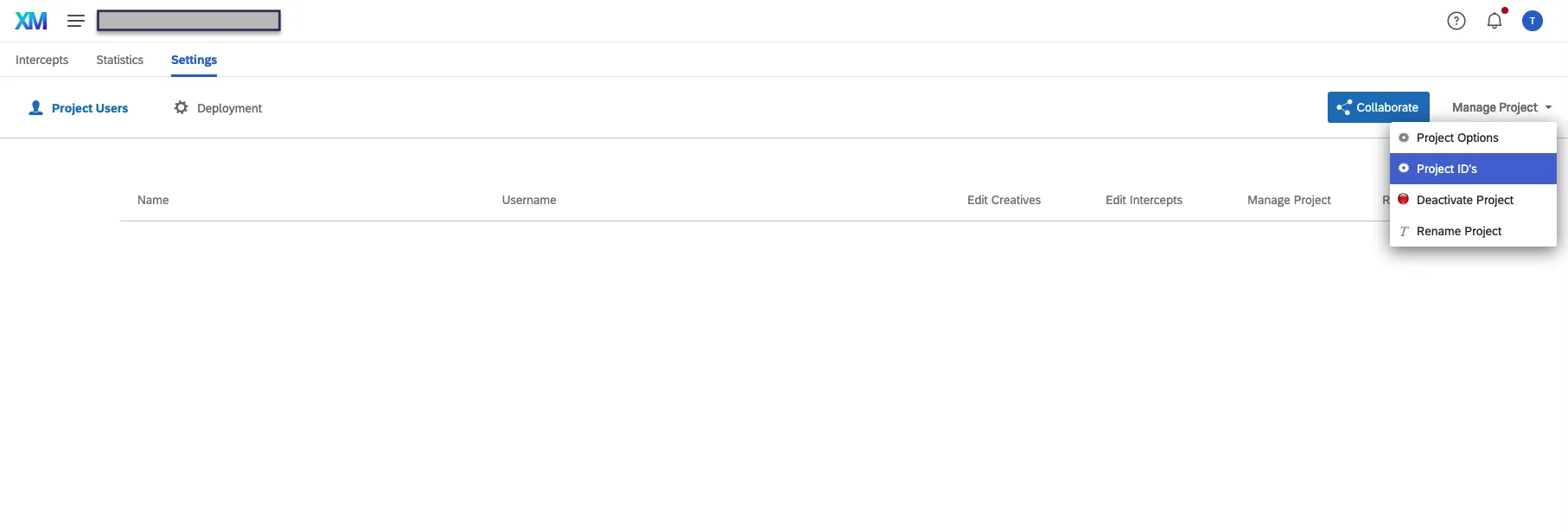
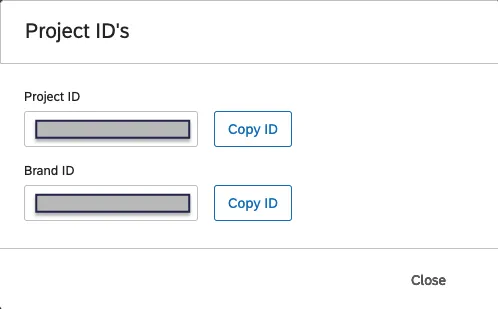
- Click Project IDs. Here you will find both your Project ID and Brand ID:
How do I know if the RudderStack SDK has loaded successfully?
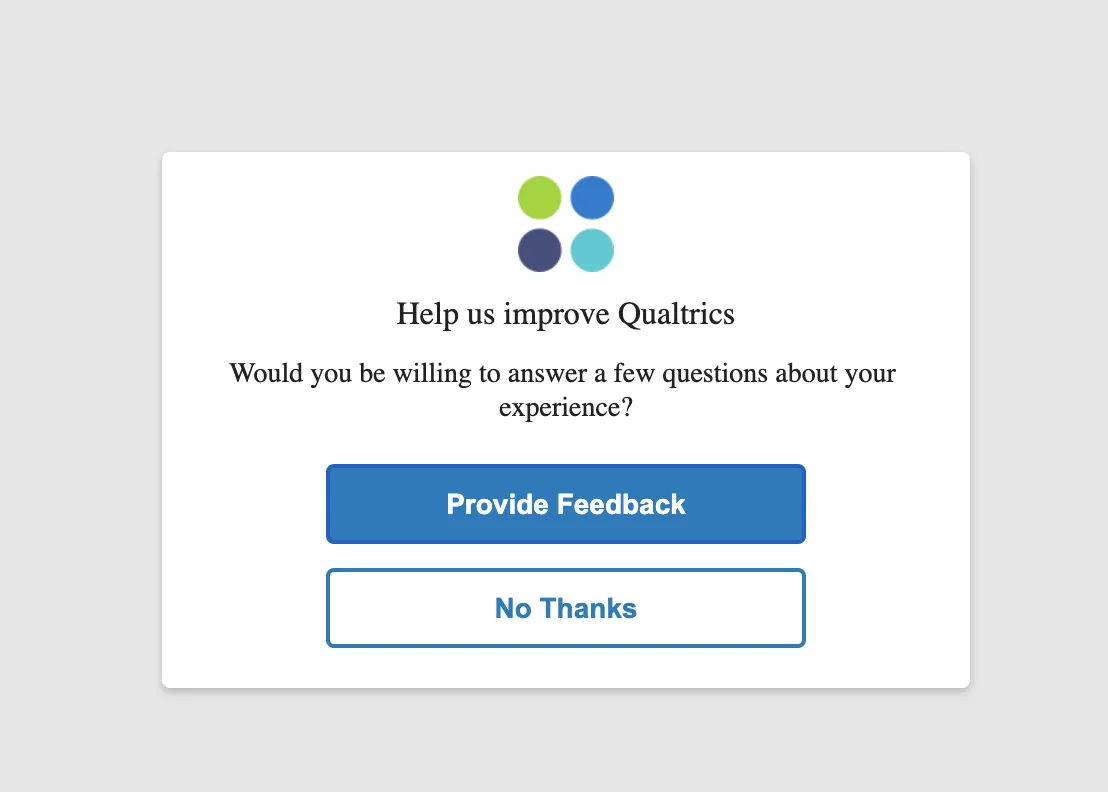
Once RudderStack loads the web SDK successfully, you will be able to see the survey options chosen in the Qualtrics dashboard, for example, a survey button, survey form, etc.
Is it possible to manually set the logic in the mobile device mode integration?
Yes, you can manually set the logic using Qualtrics Properties class setString and setNumber API on Android and setStringWithString and setNumberWithNumber API on iOS. For more information, refer to the iOS documentation or the Android documentation, depending on your implementation.
