Setup Guide
4 minute read
This guide will help you set up PostHog as a destination in the RudderStack dashboard. It also lists the configuration settings required to correctly send data from the supported sources to PostHog.
Connection compatibility
| Destination Information | |||
|---|---|---|---|
| |||


In the web device mode integration, that is, using JavaScript SDK as a source, RudderStack loads the PostHog native SDK either from the
https://app.posthog.comdomain or your instance URL.Based on your website’s content security policy, you might need to allowlist the required domain to load the PostHog SDK successfully.
Get started
Once you have confirmed that the source platform supports sending events to PostHog, follow these steps:
- From your RudderStack dashboard, add the source. Then, from the list of destinations, select PostHog.
- Assign a name to your destination and click Continue.
Connection settings
To successfully configure PostHog as a destination, you will need to configure the following settings:
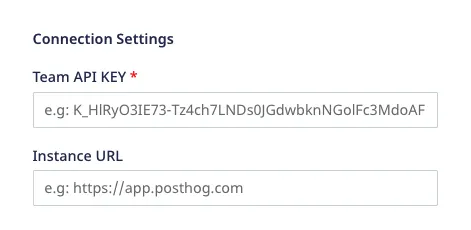
- Team API Key: Enter your PostHog team API key. This is a mandatory field. For more information on obtaining your PostHog Team API Key, refer to the FAQ section below.
- Instance URL: Enter your PostHog instance URL.
If you are hosting your own PostHog instance, add the URL of your instance without the trailing slash. So, the URL will look something likehttps://[your-instance].com.
- Client-side Events Filtering: This setting lets you specify which events should be blocked or allowed to flow through to PostHog. For more information on this setting, refer to the Client-side Events Filtering guide.
- Use updated mapping for Group calls: Enable this setting to send the
grouptraits as event properties to PostHog. It is strongly recommended to enable this setting to send all yourgroupevents to PostHog correctly.
This setting is applicable only when sending events via cloud mode. RudderStack uses the updated group mappings in device mode by default. For more information on this setting, refer to the Updated group mapping section.
Web device mode settings
This section lists some of the other configurable settings when sending events to PostHog via web device mode.
Use device mode to send events: If enabled, RudderStack will send the events to PostHog via device mode.
Enable Local Storage for Persistence: Enable this option to reduce the amount of data stored in the cookies by storing it locally instead.
PostHog Person Profile option: Choose the required option from the dropdown to create a person profile in PostHog:
- Always: Captures the identified events for all users.
- Identified Only: Captures the anonymous events by default. Identified events are captured only for users having a person profile.
See the PostHog documentation for more information on these settings.
Enable autocapture with PostHog: Enable this option to allow PostHog to send auto-captured events.
Allow PostHog to automatically capture pageview events: Enable this setting to allow the PostHog web SDK to send a page view event every time it is loaded on a page.
Disable session recording: Enable this setting to stop PostHog from recording the user sessions. For more information on PostHog’s session recording feature, refer to the PostHog documentation.
Additional headers to pass with XHR requests to PostHog API: Add a list of key-value pairs in this field. The RudderStack web SDK will then forward these headers on the event requests sent to PostHog.
Property denylist - Add a list of traits or event properties that you want the PostHog SDK to filter.
FAQ
Where can I find the PostHog Team API Key?
To get your PostHog Project API Key or Team API Key, follow the steps below:
- Login to your PostHog dashboard.
- Go to the Settings tab under the Project section in the left sidebar.
- You can find the Team API key under Project API Key or Team API Key.
