Setup Guide
Set up and configure Ninetailed as a destination in RudderStack.
2 minute read
This guide will help you set up Ninetailed as a destination in the RudderStack dashboard. It also lists the configuration settings required to correctly send data from the supported sources to Ninetailed.
Connection compatibility
| Destination Information | |||
|---|---|---|---|
| |||


For the web device mode integration, that is, when using JavaScript SDK as a source, you need to first install the Ninetailed SDK as an npm package before sending the events.
Setup
In your RudderStack dashboard, add a source. Then, from the list of destinations, select Ninetailed.
Connection settings
| Setting | Description |
|---|---|
| Destination name | Assign a name to uniquely identify the destination. |
| Organization ID (API Key) | Enter your Ninetailed organization ID. Note: This setting is not applicable for the web device mode integration. |
Advanced settings
Configure the below settings to receive your data correctly in Ninetailed.
| Setting | Description |
|---|---|
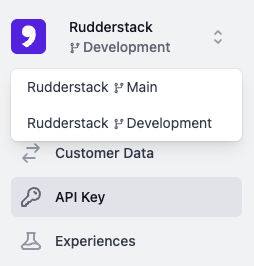
| Environment slug | Select your Ninetailed environment (main/development) from the dropdown. |
| Send page calls in device mode | Turn on this setting to send page calls to Ninetailed in device mode. |
| Consent management settings | Configure the consent management settings for the specified source by choosing the Consent management provider from the dropdown and entering the relevant consent category IDs. See Consent Management in RudderStack for more information on this feature. |
Next steps
FAQ
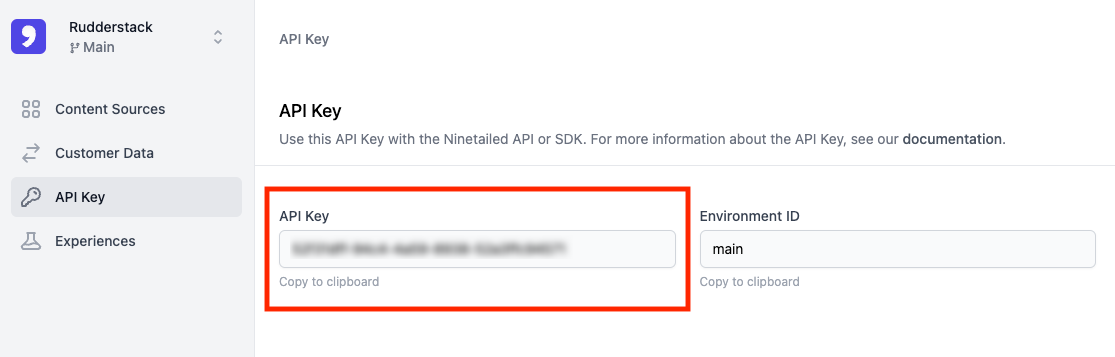
Where can I find the Ninetailed organization ID (API key)?
- Log in to your Ninetailed dashboard.
- Click your organization name on the top left corner and select your environment.
- In the left sidebar, click API Key. You should be able to see your API key for the environment listed here.