Leanplum
6 minute read
Leanplum is a popular marketing and customer engagement platform. It boosts customer engagement and retention, leading to better conversion and increased business revenue.
Find the open source transformer code for this destination in the GitHub repository.
Setup
- In your RudderStack dashboard, go to Directory > Destinations > Cloud Destinations and search for Leanplum.
- Connect your source and click Continue.
Connection settings
Configure the following settings to set up Leanplum as a destination in RudderStack:
- Name: Assign a name to uniquely identify the destination.
- Application ID: Enter your Leanplum application ID.
- Client Key: Enter the associated client key.
You can find your Application ID and Client Key by logging in to your Leanplum dashboard and navigating to Development - App Settings. Under Keys & Settings, click API Keys to get the required credentials.
For more information, see Leanplum documentation.
Connection mode
| Destination Information | |||
|---|---|---|---|
| |||


Send events in hybrid mode
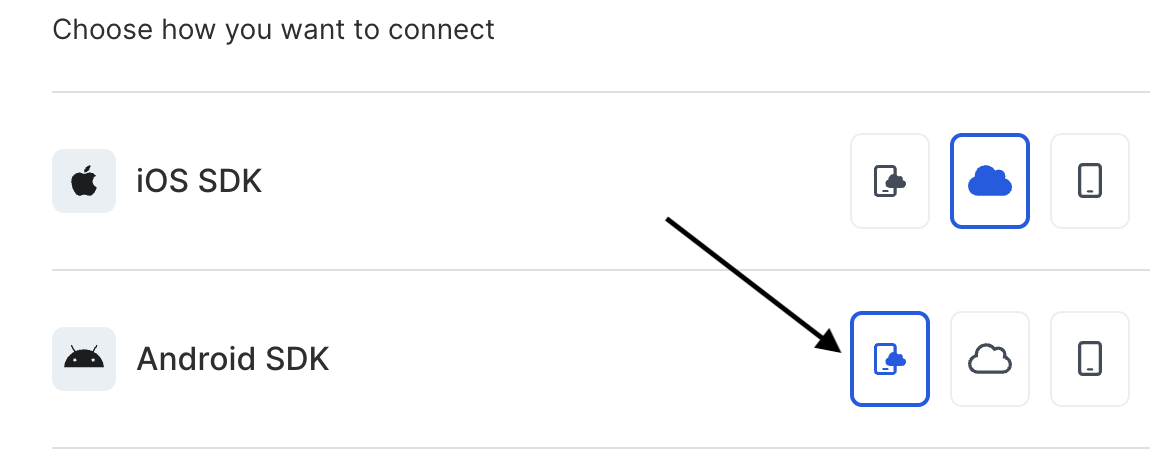
You can use hybrid mode to send all events to Leanplum from your iOS (Obj-C) and Android (Java) sources.
Use the hybrid mode option (highlighted below) while connecting your iOS (Obj-C)/Android (Java) source to the Leanplum destination. Then, add the Leanplum integration to your project.
Why use hybrid mode
Certain Leanplum functionalities like push notifications and A/B testing require you to load the Leanplum SDK.
When you choose hybrid mode to send events to Leanplum, RudderStack:
- Initializes the Leanplum SDK.
- Sends all the user-generated events (
identify,track,page,screen, andgroup) to Leanplum only through cloud mode and blocks them from being sent via device mode. - Sends the auto-generated events (A/B testing, push notifications that require the Leanplum SDK) via device mode.
With hybrid mode, you can send the auto-generated and user-generated events to Leanplum using a single connection.
Configuration settings
After completing the initial setup, configure the following settings to correctly receive your data in Leanplum:
- Use in Development Environment: If this setting is enabled, make sure to provide the Client Key corresponding to your development environment. Failure to do so will result in a faulty SDK initialization and your events will fail.
- Client-side event filtering: This setting lets you specify which events should be blocked or allowed to flow through to Leanplum. For more information, see Client-side Events Filtering.
- Consent management settings: Configure the consent management settings for the specified source by choosing the Consent management provider from the dropdown and entering the relevant consent category IDs. See Consent Management in RudderStack for more information on this feature.
Add Leanplum integration to your project
Depending on your platform of integration, follow these steps below to add Leanplum to your project:
- Add the following to the
dependenciessection of yourpubspec.yamlfile.
rudder_integration_leanplum_flutter: ^1.0.1- Install the dependency added in the above step:
flutter pub get- Import
RudderIntegrationLeanplumFlutterin your application where you want to initialize the SDK.
import 'package:rudder_integration_leanplum_flutter/rudder_integration_leanplum_flutter.dart';- Finally, change the SDK initialization:
final RudderController rudderClient = RudderController.instance;
RudderConfigBuilder builder = RudderConfigBuilder();
builder.withFactory(RudderIntegrationLeanplumFlutter());
rudderClient.initialize(<write_key>, config: builder.build(), options: null);
For iOS, Leanplum needs to be linked either as a dynamic or static framework with your application. You can do so by adding the following lines to your
Podfile:rubyuse_frameworks! :linkage=> :static // linking statically # OR use_frameworks! :linkage=> :dynamic // linking dynamically
- Open your
app/build.gradle(Module: app) file, and add the following.
repositories {
    mavenCentral()
}- Add the following under
dependenciessection:
implementation 'com.rudderstack.android.sdk:core:1.+'
implementation 'com.rudderstack.android.integration:leanplum:1.+'
implementation 'com.leanplum:leanplum-core:5+'- Change the SDK initialization to the following:
// initialize Rudder SDK
val rudderClient =
    RudderClient.getInstance(
        this,
        WRITE_KEY,
        RudderConfig.Builder()
            .withDataPlaneUrl(DATA_PLANE_URL)
            .withFactory(LeanPlumIntegrationFactory.FACTORY)
            .build()
)- Open the
Podfileof your project and add the following:
pod 'Rudder-Leanplum'- Run the
pod installcommand. - Add the imports to your
AppDelegate.mfile:
#import "RudderLeanplumFactory.h"- Change the SDK initialization as shown:
RudderConfigBuilder *builder = [[RudderConfigBuilder alloc] init];
[builder withEndPointUrl:DATA_PLANE_URL];
[builder withFactory:[RudderLeanplumFactory instance]];
[RudderClient getInstance:WRITE_KEY config:[builder build]];
Note the following:
- The RudderStack SDKs store the user traits from the
identifycall inSharedPreferenceandNSUserDefaultsfor Android and iOS respectively.- If RudderStack detects
userIdin the persisted traits information, it starts the native SDK along with it. If it is unable to finduserId, RudderStack initializes the SDK without it. This is helpful in building a better session.- For a persisted
userId, the code for Android isLeanplum.start(applicationContext, userId). IfuserIdis absent, it isLeanplum.start(applicationContext). RudderStack follows a similar pattern for iOS as well.- While searching for the user identifier in the persisted traits, RudderStack looks for either
userIdorid.
Identify
RudderStack uses the identify call to populate and send user information to Leanplum.
Note that:
- RudderStack uses the
setUserIdmethod of the Leanplum SDK to set the user’s identifier (userId). - It passes all the properties present in the event’s
context.traitsto the Leanplum SDK’ssetUserAttributesmethod, which populates them in Leanplum.
The following snippet highlights a sample identify call:
[[RudderClient sharedInstance] identify:@"developer_user_id"
                                 traits:@{@"email": @"bar@foo.com"}];
Track
RudderStack forwards the track events to Leanplum without any modification to the payload, as long as the event name is not null.
The following snippet highlights a sample trackcall:
[[RudderClient sharedInstance] track:@"Accepted Terms of Service"
                          properties:@{
                                  @"foo": @"bar",
                              @"foo_int": @134
}];
Screen
Leanplum supports tracking the user states. RudderStack uses the screen calls to advance the user’s states to LeanPlum. For every screen event, RudderStack calls the advanceTo method of the Leanplum SDK along with the screen name and the associated event properties.
RudderStack also sends the automatically tracked screen events to LeanPlum.
The following snippet highlights a sample screen call:
[[RudderClient sharedInstance] screen:@"Main"];Reset
You can use the reset method to clear the user identification in Leanplum. RudderStack calls clearUserContent method of the Leanplum SDK to clear the persisted user data.
The following snippet highlights a sample reset call:
[[RudderClient sharedInstance] reset];Debugging
RudderStack sets the verbose logging for development mode for the Leanplum Native SDK, based on the logLevel set during the SDK initialization.
If the logLevel is set as DEBUG or more, RudderStack enables logging using the enableVerboseLoggingInDevelopmentMode method of the Leanplum SDK.
