Setup Guide
Set up and configure Koala as a destination in RudderStack.
2 minute read
This guide will help you set up Koala as a destination in the RudderStack dashboard. It also lists the configuration settings required to correctly send data from the supported sources to Koala.
Koala integrates natively with RudderStack. All you need to do is ensure both Koala and RudderStack are instrumented correctly.
See Koala’s RudderStack integration docs for more information.
Connection compatibility
| Destination Information | |||
|---|---|---|---|
| |||


Setup
In your RudderStack dashboard, add a source. Then, from the list of destinations, select Koala.
Connection settings
| Setting | Description |
|---|---|
| Destination name | Assign a name to uniquely identify the destination. |
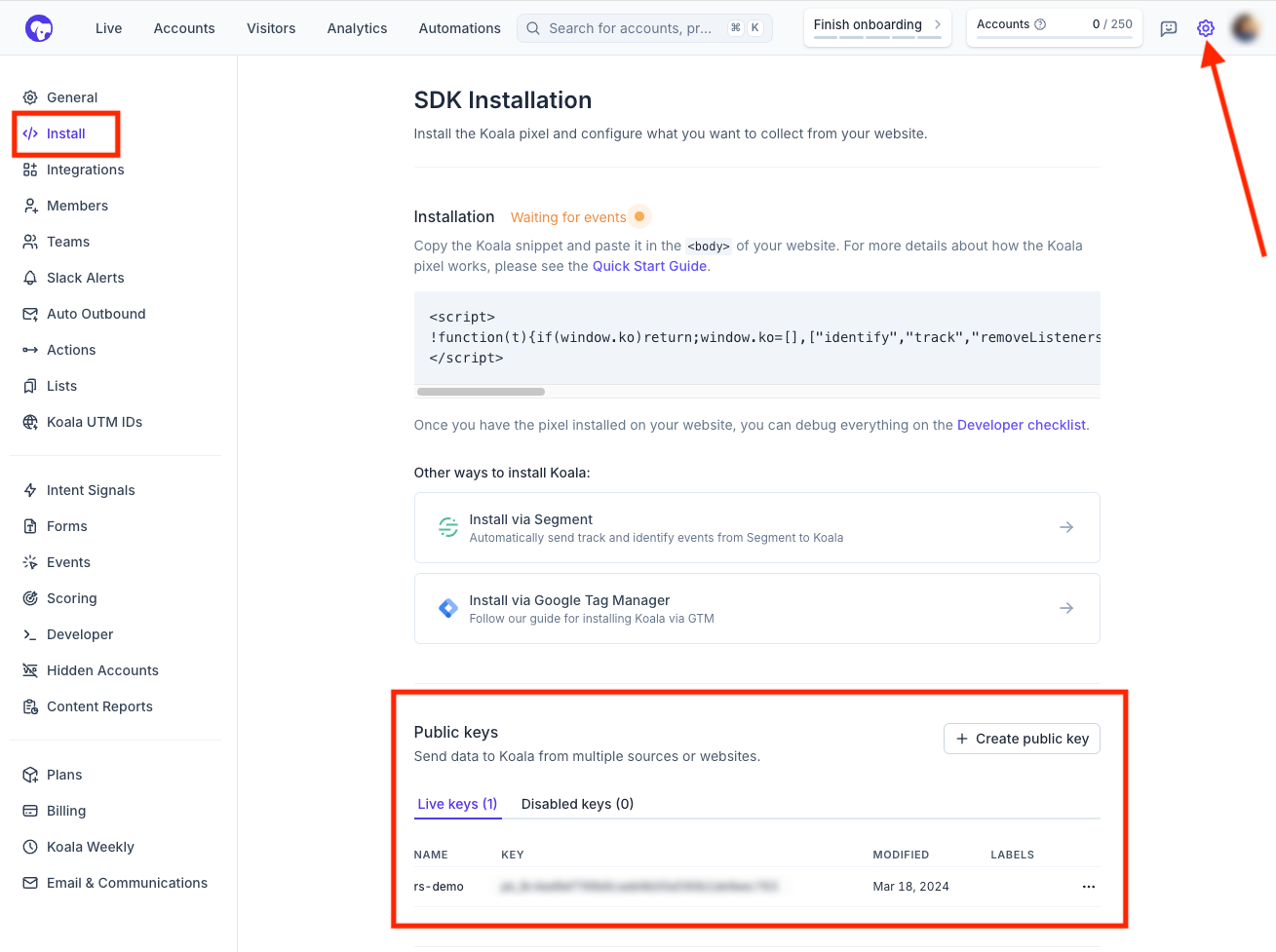
| Public Key | Enter your Koala public key from the Koala workspace by going to Settings > Install. Note: This key is required to install the Koala snippet on your website. |
Advanced settings
Configure the below settings to receive your data correctly in Koala.
| Setting | Description |
|---|---|
| Consent management settings | Configure the consent management settings for the specified source by choosing the Consent management provider from the dropdown and entering the relevant consent category IDs. See Consent Management in RudderStack for more information on this feature. |
Next steps
FAQ
Where can I find the Koala public key?
- Log in to your Koala dashboard.
- In the top right section, click Settings > Install. You should be able to see your public key listed in the Public keys section.