Google Cloud Functions
Send your event data from RudderStack to Google Cloud Functions.
3 minute read
Google Cloud Functions is a Functions-as-a-Service (FaaS) product that lets you run your code in the cloud without any servers or containers.
RudderStack supports Google Cloud Functions as a destination where you can send your event data seamlessly.
Find the open source code for this destination in the GitHub repository.
Connection compatibility
| Destination Information | |||
|---|---|---|---|
| |||


Get started
Once you have confirmed that the source platform supports sending events to Google Cloud Functions, follow these steps:
- From your RudderStack dashboard, add the source. Then, from the list of destinations, select Google Cloud Functions.
- Assign a name to the destination and click Continue.
Connection settings
To successfully set up Google Cloud Functions as a destination, you need to configure the following settings:
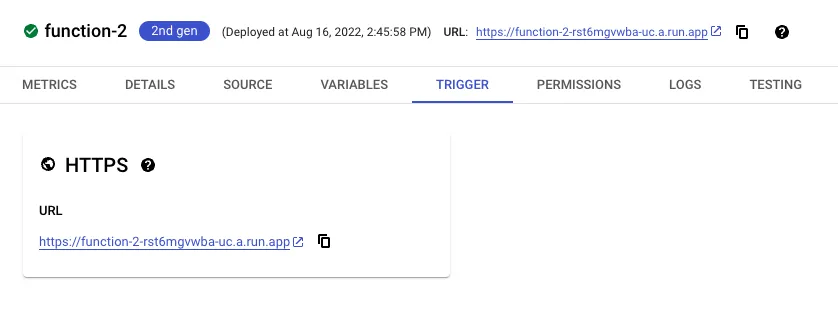
- URL: Enter the Trigger URL obtained in the Trigger field during the cloud function setup. For more information on obtaining the URL, see FAQ below.
- Required Authentication: This setting is turned on by default. Turn it off if your cloud function does not require authentication.
- Credentials: Enter your service account credentials here. This is a required field if Required Authentication setting is turned on, that is, your cloud function requires authentication. To create service account credentials from scratch, see the Google documentation.
- Enable Batch Input: Turn on this setting to pass a batch input (array of events) to your cloud function.
- Max Batch Size: If Enable Batch Input setting is turned on, specify the maximum batch size in this field.
- Consent management settings: Configure the consent management settings for the specified source by choosing the Consent management provider from the dropdown and entering the relevant consent category IDs. See Consent Management in RudderStack for more information on this feature.
Supported events
Google Cloud Functions accepts identify, track, page, group, and alias events.
This destination accepts raw event data similar to a webhook. RudderStack sends the entire event payload to Google Cloud Functions without any transformation or modification.
FAQ
How do I create a Google Cloud Function?
- Log in to your Cloud Functions account and click VIEW CONSOLE.
- Select your project.
- Then, click CREATE FUNCTION.
- Enter a Function name and select the Region from the dropdown.
Verify that your cloud function name is valid.
- In the Trigger field, select HTTP or HTTPS, depending on your use-case.
- In the Runtime, build and connections settings, specify the memory allocated for the cloud function in the Memory allocated field.
- Configure the rest of the cloud function settings as per your requirement and click Next.
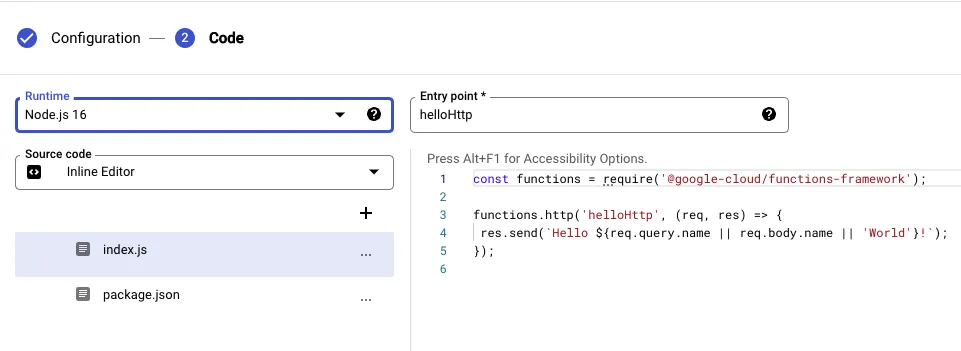
- Add the function code and the language in the Runtime field.
- Enter the function name as defined in your code in the Entry point field.
- Click Deploy to save your settings and create the Cloud Function.
- In the TRIGGER tab, copy the trigger URL - this is required to set up Google Cloud Functions as a destination in RudderStack.