Google Analytics 4 Web Device Mode Integration
5 minute read
RudderStack lets you send your event data to Google Analytics 4 destination via device mode using the native web SDK, using the gtag tagging method.
You need to selectgtag.jsas the Client Type and enable Use device-mode to send events in the RudderStack dashboard to send events via device mode. For more information on device mode settings in the RudderStack dashboard, see Setting up Google Analytics 4 guide.
Find the open source JavaScript SDK code for this destination in the GitHub repository.
Identify
The identify call lets you identify a visiting user and associate them to their actions. It also lets you record the traits about them like their name, email address, etc.
User-ID is an advanced feature that lets GA4 present a cross-device, cross-platform view of your customers’ behavior. Google Analytics 4 uses userId and deviceId (GA’s cid value from Universal Analytics terminology) to identify users.
A sample identify call is as shown:
rudderanalytics.identify("1hKOmRA4el9Zt1WSfVJIVo4GRlm", {
  name: "Alex Keener",
  email: "alex@example.com",
})
In the above snippet, the userId is set to 1hKOmRA4el9Zt1WSfVJIVo4GRlm and the name and email is set as user_properties.
Page
The page call lets you record your website’s page views with any additional relevant information about the viewed page.
Google Analytics 4 gtag sends a page_view event to Google Analytics by default every-time it is loaded. You can also send page_view event to Google Analytics whenever you make an explicit page() call to RudderStack SDK.
RudderStack sends the following properties by default:
urlmapped topage_locationtitlemapped topage_titlereferrermapped topage_referrer
You can also make page() call with any custom and standard properties as shown below:
rudderanalytics.page({
  path: "/test_browser.html",
  url: "http://example.com/test_browser.html?param1=true",
  title: "Page Load",
  search: "?param1=true",
  referrer: "referrer",
})
Track
This destination does not strictly adhere to the RudderStack Ecommerce Event Spec.
The track call lets you capture user events along with the properties associated with them.
A sample track call is as shown:
rudderanalytics.track("Track me")RudderStack SDK sends the track event name and any properties as custom properties to Google Analytics 4.
RudderStack SDK flattens the properties that are nested and not standard Google Analytics 4 properties before sending them to Google Analytics.
There are limits on the number of custom properties per event that can be sent to Google Analytics 4. The RudderStack SDK does not drop the payload based on these limits. If the events are don’t show up in the debug view or in the Google Analytics dashboard reports, refer to the Google support page to learn more about the collection limits.
Group
The group call lets you link an identified user with a group such as a company, organization, or an account, and record any traits associated with that group, for example, company name, number of employees, etc.
RudderStack maps the group call to the join_group event by default.
A sample group call is shown below:
rudderanalytics.group("1hKOmRA4", {
    "custom1": 1234,
    "custom2": "custom2"
});
Ecommerce events tracking
RudderStack supports ecommerce tracking for Google Analytics 4. Use the Ecommerce Events Specification for sending events while instrumenting your site with the RudderStack SDK.
Below are some examples of the track event names that are passed to Google Analytics 4-specific ecommerce event name:
| RudderStack event name | Google Analytics 4 event name |
|---|---|
| Products Searched | search |
| Product List Viewed | view_item_list |
| Promotion Viewed | view_promotion |
| Product Clicked | select_item |
| Product Added To Wishlist | add_to_wishlist |
| Product Added | add_to_cart |
| Cart Shared | share |
| Checkout Started | begin_checkout |
| Order Completed | purchase |
For each product in the order, there must be anidandnameassociated with it. Refer to the GA4 documentation for more information on ecommerce events and corresponding properties.
Debug mode
RudderStack sends all the device mode events with a debug_mode parameter so that you can view them in the DebugView.
FAQ
How can I disable sending userId to GA4?
You can disable sending userId to GA4 by passing an integrations object in your JavaScript SDK load options and setting sendUserId to false.
rudderanalytics.load(
  "WRITE_KEY",
  "DATA_PLANE_URL", {
    integrations: {
      All: true,
      "Google Analytics 4": {
        sendUserId: false
      },
    }
  }
)
If you setsendUserIdtofalse, RudderStack will not senduserIdto GA4 in any of the events.
How can I enable Google Signals in GA4?
Google Signals helps you understand the interaction of users with your website across multiple devices and sessions. To enable Google Signals and capture user data, the following conditions must be met:
- A user must be signed in to their Google Account on the website or app.
- Ad Personalization must be enabled for their account.
The Google Signals feature is available in the web device mode only.
To enable Google Signals in GA4 and reflect the collected user data in your reports, follow the steps below:
Log into your Google Analytics dashboard.
Open the Admin panel by clicking on the gear icon at the bottom left.
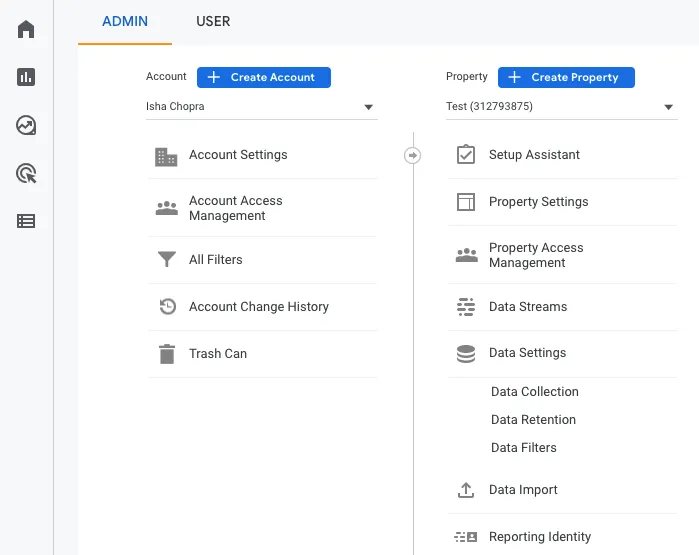
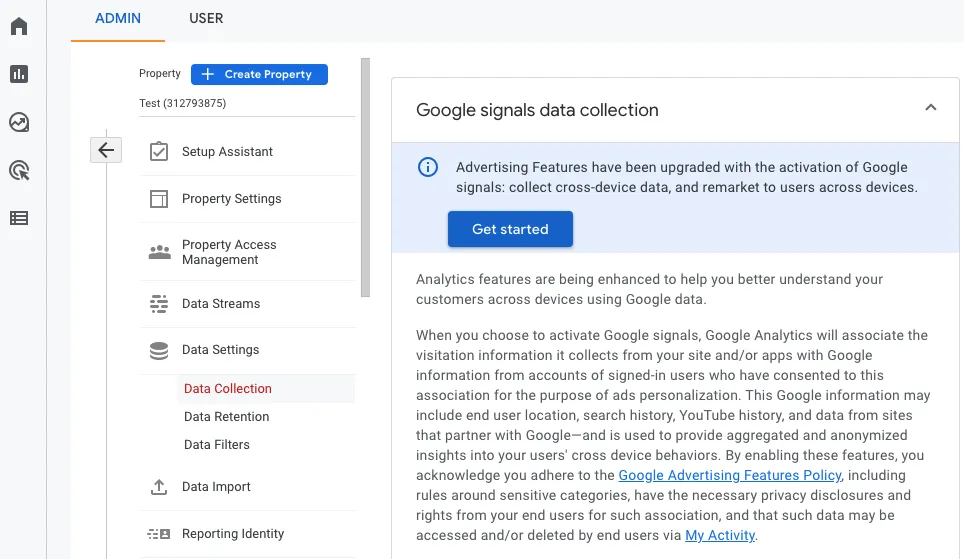
Select the property for which you want to enable Google Signals. Then, go to Data Settings > Data Collection.
Click Get Started in the Google signals data collection section:
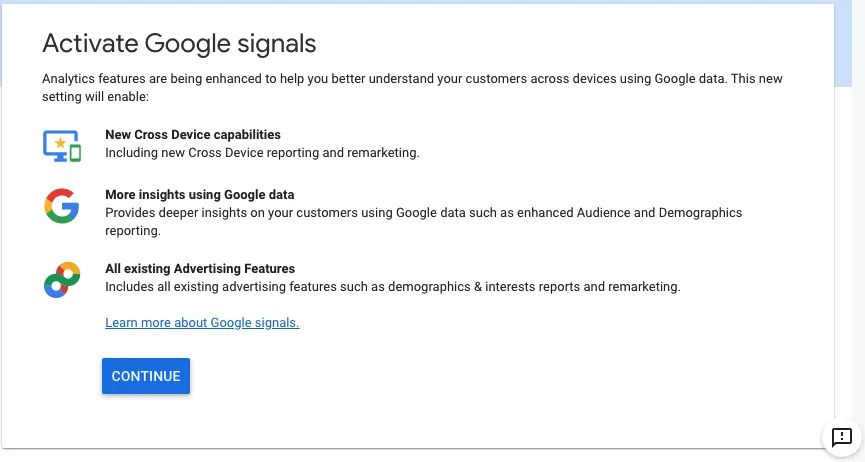
Click Continue.
Read the additional information and click Activate.
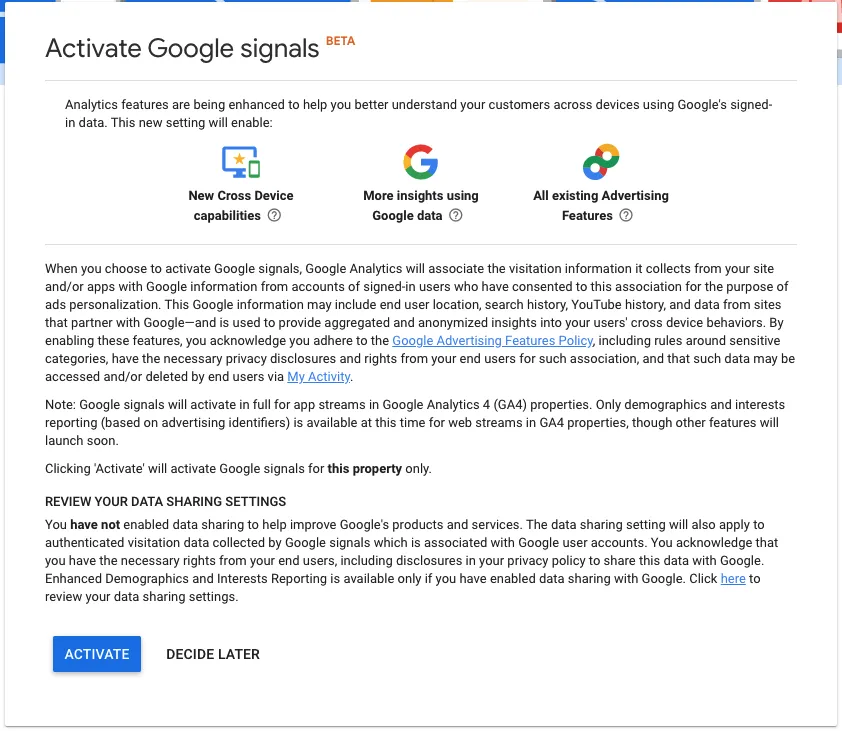
Google Signals is now enabled. You will be able to see the Age, Gender, and other relevant data in the GA4 Demographics reports after 24 hours.
