Google Ads Enhanced Conversions (Cloud Mode)
10 minute read
Choose the right Google Ads destination
RudderStack offers two Google Ads destinations that can support enhanced conversions:
- Use this destination to send events in cloud mode (server-to-server integration) using the Google Ads API
- Use the Google Ads (gtag.js) destination if you’re sending events in web device mode and want to enable enhanced conversions for your setup
Google Ads Enhanced Conversions lets you improve your conversion measurement accuracy by securely sending first-party conversion data from your website to Google.
RudderStack supports Google Ads Enhanced Conversions as a destination to which you can send your audience list.
Connection compatibility
| Destination Information | |||
|---|---|---|---|
| |||


Prerequisites
To use this destination correctly, you must:
Set up Enhanced Conversions with the Google Ads API.
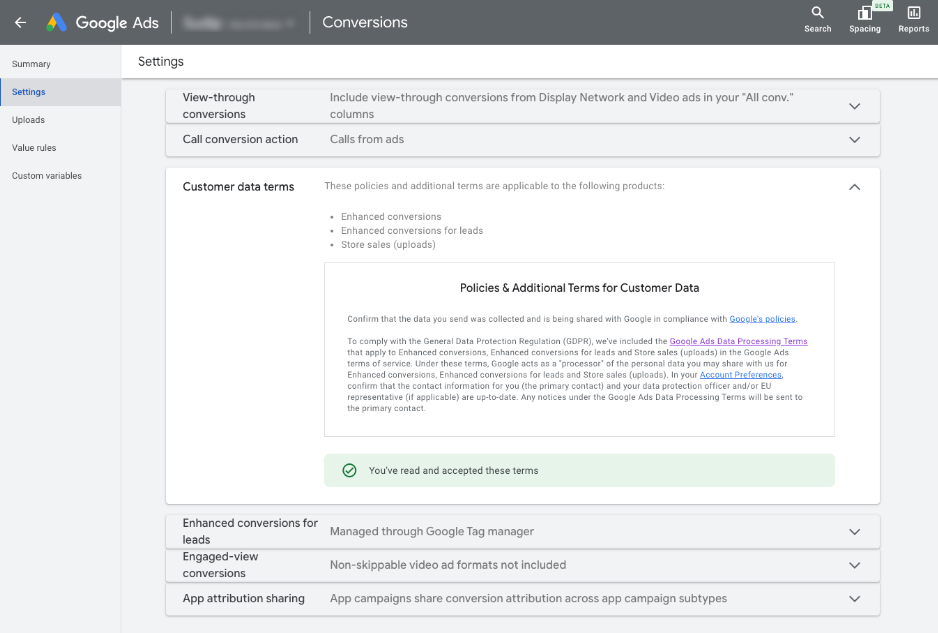
Accept the Google Ads data terms to receive the enhanced conversions events successfully. To accept the terms:
- Log in to your Google Ads dashboard.
- Go to Conversions > Settings > Customer Data Terms.
- Carefully read and accept the customer data terms.
Google Ads permissions
This integration relies on the authorizing Google Ads user’s underlying permissions and must be at least Standard or Admin.
If you authorize the integration without the Standard or Admin permissions, the API calls will fail and a “RudderStack Admin” user will disable the integration. If you encounter an entry in your audit logs from a Rudder Admin/admin@rudderstack.com user, it means that RudderStack disabled the integration on account of insufficient user permissions.
To avoid this, ensure that the authorizing user has the Standard permissions, at minimum.
Setup
- In your RudderStack dashboard, set up a source.
- Go to the Overview tab of your source and select Add Destination > Create new destination.
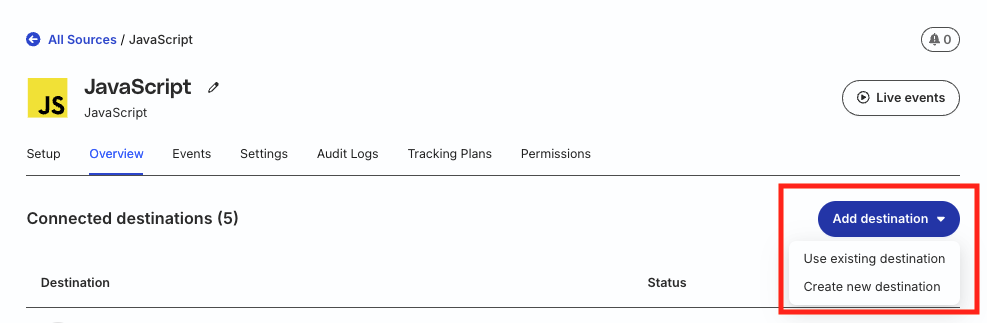
- Select Google Ads Enhanced Conversions from the list of destinations. Then, click Continue.
Connection settings
| Setting | Description |
|---|---|
| Destination name | Assign a name to uniquely identify the destination. |
| Event delivery account | Click Select to choose an existing Google Ads account for authentication. To add a new account:
|
| Customer ID | Enter the ID associated with your Google Ads account. You can find it by clicking the Help option in your dashboard. For more information on obtaining the customer ID, see the Google Ads Help Center page. |
| Subaccount | Toggle on this setting if you are using a Google Ads subaccount. For more information on subaccounts, see the Google Ads Help Center page. |
| Login Customer ID | If Subaccount is toggled on, enter the customer ID of the manager account (associated with the subaccount). This field is required only when the authenticated Google account does not have direct access to the Customer ID — see the FAQ for more information. |
Configuration settings
| Setting | Description |
|---|---|
| List of Conversion | Enter the list of events on which you want to perform enhanced conversions. RudderStack will discard any events that are not specified in this list. |
| Hashing Required | This setting is enabled by default and hash encrypts the user identifiers like email, phone number, first name, last name, and street address using the SHA256 encryption method. |
| Adjustment Type | Select the adjustment type for your conversions. The following options are available:
|
Other settings
| Setting | Description |
|---|---|
| Consent management settings | Configure the consent management settings for the specified source by choosing the Consent management provider from the dropdown and entering the relevant consent category IDs. See Consent Management in RudderStack for more information on this feature. |
Track
The track call lets you record and send the conversion events along with any properties associated with them. RudderStack uses the ConversionAdjustment method to send the track events to Google Ads.
You must create the conversion actions in Google Ads before sending the associated conversion events from RudderStack. Also, the conversion names should match in Rudderstack (List of Conversion dashboard setting) and Google Ads dashboards.
A sample track call is shown below:
rudderanalytics.track("Order Completed", {
  checkout_id: "12345",
  orderId: "123",
  affiliation: "Apple Store",
  gclid: "abcd1234",
  conversionDateTime: "2019-01-01 12:32:45-08:00",
  adjustedValue: 100,
  currencyCode: "INR",
  adjustmentDateTime: "2019-01-01 12:32:45-08:00",
  total: 20,
  revenue: 15.0,
  shipping: 22,
  tax: 1,
  discount: 1.5,
  coupon: "SAVE45",
  currency: "USD",
  products: [
    {
      product_id: "FS247",
      sku: "G-32",
      name: "Monopoly",
      price: 14,
      quantity: 1,
      category: "Games",
      url: "https://www.estore.com/product/funskool-monopoly",
    },
  ],
})orderIdis a required field to send atrackcall successfully.
Important considerations
- If you set the Adjustment Type to Restatement, use the
adjustedValueandcurrencyCodefields to specify the corrected conversion value and currency.- RudderStack does not send user identifiers or the
userAgentfield for Restatement events — only the conversion adjustment data is included in the payload.See the Google Ads documentation for more information on uploading conversion adjustments.
Supported mappings
The following table details the mapping of the fields specified in the RudderStack dashboard and Google Ads Enhanced Conversions, along with the relevant guidelines:
| RudderStack field | Google Ads Enhanced Conversions field | Guidelines |
|---|---|---|
gclid | gclid | This is the Google click ID associated with the original conversion. |
conversionDateTime | conversionDateTime | The datetime at which the conversion for the adjustment occurred. You must specify the timezone in the format `yyyy-mm-dd hh:mm:ss+ |
adjustedValue | adjustedValue | The value of the conversion after restatement. To change the value of a conversion from 100 to 75, for example, you should report an adjusted value of 75. |
currencyCode | currencyCode | Use the ISO 4217 3-character currency code, e.g. USD/EUR. |
orderId | orderId | If a conversion was reported with a specific order ID, then that order ID must be used as the identifier. |
adjustmentDateTime | adjustmentDateTime | The datetime at which the adjustment occurred. You must specify the timezone in the format `yyyy-mm-dd hh:mm:ss+ |
userAgent | userAgent | User agent should only be specified in enhancements with the user identifiers and it should match the user agent of the request that sent the original conversion. This is so that the conversion and the enhancement both are either attributed as same or cross-device. |
email | hashedEmail | Include a domain name for all email addresses. Remove any spaces in between the addresses. |
phone | hashedPhone | Format the phone number using the E.164 format. Include the country code as well. |
firstName | hashedFirstName | Do not include any prefixes (e.g., Mrs.). |
lastName | hashedLastName | Do not include any suffixes (e.g., Sr.). |
city | city | This field accepts any string. |
state | state | This field accepts any string. |
country / countryCode | countryCode | Use the ISO two-letter/three-letter country codes. Include the country code even if all your users belong to the same country. |
postalCode | postalCode | Both the US and international zip and postal codes are allowed. For the US, 5 digit codes followed by 4 digit extensions are also allowed. For the rest of the countries, do not include the postal code extensions. |
FAQ
What are the account permissions required for this integration?
For the integration to be successful, make sure the customer account used for OAuth verification adheres to Google’s Customer Match policy and has Standard or higher (Administrative) access level permissions. For more information on the access level permissions, refer to this Google Ads support page.
To set the access level, follow these steps:
- Log in to your Google Ads account.
- In the left navigation bar, click Admin > Access and security.
- Click the + symbol. Then, enter the email address of the account and from the list of permissions, select Standard or Administrative.
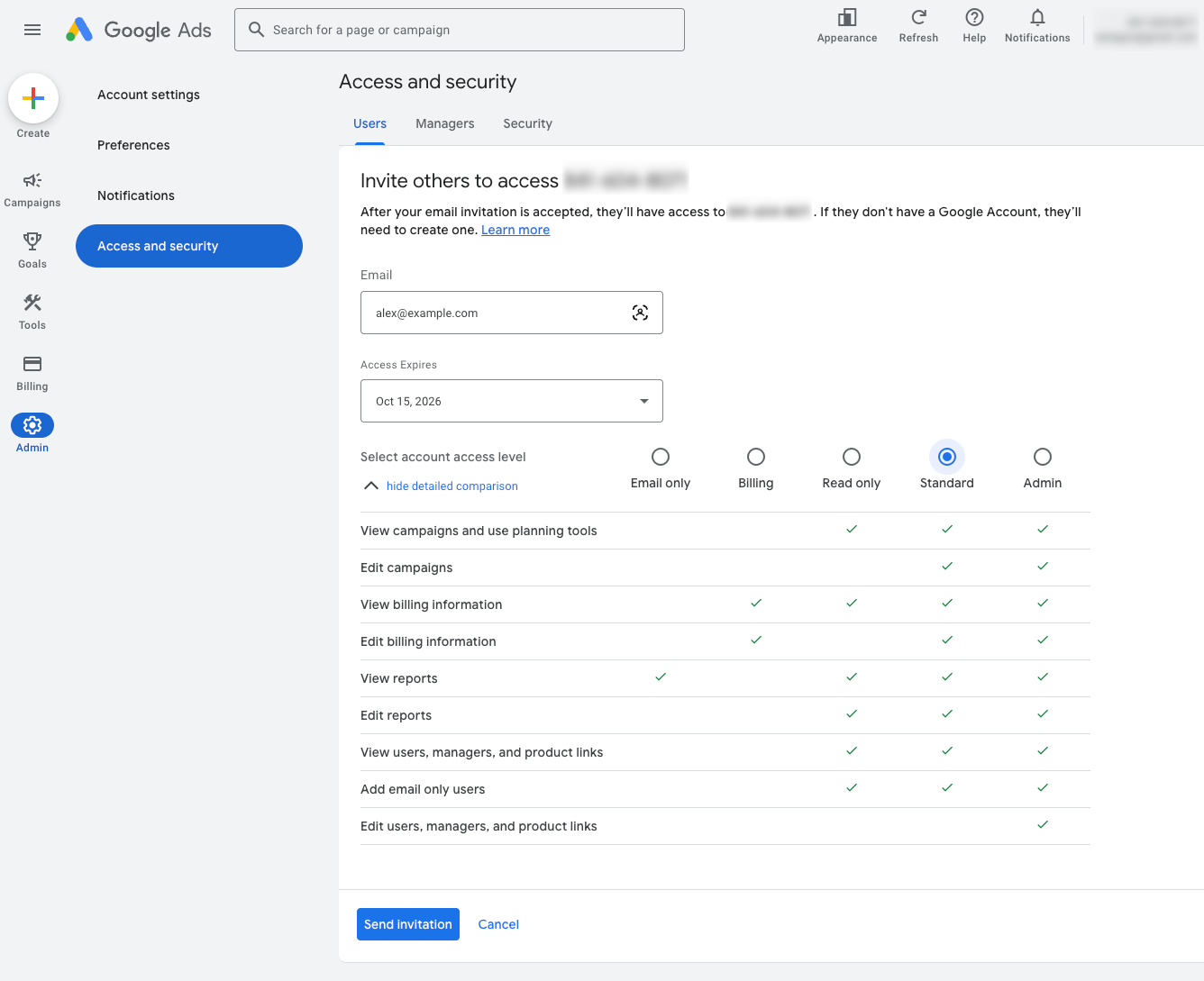
- Click Send invitation.
The account will have the access level permissions once the user accepts the invitation.
According to my audit logs, a “Rudder Admin” user updated my destination. Why is this?
This is a Google Ads permissions issue. See Google Ads Permissions for details.
Can I set up the Enhanced Conversions and Remarketing Lists destinations using the same Google Ads account?
Yes, you can. Both the integrations are the sub-features of Google Ads. Hence, you can use the same Google Ads account to configure both the destinations in RudderStack.
Where can I find my Google Ads customer ID?
The Google Ads customer ID is a unique number used to identify your Google Ads account. To get this ID:
- Sign in to your Google Ads account.
- Click your profile picture in the top right corner — the customer ID is listed under Account Information.
See the Google Ads Help Center for more information on finding your Google Ads customer ID.
When do I need to provide a Login Customer ID?
You need to provide the Manager Account ID (Login Customer ID setting in the dashboard) only when:
- Manager account ID is a manager of customer ID.
- The Google account you authenticated with does not have direct user access to the Customer ID
- The manager account has not been set up to manage conversions on behalf of the child account via cross-account conversion tracking
You can leave the Login Customer ID field empty if:
- The authenticated Google account has direct access to the Customer ID
- You have already configured cross-account conversion tracking
See the following references for more information:
My account uses cross-account conversion tracking. What should I enter in the Customer ID field?
If your account uses cross-account conversion tracking, make sure to enter the manager account’s Customer ID, not the child account’s.
Under cross-account conversion tracking, the conversion actions live on the manager account, and the Google Ads API requires conversion uploads to be sent to that manager.
Even though you may think of the child account as the destination for conversions, the attribution to the child happens automatically inside Google Ads — you don’t need to specify the child anywhere in the destination configuration
A common misconfiguration is setting the Customer ID field to the child account and the Login Customer ID field to the manager — this fails with errors like INVALID_CUSTOMER_ID or CUSTOMER_NOT_ACCEPTED_CUSTOMER_DATA_TERMS. To avoid this issue, use the following setup:
| Setting | Notes |
|---|---|
| Customer ID | Manager account ID (the conversion tracking owner) |
| Login Customer ID | Same manager ID — leave empty if the authenticated Google account has direct access to the manager |
To confirm which account owns conversion tracking for a given child, sign in to the child account in the Google Ads dashboard and go to Tools > Conversions. If a banner indicates conversions are managed by a manager, specify that manager’s ID in the Customer ID field.
See Cross-account conversion tracking (Google Ads API) for more information.
How do I know which Customer ID and Login Customer ID combination applies to my setup?
| Setup | Customer ID | Login Customer ID |
|---|---|---|
| Standalone account, direct OAuth access | The account itself | Leave empty |
| Standalone account, OAuth access via a manager | The account itself | The manager |
| Child account under cross-account conversion tracking | The manager (conversion tracking owner) | The manager, or leave empty if direct access |
Why am I getting the USER_PERMISSION_DENIED, INVALID_CUSTOMER_ID, or CUSTOMER_NOT_ACCEPTED_CUSTOMER_DATA_TERMS errors?
These errors usually mean the Customer ID or Manager Account ID (Login Customer ID setting in the dashboard) is misconfigured:
| Error | Notes |
|---|---|
USER_PERMISSION_DENIED | The authenticated Google account doesn’t have permission to act on the Customer ID. Verify the Login Customer ID is correct, and that this manager is linked to the Customer ID in Google Ads. |
INVALID_CUSTOMER_ID | Either the Customer ID is wrong, or the Login Customer ID isn’t authorized to access it. Under cross-account conversion tracking, this often means the Customer ID was set to a child account when it should be the manager. |
CUSTOMER_NOT_ACCEPTED_CUSTOMER_DATA_TERMS | Customer data terms haven’t been accepted on the account that owns conversion tracking. If cross-account tracking is in use, the terms must be accepted on the manager account, not the child. |
Why am I getting a 400 Bad Request error message while configuring the destination?
If you get a 400 Bad Request error while configuring the destination, make sure your customer account is allowlisted and configured to have Standard or Administrative access levels in Google Ads.
See the above FAQ for steps on setting the access level permissions for the account.
