Google Ads Offline Conversions Destination Setup Guide
9 minute read
This guide will help you set up Google Ads Offline Conversions as a destination in the RudderStack dashboard. It also lists the configuration settings required to correctly send data from the supported sources to Google Ads Offline Conversions.
Connection compatibility
| Destination Information | |||
|---|---|---|---|
| |||


Setup
- In your RudderStack dashboard, set up a source.
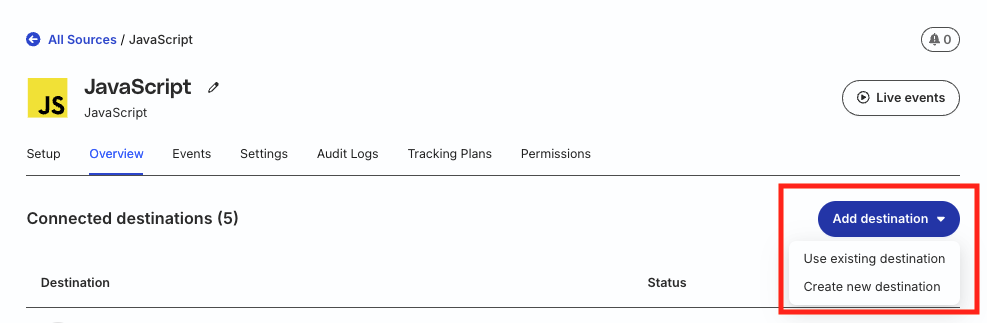
- Go to the Overview tab of your source and select Add Destination > Create new destination.
- Select Google Ads Offline Conversions from the list of destinations. Then, click Continue.
Account settings
To successfully configure Google Ads Offline Conversions as a destination, first authenticate your account by following these steps:
- Click Create Account in the Account Settings section.
- Under Connect a new account, select OAuth and click Next.
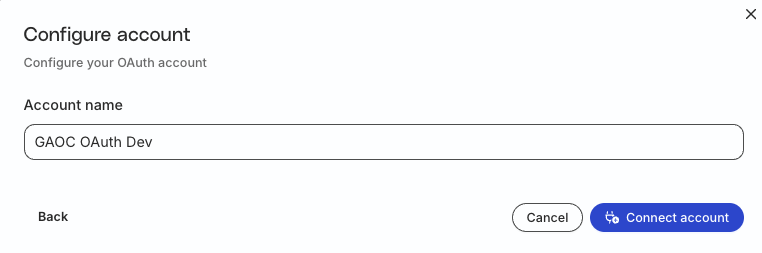
- Specify the account name and click Connect account.
- Choose the required Google Ads account and grant RudderStack the required permissions.
Important: Google Ads permissions
To authenticate successfully, your Google Ads user permissions must be at least Standard or Admin.
Note that:
- If you authorize the integration without the Standard or Admin permissions, the API calls will fail and a “RudderStack Admin” user will disable the integration.
- If you encounter an entry in your audit logs from a
Rudder Admin/admin@rudderstack.comuser, it means that RudderStack disabled the integration on account of insufficient user permissions. To avoid this, ensure that the authorizing user has the Standard permissions, at minimum.
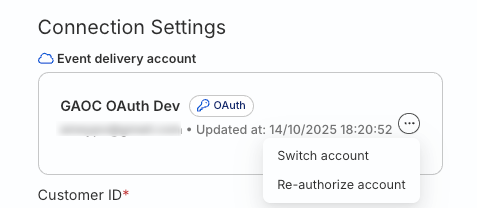
If you have authenticated multiple accounts, click the meatballs menu (...) and click Switch account to switch to the required account.
RudderStack gives an error if you try to delete an account used by any other connection set up for the same destination.
Connection settings
| Setting | Description |
|---|---|
| Name | Assign a name to uniquely identify the destination in RudderStack. |
| Customer ID | Enter the ID associated with your Google Ads account. See FAQ for more information on obtaining your customer ID. |
| Subaccount | Turn on this setting if you are using a Google Ads subaccount (subaccount of a manager account). See the Google Ads documentation for more information on subaccounts. |
| Login Customer ID | This setting is visible if you toggle on Subaccount. Enter the customer ID of the manager account. See the FAQ for guidance on when this field is required. |
Event settings
| Setting | Description |
|---|---|
| Map your events with Google Ads Offline Conversions | Enter the RudderStack event name you want to map to the Click, Call, or Store conversion type in Google Ads.
|
| Map your Google Ads Conversions Names | Enter the RudderStack event name corresponding to the Google Ads Conversion name created in the Google Ads dashboard. See FAQ for more information on creating click and call conversions in Google Ads dashboard. |
| Map your variable names to custom Google Ads variables | Enter the track event property to map to the Google Ads custom variable (defined in the Google dashboard).See FAQ for more information. |
| User Identifier Source | Select the type of user identifier source from the dropdown. RudderStack provides the following options:
|
| Conversion Environment | Select the conversion environment of the uploaded conversion from the dropdown. RudderStack provides the following options:
|
| The user identifier for store and click conversions | Select the default user identifier from Email or Phone Number for store and click conversions. |
| Hash User Identifying Information (SHA-256) | This setting is turned on by default and hashes the user identifying information like email and phone number using SHA-256. |
| Validate Only | Turn on this setting to only validate the request and not execute it. |
Next steps
After setting up your Google Ads Offline Conversions destination in RudderStack:
- See the Google Ads Offline Conversions Cloud Mode Integration guide to understand how RudderStack maps and sends events to Google Ads Offline Conversions
- Send test events to verify your setup is working correctly
FAQ
What are the account permissions required for this integration?
For the integration to be successful, make sure the customer account used for OAuth verification has Standard or higher (Administrative) access level permissions.
For more information on the access level permissions, refer to this Google Ads support page.
To set the access level, follow these steps:
- Log in to your Google Ads account.
- In the left navigation bar, click Admin > Access and security.
- Click the + symbol. Then, enter the email address of the account and from the list of permissions, select Standard or Administrative.
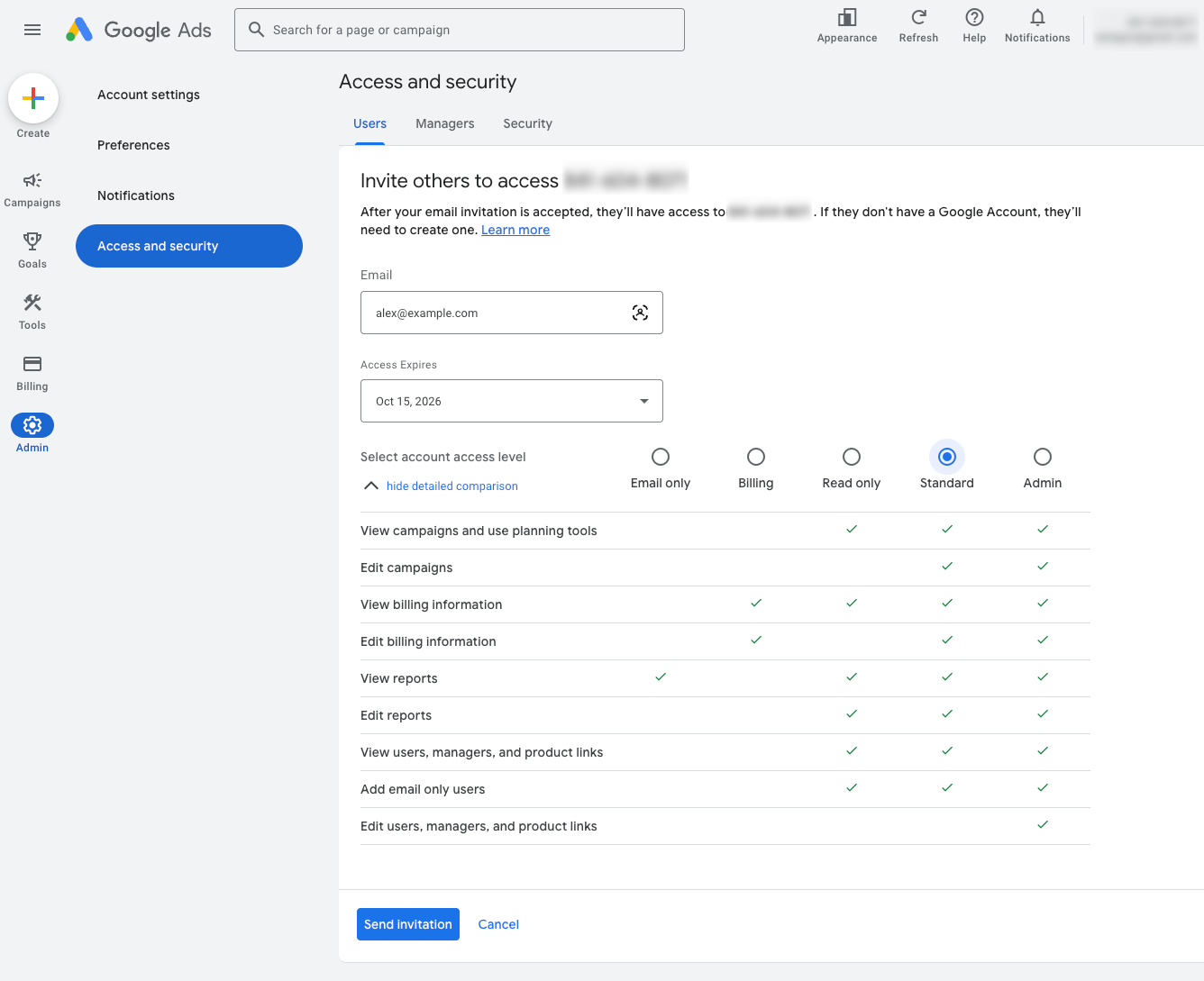
- Click Send invitation.
The account will have the access level permissions once the user accepts the invitation.
Where can I find my Google Ads customer ID?
The Google Ads customer ID is a unique number used to identify your Google Ads account. To get this ID:
- Sign in to your Google Ads account.
- Click your profile picture in the top right corner — the customer ID is listed under Account Information.
See the Google Ads Help Center for more information on finding your Google Ads customer ID.
When do I need to provide a Login Customer ID?
You need to provide the Manager Account ID (Login Customer ID setting in the dashboard) only when:
- Manager account ID is a manager of customer ID.
- The Google account you authenticated with does not have direct user access to the Customer ID
- The manager account has not been set up to manage conversions on behalf of the child account via cross-account conversion tracking
You can leave the Login Customer ID field empty if:
- The authenticated Google account has direct access to the Customer ID
- You have already configured cross-account conversion tracking
See the following references for more information:
My account uses cross-account conversion tracking. What should I enter in the Customer ID field?
If your account uses cross-account conversion tracking, make sure to enter the manager account’s Customer ID, not the child account’s.
Under cross-account conversion tracking, the conversion actions live on the manager account, and the Google Ads API requires conversion uploads to be sent to that manager.
Even though you may think of the child account as the destination for conversions, the attribution to the child happens automatically inside Google Ads — you don’t need to specify the child anywhere in the destination configuration
A common misconfiguration is setting the Customer ID field to the child account and the Login Customer ID field to the manager — this fails with errors like INVALID_CUSTOMER_ID or CUSTOMER_NOT_ACCEPTED_CUSTOMER_DATA_TERMS. To avoid this issue, use the following setup:
| Setting | Notes |
|---|---|
| Customer ID | Manager account ID (the conversion tracking owner) |
| Login Customer ID | Same manager ID — leave empty if the authenticated Google account has direct access to the manager |
To confirm which account owns conversion tracking for a given child, sign in to the child account in the Google Ads dashboard and go to Tools > Conversions. If a banner indicates conversions are managed by a manager, specify that manager’s ID in the Customer ID field.
See Cross-account conversion tracking (Google Ads API) for more information.
How do I know which Customer ID and Login Customer ID combination applies to my setup?
| Setup | Customer ID | Login Customer ID |
|---|---|---|
| Standalone account, direct OAuth access | The account itself | Leave empty |
| Standalone account, OAuth access via a manager | The account itself | The manager |
| Child account under cross-account conversion tracking | The manager (conversion tracking owner) | The manager, or leave empty if direct access |
Why am I getting the USER_PERMISSION_DENIED, INVALID_CUSTOMER_ID, or CUSTOMER_NOT_ACCEPTED_CUSTOMER_DATA_TERMS errors?
These errors usually mean the Customer ID or Manager Account ID (Login Customer ID setting in the dashboard) is misconfigured:
| Error | Notes |
|---|---|
USER_PERMISSION_DENIED | The authenticated Google account doesn’t have permission to act on the Customer ID. Verify the Login Customer ID is correct, and that this manager is linked to the Customer ID in Google Ads. |
INVALID_CUSTOMER_ID | Either the Customer ID is wrong, or the Login Customer ID isn’t authorized to access it. Under cross-account conversion tracking, this often means the Customer ID was set to a child account when it should be the manager. |
CUSTOMER_NOT_ACCEPTED_CUSTOMER_DATA_TERMS | Customer data terms haven’t been accepted on the account that owns conversion tracking. If cross-account tracking is in use, the terms must be accepted on the manager account, not the child. |
How do I create custom variables in Google Ads dashboard? Which event properties can I map with these variables?
To create custom variables in Google Ads:
- Log in to your Google Ads account.
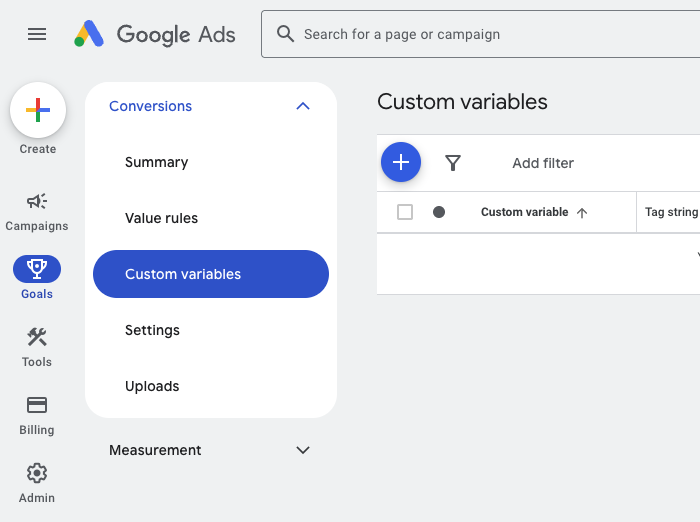
- Click Goals in the left sidebar and select Custom variables.
- In Custom Variables section, click the + sign to create a new conversion custom variable:
You can map a track event property with a Google Ads custom variable. Suppose you send the following track payload to Google Ads via RudderStack:
{
  "type": "track",
  ...
  "properties": {
    "gclid": "Cj0KCQjw6cKiBhD5ARIsAKXUdybqN7DV7ZFBelg7XMLZO-L1gCEXebkKQ7M73tQOdVNsxI_74J2grtIaAlRLEALw_wcB",
    "gbraid": null,
    "wbraid": null,
    "orderId": 1108829,
    "planName": "rudderstackTestingPlan",
    "orderUUID": "deaf39a0-c1ff-4e0d-aa6e-770deee66e85",
    "planPeriod": 0,
    "currencyCode": "USD",
    "conversionName": "annualized_revenue",
    "conversionValue": 70,
    "conversionDateTime": "2023-05-08 23:07:34+00:00"
  },
  "anonymousId": "deaf39a0-c1ff-4e0d-aa6e-770deee66e85"
}
To send planName as a custom variable to Google Ads, create a custom variable in Google Ads dashboard, for example, Plan Name:
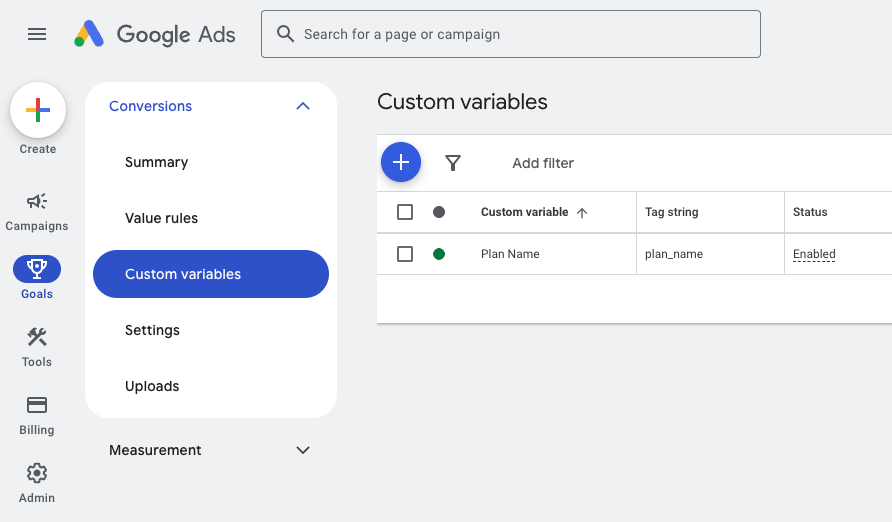
Then, enter the following mapping in the Map your variable names to custom Google Ads variables RudderStack dashboard setting:
planName → Plan Name
How to create the click and call conversions in Google Ads?
To create the click and call conversions in Google Ads:
- Log in to your Google Ads account.
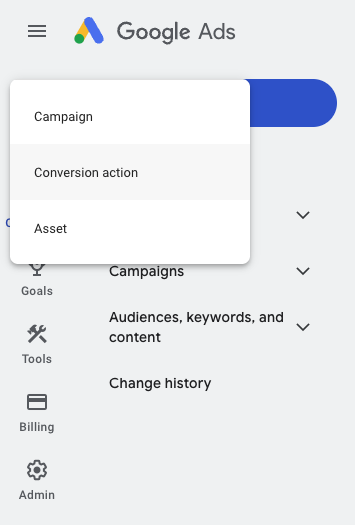
- In the left sidebar, click the Create (+) option and select Conversion action.
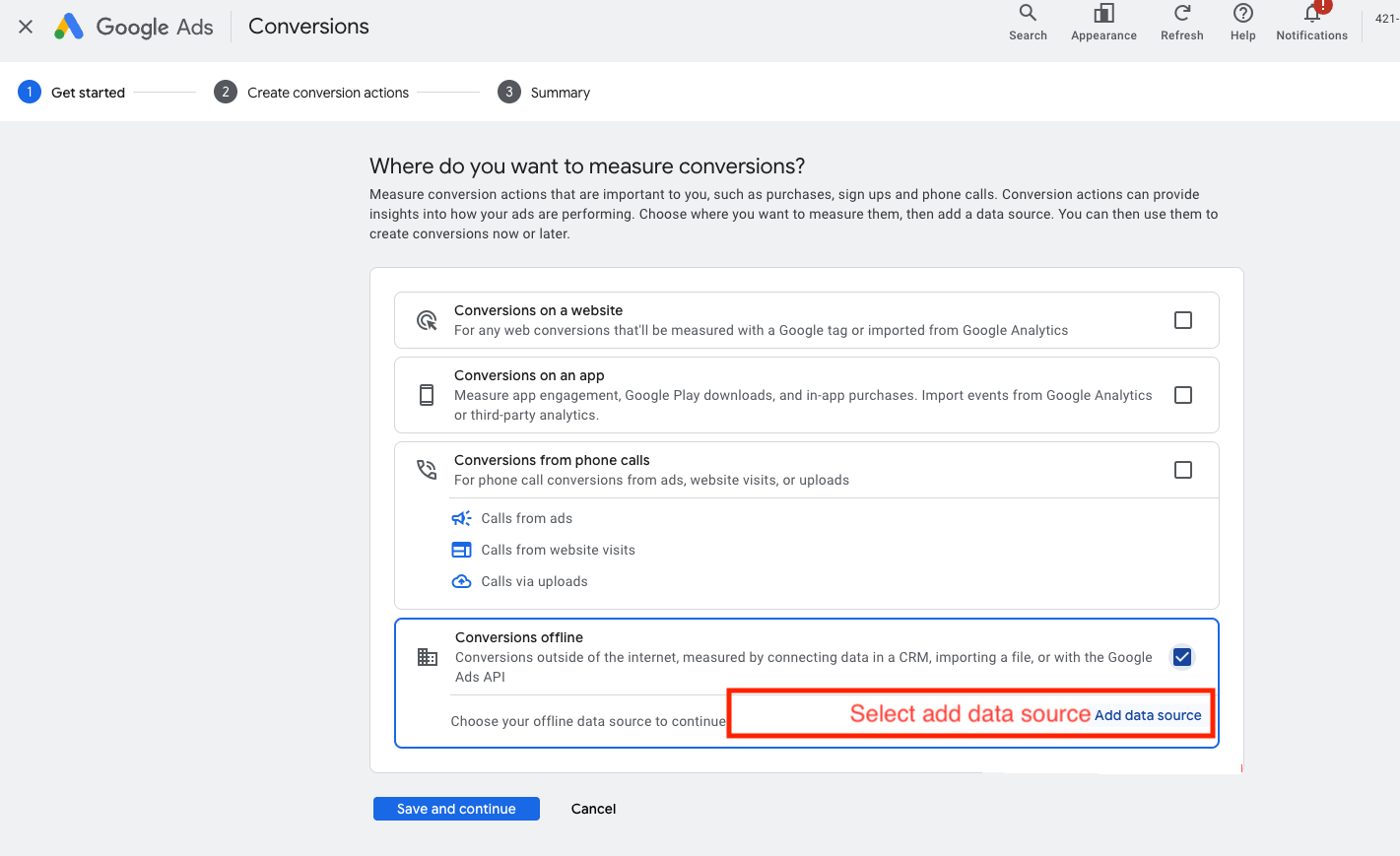
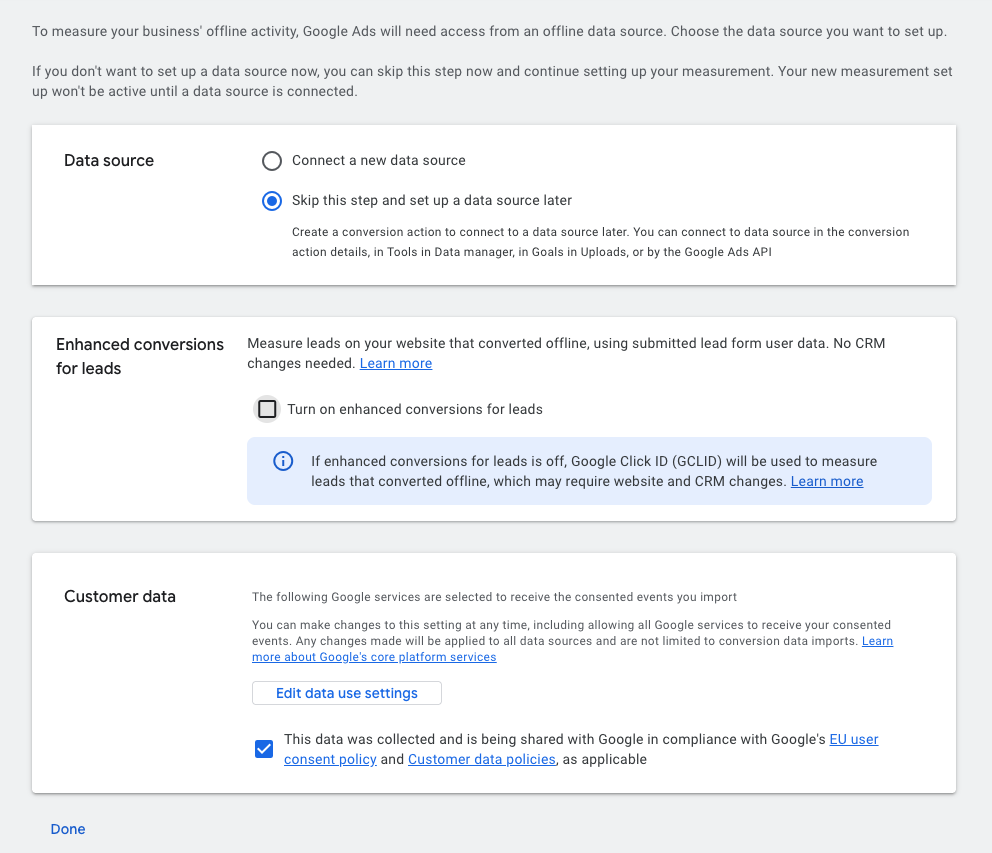
- Under Where do you want to measure conversions, select Conversions offline and click Add data source.
- Under Data source, click Skip this step and set up a data source later. Also, make sure to enable the consent and data policies under Customer data.
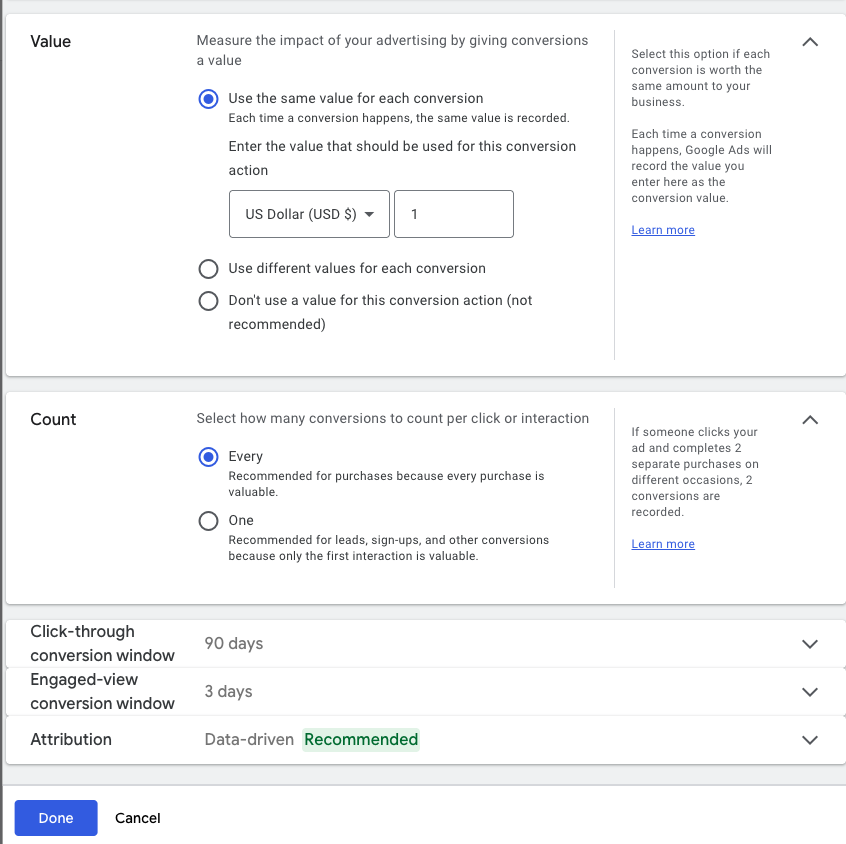
- Select the conversion category from the list. Then, click Save and continue.
- Click Edit settings for the conversion action and specify settings like the conversion name, value, count, conversion window, etc. Then, click Done to save the settings.
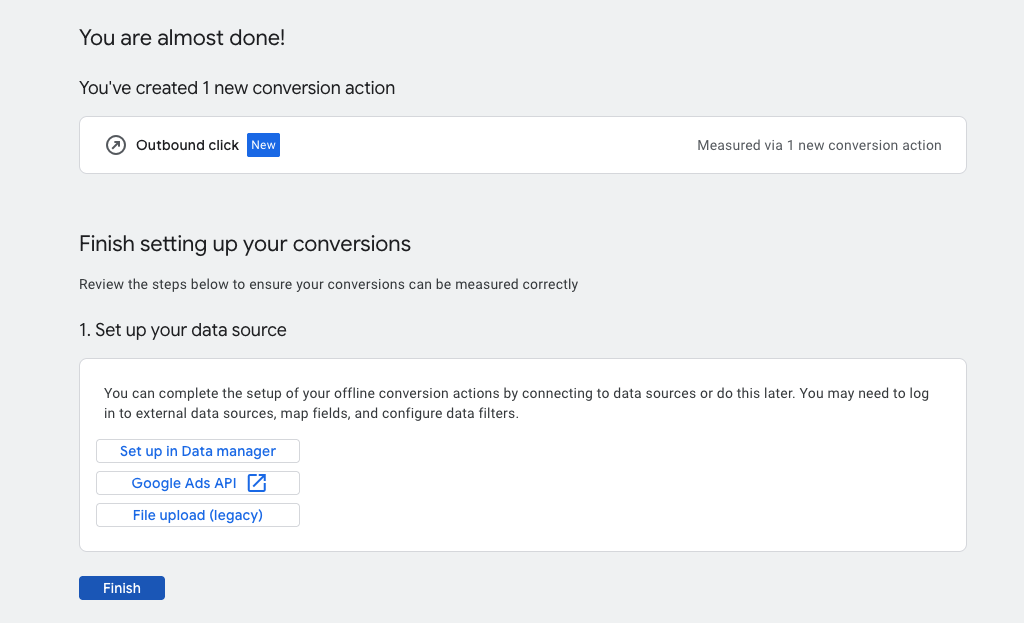
- Set up your data source to finish the configuration.
Why am I getting a 400 Bad Request error message while configuring the destination?
If you get a 400 Bad Request error while configuring the destination, make sure your customer account is allowlisted and configured to have Standard or Administrative access levels in Google Ads.
See the Google Ads Offline Conversions Account Settings section for steps on setting the required access level permissions for the account.
