Google Ads Offline Conversions Cloud Mode Integration
5 minute read
After you have successfully instrumented Google Ads Offline Conversions as a destination in RudderStack, follow this guide to correctly send your events to Google Ads Offline Conversions in cloud mode.
How to use the integration
This section gives an overview of how to use the Google Ads Offline Conversions cloud mode integration with RudderStack:
- Dashboard setup: Set up the Google Ads Offline Conversions destination in RudderStack.
- Configure event mappings: Map your RudderStack events to Google Ads conversion types (Click, Call, or Store) in the dashboard settings.
- Send track events: Use the
trackmethod to send conversion events with the required properties.
Track
RudderStack associates the track event with the event name defined in the Map your events with Google Ads Offline Conversions dashboard setting.
RudderStack supports the following conversion types:
Click conversion
You can create a conversion action to upload offline click conversions into Google Ads. The Google Ads Click Conversion API processes these click conversions.
A sample track call for a click conversion is shown below:
rudderanalytics.track('sign up completed', {
  gclid: "gclid_value",
  conversionDateTime: "2022-05-20 12:32:45-08:00"
});
The following table lists the property mappings between RudderStack and Google Ads Offline Conversions for the click conversion type:
| RudderStack property | Google Ads Offline Conversions property | Notes |
|---|---|---|
properties.conversionDateTimetimestamporiginalTimestampRequired | conversionDateTime | Date and time at which the conversion occurred. It must be after the click time and must include the timezone offset. The format for this field is yyyy-mm-dd hh:mm:ss +/- hh:mm.For example, 2019-01-01 12:32:45-08:00. |
traits.emailcontext.traits.email | hashedEmail | If User Identifier Source is set in the dashboard, either email or phone must be passed. |
traits.phonecontext.traits.phone | hashedPhoneNumber | If User Identifier Source is set in the dashboard, either email or phone must be passed. |
properties.gclid | gclid | - |
properties.gbraid | gbraid | - |
properties.wbraid | wbraid | - |
properties.externalAttributionCredit | externalAttributionCredit | - |
properties.externalAttributionModel | externalAttributionModel | - |
properties.merchantId | merchantId | - |
properties.feedCountryCode | feedCountryCode | - |
properties.feedLanguageCode | feedLanguageCode | - |
properties.localTransactionCost | localTransactionCost | - |
properties.product_idproperties.sku | productId | - |
properties.quantity | quantity | - |
properties.price | unitPrice | - |
properties.userIdentifierSource | userIdentifierSource | - |
properties.conversionEnvironment | conversionEnvironment | You can set the value for this parameter in the dashboard settings — it accepts only the following values:
|
properties.conversionValueproperties.totalproperties.valueproperties.revenue | conversionValue | - |
properties.currencyCodeproperties.currency | currencyCode | - |
properties.orderIdproperties.order_id | orderId | - |
See ID parameters section for detailed guidelines on passing the combinations of wbraid, gbraid, and gclid parameters.
Call conversion
You can create a conversion action to upload offline call conversions into Google Ads. The Google Ads Call Conversion API processes these call conversions.
A sample track call for a call conversion is shown below:
rudderanalytics.track('login', {
  callerId: "callerId_value",
  callStartDateTime: "2022-08-12 15:01:30+05:30",
  conversionDateTime: "2022-09-24 12:32:45-08:00"
});
The following table lists the property mappings between RudderStack and Google Ads Offline Conversions for the call conversion type:
| RudderStack property | Google Ads Offline Conversions property |
|---|---|
properties.callerIdRequired | callerId |
properties.callStartDateTimeRequired | callStartDateTime |
properties.conversionDateTimeoriginalTimestampRequired | conversionDateTime |
properties.conversionValueproperties.totalproperties.valueproperties.revenue | conversionValue |
properties.currencyCodeproperties.currency | currencyCode |
Store sales conversion
You can create a conversion action to upload store sales conversions into Google Ads. The Google Ads Store Conversion API creates an offline user data job.
A sample track call for a store sales conversion is shown below:
rudderanalytics.track("Product Reviewed",{
    "loyaltyFraction": 1,
    "order_id": "order id",
    "currency": "USD",
    "revenue": "100",
    "store_code": "store code",
    "email": "alex@example.com",
    "gclid": "gclid",
    "conversionDateTime": "2022-01-01 12:32:45-08:00",
    "product_id": "123445",
    "custom_key": "CUSTOM_KEY",
    "CUSTOM_KEY": "CUSTOM_VALUE",
    "quantity": 123
  })
The below fields are required to send the store conversions successfully:
event- Any one of the
properties.total,properties.value,properties.revenue, orproperties.currency
See job creation, address info, and conversion mapping parameter mappings for more information on the optional fields you can send in the payload.
If you specify a user identifier in The user identifier for store and click conversions setting but don’t include it in the payload, RudderStack looks for the following fields as user identifiers (in the same priority order):
- Address
- Phone
If none of the above are present, RudderStack sends an empty user identifier.
Specify consent for click and call conversions
You can specify user consent for leveraging their data for advertisements and personalization in case of click, call, and store sales conversions. To do so, use the integrations object in your track event as follows:
rudderanalytics.track('Signup Completed', {
  prop1: 'val1',
  gclid: "gclid_value",
  conversionDateTime: "2022-05-20 12:32:45-08:00"
}, {
  "integrations": {
    "GOOGLE_ADWORDS_OFFLINE_CONVERSIONS": {
      "consents": {
        "adUserData": "GRANTED",
        "adPersonalization": "GRANTED"
      }
    }
  }
});
Note the following:
- The permissible values for the
adUserDataandadPersonalizationfields are:UNSPECIFIEDUNKNOWNGRANTED
- If you set these fields to any other value, RudderStack automatically changes them to
UNKNOWN. - If you do not set the
consentsfield in the event payload, RudderStack sets theadUserDataandadPersonalizationfields toUNSPECIFIEDby default.
FAQ
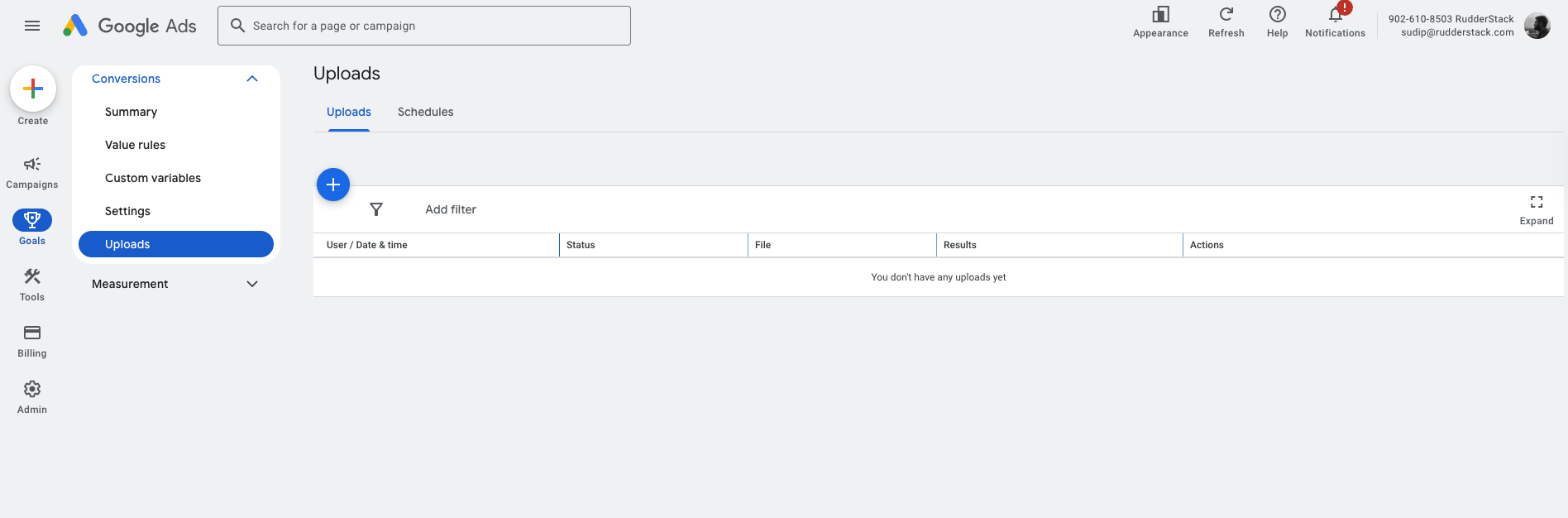
How to check the upload conversions in Google Ads?
To check the upload conversions in Google Ads:
- Log in to your Google Ads account.
- Click Goals in the left navigation bar. Then, click Uploads to view the uploaded conversions.
Why am I not seeing the enhanced conversions for my offline events?
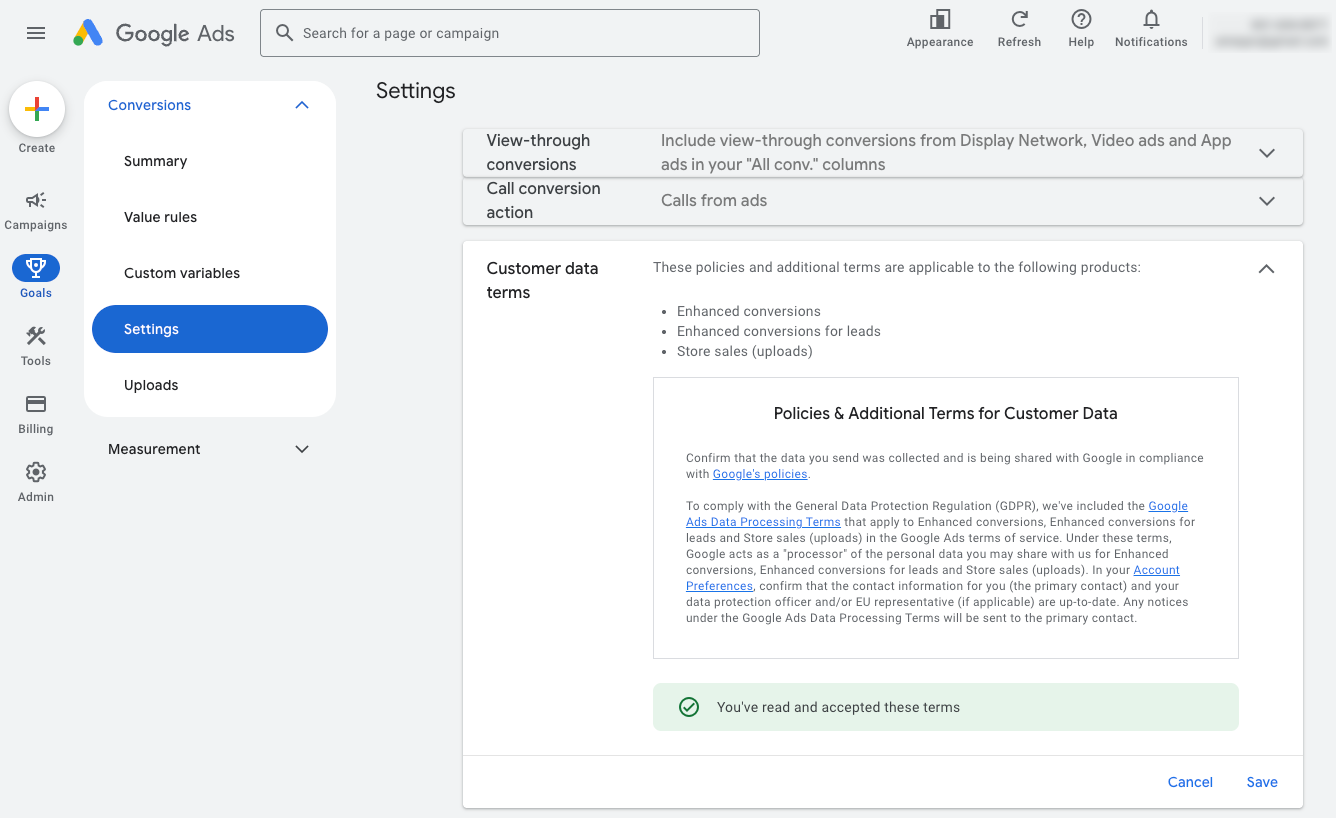
Verify if you have accepted the customer data terms in the conversion settings page — follow these steps to do so:
- Log in to your Google Ads account.
- Click Goals in the left navigation bar. Then, click Settings.
- Click Customer data terms.
- Review and accept the terms, then click Save.
See the Google Ads documentation for detailed information on enhanced conversions diagnosis.
