Facebook Pixel Destination Setup Guide
8 minute read
This guide will help you set up Facebook Pixel as a destination in the RudderStack dashboard. It also lists the configuration settings required to correctly send data from the supported sources to Facebook Pixel.
Connection compatibility
| Destination Information | |||
|---|---|---|---|
| |||


In the web device mode integration, that is, using JavaScript SDK as a source, RudderStack loads the Facebook Pixel native SDK from the
https://connect.facebook.net/domain.Based on your website’s content security policy, you will need to allowlist this domain to load the Facebook Pixel SDK successfully.
Setup
- In your RudderStack dashboard, set up a source.
- Go to the Overview tab of your source and select Add Destination > Create new destination.
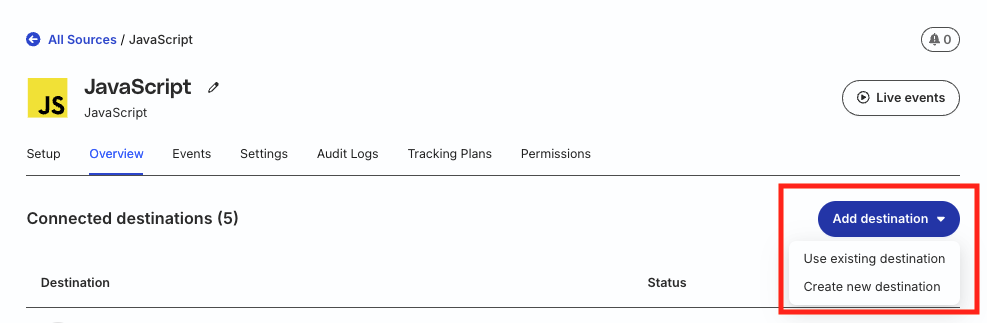
- Select Facebook Pixel from the list of destinations. Then, click Continue.
Connection settings
| Setting | Description |
|---|---|
| Name | Assign a name to uniquely identify the destination in RudderStack. |
| Pixel ID | Enter your Facebook Pixel ID — this is required for sending events in both cloud and device modes. See the FAQ section below for more information on obtaining your Facebook Pixel ID. |
| Business Access Token | Specify your Facebook business access token — it is required to send events only in cloud mode. See the FAQ section below for more information on obtaining this token. |
Configuration settings
Configure the settings in the below sections to receive your data correctly in Facebook Pixel.
Event settings
| Setting | Description |
|---|---|
| Enable Standard Event (PageView) for all Page and Screen Calls | If toggled on, RudderStack sets pageview as a standard event for all page and screen calls. |
| Value Field Identifier | Set this field to either properties.price or properties.value from the dropdown — RudderStack maps it to Facebook’s value field. You can use this setting for the Product Viewed or Product Added events. |
| Enable Advanced Matching | Toggle on this setting to update user information in Facebook Pixel device mode. |
| Use Updated Mapping | This setting is applicable only in device mode. See Web device mode settings for more information on this setting. |
Event mapping settings
RudderStack maps some events to the Facebook custom events by default. You can use this option to override the default mappings and map your events to specific Facebook custom events.
PII properties settings
The following settings help you control how RudderStack handles personally identifiable information (PII) before sending events to Facebook Pixel, helping you comply with Facebook’s data policies and privacy requirements.
| Setting | Description |
|---|---|
| Denylist PII Properties | Specify the PII properties to exclude completely or hash before sending events to Facebook. You can configure each property individually to either exclude or hash it. |
| Hash Denylist PII Property | Toggle on this setting to hash-encrypt the PII properties mentioned in the Denylist PII Properties field in SHA-256 format before sending them to Facebook. If this setting is toggled off, the PII property specified in the Denylist PII Properties field is excluded from the events sent to Facebook. |
| Input PII properties you want to allowlist | Specify PII properties that RudderStack should include in events sent to Facebook.
|
Default denylisted PII properties
Click here to see the complete list of PII properties that RudderStack denylists by default.
emailfirstNamelastNamefirstnamelastnamefirst_namelast_namegendercitycountryphonestatezippostalCodebirthday
Destination settings
| Setting | Description |
|---|---|
| Limited Data Usage | If toggled on, RudderStack takes the data processing information from the event payload and sends it to Facebook. See Limited data usage section below for more information on using this setting. |
| Use as Test Destination | Toggle on this setting to use the destination for testing purposes and enter the Test Event Code. You can find this code in your Facebook Pixel dashboard. When enabled, you can check your events in the Facebook Pixel dashboard in real time. |
| Don’t send external_id for user | If toggled on, RudderStack does not send either userId or anonymousId as the external_id to Facebook Pixel. |
Other settings
| Setting | Description |
|---|---|
| Client-side Events Filtering | This setting lets you specify which events should be blocked or allowed to flow through to Facebook Pixel. See the Client-side Events Filtering guide for more information. |
| Consent management settings | Configure the consent management settings for the specified source by choosing the Consent management provider from the dropdown and entering the relevant consent category IDs. See Consent Management in RudderStack for more information on this feature.
|
Web device mode settings
| Setting | Description |
|---|---|
| Use Updated Mapping | This setting is toggled off by default, causing RudderStack to send user traits to Facebook Pixel without any modification. See the Use updated mappings section for more information on this setting. |
| Legacy Conversion Pixel IDs | With this setting, you can send specific events to a legacy conversion Pixel by specifying the event-Pixel ID mapping. |
| Enable Automatic Configuration | Toggled on by default, this setting sends button click and page metadata from your website to improve your ads delivery and measurement and automate your Pixel setup. See the Meta documentation for more information on this feature. |
Use updated mappings
If you toggle on the Use Updated Mappings dashboard setting, RudderStack takes the following traits:
{
  firstName: "Alex",
  lastName: "Keener",
  email: "alex@example.com",
  phone: "12345678910",
  gender: "Male",
  birthday: "01012001",
  city: "New Orleans",
  country: "USA",
  zip: "90009", // You can also send postalCode instead
  state: "Louisiana",
  foo: "bar",
}
It then sends the above traits to Facebook Pixel in the following format:
{
  fn: "Alex",
  ln: "Keener",
  em: "alex@example.com",
  ph: "12345678910",
  ge: "Male",
  db: "01012001",
  ct: "New Orleans",
  country: "USA",
  zp: "90009",
  state: "Louisiana",
  foo: "bar"
}
If you enable both the Enable Advanced Matching and Use Updated Mapping settings, RudderStack maps
external_idfrom the following fields, in the specified order:
userIdcontext.traits.userIdcontext.traits.idanonymousId
Send fbc and fbp parameters
RudderStack maps the fbc and fbp parameters from the context.fbc and context.fbp fields of the event payload:
"context": {
  "fbc": "fb.1.1554763741205.AbCdEfGhIjKlMnOpQrStUvWxYz1234567890",
  "fbp": "fb.1.1554763741205.234567890"
}
If you don’t set context.fbc explicitly, RudderStack autogenerates it using the following values:
- Fetches
fbclidfromcontext.page.url - Uses the event’s
timestampas the creation time, falling back tooriginalTimestamp - Sets
subdomainIndexto1 - Sets
versiontofb
There’s no such fallback for
fbp- RudderStack sends it only if you setcontext.fbpyourself.Also note that the
fbcautogeneration depends onfbclidbeing present incontext.page.urlfor that specific event. If the event fires on a page whose URL doesn’t carryfbclid- a Shopify-hosted checkout, for example - RudderStack can’t deducefbc.
Limited data usage
If you toggle on the Limited Data Usage dashboard setting, RudderStack takes the data processing information from the event payload and sends it to Facebook.
Note that the data in the RudderStack event payload should be as shown:
"context": {
  "dataProcessingOptions": [
    [
      "LDU"
    ],
    1,
    1000
  ],
  "fbc": "fb.1.1554763741205.AbCdEfGhIjKlMnOpQrStUvWxYz1234567890",
  "fbp": "fb.1.1554763741205.234567890",
  "fb_login_id": "fb_id",
  "lead_id": "lead_id",
  "device": {
    "id": "df16bffa-5c3d-4fbb-9bce-3bab098129a7R",
    "manufacturer": "Xiaomi",
    "model": "Redmi 6",
    "name": "xiaomi"
  },
  "network": {
    "carrier": "AirCarrier"
  },
  "os": {
    "name": "android",
    "version": "8.1.0"
  },
  "screen": {
    "height": "100",
    "density": 50
  },
  "traits": {
    "email": "john@example.com",
    "anonymousId": "c82cbdff-e5be-4009-ac78-cdeea09ab4b1"
  }
}Thecontext.dataProcessingOptionswill be mapped todata_processing_optionsin Facebook as is mentioned in the Facebook developer docs.
FAQ
Where can I find the Pixel ID?
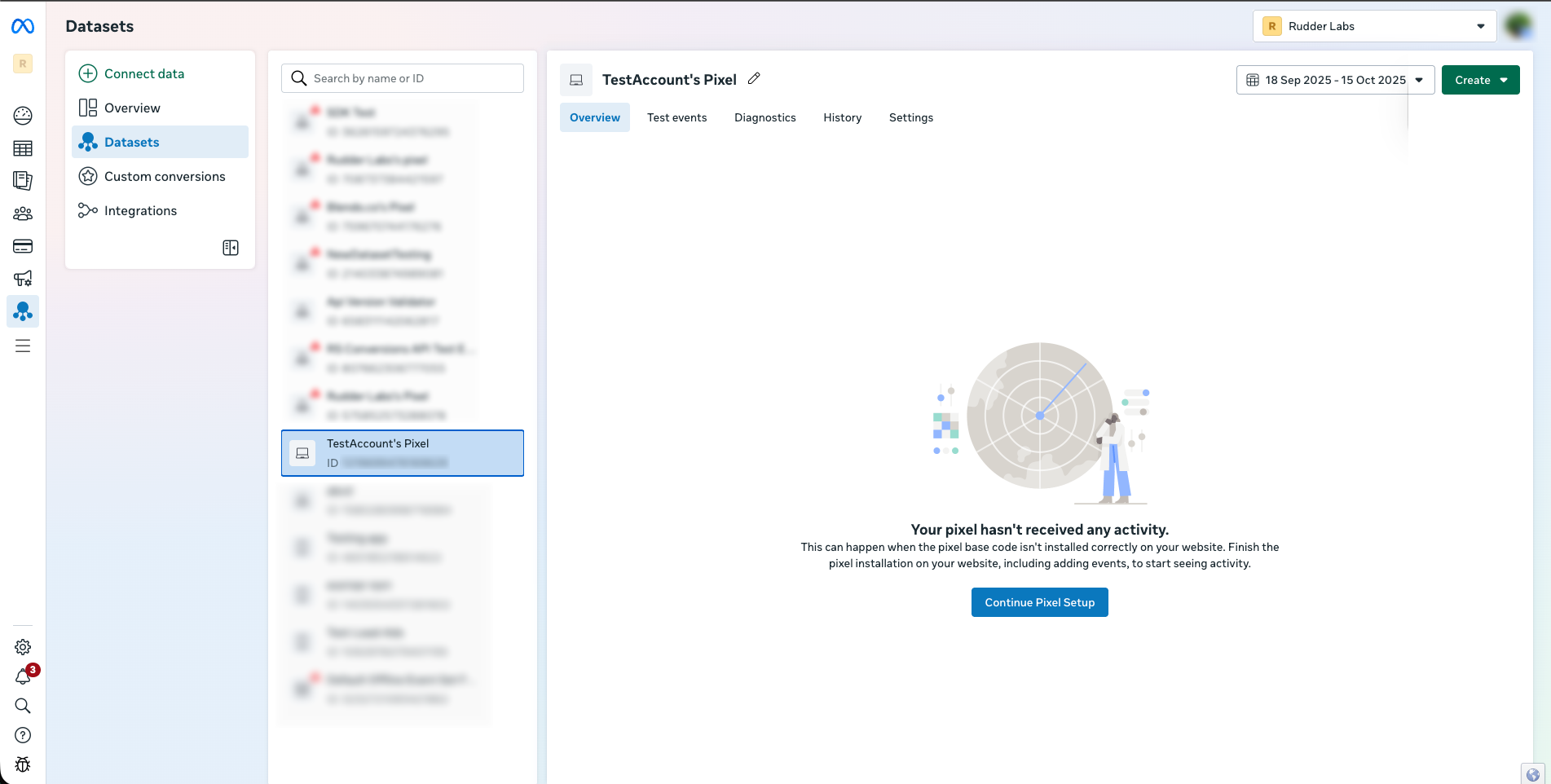
- Go to Facebook Events Manager.
- Click the Datasets icon in the left navigation bar and click Datasets. All the Pixels associated with your account will be listed here along with their IDs.
Where can I find the Business Access Token?
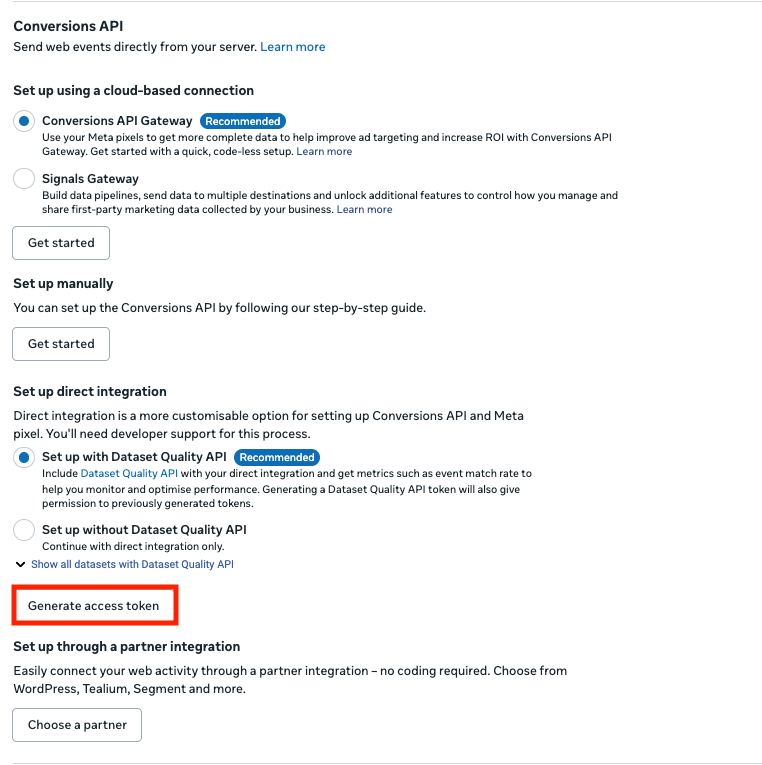
- Go to Facebook Events Manager and select the Facebook Pixel.
- Click the Settings tab.

- In the Conversions API section, click Generate access token under Set up direct integration.
See the Facebook documentation for more information on how to use this access token or to generate your access token via your own app.
Can I hash my user data before sending it to RudderStack?
Yes. Facebook Pixel requires all user data, data coming from context.traits, to be hashed. This includes email, phone, birthday, address, etc. By default, RudderStack will automatically hash all of the necessary properties for you. However, if you would like to hash these traits before sending to RudderStack then you need to add this code to the event.
rudderanalytics.track(
  "some_event_name",
  { some_properties },
  {
    integrations: {
      "Facebook Pixel": {
        hashed: true,
      },
    },
  }
)
The integrations object with these key-values will tell RudderStack not to hash the traits in context.traits because they are already hashed. Otherwise, RudderStack will hash your data again and Facebook will not be able to match the traits. Please keep in mind that Facebook will not accept un-hashed data.
I can see my events being sent in the RudderStack dashboard but are not visible in the Facebook Pixel dashboard. What could be the reason?
It may take up to 24 hours for your events to reflect in the Facebook Pixel dashboard.
You can also verify if your events are flowing correctly by enabling the Use as Test Destination setting in the RudderStack dashboard. It reflects the events in the Facebook Pixel dashboard in real time.
