Dub Destination Setup Guide Beta
Set up Dub as a destination in RudderStack.
3 minute read
This guide will help you set up Dub as a destination in the RudderStack dashboard. It also lists the configuration settings required to correctly send data from the supported sources to Dub.
Connection compatibility
| Destination Information | |||
|---|---|---|---|
| |||


Setup
- In your RudderStack dashboard, set up a source.
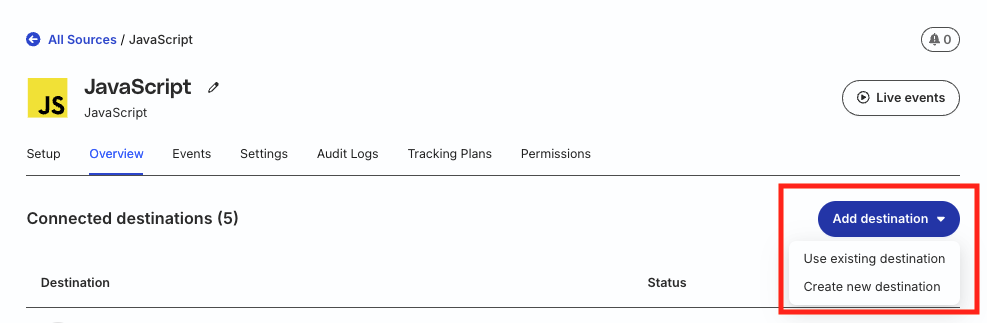
- Go to the Overview tab of your source and select Add Destination > Create new destination.
- Select Dub from the list of destinations. Then, click Continue.
Connection settings
| Setting | Description |
|---|---|
| Name | Assign a name to uniquely identify the destination in RudderStack. |
| API key Required | Your Dub API key used for authentication. It must follow the format dub_ followed by alphanumeric characters.
|
| Convert amount to cents | This setting is toggled on by default. When enabled, RudderStack multiplies monetary amounts by 100 before sending them to Dub, thereby converting dollars to cents as required by Dub’s API. If this setting is disabled, RudderStack sends the specified amount value as is, without any conversion. See the Dub documentation for more information on currency conversion support. |
Configuration settings
| Setting | Description |
|---|---|
| Event mappings | Map your RudderStack events to Dub’s LEAD_CONVERSION or SALES_CONVERSION events.
|
| Consent management settings | Configure the consent management settings for the specified source by choosing the Consent management provider from the dropdown and entering the relevant consent category IDs. See Consent Management in RudderStack for more information on this feature.
|
Next steps
After setting up your Dub destination in RudderStack:
- See the Dub Cloud Mode Integration guide to understand how RudderStack maps and sends events to Dub
- Send test events to verify your setup is working correctly
- See the detailed FAQ guide for answers to the commonly asked questions on this integration
FAQ
Where can I find my Dub API key?
- Log in to your Dub dashboard.
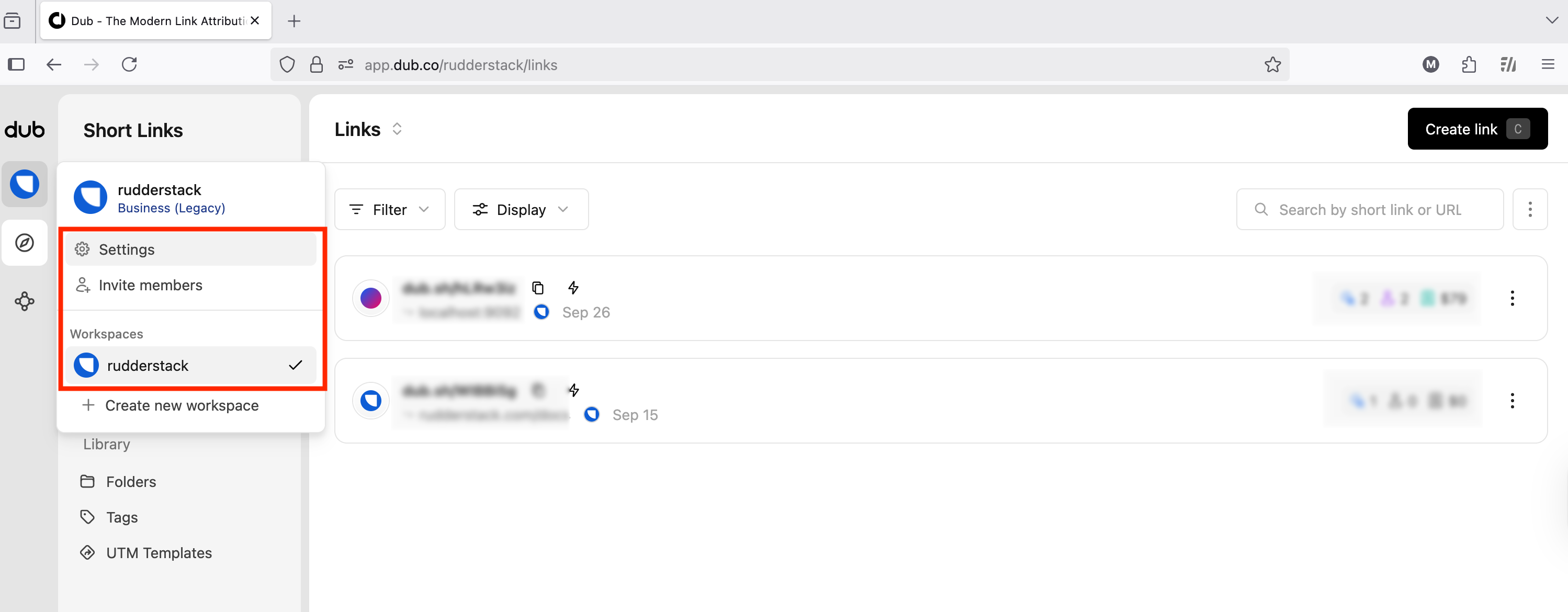
- Click the profile in the left sidebar to see Settings.
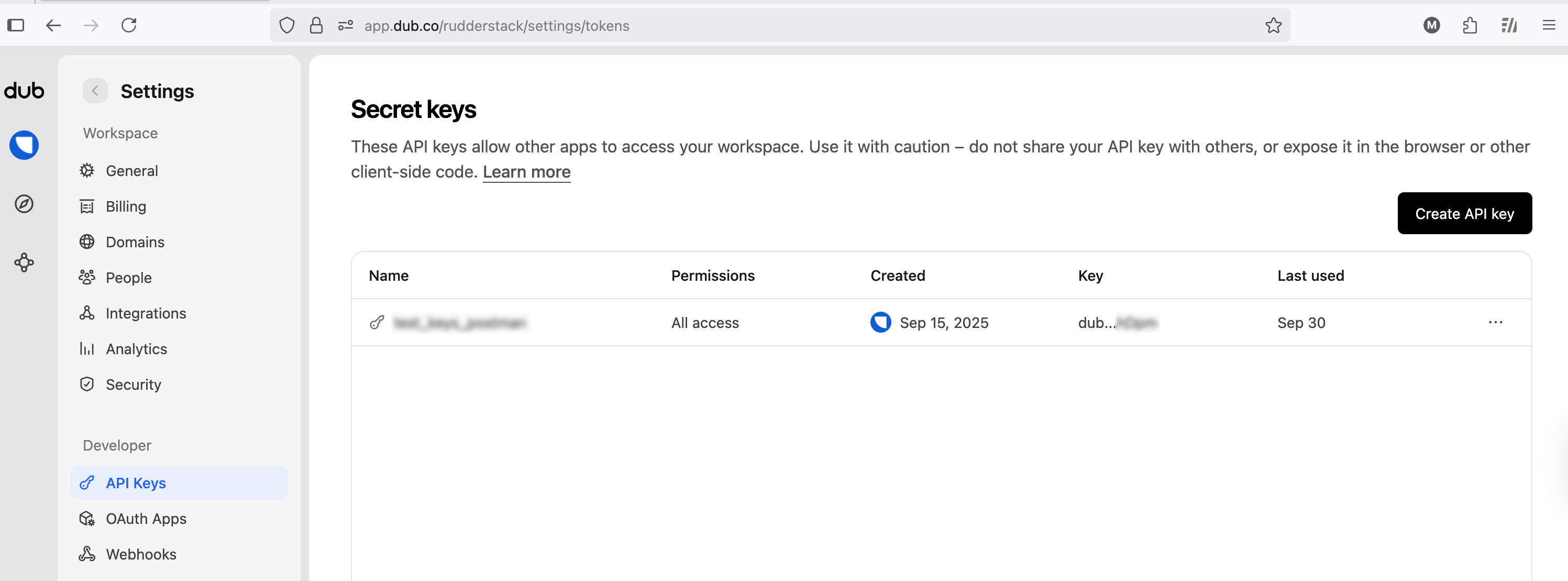
- Go to the API Keys section and copy your API key — it should start with
dub_followed by alphanumeric characters.