# Setup Guide
This guide will help you set up Drip as a destination in the RudderStack dashboard. It also lists the configuration settings required to correctly send data from the supported sources to Drip.
## Connection compatibility
{{< destination-config >}}
{{< info >}}
In the web device mode integration, that is, using [JavaScript SDK]({{< ref "sources/event-streams/sdks/rudderstack-javascript-sdk/_index.md" >}}) as a source, RudderStack loads the Drip native SDK from the `https://tag.getdrip.com` domain.
Based on your website's content security policy, you might need to [allowlist this domain]({{< ref "sources/event-streams/sdks/rudderstack-javascript-sdk/load-js-sdk.md#allowlist-destination-domain" >}}) to load the Drip SDK successfully.
{{< /info >}}
## Get started
Once you have confirmed that the source supports sending events to Drip, follow these steps:
- From your [RudderStack dashboard](https://app.rudderstack.com/), add the source. From the list of destinations, select **Drip**.
- Give a name to the destination and click **Next**. You should then see the following screen:
{{< image src="images/3 (27).webp" >}}Connection Settings for Drip
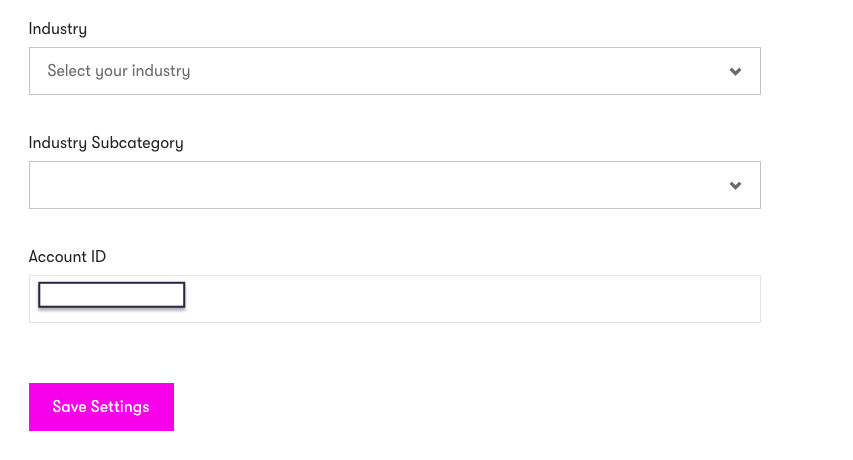
- Next, enter your Drip **Account ID**. To get your **Account ID**, [sign in](https://login.getdrip.com/login/email) to your Drip dashboard and go to **Settings** - **Account**. Scroll down to see your Account ID.
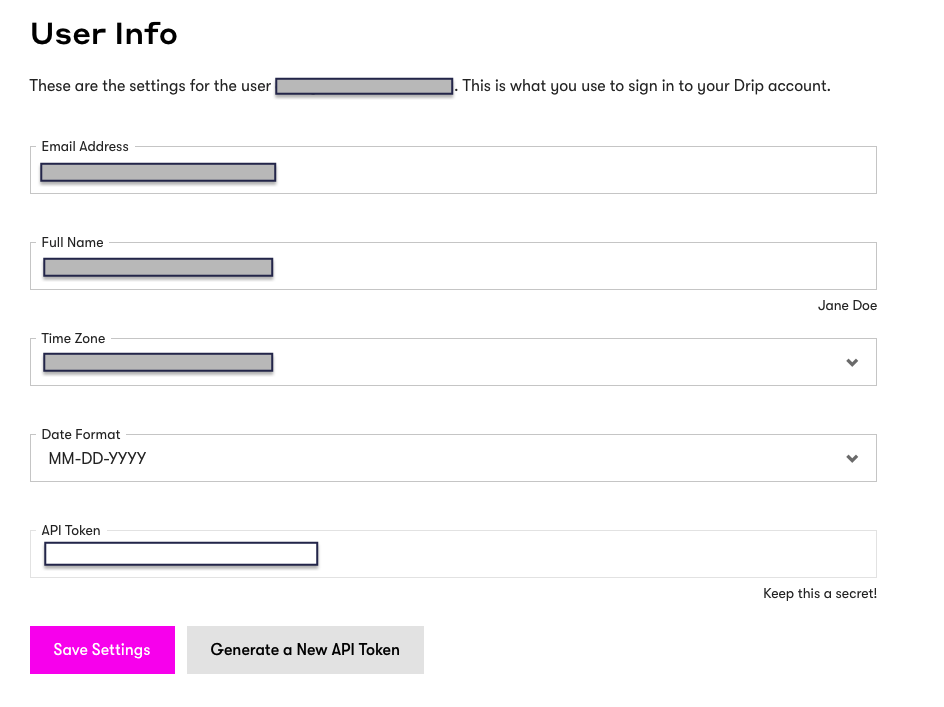
 - Enter your Drip **API Token**. To get your Drip API token, go to **Settings** - **User Settings** in your Drip dashboard.
 {{< info >}}
The API token is required when using cloud mode to send your data.
{{< /info >}}
- Enter your **Campaign ID**. To get your campaign ID, go to **Campaigns** - **Email Series** and choose the relevant campaign. The last part of the URL is the campaign ID, e.g. `https://www.getdrip.com/account_id/campaigns/campaign_id`.
{{< info >}}
If the Campaign ID is provided, RudderStack will try to subscribe the users by default.
{{< /info >}}
{{< success >}}
You can also send your Campaign ID via the `identify` call, which takes a higher precedence.
{{< /success >}}
- **User Creation Mode** This option lets you create the user with their `email` using the `track` call, if the user doesn't already exist.
- **Use device-mode to send events**: Enable this option to send events via the web [device mode]({{< ref "destinations/rudderstack-connection-modes.md#device-mode" >}}).
- Finally, click **Next**. That's it! Drip will now be enabled as a destination in RudderStack.
{{< info >}}
The API token is required when using cloud mode to send your data.
{{< /info >}}
- Enter your **Campaign ID**. To get your campaign ID, go to **Campaigns** - **Email Series** and choose the relevant campaign. The last part of the URL is the campaign ID, e.g. `https://www.getdrip.com/account_id/campaigns/campaign_id`.
{{< info >}}
If the Campaign ID is provided, RudderStack will try to subscribe the users by default.
{{< /info >}}
{{< success >}}
You can also send your Campaign ID via the `identify` call, which takes a higher precedence.
{{< /success >}}
- **User Creation Mode** This option lets you create the user with their `email` using the `track` call, if the user doesn't already exist.
- **Use device-mode to send events**: Enable this option to send events via the web [device mode]({{< ref "destinations/rudderstack-connection-modes.md#device-mode" >}}).
- Finally, click **Next**. That's it! Drip will now be enabled as a destination in RudderStack.