DCM Floodlight Setup Guide
6 minute read
This guide will help you set up DCM Floodlight as a destination in RudderStack.
Connection compatibility
| Destination Information | |||
|---|---|---|---|
| |||


In the web device mode integration, that is, using JavaScript SDK as a source, RudderStack loads the DCM Floodlight native SDK from the
https://www.googletagmanager.com/domain.Based on your website’s content security policy, you might need to allowlist this domain to load the DCM Floodlight SDK successfully.
Setup
- In your RudderStack dashboard, set up a source.
- Go to the Overview tab of your source and select Add Destination > Create new destination.
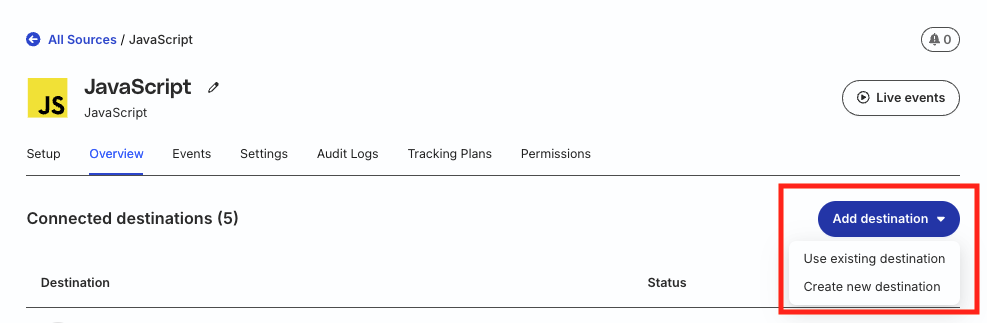
- Select DCM Floodlight from the list of destinations. Then, click Continue.
Connection settings
| Setting | Description |
|---|---|
| DoubleClick Advertiser ID | Enter your Advertiser ID visible in the Campaigns or Activities tab in your dashboard. See the FAQ section for more information on obtaining the Advertiser ID. |
| Activity Tag | Enter the Floodlight Activity Tag (cat) to define the same parameter value across all conversion events. Alternatively, you can define this value for each conversion event mapping in the Floodlight Activity Tag field below. |
| Group Tag | Enter the Floodlight Group Tag (type) to define the same parameter value across all group conversion events. Alternatively, you can define this value for each conversion event in the Floodlight Group Tag field below.For more information on finding cat and type in your Campaign Manager dashboard, see the FAQ section below. |
| Counting Method | Use this setting to define the same parameter value across all conversion events. Alternatively, you can define this value for each conversion event in the Floodlight Counting Method field in the Conversion events settings. |
Conversion events
| Setting | Description |
|---|---|
| RudderStack Event Name | Enter your RudderStack event name which will be mapped to the Floodlight tag. |
| Floodlight Activity Tag | Enter the cat of your tag string. If left blank, RudderStack will pick the value from the Activity Tag field mentioned above. |
| Floodlight Group Tag | Enter the type of your tag string. If left blank, RudderStack will pick the value from the Group Tag field mentioned above. |
| Floodlight Counting Method | Specify the counting method for the conversion event. RudderStack uses this as a fallback value if properties.countingMethod is not present in the event. |
| Fire as Sales Tag | Enable the toggle button for Sales tag. Keep it disabled if it is a Counter tag.
|
| Custom Floodlight variables | Enter the custom Floodlight variables to capture additional reporting data beyond the usual metrics (like visits and revenue). For more information on finding the custom Floodlight variables, see the FAQ section below. |
Client-side events filtering
This setting is applicable only if you’re sending events to DCM Floodloght in web device mode.
See the Client-side Event Filtering guide for more information on this setting.
Web device mode settings
The following settings are applicable only when sending events to DCM Floodlight in web device mode:
| Setting | Description |
|---|---|
| Use device mode to send events | Enable this setting to send events via the RudderStack device mode.
|
| Tag Format | Select the tag format from the dropdown — RudderStack supports both the Global site tag and the Iframe tag. RudderStack recommends using the global site tag over iframe tag — for more information, see the Campaign Manager 360 Help Center
|
| Conversion Linker | Enabled by default, this setting sets the first-party cookies on your site’s domain. |
| Allow ad personalization signals | Enabled by default, it lets the global site tag to collect remarketing data.
|
| DoubleClick Id | Enable this setting if you want to use the Google’s cookie matching functionality. Then, provide the Google Network ID. |
| Google Network ID | Enter the Google Network ID (NID) for the bidder account. |
| Consent management settings | Configure the consent management settings for the specified source by choosing the Consent management provider from the dropdown and entering the relevant consent category IDs. See Consent Management in RudderStack for more information on this feature. |
FAQ
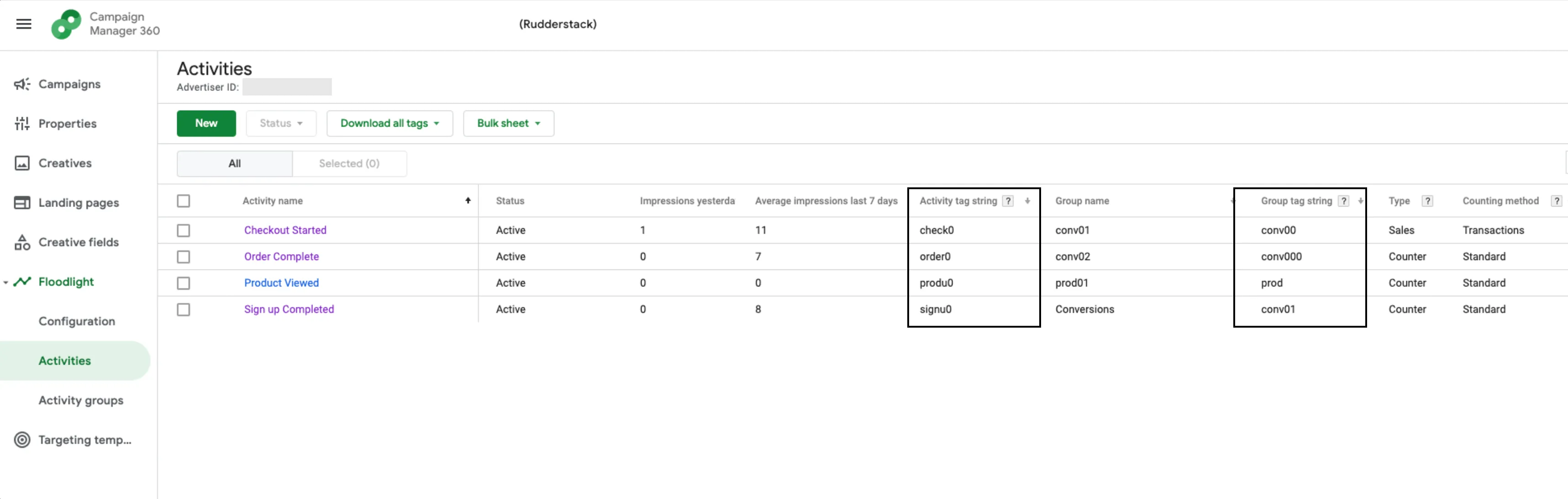
Where can I find the activity tag string (cat) and group tag string (type)?
In your Campaign Manager dashboard, go to Floodlight > Activities. Here you can see all activity names along with their Activity tag string (cat) and Group tag string (type):
Where can I find the Advertiser ID?
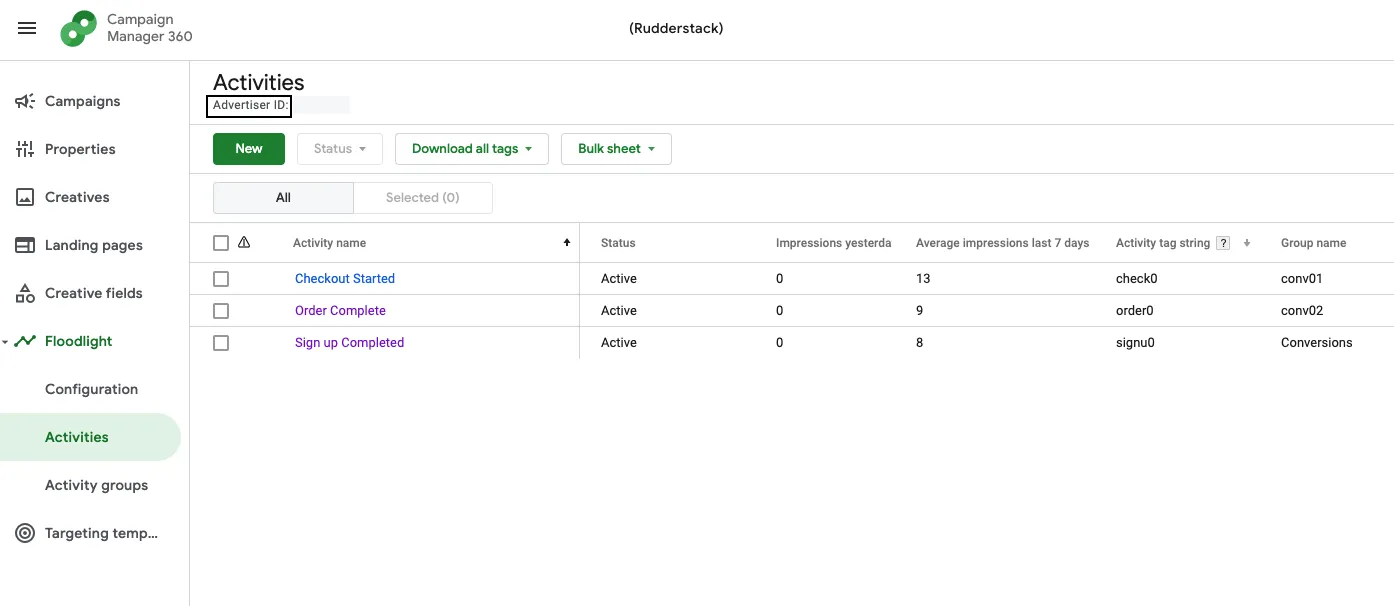
To get the Advertiser ID, go to your Campaign Manager 360 account and navigate to the Campaigns or Activities tab in your dashboard to obtain the Advertiser ID:
Where can I find the custom Floodlight variables?
To create custom Floodlight variables, refer to this Campaign Manager guide.
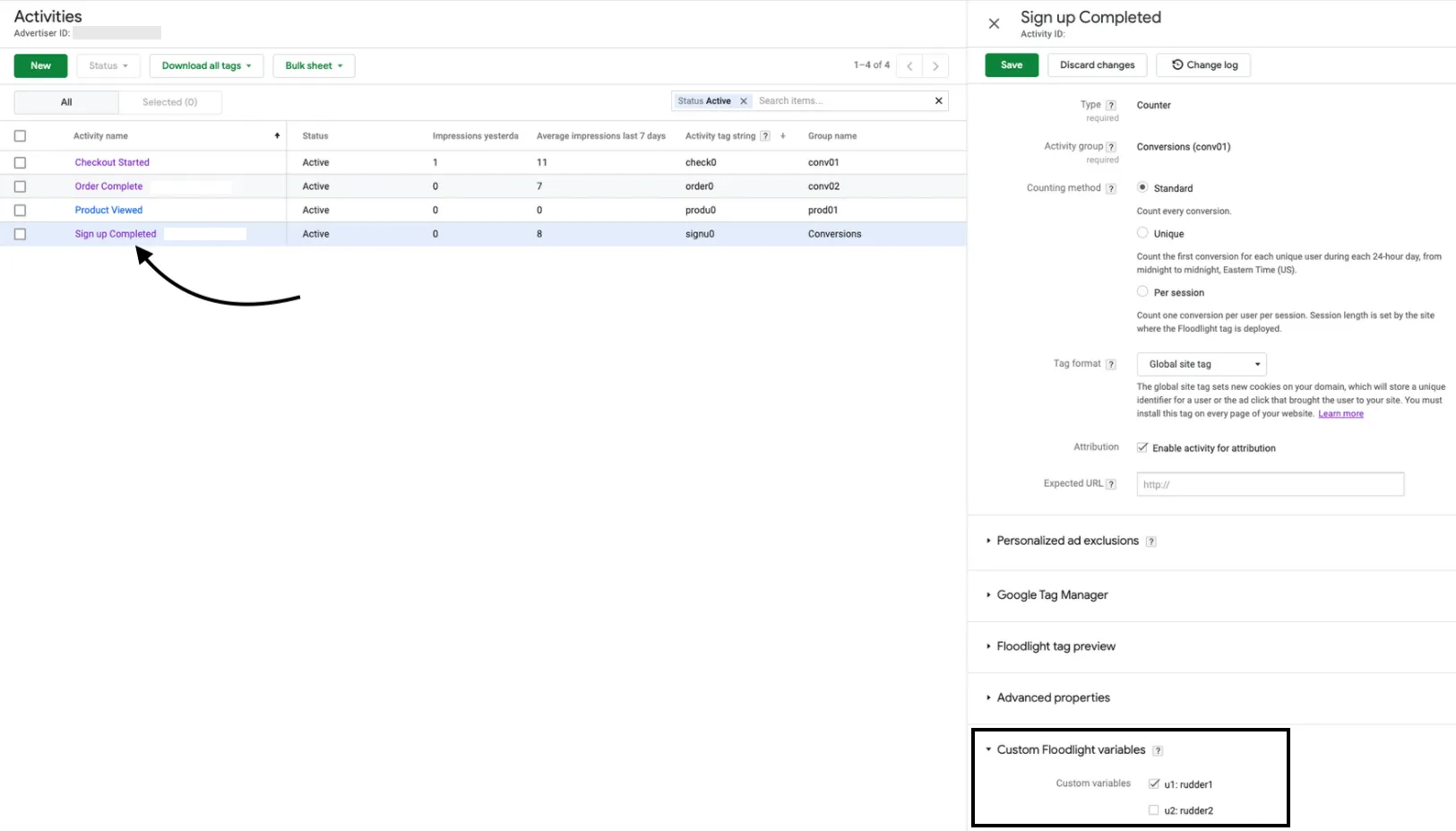
You can find the custom Floodlight variables for your activities by going to Floodlight > Activities. Then, click any activity to view the custom variables associated with it:
How can I get the reports of the events in DCM Floodlight?
In your Campaign Manager dashboard, you get two reporting options under Report Builder - Instant Reporting and Offline Reporting:
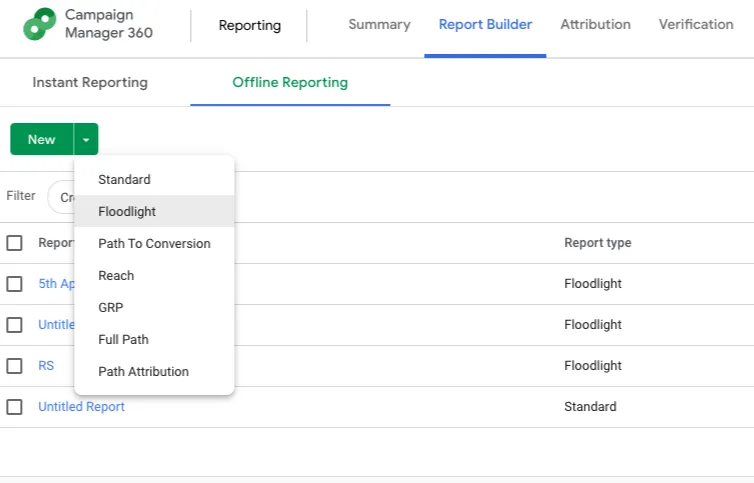
To generate an offline report of the events, follow these steps:
- Go to New > Floodlight.
- Select the Floodlight Configuration and other fields like Activities, Dimensions, and Metrics as per your requirement.
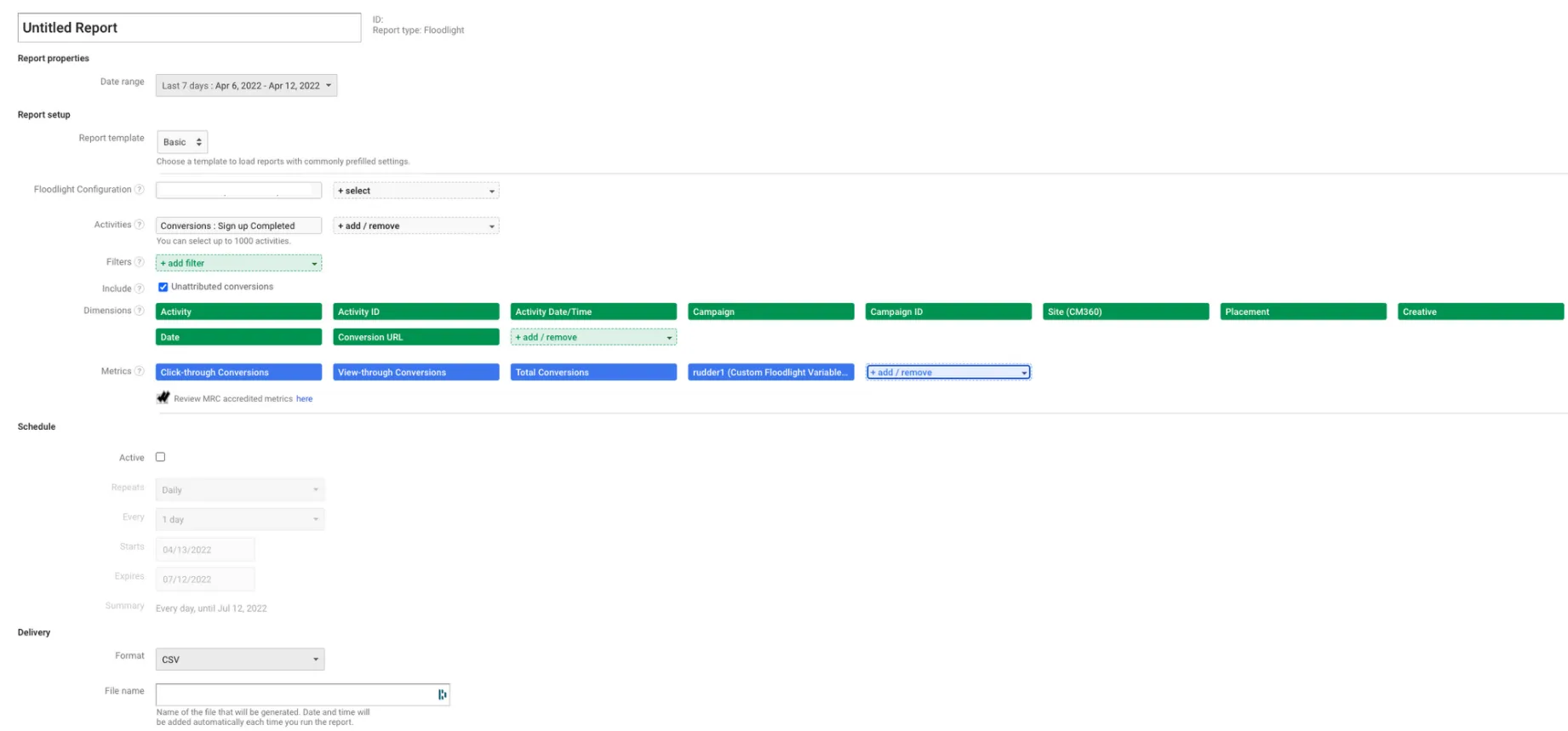
It may take up to 24 hours for your events to reflect in the reports.
What are unattributed cookie conversions?
A conversion is said to be unattributed if the user has a DoubleClick cookie but it is converted without any exposure. This means that the user did not click or view any ad from the advertiser within Floodlight, or the interaction happened outside the lookback window.
