Customer.io Destination Setup Guide
5 minute read
This guide helps you set up Customer.io as a destination in the RudderStack dashboard. It also lists the configuration settings required to correctly send data from the supported sources to Customer.io.
Connection compatibility
| Destination Information | |||
|---|---|---|---|
| |||


In the web device mode integration, that is, using the JavaScript SDK as a source, RudderStack loads the Customer.io native SDK from the
https://assets.customer.io/domain.Based on your website’s content security policy, you might need to allowlist this domain to load the Customer.io SDK successfully.
Setup
In your RudderStack dashboard, add a source. Then, from the list of destinations, select Customer.io.
Connection settings
| Setting | Description |
|---|---|
| Destination name | Assign a name to uniquely identify the destination. |
| Site ID | Enter your Customer.io site ID. |
| API key | Enter your Customer.io API key. |
| Data center | Choose your Customer.io data center from US or EU.
|
| API Version | Choose which Customer.io API delivers your events. This setting applies to cloud mode only — it has no effect on device-mode delivery.
|
userId Identifier Type | Choose which Customer.io identifier your userId represents: ID, Email, Phone, or CIO ID.Note that:
|
Choose your userId Identifier Type carefully
- The destination sends
userIdas that identifier for every event — there is no fallback. For example, choosing ID and sending an email address sends that value as an ID.- Pick the option that matches how profiles are identified in your Customer.io workspace. Choosing the wrong type attaches events to the wrong profile or creates new ones, and you cannot reverse that after the fact.
- Events without a
userIdfail when API Version is v2.
Configuration settings
Configure the below settings depending on your connection mode:
Cloud mode settings
| Setting | Description |
|---|---|
| Event sent after setting device token | Enter the name of the event that RudderStack fires immediately after setting the device token. This lets RudderStack send the device token to Customer.io immediately. |
Device mode settings
Configure the below device mode settings depending on your source:
Web SDK
| Setting | Description |
|---|---|
| Event sent after setting device token | Enter the name of the event that RudderStack fires immediately after setting the device token. This lets RudderStack send the device token to Customer.io immediately. |
| Send page name in SDK mode | If this setting is toggled on, RudderStack sends the page name to Customer.io. Otherwise, Customer.io fetches the page name in the form of a URL. |
| Enable in-app message support | Toggle on this setting to send in-app messages to your website using the native web SDK. For more information on setting up in-app messages for your website, see the Customer.io documentation. |
Mobile SDK
| Setting | Description |
|---|---|
| Event sent after setting device token | Enter the name of the event that RudderStack fires immediately after setting the device token. This lets RudderStack send the device token to Customer.io immediately. |
| Automatically track device attributes in SDK mode | Automatically track device attributes in the SDK mode through the Customer.io mobile SDK. This setting is toggled on by default - toggle it off to track the attributes manually. |
| Minimum number of tasks in background queue | This setting is available only for the Android (Java) source and lets you specify the minimum number of tasks to be kept in the background queue. By default, RudderStack sets this value to 10. |
| Delay in seconds for background queue | This setting is available only for the Android (Java) source and lets you specify the delay (in seconds) for the events to be kept in the background queue. By default, RudderStack sets this value to 30. |
Other settings
| Setting | Description |
|---|---|
| Client-side Events Filtering | This setting lets you specify which events should be blocked or allowed to flow through to Customer.io. See the Client-side Events Filtering guide for more information. |
Consent settings
| Setting | Description |
|---|---|
| Consent management settings | Configure the consent management settings for the specified source by choosing the Consent management provider from the dropdown and entering the relevant consent category IDs. See Consent Management in RudderStack for more information on this feature. |
Next steps
FAQ
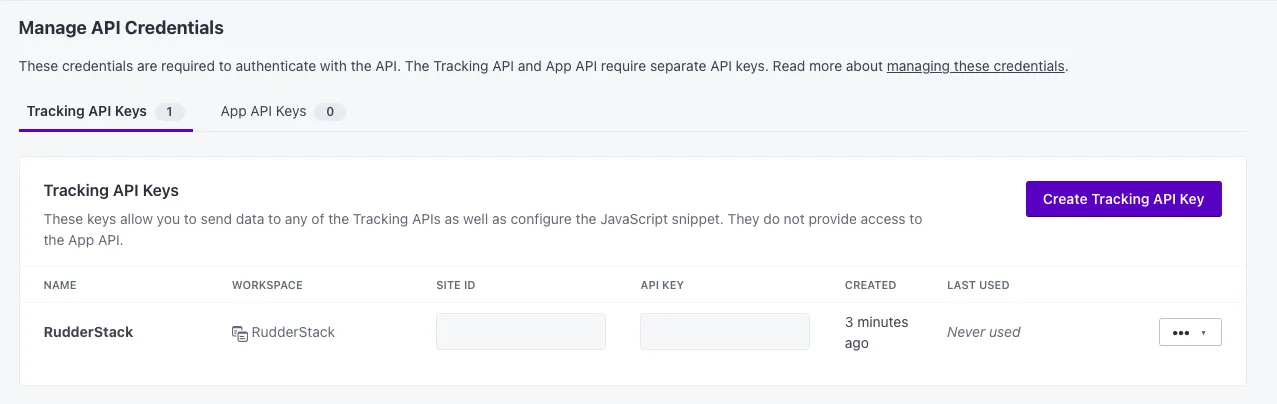
Where can I find the Customer.io API key and site ID?
- Sign in to your Customer.io dashboard.
- In the left panel, click Settings and select Account Settings.
- Then, click API Credentials. You should find the site ID and API key for your project listed here.