Criteo
5 minute read
Criteo is a online display advertising platform. It offers various solutions to increase your website traffic, generate brand awareness, and boost sales.
Find the open source code for this destination in the GitHub repository.
Connection compatibility
| Destination Information | |||
|---|---|---|---|
| |||


In the web device mode integration, that is, using JavaScript SDK as a source, RudderStack loads the Criteo native SDK from the
https://dynamic.criteo.comdomain.Based on your website’s content security policy, you might need to allowlist this domain to load the Criteo SDK successfully.
Get started
Once you have confirmed that the source platform supports sending events to Criteo, follow these steps:
- From your RudderStack dashboard, add the source. Then, from the list of destinations, select Criteo.
- Assign a name to the destination and click Continue.
Connection settings
To successfully set up Criteo as a destination in RudderStack, you need to configure the following settings:
- Criteo Account ID: Enter your Criteo Account/Partner ID. See FAQ section below for more information on getting your Account/Partner ID.
- Home Page URL: Enter the complete URL of your website’s homepage.
This field is required when you need to fire the homepage tag to add visitors to your target audience in cases where the event name of thepagecall is anything other thanhome.
- Email Hashing Method: Criteo lets you use the email addresses in both hashed and non-hashed formats. If you choose MD5, RudderStack will hash-encode the email address before sending it to Criteo.
- Map Specific Fields to Criteo Fields: Enter the payload fields and the corresponding mapped fields that RudderStack uses to send the event data to Criteo.
Criteo lets you send additional user or page-related data to add more context to the events. You can set this feature in Criteo with the assistance of your Criteo Account Manager. You can then use the Map Specific Fields to Criteo Fields field mapping feature to send the additional data through RudderStack.
- Client-side Events Filtering: This setting lets you specify which events should be blocked or allowed to flow through to Criteo. For more information on this setting, see Client-side Events Filtering.
- Consent management settings: Configure the consent management settings for the specified source by choosing the Consent management provider from the dropdown and entering the relevant consent category IDs. See Consent Management in RudderStack for more information on this feature.
- Mapping RudderStack events to the Criteo standard events: This setting triggers the Criteo Standard Event when you send the mapped RudderStack event. You can specify multiple Standard Events for one Event Name and vice versa.
- Use device mode to send events: As this is a device mode-only destination, this setting is enabled by default and cannot be disabled .
Page
The page call lets you track user’s home page along with its associated properties and send this information to Criteo.
Use this call only to track the home page and add the users to your target audience.
The home page tag is fired only in the following scenarios:
- When the name of the
pagecall ishome. - When the current URL of the web page is same as the Home Page URL specified in the RudderStack dashboard.
- When the URL mentioned in the
propertiesof thepagecall is same as the Home Page URL specified in the RudderStack dashboard.
A sample page call is as shown below:
rudderanalytics.page("category", "home", {
  path: "path",
  url: "url",
  title: "title",
  search: "search",
  referrer: "referrer",
  testDimension: "true",
})
Track
The track call lets you capture user events and the properties associated with them.
A sample track call is as shown:
rudderanalytics.track("Product Viewed", {
  product_id: "Prod12345",
  quantity: 1,
  price: 19.99,
  name: "my product",
  category: "categ 1",
  sku: "p-666",
  list: "Gallery",
  testDimension: true,
  testMetric: true,
})
In the above example, RudderStack captures the information related to the Product Viewed event and the associated details such as quantity, price, category, etc.
Supported mappings
The following table details the mapping of the RudderStack ecommerce events and the Criteo OneTag events:
| RudderStack event | Required fields | Criteo OneTag event | OneTag Event Name used by Criteo |
|---|---|---|---|
Cart Viewed | properties.products.$.priceproperties.products.$.product_idproperties.products.$.quantity | Basket/cart tag | viewBasket |
Order Completed | properties.products.$.priceproperties.products.$.product_idproperties.products.$.quantityproperties.order_id | Sales Tag | trackTransaction |
Product List Viewed | properties.products.$.product_id | Category/keyword search/listing tag | viewList |
Product Viewed | properties.product_id | Product tag | viewItem |
Product Added | properties.product_idproperties.priceproperties.quantityproperties.currency | Criteo Add to Cart Tag | addToCart |
Note that:
- For
Product List Viewedevent, Rudderstack sends theviewListtag. However, it can also send theviewSearchResultorviewCategorytag depending upon the availability of thekeywords,categoryfields and the configuration settings.- If you need to fire the
Category/keyword search/listing tagwith the appropriate filters, enter the filter categories within thefiltersfield in theProduct List Viewedevent properties. See Send filter category to Criteo for more information.
Send filter category to Criteo
The filters field is an array of objects that consists of each filter category in every single object. Criteo expects name, operator, and value fields for every filter that needs to be passed to Criteo.
For example, a simple Product List Viewed event that fires a Category/keyword search/listing Tag is as shown:
rudderanalytics.track("Product List Viewed", {
  email: "name@domain.com",
  zipCode: "12345",
  category: "abc",
  keywords: "key",
  page_number: 1,
  filters: [
    {
      name: "processor",
      operator: "eq",
      value: "snapdragon",
    },
  ],
  products: [
    {
      product_id: "223344ffdds3ff3",
    },
    {
      product_id: "343344ff5567ff3",
    },
  ],
})
FAQ
Where can I find the Criteo account/partner ID?
- Log in to your Criteo account.
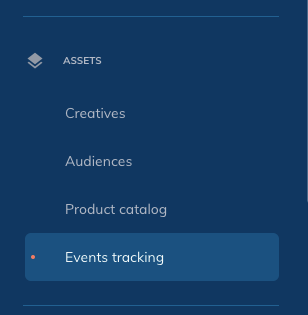
- From the left sidebar, go to Events Tracking under Assets:
- Click Setup followed by Direct Implementation.
- In the resulting loader file, find your 5-digit partner ID in the
srckey:

