comScore Setup Guide
Set up comScore as a destination in RudderStack.
3 minute read
This guide will help you set up comScore as a destination in the RudderStack dashboard. It also lists the configuration settings required to correctly send data from the supported sources to comScore.
Connection compatibility
| Destination Information | |||
|---|---|---|---|
| |||


Setup
- In your RudderStack dashboard, set up a source.
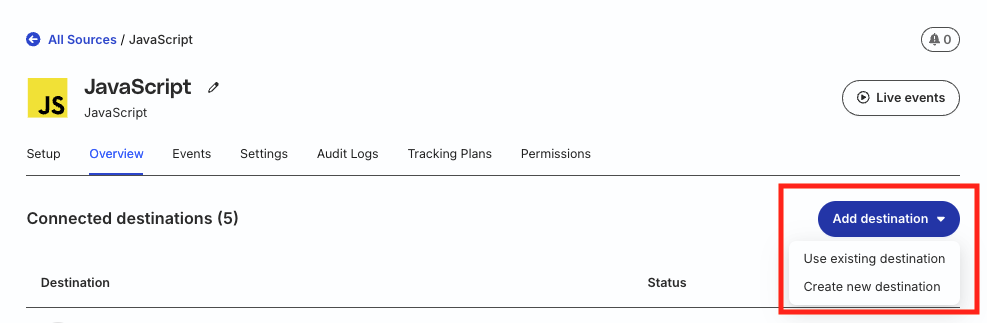
- Go to the Overview tab of your source and select Add Destination > Create new destination.
- Select comScore from the list of destinations. Then, click Continue.
Connection settings
| Setting | Description |
|---|---|
| Publisher ID | Enter the client ID/C2 value associated with your mobile app. See FAQ for more information on obtaining this value. |
Web SDK settings
| Setting | Description |
|---|---|
| Use device mode to send events | This setting is turned on by default as this is a device mode-only integration. |
| Map RudderStack page properties to comScore parameters | Use this setting to map the RudderStack page event properties to specific comScore parameters.
|
Android/iOS SDK settings
| Setting | Description |
|---|---|
| App Name | Enter your source app name. RudderStack includes this parameter in the events to specify the source app for getting the tags and data. |
| Only auto update when app is in foreground | This setting is turned on by default and updates your app usage data only when the application runs in the foreground. |
| Auto update when app is in foreground and background | Turn on this setting to update your app usage data when the application is running in the foreground and background.
|
| Auto update interval | Use this setting to specify the time interval between the updates.
|
| Use device mode to send events | This setting is turned on by default as this is a device mode-only integration. |
Other settings
| Setting | Description |
|---|---|
| Client-side event filtering | These settings let you specify which events should be blocked or allowed to flow through to comScore. See Client-side Event Filtering for more information. |
| Consent management settings | Configure the consent management settings for the specified source by choosing the Consent management provider from the dropdown and entering the relevant consent category IDs. See Consent Management in RudderStack for more information on this feature. |
FAQ
Where can I find the comScore Publisher ID?
You can find the comScore Publisher ID by logging in to your comScore Direct account.
Mobile
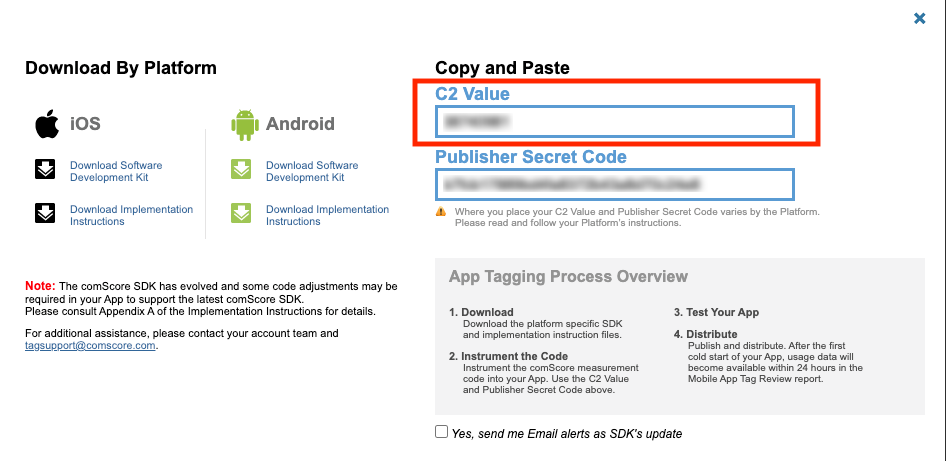
- Log in to your comScore Direct account.
- Go to the Mobile app tab.
- Click Get Tag and copy the C2 value.
Web
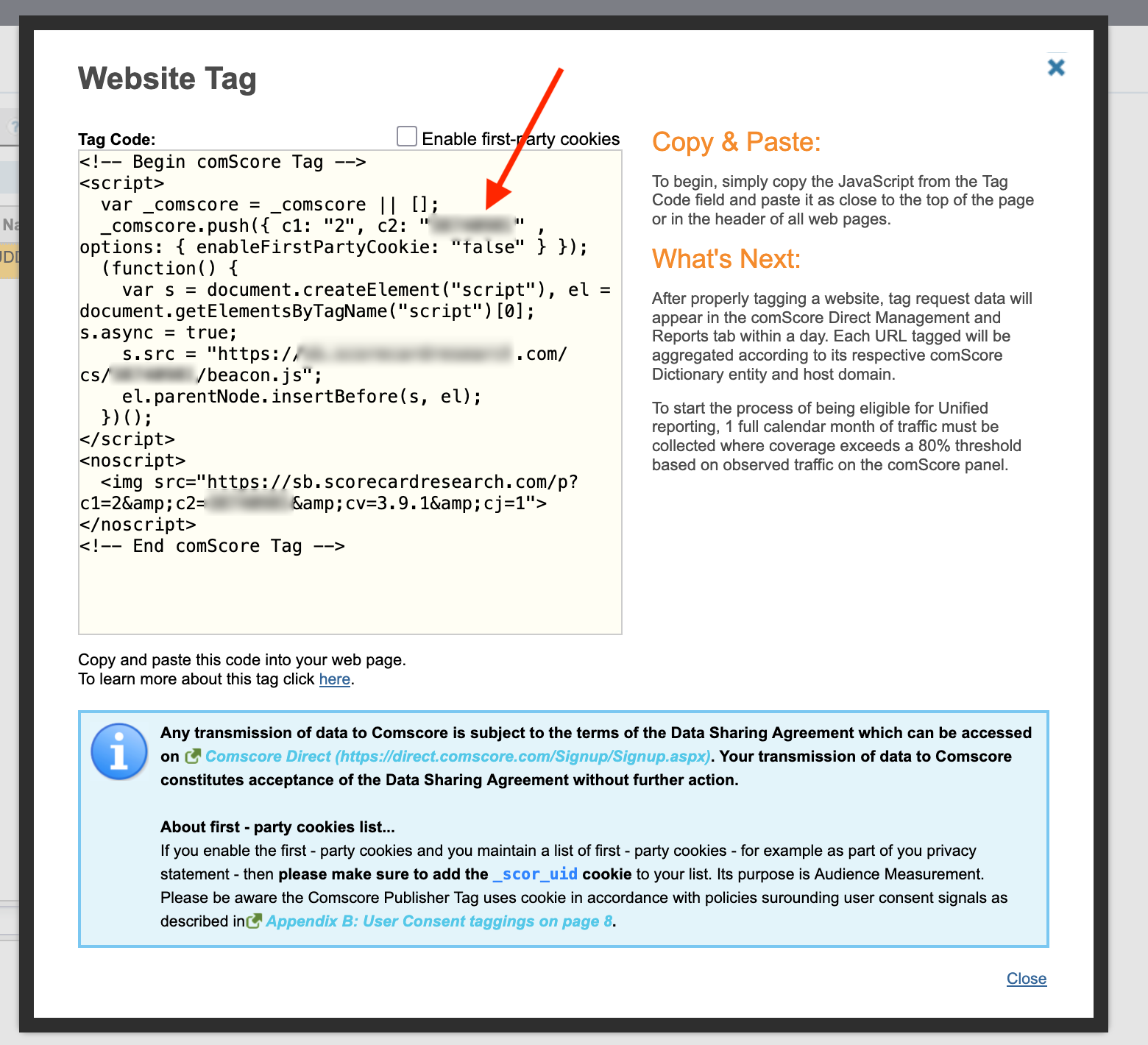
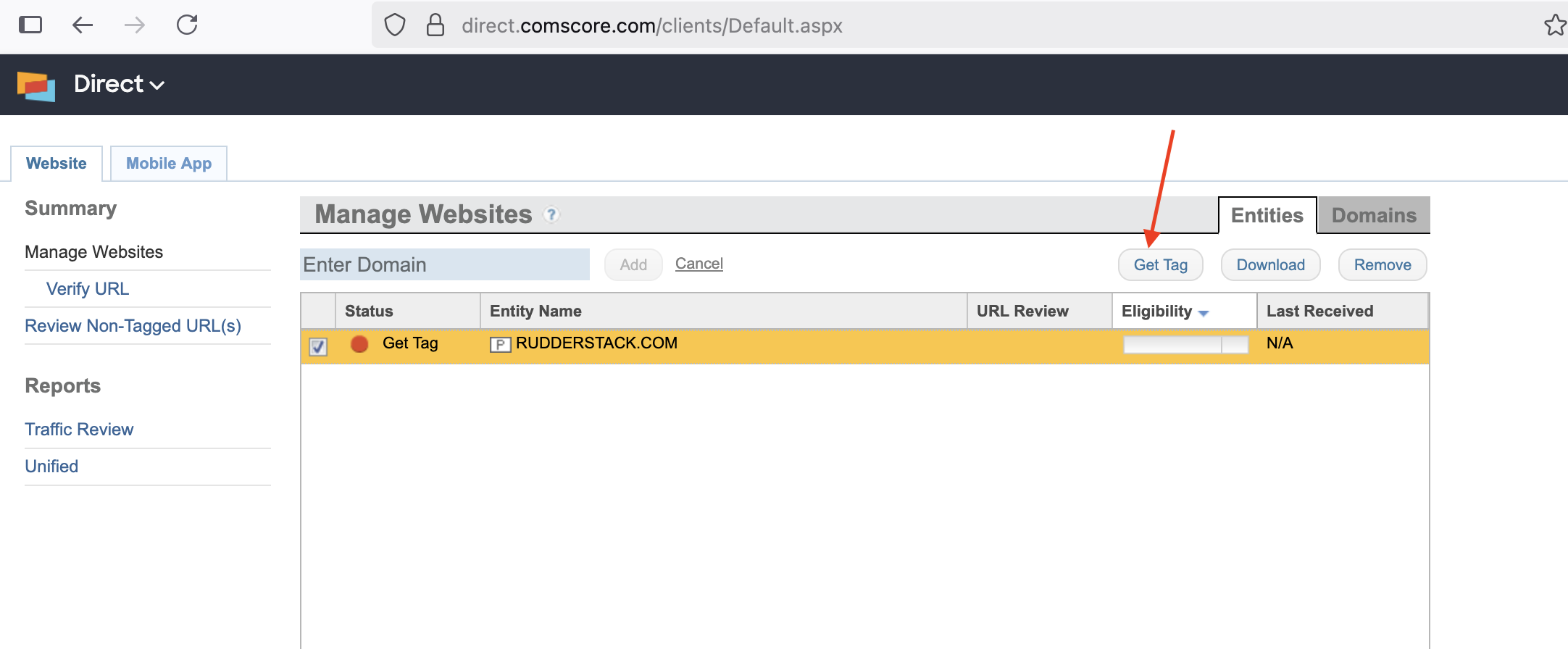
- Log in to your comScore Direct account.
- Click Get Tag.
- In the Website Tag popup, copy the value corresponding to the C2 field.