comScore Device Mode Integration
4 minute read
After you have successfully set up comScore as a destination in RudderStack, follow this guide to correctly send your events to comScore in device mode.
Add device mode integration
Follow these steps to add comScore to your project depending on your integration platform:
To add comScore to your Android project:
- Open your
app/build.gradle(Module: app) file and add the following underdependencies:
implementation 'com.rudderstack.android.sdk:core:[1.17.0, 2.0.0)'
implementation 'com.rudderstack.android.integration:comscore:[1.1.0,)'

// It enables Comscore to collect a privacy-friendly publisher-specific device identifier, App Set ID, for estimating the number of unique users for audience research purposes.
implementation 'com.google.android.gms:play-services-appset:16.+'- Change the SDK initialization in your
Applicationclass:
val rudderClient = RudderClient.getInstance(
            this,
            WRITE_KEY,
            RudderConfig.Builder()
                .withDataPlaneUrl(DATA_PLANE_URL)
                .withFactories(ComscoreIntegrationFactory.FACTORY)
                .build()
        )
To add comScore to your iOS project:
- Add the following line to your CocoaPods
Podfile:
pod 'Rudder-Comscore'- After adding the dependency, register
RudderComscoreFactorywith your SDK initialization as afactoryorRudderConfig. To do so, import theRudderComScoreFactory.hin yourAppDelegate.mfile:
#import "RudderComscoreFactory.h"- Change the SDK initialization to:
RSConfigBuilder *builder = [[RSConfigBuilder alloc] init];
[builder withDataPlaneUrl:DATA_PLANE_URL];
[configBuilder withFactory:[RudderComscoreFactory instance]];
[RSClient getInstance:WRITE_KEY config:[builder build]];
Supported events
Identify
You can use the identify call to set the user ID and traits as persistent labels in comScore.
RudderStack maps the identify events to comScore’s addPersistentLabels API, followed by making a call to comScore’s notifyHiddenEvent API.
A sample identify call is shown:
RudderClient.getInstance()?.identify(
            "1hKOmRA4GRlm",
            RudderTraits()
                .putEmail("alex@example.com")
                .put("trait_key_1", "trait_value_1")
                .put("trait_key_2", 4567),
            null
        )
Track
You can use the track call to record user actions. RudderStack also sends any associated properties as labels to comScore.
RudderStack maps the track events to comScore’s notifyHiddenEvent API.
A sample track call is shown:
RudderClient.getInstance()?.track(
            "Event name",
            RudderProperty()
                .putValue("property_track_key_1", "property_value_1")
                .putValue("property_track_key_2", 987654)
                .putValue("prop3", "value3")
        )
Page
RudderStack supports sending onlypageevents in web device mode.
You can use the page call to record page views and capture any properties about the viewed page.
A sample page call is shown:
rudderanalytics.page({
  category: "Category",
  name: "Sample",
})
RudderStack maps the following comScore Publisher Tag parameters:
| comScore ID | Description | Notes |
|---|---|---|
C1Required | Tag type | Pre-populated with a constant value of 2. |
C2Required | comScore Client ID | Set as the Publisher ID obtained from the dashboard. |
Default mappings
If you do not specify any mappings in the Map RudderStack page properties to comScore parameters dashboard setting, RudderStack uses the following default mappings for the page event:
| RudderStack page property | Data type | comScore parameter |
|---|---|---|
properties.url | String | C4 |
name | String | C5 |
All other parameters get auto-populated by comScore.
See the comScore documentation for more information on the Publisher Tag parameters you can send for improved classification and reporting.
Pass consent
You can pass consent information to comScore in any of the following ways:
- By leveraging RudderStack’s consent management feature.
- Via the
integrationsobject
Via RudderStack’s consent management feature
You can pass the consent information to comScore by leveraging RudderStack’s consent management feature. Make sure to specify the consent settings in the dashboard.
RudderStack recommends initializing the JavaScript SDK only after the consent is obtained.
Via the integrations object
RudderStack supports passing the consent information manually while loading the SDK, by including the integrations object during initialization — this object includes a consent field where you can pass the consent status.
A sample integrations object is shown:
rudderanalytics.load(WRITE_KEY, DATA_PLANE_URL, {
  integrations: {
    All: Boolean, // Default is true
    COMSCORE: {
      consent: {
        cs_ucfr: true // Consent value forwarded to comScore
      }
    },
    ...
  }
});
Screen
You can use the screen call to record whenever a user views their mobile screen and capture any properties about the viewed screen.
RudderStack maps the screen events to comScore’s notifyViewEvent API.
A sample screen call is shown:
RudderClient.getInstance()?.screen(
            "Screen event name",
            RudderProperty()
                .putValue("property_screen_key_1", "property_value_2")
                .putValue("property_screen_key_2", 9876542)
        )
For bothtrackandscreenevents, RudderStack maps the event name with comScore’snamefield. It sends all the other properties to comScore as is, without any modifications.
Reset
Use the reset call to reset userId and the associated traits.
A sample reset call is shown:
RudderClient.getInstance()?.reset(true)FAQ
Where can I find the comScore Publisher ID?
You can find the comScore Publisher ID by logging in to your comScore Direct account.
Mobile
- Log in to your comScore Direct account.
- Go to the Mobile app tab.
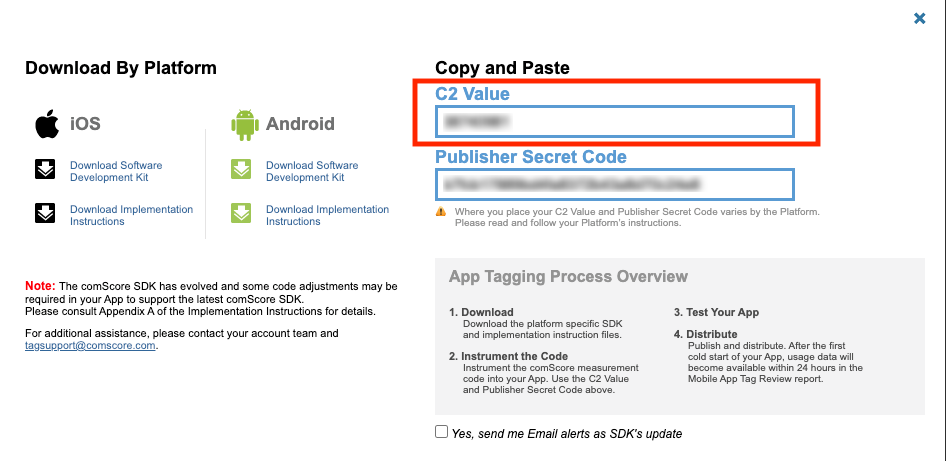
- Click Get Tag and copy the C2 value.
Web
- Log in to your comScore Direct account.
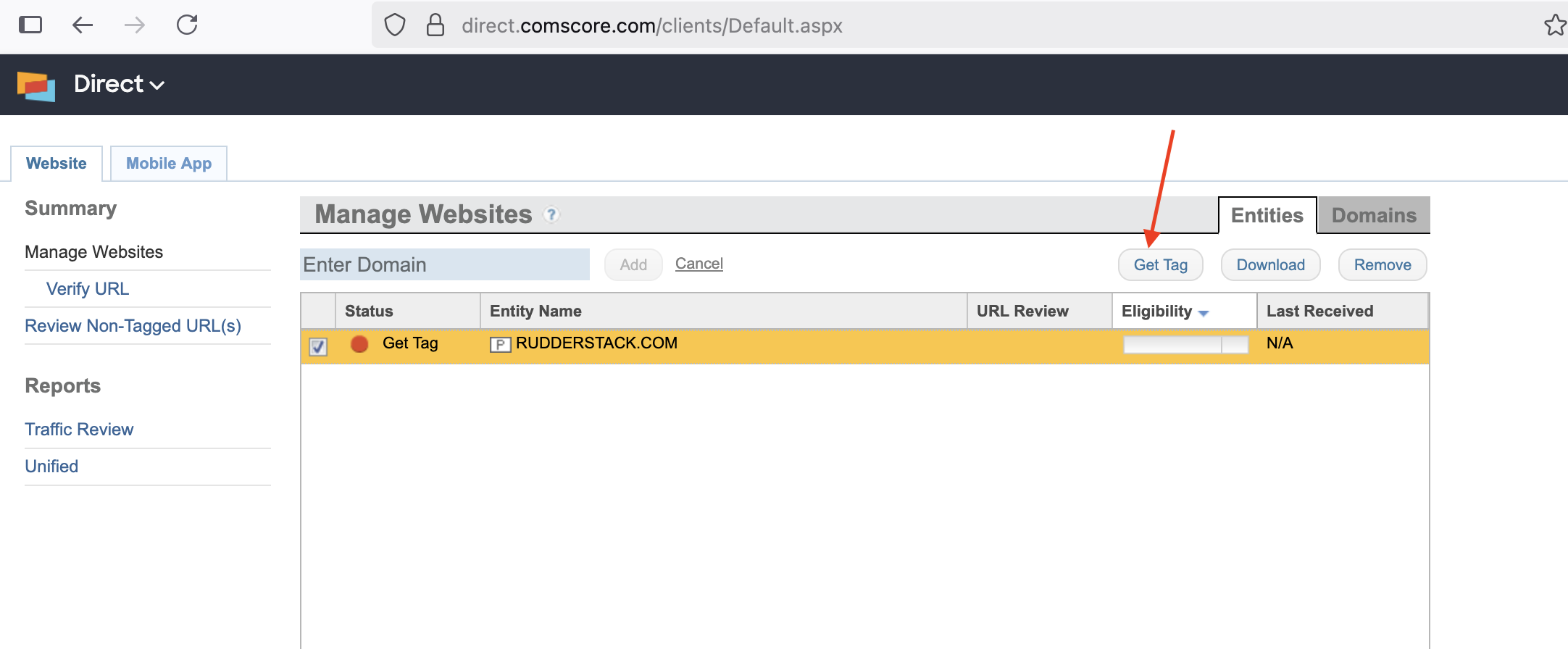
- Click Get Tag.
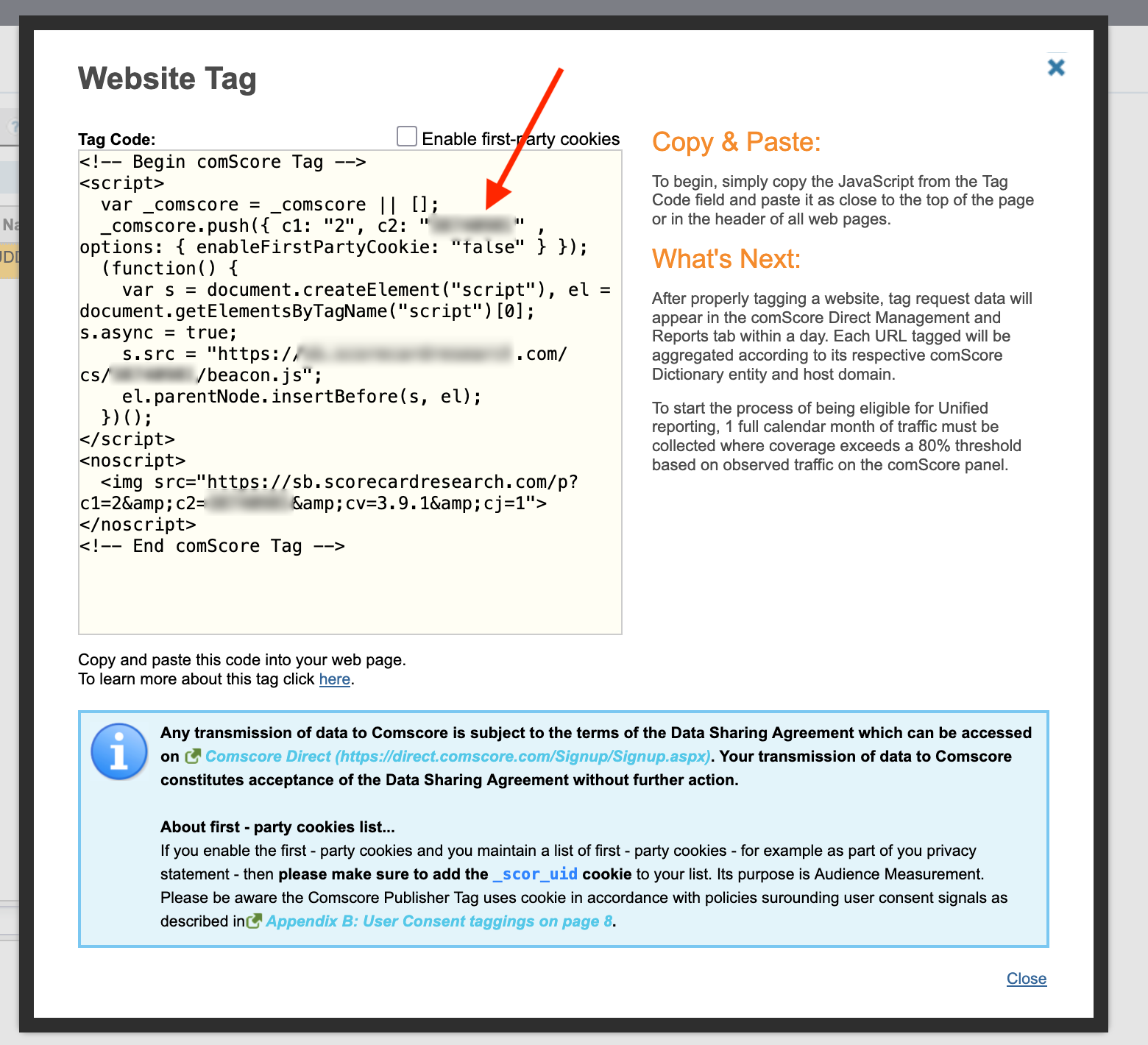
- In the Website Tag popup, copy the value corresponding to the C2 field.