Braze Destination Setup Guide
5 minute read
This guide will help you set up Braze as a destination in the RudderStack dashboard. It also lists the configuration settings required to correctly send data from the supported sources to Braze.
Connection compatibility
| Destination Information | |||
|---|---|---|---|
| |||


Important considerations
Review the following considerations before using the Braze integration with RudderStack.
Device mode support for Flutter and React Native
Device mode support for Flutter and React Native sources (as seen in the above table) applies to mobile (Android and iOS) platforms only. If you are deploying a Flutter app to the web, you can send events to Braze via the Flutter SDK in cloud mode only.
As a workaround, you can create a separate JavaScript source in RudderStack and use its write keyThe write key (or source write key) is a unique identifier for your source. RudderStack uses this key to send events from a source to the specified destination. for the web build of your Flutter apps to send events to these destinations in web device mode.
Domain allowlisting for web device mode
In the web device mode integration, that is, when using JavaScript SDK as a source, RudderStack loads the Braze native SDK from the https://js.appboycdn.com/ domain.
Based on your website’s content security policy, you might need to allowlist this domain to load the Braze SDK successfully.
Setup
- In your RudderStack dashboard, set up a source.
- Go to the Overview tab of your source and select Add Destination > Create new destination.
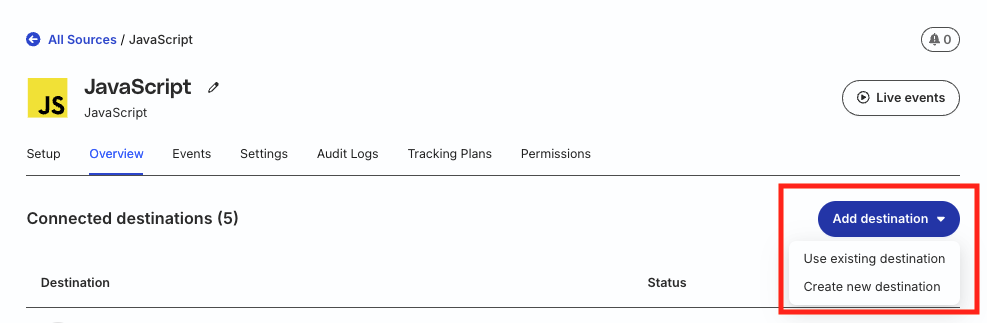
- Select Braze from the list of destinations. Then, click Continue.
Connection settings
| Setting | Description | ||||||||||||
|---|---|---|---|---|---|---|---|---|---|---|---|---|---|
| Destination name | Assign a name to uniquely identify the destination. | ||||||||||||
| Enable Platform-specific App Identifier Keys Beta | Toggle on this setting to configure platform-specific App Identifier keys (Android, iOS, and web) for proper data attribution in Braze. Note:
| ||||||||||||
| Default App Identifier Key | Enter your Braze Default App Identifier Key.
| ||||||||||||
| REST API Key | Enter the REST API key associated with your project required for cloud mode connections. Note: When creating a new Braze Rest API Key for your app, make sure to select the following permissions:
| ||||||||||||
| Data Center | Specify the data center associated with your Braze account. See Supported Braze data centers for more information. Note: To get your data center details, log in to your Braze account and note your URL. |
Supported Braze data centers
| Data center region | Dashboard URL |
|---|---|
| Australia | https://dashboard.au-01.braze.com |
| Europe | https://dashboard-01.braze.eu |
| https://dashboard-02.braze.eu | |
| US | https://dashboard-01.braze.com |
| https://dashboard-02.braze.com | |
| https://dashboard-03.braze.com | |
| https://dashboard-04.braze.com | |
| https://dashboard-05.braze.com | |
| https://dashboard-06.braze.com | |
| https://dashboard-07.braze.com | |
| https://dashboard-08.braze.com |
Event settings
| Setting | Description |
|---|---|
| Enable subscription groups in group call | Turn on this setting to send the subscription group status in your group events.Note: This setting is available only in cloud mode. |
| Use Custom Attributes Operation | Turn on this setting to use Braze’s nested custom attributes functionality to create segments and personalize your messages using a custom attribute object. For more information, see Send user traits as nested custom attributes. Note: This setting is available only in cloud mode. |
Deduplication settings
| Setting | Description |
|---|---|
| Deduplicate Traits | Turn on this setting to enable traits deduplication for the identify and track calls. |
Web SDK settings
Configure the following settings to send events to Braze in web device mode:
| Setting | Description |
|---|---|
| Show Braze logs | Turn on this setting to show Braze logs to the customers. |
| Use web push notifications | Turn on this setting to use push notifications for web. Note: This feature requires you to set up a service worker on your site. |
| Enable HTML in-app messages | Turn on this setting to enable HTML in-app messages. |
| Track events for anonymous users | Turn on this setting to track anonymous user activity and send this information to Braze. |
Other settings
| Setting | Description |
|---|---|
| Client-side Events Filtering | This setting lets you specify which events should be blocked or allowed to flow through to Braze. For more information on this setting, see Client-side Events Filtering. |
| OneTrust Cookie Categories | This setting lets you associate the OneTrust cookie consent groups to Braze. |
Next steps
FAQ
Where can I find the Braze Default App Identifier Key?
- Log in to your Braze dashboard.
- Go to Settings > APIs and Identifiers.
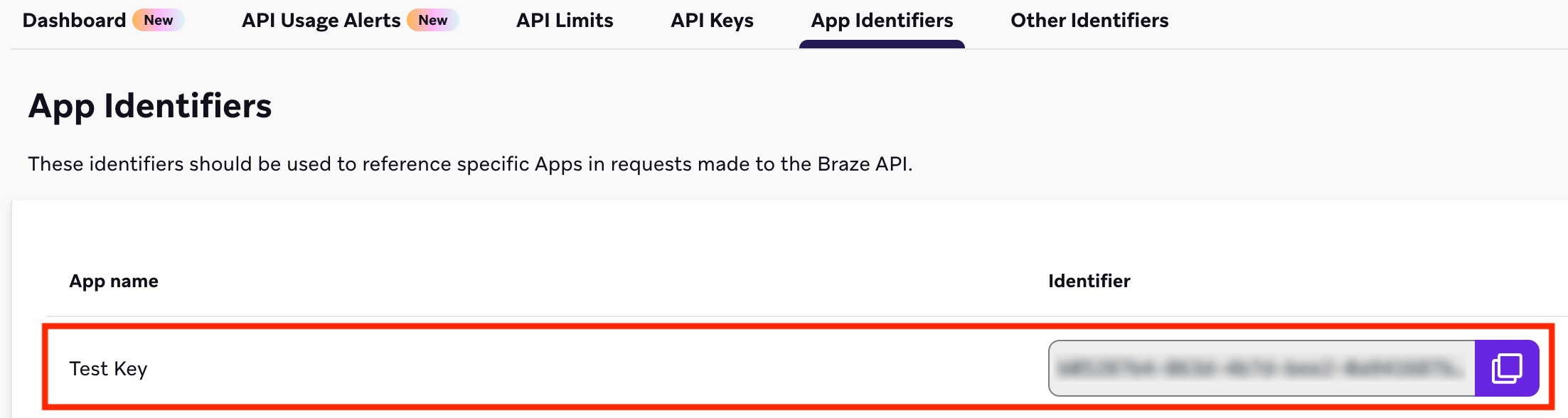
- Go to the App Identifiers section:
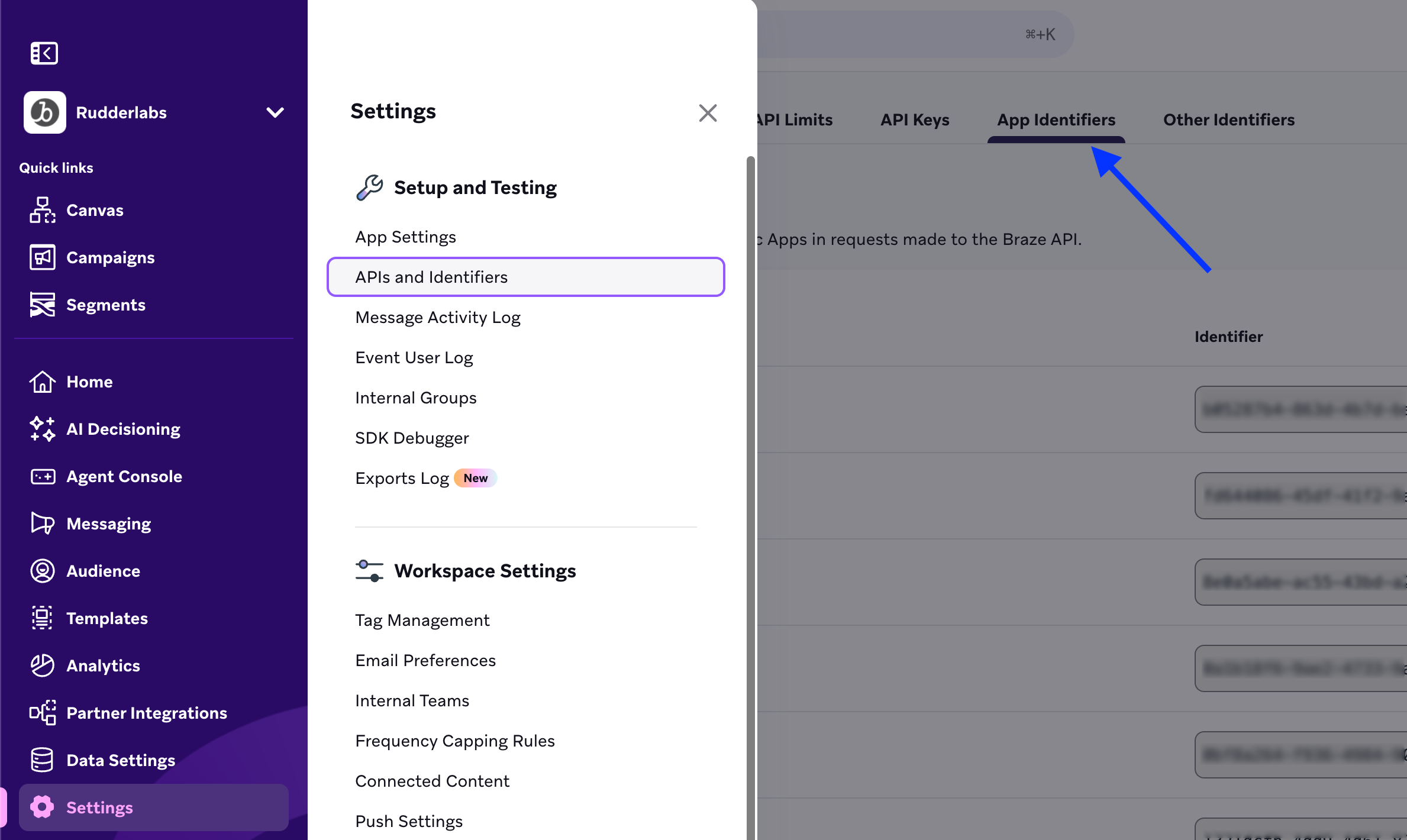
- The Default App Identifier Key for your specific app is listed here.
Where can I find the Braze REST API Key?
- Log in to your Braze dashboard.
- Go to Settings > APIs and Identifiers.
- Go to the API Keys section:
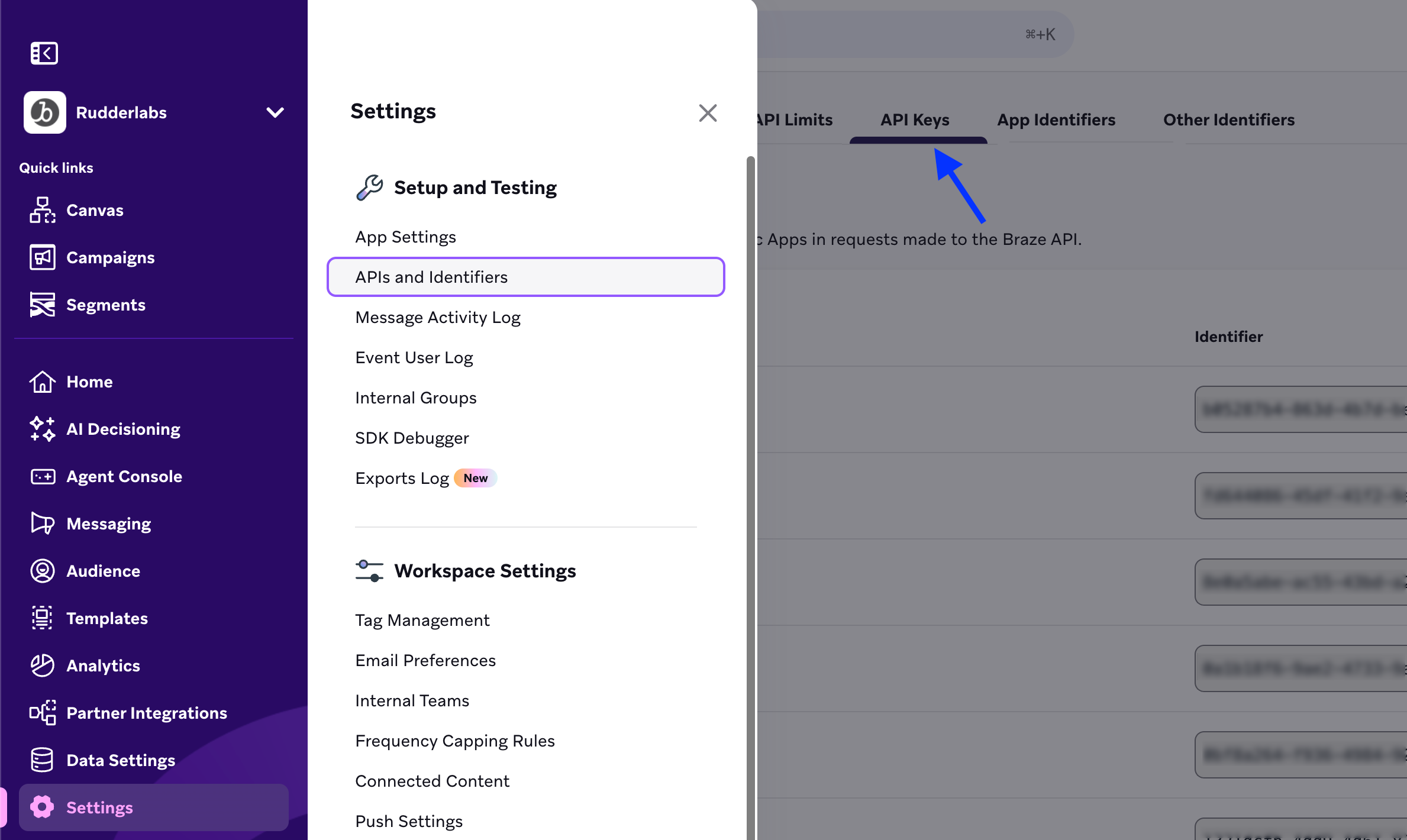
- You can find the REST API Key for your workspace listed here.

