AWS Personalize
5 minute read
Amazon Personalize is a machine learning service by AWS. It enables you to create high-quality content recommendations, personalized product and marketing promotions, and much more.
RudderStack supports AWS Personalize as a destination where you can send your event data seamlessly.
To usePutUsersandPutItemspermissions for this destination, use the latest images forrudder-serverandrudder-transformer.
Find the open source code for this destination in the GitHub repository.
Connection compatibility
| Destination Information | |||
|---|---|---|---|
| |||


Prerequisites
- You must have a Personalize service set up in AWS. See the AWS documentation for more information on setting up your Personalize account.
- Follow these instructions to generate a Tracking ID required for creating the AWS Personalize destination in RudderStack.
Setup
- In your RudderStack dashboard, set up a source.
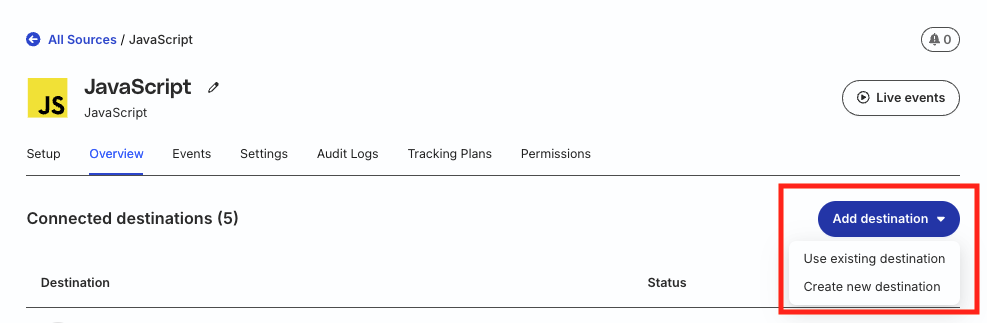
- Go to the Overview tab of your source and select Add Destination > Create new destination.
- Select AWS Personalize from the list of destinations. Then, click Continue.
Connection settings
| Setting | Description |
|---|---|
| Name | Assign a name to uniquely identify the destination in RudderStack. |
| Role-based Authentication | Turn on this toggle to use the RudderStack IAM role for authentication. |
| IAM Role ARN | You will see this field only if Role-based Authentication is enabled. Enter the ARN of the IAM role in this field. |
| Access Key ID | You will see this field only if Role-based Authentication is disabled. Enter your AWS Access Key ID in this field. |
| Secret Access Key | Enter the corresponding secret access key in this field. |
| Region | Enter the region associated with your AWS account in this field. |
In both role-based and access key-based authentication methods, you will need to set a policy specifying the required permissions for RudderStack to send data to Personalize.
See the Policy permissions section below for more information.
Dataset group settings
| Setting | Description |
|---|---|
| Tracking ID | Enter the Tracking ID generated in the Prerequisites section above. |
| Dataset ARN | Enter the dataset ARN of the dataset from the chosen dataset group. |
Operational choice settings
| Setting | Description |
|---|---|
| Personalize Events | Select the type of Personalize event you want to avail from the dropdown. RudderStack supports the following Personalize events:
|
Mapping settings
| Setting | Description |
|---|---|
| Map all fields | Enter the Schema Field used to create the schema in AWS Personalize (for example, USER_ID, TIMESTAMP, ITEM_ID, etc.).Then, enter the corresponding Mapped Field — RudderStack takes the value from this field present in the event payload and maps it to the value specified in the Schema Field. See the Personalize documentation for more information on creating a schema in Personalize.
|
| Disable stringifying additional properties | Turn on this toggle to disable the conversion of additional properties to string data type in Personalize.
|
Policy permissions
To send data to Personalize correctly, you need to create an IAM role and grant the necessary permissions for RudderStack.
The following actions need to be attached to the role while setting up the AWS policy:
"Action": [
    "personalize:PutEvents",
    "personalize:PutUsers",
    "personalize:PutItems"
]
You can use these actions based on the type of Personalize events you want to send. For example, to send only putEvents type of events, you can attach only personalize:PutEvents.
A sample permissions policy that allows a user to send event data into Personalize is shown below:
{
  "Version": "2012-10-17",
  "Statement": [
    {
      "Sid": "CloudWatchEventsInvocationAccess",
      "Effect": "Allow",
      "Action": [
        "personalize:PutEvents",
        "personalize:PutUsers",
        "personalize:PutItems"
        ],
      "Resource": "*"
    }
  ]
}
Identify
You can use the identify call to send data to Personalize using the PutUsers operation.
Note that:
- For the
PutUsersoperation, RudderStack sends the value of theuserIdoranonymousIdfield in the event payload asuserId. - You must specify the Dataset ARN field in the RudderStack dashboard settings.
The following snippet highlights a sample identify event with the Mapped Field settings specified in the RudderStack dashboard:
rudderanalytics.identify("1hKOmRA4GRlm", {
  name: "Alex",
  email: "alex@example.com"
  });
Track
You can use the track call to send data to Personalize using the PutEvents and PutItems operations.
Note that:
- For
PutEvents, RudderStack sends the value of theeventfield in the payload asEVENT_TYPE. Also, the value of thetimestampororiginalTimestampfields in the payload is sent assentAt. - For the
PutItemsandPutEventsoperations, you must specify the Dataset ARN and Tracking ID settings in the RudderStack dashboard settings.
The following snippet shows a sample track event with the mapped fields specified in the RudderStack dashboard settings:
rudderanalytics.track("Product Added", {
  typeOfSdk: "JavaScript",
  numberOfRatings: "12",
  X: "item 1",
});
Using the PutItems operation
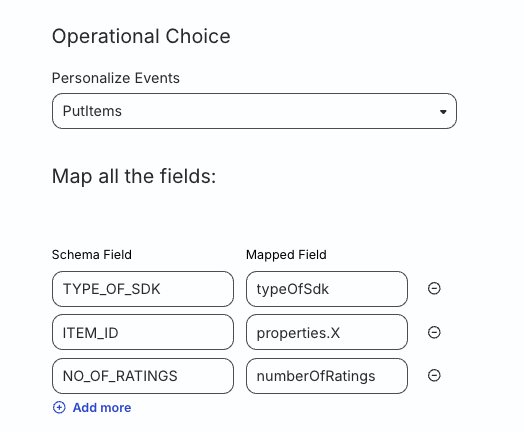
When using the PutItems operation, you must map the Schema Field ITEM_ID to a specific key in the event payload. You also need to mention the path to the chosen key as the corresponding Mapped Field.
In the above example, if you map ITEM_ID to the field X, the corresponding Mapped Field will be properties.X.
For any other Schema Field in yourITEMSdataset, RudderStack does not recommend specifying the path — only the field name is sufficient.
The following image shows an example of the dashboard configuration for PutItems:
Using the PutEvents operation
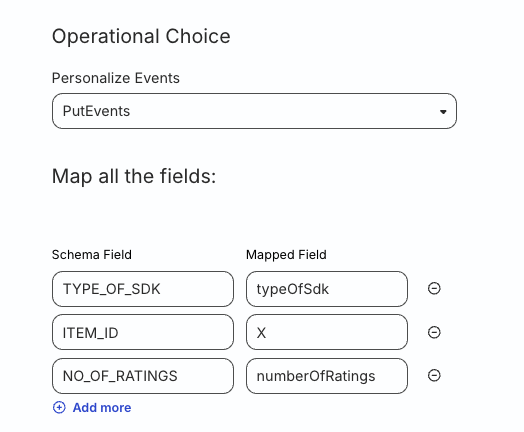
When using the PutEvents operation, the Mapped Field for ITEM_ID should not contain the path to the field — only the name of the field is sufficient. The same rule is applicable for any other Schema Field mapping.
The following image shows an example of the dashboard configuration for PutEvents: