Amplitude Setup Guide
10 minute read
This guide will help you set up Amplitude as a destination in the RudderStack dashboard. It also lists the configuration settings required to correctly send data from the supported sources to Amplitude.
Connection compatibility
| Destination Information | |||
|---|---|---|---|
| |||


Setup
- In your RudderStack dashboard, set up a source.
- Go to the Overview tab of your source and select Add Destination > Create new destination.
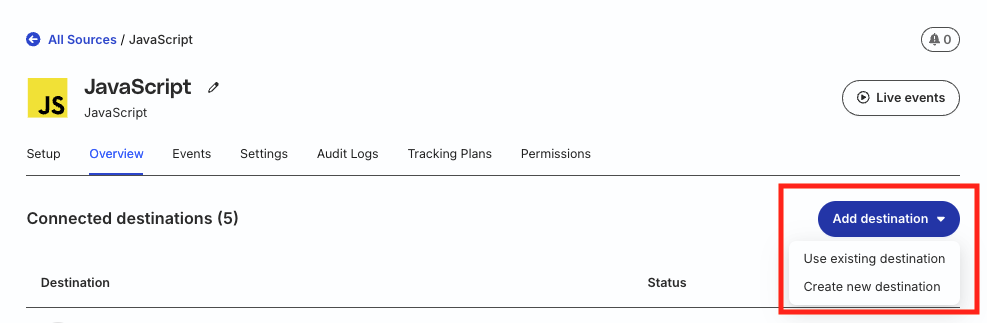
- Select Amplitude from the list of destinations. Then, click Continue.
Connection settings
| Setting | Description |
|---|---|
| Name | Assign a name to uniquely identify the destination in RudderStack. You can include suffixes like -prod, -dev, -testing to differentiate connection environments. |
| API key | Specify your Amplitude project’s API key. You can find it in your Amplitude project’s General tab. |
| Residency server | Choose your Amplitude residency server from the following options:
|
Configuration settings
Configure the below settings to receive your data correctly in Amplitude.
Page settings
This section lets you configure how RudderStack sends page events to Amplitude.
Check your event volume setup with Amplitude before configuring these settings.
Web device mode
The following settings are applicable when you have connected a source in web device mode:
| Setting | Description |
|---|---|
| Track all pages | Toggle on this setting to send all page events to Amplitude as Loaded a page. |
| Track categorized pages | If you toggle on this setting and set useNewPageEventNameFormat to true in the integration options, then RudderStack sends events to Amplitude as Viewed {category} Page. Otherwise, it sends the events to Amplitude as Viewed page {category}. |
| Track named pages | If you toggle on this setting and set useNewPageEventNameFormat to true in the integration options, then RudderStack sends events to Amplitude as Viewed {name} Page. Otherwise, it sends the events to Amplitude as Viewed page {name}. |
If you toggle on more than one of these settings, then RudderStack may send multiple events to Amplitude for a single
pageevent.For example, if a page category is present and you toggle on both Track all pages and Track categorized pages settings in the dashboard, then RudderStack sends two events to Amplitude for a single
pageevent:Loaded a pageandViewed page {category}.
Mobile device mode
The following settings are applicable when you have connected a source in mobile device mode:
| Setting | Description |
|---|---|
| Track all pages | If you toggle on this setting and name is present in your screen event properties, then RudderStack sends the event to Amplitude as Viewed {name} Screen. Otherwise, it sends the event as Loaded a Screen. |
| Track categorized pages | Use this setting to send the screen events to Amplitude as Viewed {category} Screen. |
| Track named pages | If you toggle on this setting and name is present in your screen event properties, then RudderStack sends the event to Amplitude as Viewed {name} Screen. If name is absent, RudderStack will not send the event. |
If you toggle on more than one of these settings, then RudderStack may send multiple events to Amplitude for a singlescreenevent.
Cloud mode
The following settings are applicable when you have connected a source in cloud mode:
| Setting | Description |
|---|---|
| Use custom page event name | Use this setting to set a specific event name format for your page calls.See Set custom page event names for more information. |
| Page event name format | If Use custom page event name is toggled on, then specify the event name format for your page calls.For example, Viewed a {{name}}. |
Screen settings
These settings are applicable when you have connected a source in cloud mode.
This section lets you configure how RudderStack sends screen events to Amplitude.
| Setting | Description |
|---|---|
| Use custom screen event name | Use this setting to set a specific event name format for your screen calls.See Set custom screen event names for more information. |
| Screen event name format | If Use custom screen event name is toggled on, then specify the event name format for your screen calls.For example, Viewed a {{name}}. |
Identify and group settings
This section lets you configure how RudderStack sends identify and group calls to Amplitude.
Group trait settings
| Setting | Description |
|---|---|
| Group name trait | Specify the group type to send as groupType to Amplitude.Examples of a group type could be: Org ID, Org Name, or Industry. |
| Group value trait | Specify the group value to send as groupValue to Amplitude.For example, if you set groupType as industry, then the groupValue parameter can be retail. |
Identify trait settings
| Setting | Description |
|---|---|
| Traits to increment | Set the traits to increment in your identify calls. You can input multiple traits by pressing the Enter key after each trait.RudderStack increments these traits by the numerical value associated with the trait in your identify call. |
| Traits to set once | Specify the traits where you want to set values only once—this prevents any overriding of the property value. You can input multiple traits by pressing the Enter key after each trait. |
| Traits to append | This setting lets you append a value or multiple values to a user property array. Note that:
|
| Traits to prepend | This setting lets you prepend a value or multiple values to a user property array. Note that:
|
Destination settings
The following sections detail the advanced destination-specific settings you can configure in the RudderStack dashboard.
Amplitude IT
| Setting | Description | Notes |
|---|---|---|
| Secret key | Specify your Amplitude project’s secret key. | Secure your secret key if you plan on deleting users for GDPR purposes. |
| Version name | Set a version name for your page that RudderStack sends to Amplitude for more detailed events. | This setting is applicable only for the web device mode. |
| Map device brand | Capture brand, manufacturer, and model information for mobile devices. Amplitude computes device_family as device_family: {device_brand} {device_manufacturer} {device_model}. | This setting is applicable only for the mobile device mode. |
Ecommerce settings
These settings are applicable for sources connected in cloud mode and web device mode
| Setting | Description |
|---|---|
| Track products as single event | Use this setting to track an array of products as a single event. RudderStack passes the event with the original event name and all products as properties. If you toggle off this setting, each product is tracked as a separate event with the name Product purchased.
|
| Track revenue per product | Use this setting to control the revenue tracking granularity. If you toggle on this setting, then RudderStack tracks the revenue of each product in an event individually. Otherwise, the event is sent as an aggregate revenue of all products. |
See the following sections for more information on tracking revenue and completed orders in different connection modes:
Other settings
| Setting | Description |
|---|---|
| Client-side Events Filtering | This setting lets you specify which events should be blocked or allowed to flow through to Amplitude. See Client-side Events Filtering for more information.
|
| Consent management settings | Configure the consent management settings for the specified source by choosing the Consent management provider from the dropdown and entering the relevant consent category IDs. See Consent Management in RudderStack for more information on this feature. |
Amplitude SDK settings
The following settings let you customize the Amplitude SDK when sending events in device mode.
Add the Amplitude SDK to your project before configuring these settings.
JavaScript
| Setting | Description |
|---|---|
| SDK Version | Choose the Amplitude Web SDK version that RudderStack loads for your JavaScript source. Set it to 2 (default) or 1.
|
| Proxy server URL | Use this setting to send data to Amplitude using a domain proxy to relay event requests.
|
| Replace device ID with anonymous ID | Toggle on this setting to use anonymousId instead of the device ID.Note that RudderStack’s JavaScript SDK generates the anonymousId. To set your own anonymousId, use the setAnonymousId() method. |
| Disable attribution | Use this setting to disable attribution tracking. When toggled on, RudderStack does not track attribution using the GCLID, UTM parameters, and referrer information. |
| Save referrer, URL params, GCLID only once per session | When toggled on, RudderStack tracks referrer, UTM parameters, and GCLID only once per session and ignores any new values that may enter a user’s session.
|
| Batch event upload period (ms) | Set the time limit (in ms) between batch uploads. |
| Batch event upload threshold | Set the minimum number of events that RudderStack sends in a batch. |
With the latest Amplitude SDK updates, the following configuration settings are now removed from the RudderStack dashboard:
- Force HTTPS
- Track GCLID
- Track referrer information
- Track UTM properties
- Reset referrer or UTM params for new sessions
- Batch events prior to upload
For older Amplitude web device mode instrumentations, the above settings will still be applicable. However, you will not be able to modify them. To update these settings, contact RudderStack support.
iOS
| Setting | Description |
|---|---|
| Track session events | Use this setting to send session start and end events. |
| Use IDFA for device ID | Use this setting to send the iOS IDFA instead of device ID to Amplitude. |
| Batch event upload period (ms) | Set the time limit (in ms) between batch uploads. |
| Batch event upload threshold | Set the minimum number of events that RudderStack sends in a batch. |
Android
| Setting | Description |
|---|---|
| Enable location listening | Use this setting tocapture user location information for anyone who has granted app location permission. |
| Track session events | Use this setting to send session start and end events. |
| Use advertising ID for device ID | Use this setting to send the Android Advertising ID instead of device ID to Amplitude. |
| Batch event upload period (ms) | Set the time limit (in ms) between batch uploads. |
| Batch event upload threshold | Set the minimum number of events that RudderStack sends in a batch. |
React Native
| Setting | Description | Applicable platform |
|---|---|---|
| Track session events | Use this setting to send session start and end events. | iOS and Android |
| Use IDFA for device ID | Use this setting to send the iOS IDFA instead of device ID to Amplitude. | iOS |
| Batch event upload period (ms) | Set the time limit (in ms) between batch uploads. | iOS and Android |
| Batch event upload threshold | Set the minimum number of events that RudderStack sends in a batch. | iOS and Android |
| Enable location listening | Use this setting tocapture user location information for anyone who has granted app location permission. | Android |
| Use advertising ID for device ID | Use this setting to send the Android Advertising ID instead of device ID to Amplitude. | Android |
RudderStack SDK settings
You can configure the following settings in your RudderStack SDK while sending events to Amplitude:
| Setting | Description | Notes |
|---|---|---|
residencyServer | Sets the Amplitude server zone. Default value: AMPServerZone.US | Configurable values are AMPServerZone.US and AMPServerZone.EU. |
useBatch | Applicable only for the Android (Java) SDK, this parameter determines whether to use the batch API.Default value: true | The value for Batch event upload threshold dashboard setting should be greater than 0. |
