Amplitude Cloud Mode Integration
11 minute read
After you have successfully set up Amplitude as a destination in RudderStack, follow this guide to correctly send your events to Amplitude in cloud mode.
Identify
You can use the identify call to associate a user with their actions and capture all relevant traits about them. This includes a unique userId and other optional information like name, email address, etc.
When sending events from your Reverse ETL sources using Visual Data Mapper, you can also pass a custom user ID in your
identifycalls.RudderStack adds this ID under
context.externalId.0.identifierTypebefore sending it to Amplitude.
A sample identify call is shown:
rudderanalytics.identify(
  "userId", {
    email: "name@surname.com",
    name: "John Doe",
    profession: "Student",
  })
Opt out identify calls
You can opt out of an identify call in a current session by passing a optOutOfSession trait and setting it to true. If there is no active session, passing optOutOfSession: true does not start a new session.
Unset user properties
To unset the user traits in the traits/context.traits object or userProperties in Amplitude, specify them in the integrations.Amplitude.fieldsToUnset object.
When you unset fields using fieldsToUnset, RudderStack notifies Amplitude to delete the fields along with their schema (if they exist).
See the Amplitude documentation for more information on this feature.
Example
To unset the firstName and lastName fields in the following payload:
{
  "channel": "web",
  "type": "identify",
  "context": {
    "traits": {
      "firstName": "Alex",
      "lastName": "Keener",
    },
  },
}
Set the integrations object in your identify event as shown:
{
  "integrations": {
    "Amplitude": {
      "fieldsToUnset": ["firstName", "lastName"]
    },
    "All": true,
  }
}
If the fields to unset are nested within some object (for example, someField), then specify the full path to the field in the integrations object, as shown:
{
  "integrations": {
    "Amplitude": {
      "fieldsToUnset": ["someField.firstName", "someField.lastName"]
    },
    "All": true,
  }
}
Delete a user
You can delete a user in Amplitude using the Suppression with Delete regulation of the RudderStack User Suppression API.
While RudderStack forwards the deletion request, it does not guarantee deletion within a 30-day window. You will need to check with Amplitude if the request is fulfilled.
To delete a user, specify the userId in the event. A sample regulation request body for deleting a user in Amplitude is shown below:
{
  "regulationType": "suppress_with_delete",
  "destinationIds": ["2FIKkByqn37FhzczP23eZmURciA"],
  "users": [
    {
      "userId": "1hKOmRA4GRlm",
      "<customKey>": "<customValue>"
    }
  ]
}
Page
The page call allows you to record your website’s page views, with the additional relevant information about the viewed page. RudderStack recommends calling this method at least once per page load.
A sample page call looks like the following:
rudderanalytics.page({
  category: "Category",
  name: "Sample",
})
In the above example, RudderStack captures information related to the page being viewed such as the category of the page (Category) and the page name (Sample).
Set custom page event names
You can set custom event names for your page calls. To use this feature, enable the Use Custom Page Event Name dashboard setting and specify the event name format in the Page Event Name Format field.
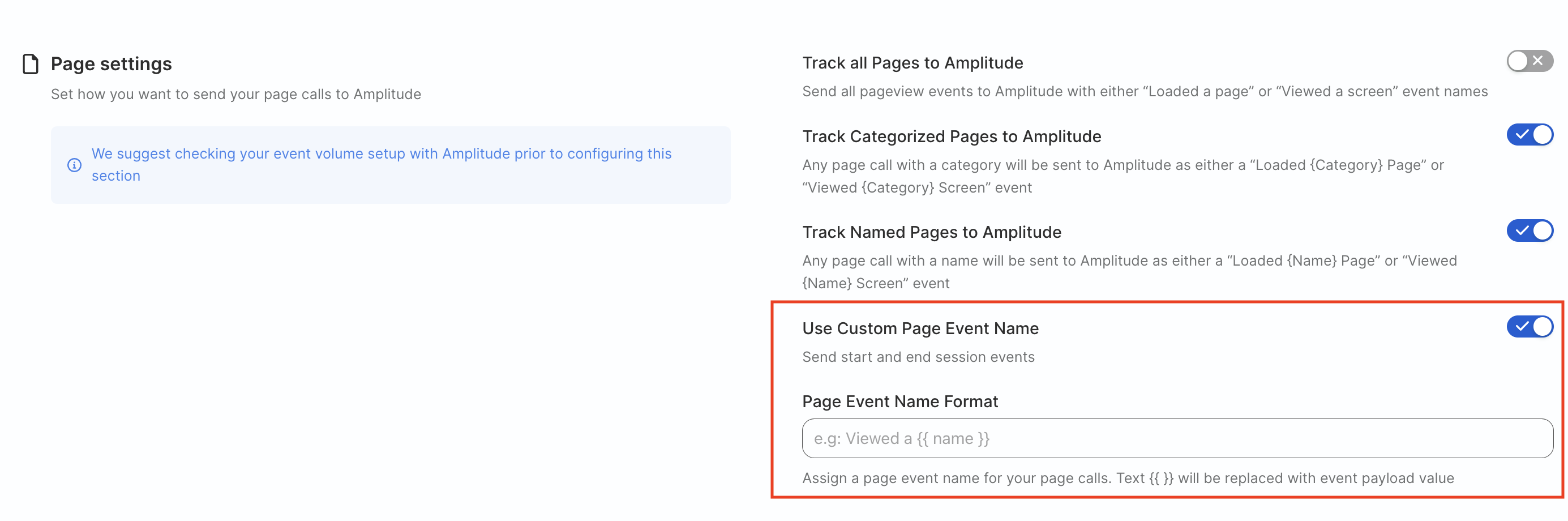
For example, if you set the event name format as Viewed a {{ name }} and pass the following event:
rudderanalytics.page("Home")Then, RudderStack sets the event name as Viewed a Home before sending it to Amplitude.
Screen
The screen call lets you record screen views with any additional information about the viewed screen.
A sample screen call looks like the following code snippet:
[[RSClient sharedInstance] screen:@"Main"
                properties:@{@"prop_key" : @"prop_value"}];
Set custom screen event names
You can set custom event names for your screen calls. To use this feature, enable the Use Custom Screen Event Name dashboard setting and specify the event name format in the Screen Event Name Format field.
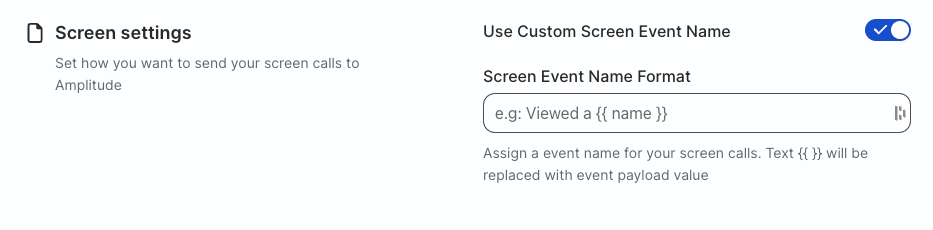
For example, if you set the event name format as Viewed a {{ name }} and pass the following event:
[[RSClient sharedInstance] screen:@"Main"
                properties:@{
                  @"title" : "Home | RudderStack",
                  @"url" : @"http://www.rudderstack.com"}
                ];
Then, RudderStack sets the event name as Viewed a Main before sending it to Amplitude.
Group
You can use the group event to link an identified user with a group, like a company, organization, or an account.
Note that RudderStack does not support associating a user to more than one group per group call sent to Amplitude.
To send more than one group per user, you must call the group API multiple times with the relevant group information specified in the group settings.
Use Amplitude Groups
To use the Amplitude Groups feature with RudderStack:
- Configure the Group name trait and Group value trait fields in the Group trait settings.
- Pass the above fields as traits in your
groupevents.
Even if you don’t have an enterprise account or the Groups add-on, RudderStack adds groups as a user property in the user’s profile with Group Name Trait as its type and Group Value Trait as its value.
For example, if you define the Group Name Trait as RS and Group Value Trait as RudderStack and make the group call, the user would then be associated with the group name as RS and the group value as RudderStack.
Track
The track call lets you record the user’s actions along with any properties associated with them.
A sample track call looks like the following:
rudderanalytics.track("Track me")Track revenue events
In cloud mode, RudderStack automatically recognizes a revenue event if a track event has both revenue and revenue_type properties.
You can also mark a revenue event manually by setting the isRevenue property to true in the integrations object.
A sample track call categorized as a revenue event is shown below:
rudderanalytics.track("Item Purchased", {
  revenue: 30,
  revenue_type: "add-on purchase",
})
RudderStack processes revenue events in the following ways:
- If you include
priceandquantityfields in your event, then RudderStack calculates the revenue asprice * quantity. - If the
revenuefield is present in your event butpriceis not, then RudderStack usesrevenueas thepricewithquantityset to 1.
Therevenuefield does not override theprice * quantitycalculation, if both are present.
Track revenue at event or product level
For events with a products array, you can track revenue at event level or product level based on your dashboard configuration:
| Dashboard setting | Action |
|---|---|
| Track revenue per product is enabled | Revenue is tracked separately for each product. |
| Track revenue per product is disabled | Revenue is tracked as an aggregate at the event level. |
Note that the revenueType field is set from either the revenueType or revenue_type property in your event. If not specified, RudderStack defaults its value to Purchased.
Track completed orders
While tracking completed orders with multiple products, RudderStack generates events as follows:
When Track products as a single event setting is toggled off:
- One main
Order Completedevent with the overall order details - Separate
Product Purchasedevents for each product in theproductsarray - Revenue tracking based on your revenue tracking configuration:
When Track products as a single event setting is toggled on:
One single event with the original event name (
Order Completed)All products are included as properties in this single event
Revenue tracking based on your revenue tracking configuration:
- If Track revenue per product setting is enabled: Each product is tracked individually with its own revenue calculation, regardless of the total order revenue.
- If Track revenue per product setting is disabled: The total revenue specified at the order level is used.
In both the cases, any discrepancy between the sum of product revenues and the order-level revenue is ignored.
A sample Order Completed event is shown below:
rudderanalytics.track("Order Completed", {
  checkoutId: "ABCD1234",
  orderId: "order1234",
  revenue: 50,
  products: [
    {
      productId: "product1",
      sku: "45790-32",
      name: "Monopoly: 3rd Edition",
      price: 20,
      quantity: 1,
      category: "Games",
    },
    {
      productId: "product2",
      sku: "46493-32",
      name: "Uno Card Game",
      price: 15,
      quantity: 2,
      category: "Games",
    },
  ],
})
Alias
Note that:
- This feature is currently only available when sending events through the JavaScript SDK in cloud mode.
- You will need to enable the Amplitude Portfolio add-on to use the
aliascall.
The alias call lets you merge different identities of a known user. For more information on how the alias call works for Amplitude, see the Amplitude support page.
A sample alias call is shown below:
rudderanalytics.alias("new_id", "old_id");See the JavaScript SDK documentation for more information on the alias API.
Map a user ID
Amplitude’s alias call creates a mapping or link between the user_id specified in the from parameter to the global_user_id specified in the to parameter of the alias call, as shown:
rudderanalytics.alias("user_id", "global_user_id", options, callback)Unmap a user ID
You can also unmap an already established link or a connection in Amplitude using the following format:
rudderanalytics.alias("user_id_to_unmapped", {
  integrations: {
    Amplitude: {
      unmap: true,
    },
  },
})
In the snippet above, user_to_be_unmapped, will be unmapped or unlinked from the global_user_id that it is currently linked to.
For the unmapping user ID, do not provideglobal_user_idin thetoparameter of thealiascall, otherwise RudderStack will dismiss this field.
Advanced features
This section covers some advanced features that you can use to enhance your Amplitude cloud mode integration with RudderStack.
Send event_id
RudderStack supports sending event_id to Amplitude. You can include it under the integrations object and it is supported for all API calls (identify, track, page, screen, and group).
A sample identify call with event_id is shown below:
rudderanalytics.identify(
  "1hKOmRA4GRlm", {
    name: "Alex Keener"
  }, {
    integrations: {
      Amplitude: {
        event_id: 1234
      }
    }
  }
);
Skip user properties sync
When you send an event to Amplitude via RudderStack, Amplitude updates the existing user properties and appends any new ones. You can change this behavior by setting the skip_user_properties_sync property to true in the integrations object.
This ensures that the event in Amplitude:
- Includes only the user properties sent with it
- Does not modify the user properties table
- Does not include any pre-existing user properties
See Amplitude documentation for more information on this feature.
A sample integrations object with the skip_user_properties_sync property is shown below:
"integrations": {
        ...
        ...
        "Amplitude": {
            "skipUserPropertiesSync": true
        }
        ...
        ...
    }
GDPR and user suppression
You can delete a user in Amplitude using Suppression with Delete regulation in the RudderStack User Suppression API.
To delete a user, specify their userId in the event. Optionally, you can specify a custom identifier.
A sample regulation request body for deleting a user in Amplitude is shown below:
{
  "regulationType": "suppress_with_delete",
  "destinationIds": [
    "2FIKkByqn37FhzczP23eZmURciA"
  ],
  "users": [{
    "userId": "1hKOmRA4GRlm",
    "<customKey>": "<customValue>"
  }]
}
FAQ
Why are all my session IDs -1 in Amplitude?
You will see the session IDs as -1 in Amplitude if you are sending events in cloud mode and:
- You are not including the session ID in your event’s
context.sessionId. - The
sessionIdis not an integer (ideally, a Unix timestamp).
See Amplitude’s documentation for more information on how Amplitude tracks user sessions.
Can I send more than one group per user to Amplitude?
RudderStack does not support associating a user to more than one group per group API call sent to Amplitude.
To send more than one group per user, you need to call the group API multiple times with the relevant group information specified in the group settings.
How does RudderStack send the operating system information to Amplitude?
RudderStack sends the following contextual fields that capture the operating system details:
| RudderStack field | Amplitude property | Data type | Description |
|---|---|---|---|
os.name | os_name | String |
|
os.version | os_version | String |
|
Note that:
- To send the OS-related information differently, you can write a transformation according to your requirements.
- Amplitude combines the above fields to set the
OSproperty as follows:OS = os_name + os_version
Why am I getting 429 errors in Amplitude?
Amplitude has a limit of 10 events per second per user. You might get this error if you are sending too many requests at a time for a given user.
RudderStack recommends stopping event sending for at least 30 seconds before retrying.
See the Amplitude support page for more information on the common API error codes.
What are the batch processing limits in cloud mode?
When sending events in batches to Amplitude in cloud mode, there are two important limits to consider:
- Maximum batch size: 20MB
- Maximum number of events per batch: 500 events
If your events exceed these limits, RudderStack will automatically split them into multiple batches.
How does RudderStack handle user IDs with less than 5 characters?
When sending events with user IDs less than 5 characters in cloud mode:
- For single event processing: RudderStack processes the event normally.
- For batch processing: RudderStack removes the user ID from the event to prevent batch processing errors. However, the event is still sent with other identifiers (like device ID).
RudderStack recommends using user IDs that are at least 5 characters long to ensure consistent processing across all event types.
