AdRoll
Beta5 minute read
AdRoll is a digital and growth marketing platform that lets you display relevant ads, engage with your customers, and grow your revenue.
RudderStack supports AdRoll as a destination to which you can seamlessly send your event data.
Connection compatibility
| Destination Information | |||
|---|---|---|---|
| |||


Domain allowlisting for web device mode
In web device mode, RudderStack loads the AdRoll native SDK from https://s.adroll.com. The script path contains your account ID (Advertiser ID). Depending on your Content Security Policy, allow these sources in script-src.
You can monitor vendor scripts with a report-only Content Security Policy.
Getting started
Once you have confirmed that the source platform supports sending events to AdRoll, follow these steps:
- From your RudderStack dashboard, add a source. Then, from the list of destinations, select AdRoll.
- Assign a name to the destination and click Next.
Connection settings
To successfully configure AdRoll as a destination, you will need to configure the following settings:
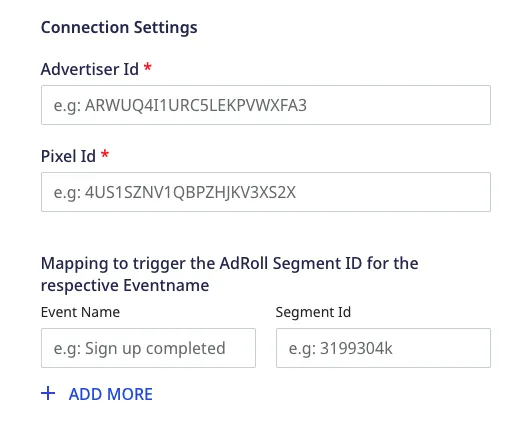
- Advertiser ID: Enter your AdRoll advertiser ID here.
- Pixel ID: Enter your AdRoll pixel ID here.
For more information on getting your AdRoll advertiser ID and pixel ID, refer to the FAQ section below.
- Mapping to trigger the AdRoll Segment ID for the resepective event name: Enter the event names which you want to map to specific AdRoll audience segments.
For more information on creating new audiences in AdRoll and getting the audience segment ID, refer to the FAQ section below.
When sending events via device mode, RudderStack lets you specify which events should be discarded or allowed to flow through. For more information, refer to the Client-side Event Filtering guide.
- Use device mode to send events: As this is a web device mode-only destination, this setting is enabled by default and cannot be disabled.
Identify
The identify method lets you identify a user and associate them to their actions. It also lets you record any traits about them like their name, email, etc.
A sample identify call is shown below:
rudderanalytics.identify("1hKOmRA4GRlm", {
  email: "alex@example.com"
});
RudderStack uses the identify call to set a userId which is passed to AdRoll every time a subsequent track call is made.
identifycall. RudderStack mapswindow._adroll_emailproperty.
It is not mandatory to make anidentifycall every time before making atrackcall.
Track
The track method lets you capture user events along with the properties associated with them.
RudderStack uses track events to segment your users in AdRoll.
A sample track call is shown below:
rudderanalytics.track("Order Completed", {
  order_id: "123454387",
  products: [
    {
      product_id: "345676543",
      sku: "G214",
      name: "Cards",
      price: 14.99,
      position: 1,
      category: "Games",
      url: "https://www.estore.com/best-seller/1"
    }
  ]
});
To use the RudderStack track calls to segment users in AdRoll, you must first create an audience segment in AdRoll. Then, you need to map the audience ID to your corresponding event in the RudderStack dashboard:
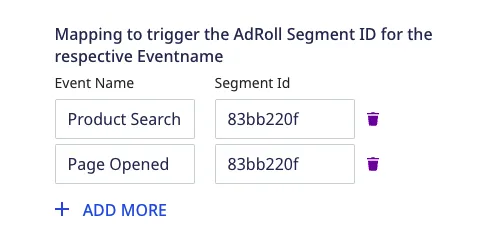
For more information on creating an audience in AdRoll and mapping it to your events, refer to the FAQ section below.
When the mapped event is triggered, the appropiate pixel is fired in AdRoll and the user is segmented in the audience.
Property mapping
RudderStack maps the following event properties to the corresponding AdRoll attributes:
| RudderStack property | AdRoll attribute | Comments |
|---|---|---|
revenue | adroll_conversion_value | - |
userId | user_id | - |
price | adroll_conversion_value | Mapped only for the product type events, for example, Product Clicked, Product Viewed, Product Added. |
orderId | order_id | - |
currency | adroll_currency | - |
Page
The page method lets you record your website’s page views with any additional relevant information about the viewed page.
RudderStack internally uses the page and track calls to segment your users.
For RudderStack to successfully send bothpageandtrackcalls to AdRoll, the events must be mapped to the AdRoll audience segment ID in the RudderStack dashboard.
A sample page call is shown below:
rudderanalytics.page("Best Seller", {
  path: "/best-seller/1",
  referrer: "https://www.google.com/search?q=estore+bestseller",
  search: "estore bestseller",
  title: "The best sellers offered by EStore",
  url: "https://www.estore.com/best-seller/1"
});
FAQ
Where can I find the AdRoll advertiser ID and pixel ID?
To find the AdRoll advertiser ID and pixel ID, follow these steps:
- Log into your AdRoll dashboard.
- In the left sidebar, go to Website under Audiences.
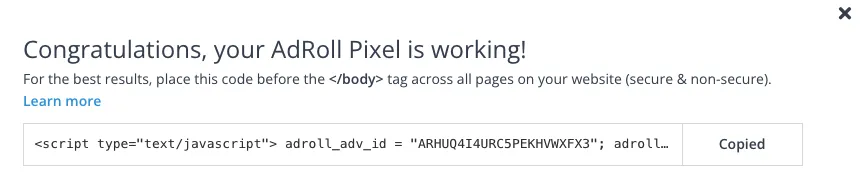
- Under the AdRoll Pixel section, click View Pixel:

- In the resulting pop-up, you can find your AdRoll advertiser ID associated with the
adroll_adv_idparameter. You can also find the AdRoll pixel ID associated with theadroll_pix_idparameter:
How do I create a new audience segment in AdRoll?
To create a new audience segment in AdRoll, follow these steps:
- Log into your AdRoll dashboard.
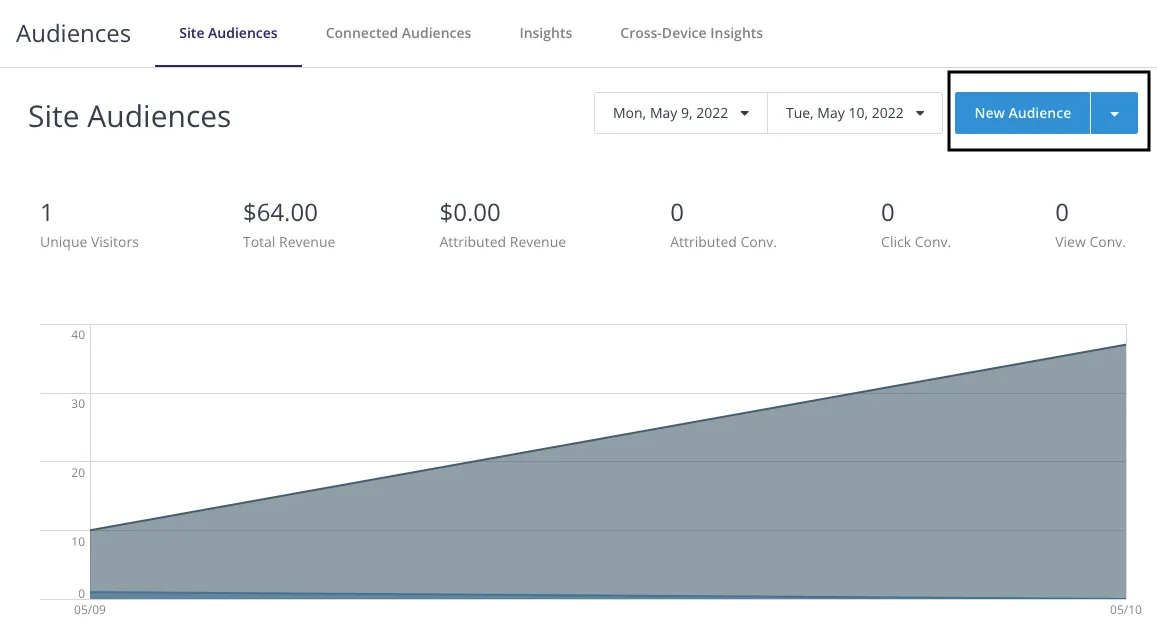
- In the left sidebar, go to Website under Audiences.
- Click New Audience:
- Enter the name of the audience segment in the Audience Name field.
Make sure you copy the ID before creating the audience by clicking the Copy ID to clipboard link.
RudderStack supports only the conversion audience type, so make sure you check the This is a conversion audience option.
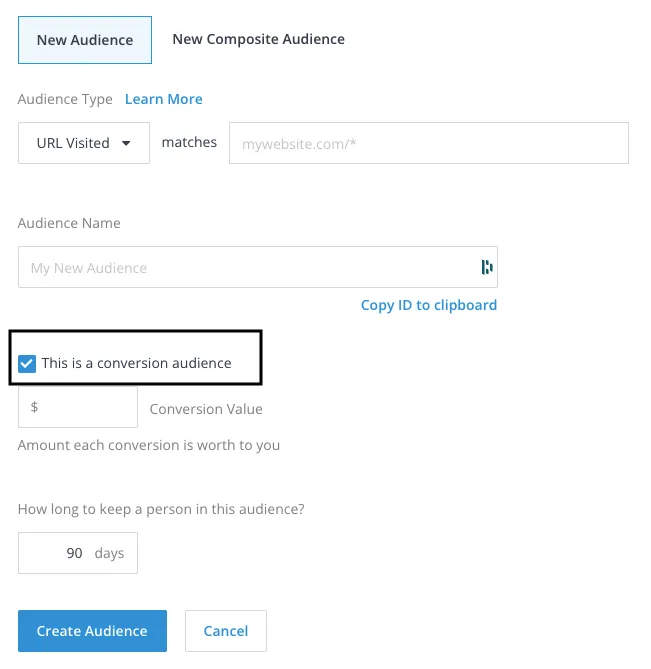
- Specify the Conversion Value and the duration for which the user should be a part of this audience segment.
- Finally, click Create Audience.
You can then specify the ID you copied above in the RudderStack dashboard to map specific events to your audience segment:
