Adjust Device Mode Integration
10 minute read
After you have successfully instrumented Adjust as a destination in RudderStack, follow this guide to correctly send your events to Adjust in device mode.
See the following GitHub repositories for more information on the implementation:
Add device mode integration
Follow these steps to add Adjust to your project depending on your integration platform:
Follow the steps in this section to add Adjust to your Kotlin project.
- In your module (app-level) Gradle file (usually
<project>/<app-module>/build.gradle.ktsor<project>/<app-module>/build.gradle), add the following dependencies for the RudderStack-Adjust integration:
dependencies {
  // ...

  // Add Rudder Kotlin and Adjust integration SDKs:
  implementation("com.rudderstack.sdk.kotlin:android:<latest-version>")
  implementation("com.rudderstack.integration.kotlin:adjust:<latest-version>")
}- For further steps like adding the Google Play Services dependency, required AndroidManifest permissions, and ProGuard rules, refer to the Adjust documentation.
- Add the SDK initialization and the
Rudder-Adjustintegration in yourApplicationclass:
import android.app.Application
import com.rudderstack.sdk.kotlin.android.Analytics
import com.rudderstack.sdk.kotlin.android.Configuration
import com.rudderstack.integration.kotlin.adjust.AdjustIntegration

class MyApplication : Application() {
    lateinit var analytics: Analytics

    override fun onCreate() {
        super.onCreate()
        analytics = Analytics(
            configuration = Configuration(
                writeKey = "WRITE_KEY",
                application = this,
                dataPlaneUrl = "DATA_PLANE_URL",
            )
        )

        analytics.add(AdjustIntegration())
    }
}Follow these steps to add the Adjust integration to your Swift project using Swift Package Manager:
- In Xcode, select File > Add Package Dependencies….
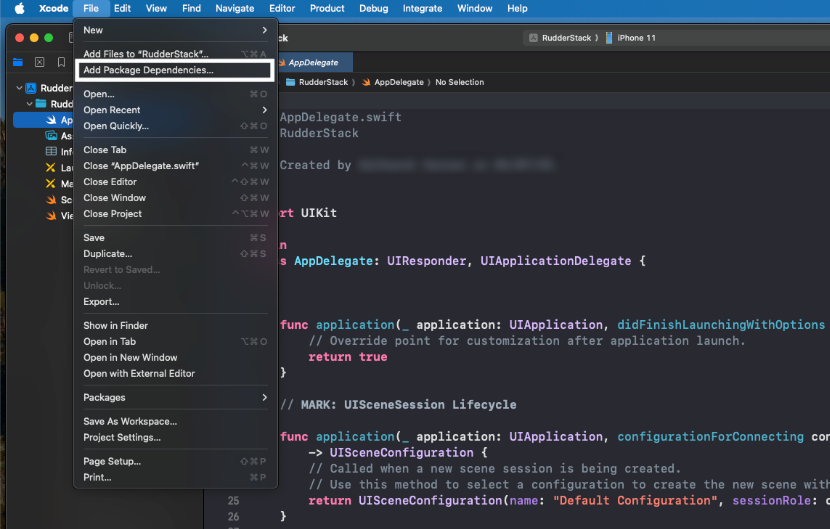
- Enter the below package repository URL in the search bar:
https://github.com/rudderlabs/integration-swift-adjust/- Select the latest version and the target to which you want to add the package.
- Click Add Package.
Alternatively, you can add the dependency to your Package.swift file, as shown:
dependencies: [
    .package(url: "<https://github.com/rudderlabs/integration-swift-adjust.git>", from: "<latest_integration_version>")
]
Usage
- Import the SDK and the integration:
import RudderStackAnalytics
import RudderIntegrationAdjust- Add
AdjustIntegrationto youranalyticsinstance:
// Initialize RudderStack Analytics
let analytics = Analytics(
    configuration: Configuration(
        writeKey: "<WRITE_KEY>",
        dataPlaneUrl: "<DATA_PLANE_URL>"
    )
)

// Add Adjust Integration
analytics.add(plugin: AdjustIntegration())
To add Adjust to your Unity app, follow these steps:
Add the RudderStack Unity SDK to your project.
Download the Adjust SDK extension package and import it in your project.
The package comes with Adjust Unity SDK embedded in it along with the required jar files for Android Install Referrer. It is strongly recommended to not add the Adjust SDK separately.
- After importing the
rudder-unity-extension-adjust.unitypackageto your project, attach theRudderPrefabs.prefabfile fromRudderUnityPluginto your mainGameObject. - Finally, change the SDK initialization:
// Build your config
RudderConfigBuilder configBuilder = new RudderConfigBuilder()
    .WithEndPointUrl(DATA_PLANE_URL)
    .WithFactory(RudderAdjustIntegrationFactory.GetFactory());

// Get instance for RudderClient
RudderClient rudderClient = RudderClient.GetInstance(
    WRITE_KEY,
    configBuilder.Build()
);
Follow the below steps to add Adjust to your Flutter Project:
- Add the following dependency to the
dependenciessection of yourpubspec.yamlfile.
rudder_integration_adjust_flutter: ^1.0.1- Run the below command to install the dependency added in the above step:
flutter pub get- Import the
RudderIntegrationAdjustFlutterin your application where you are initializing the SDK.
import 'package:rudder_integration_adjust_flutter/rudder_integration_adjust_flutter.dart';- Finally, change the initialization of your
RudderClientas shown:
final RudderController rudderClient = RudderController.instance;
RudderConfigBuilder builder = RudderConfigBuilder();
builder.withFactory(RudderIntegrationAdjustFlutter());
rudderClient.initialize(<write_key>, config: builder.build(), options: null);
To add Adjust to your Android project, follow these steps:
- Add
mavenCentral()to therepositoriessection of yourbuild.gradlefile:
repositories {
  mavenCentral()
}- Next, add the following permissions to your
AndroidManifest.xmlfile:
<uses-permission android:name="android.permission.INTERNET"></uses-permission>
<uses-permission android:name="android.permission.ACCESS_NETWORK_STATE"></uses-permission>
// If you are not targeting the Google Play Store, you need to add the following permission:
<uses-permission android:name="android.permission.ACCESS_WIFI_STATE"></uses-permission>
// If you are targeting Android 13 and above (API level 33), you need to add the com.google.android.gms.AD_ID permission to read the device's advertising ID.
<uses-permission android:name="com.google.android.gms.permission.AD_ID"></uses-permission>- Finally, add the following lines in your
build.gradlefile underdependencies:
// RudderStack Android-SDK
implementation 'com.rudderstack.android.sdk:core:[1.0,2.0)'
// RudderStack Adjust-SDK
implementation 'com.rudderstack.android.integration:adjust:1.0.1'
// Add Google Play Services library to enable the Google Advertising ID for Adjust SDK
implementation 'com.google.android.gms:play-services-ads-identifier:17.0.1'
// To support the Google Play Referrer API, make sure you have the following in your build.gradle file:
implementation 'com.android.installreferrer:installreferrer:2.2'
For more information on implementingcom.google.android.gms:play-services-ads-identifier:17.0.1, refer to the Adjust documentation.
- After adding the dependency, register the
RudderAdjustFactorywith yourRudderClientinitialization as afactoryofRudderConfig. Add the following line in yourApplicationclass:
import com.rudderstack.android.integration.adjust.AdjustIntegrationFactory;- Finally, change the SDK initialization to the following:
val rudderClient: RudderClient =
    RudderClient.getInstance(
        this,
        WRITE_KEY,
        RudderConfig.Builder()
            .withDataPlaneUrl(DATA_PLANE_URL)
            .withFactory(AdjustIntegrationFactory.FACTORY)
            .build()
    )
To add Adjust to your iOS project, follow these steps:
- Add the following line to your CocoaPods
Podfile:
pod 'Rudder-Adjust'- After adding the dependency, register the
RudderAdjustFactorywith yourRudderClientinitialization as afactoryofRudderConfig. Run the following command to importRudderAdjustFactory.hfile in yourAppDelegate.mfile:
#import <Rudder-Adjust/RudderAdjustFactory.h>- Then, change the SDK initialization to the following:
RudderConfigBuilder *builder = [[RudderConfigBuilder alloc] init];
[builder withDataPlaneUrl:DATA_PLANE_URL];
[builder withFactory:[RudderAdjustFactory instance]];
[RudderClient getInstance:WRITE_KEY config:[builder build]];
This device mode integration is supported for Adjust v4.29.7 and above.
To add Adjust to your iOS project, follow these steps:
- Install
RudderAdjust(available through CocoaPods by adding the following line to yourPodfile):
pod 'RudderAdjust', '~> 1.0.0'- Run the
pod installcommand. - Next, import the SDK depending on your preferred platform:
import RudderAdjust@import RudderAdjust;- Add the imports to your
AppDelegatefile under thedidFinishLaunchingWithOptionsmethod:
let config: RSConfig = RSConfig(writeKey: WRITE_KEY)
            .dataPlaneURL(DATA_PLANE_URL)

RSClient.sharedInstance().configure(with: config)
RSClient.sharedInstance().addDestination(RudderAdjustDestination())RSConfig *config = [[RSConfig alloc] initWithWriteKey:WRITE_KEY];
[config dataPlaneURL:DATA_PLANE_URL];
[[RSClient sharedInstance] configureWith:config];
[[RSClient sharedInstance] addDestination:[[RudderAdjustDestination alloc] init]];Supported events
In device mode, RudderStack supports sending the following events to Adjust:
Identify
RudderStack’s identify call lets you identify a visiting user and associate them to their actions.
RudderStack sends the user information in the identify call to Adjust’s addSessionPartnerParameter method to set the userId (or anonymousId, in case userId is absent), so that the user information is passed to the subsequent calls.
A sample identify call is shown below:
[[RudderClient sharedInstance] identify:@"developer_user_id"
                                 traits:@{@"foo": @"bar", @"foo1": @"bar1"}];
Track
The track call lets you record the user actions along with any properties associated with them.
When you make a track call, RudderStack maps the event name with the corresponding Adjust custom event in the dashboard using Adjust’s trackEvent method.
Make sure to define the event mapping in the Map events to Adjust Event Tokens dashboard setting. Adjust will reject any events apart from these mappings.
You must create the event token in the Adjust dashboard before specifying the mappings.
Callback parameters
RudderStack sends all custom properties in your track calls as callback parameters.
A sample track call is shown below:
[[RudderClient sharedInstance] track:@"test_event"
                          properties:@{@"key":@"value", @"foo": @"bar"}];
Partner parameters
You can also send custom properties in your track calls as partner parameters to Adjust. Adjust then sends those parameters to the external partners you have set up in your Adjust dashboard. See the FAQ for more information on adding a partner in Adjust.
RudderStack uses the property mappings specified in the RudderStack Parameters to Partner Parameters dashboard setting to check if a key is present in the track event properties and maps it to the corresponding Adjust partner parameter object.
- Adjust will reject any properties apart from mappings specified in the RudderStack Parameters to Partner Parameters dashboard setting.
- The partner parameters only accept the String data type.
Suppose you set the following mappings in the RudderStack dashboard:
| RudderStack property | Adjust partner parameter |
|---|---|
revenue | price |
quantity | quantity |
A sample track call with the above properties is shown below:
[[RudderClient sharedInstance] track:@"purchase"
                          properties:@{@"revenue":@20.99,
                          @"currency": @"USD",
                          @"quantity": @10}];
Revenue tracking
To send revenue tracking events to Adjust, add revenue and currency to your event properties:
[[RudderClient sharedInstance] track:@"purchase"
                          properties:@{@"revenue":@2.99, @"currency": @"USD"}];
App install attribution
RudderStack’s Adjust mobile integration (iOS and Android) automatically triggers an Install Attributed event if you have enabled Install Attribution tracking in the dashboard settings.
The enhanced attribution support is available from:
- Rudder-Adjust Android v2.1.0 and above
- Rudder-Adjust iOS v2.2.0 and above
Usage
Follow these steps to use the enhanced attribution tracking feature:
1. Configure token mapping in the Adjust dashboard
- In your Adjust dashboard, create a new event token specifically for the
Install Attributedevent — you can also use an existing event token in case you have one. - Copy the generated event token.
- Use this token in the Adjust destination configuration (explained below).
2. Adjust destination configuration in RudderStack
- In your RudderStack dashboard, add Adjust as a mobile device mode destination.
- Specify your Adjust App Token.
- In the Map events to Adjust event tokens dashboard setting, map the
Install Attributedevent to the event token obtained above. - Save the mapping.
3. Enable automatic attribution tracking
Toggle on the Enable Install Attribution dashboard setting to automatically track the Install Attributed event when the app is installed for the first time.
How attribution tracking works
By leveraging Adjust’s attribution callback on iOS and Android, the integration listens for an attribution change from Adjust’s SDK and triggers the event with the following Adjust attribution parameters:
| Key | Value | Description |
|---|---|---|
provider | Adjust | Hardcoded value |
trackerToken | attribution.trackerToken | Token of the link to which the device is currently attributed |
trackerName | attribution.trackerName | Name of the link to which the device is currently attributed |
campaign.source | attribution.network | Name of the network to which the device is currently attributed |
campaign.name | attribution.campaign | Name of the campaign to which the device is currently attributed |
campaign.content | attribution.clickLabel | The click label tagged with the install |
campaign.adCreative | attribution.creative | Name of the creative to which the device is currently attributed |
campaign.adGroup | attribution.adGroup | Name of the ad group to which the device is currently attributed |
An example of the attribution data automatically captured by the Install Attributed event is shown below:
{
  "event": "Install Attributed",
  "properties": {
    "provider": "Adjust",
    "trackerToken": "abc123",
    "trackerName": "Campaign Name",
    "campaign": {
      "source": "google",
      "name": "summer_campaign",
      "content": "click_label",
      "adCreative": "banner_ad",
      "adGroup": "mobile_users"
    }
  }
}
If any of the above values are unavailable, they are defaulted tonull. This event is then sent to all the connected device mode and cloud destinations.
See the following FAQs for troubleshooting tips:
- Why are the
Install Attributedevents not appearing in my Adjust dashboard? - Why is the
Install Attributedevent not triggering?
Environment dependency on log level
RudderStack sends data to the Adjust environment depending on the Logger.LogLevel parameter (Android (Kotlin)) or LoggerAnalytics.LogLevel (iOS (Swift)) set in the SDK, as listed in the table below:
LogLevel | Adjust environment |
|---|---|
VERBOSE / DEBUG / INFO / WARN / ERROR | Sandbox |
NONE | Production |
RudderStack sends data to the Adjust environment depending on the RudderLogLevel set in the SDK, as listed in the table below:
RudderLogLevel | Adjust environment | Adjust SDK LogLevel |
|---|---|---|
DEBUG / VERBOSE | Sandbox | VERBOSE |
NONE / ERROR / WARN / INFO | Production | ERROR |
For more information on RudderLogLevel, see the following SDK documentation:
Property mapping
RudderStack’s device mode integration automatically handles device information through the native Adjust SDK. The following table shows how RudderStack events map to Adjust’s native methods:
| RudderStack event/method | Adjust SDK method | Description |
|---|---|---|
identify() | addSessionPartnerParameter() | Sets user ID for session attribution |
track()Required | trackEvent() | Sends custom events to Adjust |
reset() | resetSessionCallbackParameters() | Resets user session data |
properties.revenue | Revenue tracking | Revenue amount for purchase events |
properties.currency | Revenue tracking | Currency code for revenue |
properties.* | Callback parameters | All properties as callback parameters |
properties.* (mapped) | Partner parameters | Mapped properties as partner parameters |
Device mode automatically handles device identification through the native Adjust SDK, so you don’t need to manually providecontext.deviceinformation like in cloud mode.
Troubleshooting
| Issue | Resolution |
|---|---|
| Events not appearing in Adjust dashboard |
|
| Install attribution not working |
|
| Partner parameters not working |
|
| SDK integration issues |
|
| Environment configuration issues | Check the Adjust environment dependency on log level section to understand how your SDK log level affects the Adjust environment. |
