Connect Reverse ETL Source to LinkedIn Audience Beta
6 minute read
This guide takes you through the steps to connect a Reverse ETL source to your LinkedIn Audience destination.
You can connect multiple Reverse ETL sources to the LinkedIn Audience destination.
Setup
- Set up and configure your Reverse ETL source.
- In the Overview tab of the source page, click Add destination > Create new destination. You can also select an already-configured destination here.
- From the list of destinations, select LinkedIn Audience and click Continue.
- Specify a unique name to identify this destination in RudderStack.
- In the Event delivery account section, click Select to choose from an existing LinkedIn account from the list. You can also click Add account and authenticate via OAuth, by specifying the following settings:
| Setting | Description |
|---|---|
| Account Name | Specify a unique account name |
| oAuth settings | Click Connect account, sign in with LinkedIn, and give RudderStack the required permissions to access your LinkedIn Ads account. |
Why do I see a request for Conversions API permissions while authorizing RudderStack?
Since the LinkedIn Ads and LinkedIn Audience destination integrations share a common OAuth app in the backend, RudderStack requests all the necessary permissions needed for both integrations to work correctly.
RudderStack will not make any Conversions API-related calls when sending data to your LinkedIn Audience destination.
- Click Continue to configure the mapping settings.
Mapping settings
This section lists the settings to correctly map data from your Reverse ETL source to the LinkedIn Audience destination.
Select LinkedIn account
Select your LinkedIn Ads account from the dropdown — all the data will be synced with this account.
Audience type
Select the audience type from the dropdown. RudderStack supports two types - User and Company.
Select audience
In this section, you can create a new audience or use an existing one.
- Create new audience: Use this option to create a new custom audience in LinkedIn. You can specify the name and description of the new LinkedIn audience.
- Use existing audience: Use this option if you have an existing audience in LinkedIn. RudderStack automatically populates this field with the relevant audiences based on your specified connection settings and audience type configured above.
Sync mode
RudderStack supports only Mirror mode for this integration.
Mapping settings
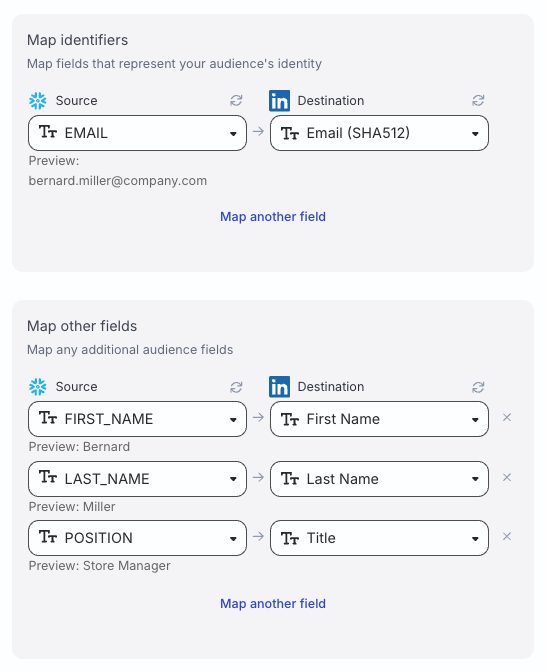
- Select a warehouse columns that act as identifiers for your records and map them to the relevant LinkedIn identifiers based on your audience type — see Identifier mappings section below for more information.
- Map the other warehouse columns to specific LinkedIn fields that represent your audience’s identity.
RudderStack does not typecast any data while syncing it to LinkedIn - it expects the data to be present in your warehouse in the correct format.
You can connect a transformation to the destination to update the data in the required format.
Identifier mappings
RudderStack supports specifying multiple identifiers for both the User and Company audience types.
- For the User audience type, RudderStack supports the below LinkedIn identifiers to which you can map your warehouse columns:
| Identifier | Description |
|---|---|
| Email (SHA256) | User’s email in a hex-encoded string format with a maximum length of 64 characters. |
| Email (SHA512) | User’s email in a hex-encoded string format with a maximum length of 128 characters. |
| Google Advertising ID | Plain text string (in lower case) with a maximum length of 32 characters. |
- For the Company audience type, RudderStack supports the below identifiers:
| Identifier | Description |
|---|---|
| Company Name | The company name. |
| Company Email Domain | Company’s email domain string in a URL format, for example, linkedin.com. |
| Company Website Domain | Company’s website domain string in a URL format, for example, www.linkedin.com. |
| Company Page URL | The LinkedIn company page URL with a maximum length of 100 characters, for example, linkedin.com/company/acmecorp. |
| Organization URN | The LinkedIn company page URN, for example, urn:li:organizationUrn:123. |
Other mappings
Apart from the identifier mappings, the User audience type also supports the below field mappings:
| Field | Description |
|---|---|
| First Name | User’s first name with a maximum length of 35 characters, for example, Alex. |
| Last Name | User’s last name with a maximum length of 35 characters, for example, Keener. |
| Title | User’s title in the company with a maximum length of 50 characters, for example, Engineer. |
| Company | User’s company name with a maximum length of 50 characters, for example, Acme Corp. |
| Country | ISO standard two letter country code, for example, US. |
For the Company audience type, RudderStack supports the below field mappings:
| Field | Description |
|---|---|
| Stock Symbol | Stock symbol of the company with a maximum length of 5 letters, for example, ACME. |
| Industries | Three industry names for the company with a maximum length of 50 characters, for example, Technology, Software. |
| City | City of the company with a maximum length of 50 characters, for example, New York. |
| State | State or province of the company with a maximum length of 50 characters, for example, Louisiana. |
| Country | ISO standard two letter country code, for example, US. |
| Postal Code | Postal code of the company with a maximum length of 20 characters, for example, 560001. |
Advanced settings
| Setting | Description |
|---|---|
| Automatically hash PII data | When set to Yes, RudderStack hash-encodes user data to LinkedIn. Note that:
|
Sync settings
RudderStack determines how and when to run a sync based on the sync schedule you set for your Reverse ETL connection.
| Schedule type | Description |
|---|---|
| Basic | Run syncs at a given time interval and specified time (in UTC). |
| CRON | Run syncs based on a specified CRON expression (in UTC). |
| Manual | Run syncs manually. |
Sync observability settings
| Setting | Description | ||||||
|---|---|---|---|---|---|---|---|
| Retain sync logs | This setting is toggled on by default and instructs RudderStack to store the sync logs in your warehouse. You can also configure the below settings:
| ||||||
| Retry failed records | This setting is toggled on by default and causes RudderStack to continually retry sending the failed records. |
Storing sync logs and snapshot tables may incur additional warehouse costs.
Enable destination
Once the setup is complete, make sure to click the Enable button to enable and activate the connection.

Data hashing
The Automatically hash PII data setting lets you hash your user data before sending it to LinkedIn. This setting is enabled by default.
- Configure the setting to Yes if your incoming data is not pre-hashed
- Configure this setting to No if your data is already hashed
Incorrect configuration of the Automatically hash PII data setting will result in failures.
- If the Automatically hash PII data setting is configured to Yes and your data is pre-hashed, the event will fail.
- If the Automatically hash PII data setting is configured to No and your data is not pre-hashed, the event will fail.
RudderStack rejects such events with a clear error message, for example:
Automatically hash PII data is disabled but the value for field EMAIL appears to be unhashed. Either enable hashing or send pre-hashed data.You will also see errors in the Events tab for cases that were previously marked as successful, but were effectively resulting in no matches, helping you quickly identify and fix any data quality or configuration issues.
