Connect Reverse ETL Source to Klaviyo Bulk Upload
2 minute read
This guide takes you through the steps to connect a Reverse ETL source to the Klaviyo Bulk Upload destination.
Set up connection
The Reverse ETL feature supports only source-driven pipeline configuration.
Make sure you have set up a RETL source and connected it to your Klaviyo Bulk Upload destination before following the below steps.
Confirm the connection settings for Klaviyo Bulk Upload destination and click Continue.
In the Data Mapping section, select the Object as User Profiles .
Specify the Sync mode. RudderStack supports syncing to this destination only via the Upsert mode.
Toggle on Use cursor column to enable incremental syncs in Upsert mode and select the required Cursor column from the dropdown. See Cursor Column Support for more information on this feature.
In Choose identifier, specify the warehouse column that RudderStack uses to identify your records.
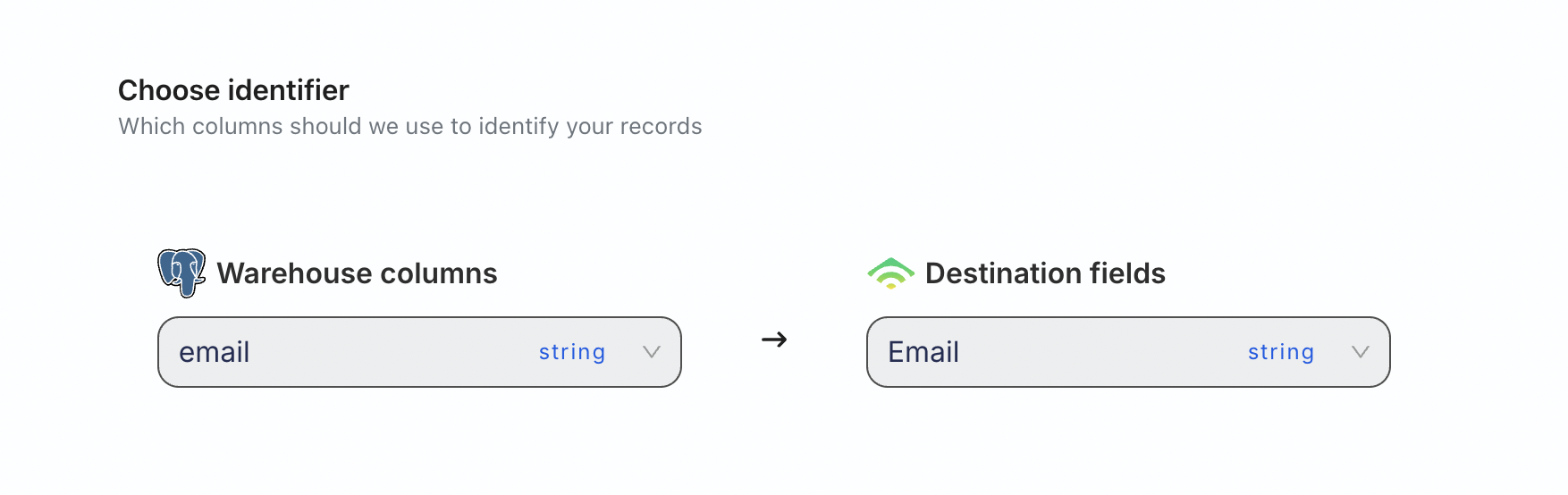
You can map this warehouse column either to the User ID, ID, or Email Klaviyo fields.
- Map other warehouse columns to specific Klaviyo Bulk Upload fields using the Map fields setting.
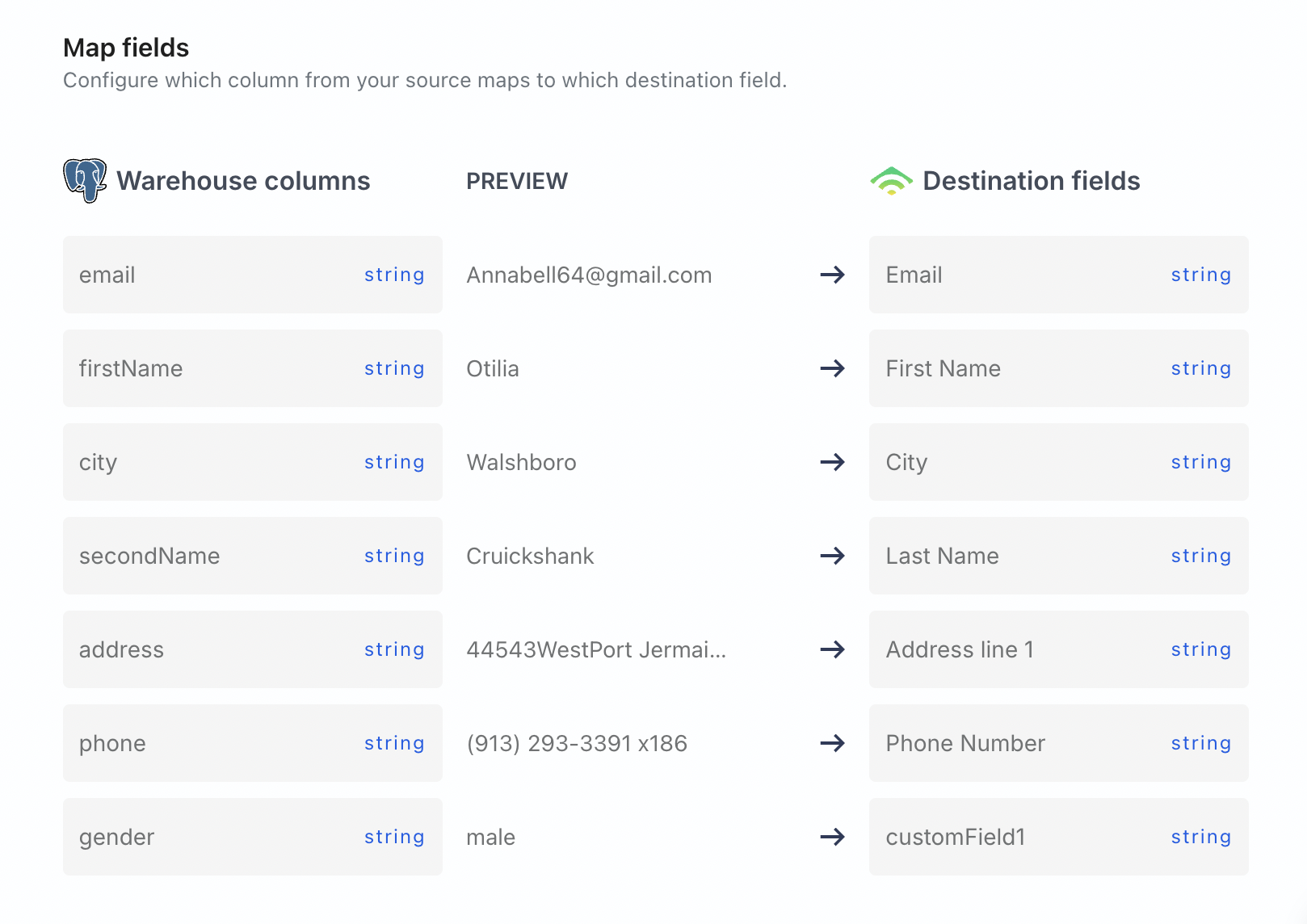
You can also specify custom mappings for this destination by creating a custom field and mapping it to a warehouse column.
See Create custom destination fields in Visual Data Mapper for more information on this feature.
FAQ
Why can’t I add a Reverse ETL source from the destination page?
The Reverse ETL feature supports only source-driven pipeline configuration. It means that you must configure a Reverse ETL source in RudderStack and then connect it to a new or existing destination. Note that this destination should not be connected to any other source.
See Reverse ETL FAQ for more information.
