Setup Guide
Set up and configure Bloomreach Catalog as a destination in RudderStack.
less than a minute
This guide will help you set up Bloomreach Catalog as a destination in the RudderStack dashboard. It also lists the configuration settings required to correctly send data from the supported sources to Bloomreach Catalog.
Setup
- In your RudderStack dashboard, set up a Reverse ETL source.
- In the Overview tab of the source, click Add Destination > Create New Destination.
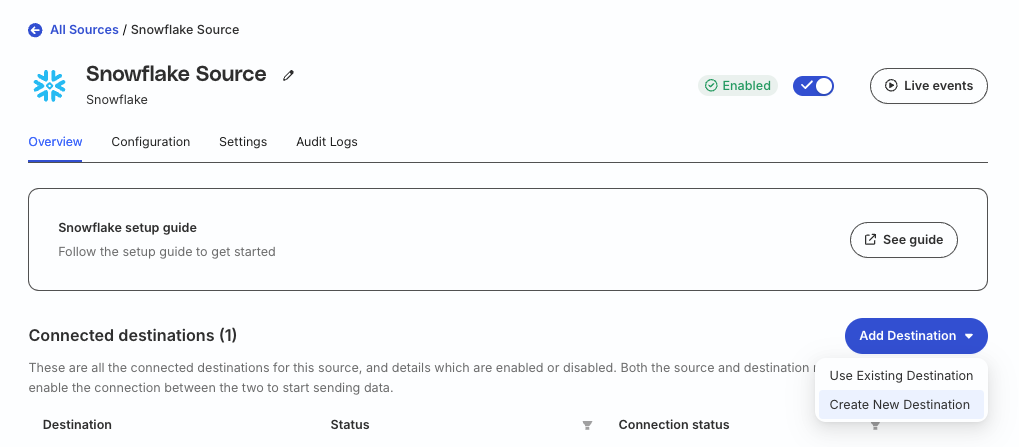
- From the list of destinations, select Bloomreach Catalog and click Continue.
Connection settings
| Setting | Description |
|---|---|
| Name | Assign a name to uniquely identify the destination. |
| API Base URL | Enter your Bloomreach instance URL found under Project settings > Access management > API in your Bloomreach dashboard. |
| API Key | Enter the Bloomreach API key. |
| API Secret | Enter the Bloomreach API secret. |
| Project Token | Enter the project token for your project under the Bloomreach instance. You can find it under the Project settings > Access management > API in your Bloomreach dashboard. |
| Catalog ID | Enter the Bloomreach catalog ID that RudderStack uses for syncing your catalog data. |
Next steps
FAQ
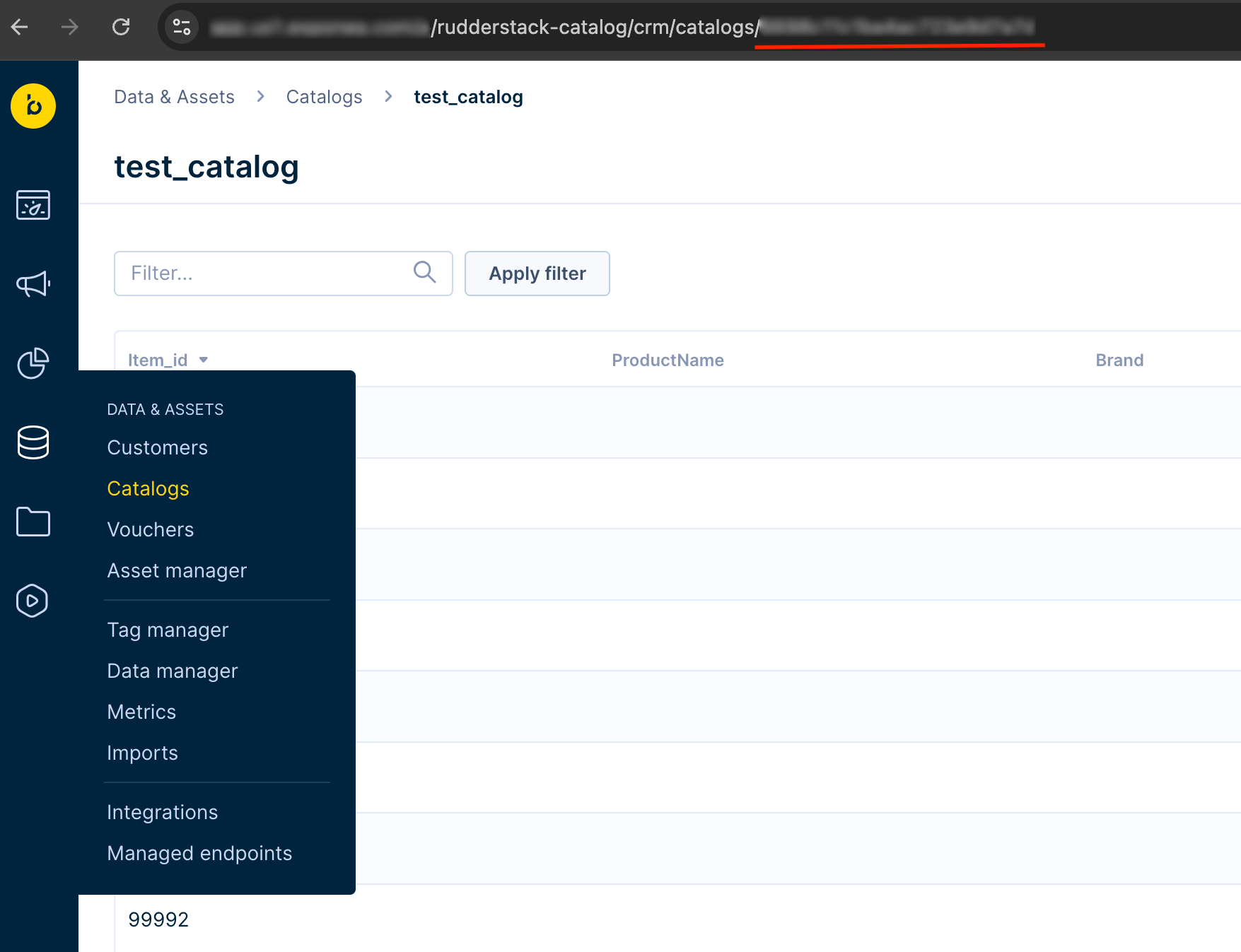
Where can I find the Bloomreach catalog ID?
- Log in to your Bloomreach dashboard.
- Go to Data & Assets > Catalogs and select your catalog.
- Note the catalog ID present in the resulting browser URL, as shown: