Sync Schedule Settings
3 minute read
RudderStack lets you set a schedule for importing data from your Reverse ETL sources while setting them up in your dashboard. It lets you specify the schedule type that defines how and when the syncs will run.
RudderStack supports the following three schedule types:
| Schedule type | Description |
|---|---|
| Basic | Run syncs at a set interval, optionally starting from a specified time (UTC). If a start time is set, syncs run from that time until the end of that day. |
| CRON | Run syncs based on a CRON expression defined by the user. |
| Manual | Run syncs manually. |
Basic
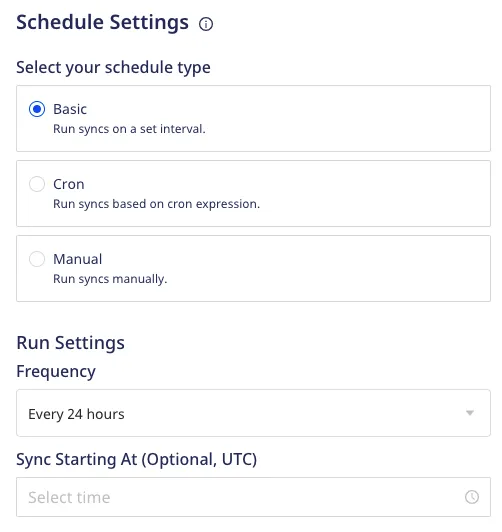
This schedule type lets you run the data syncs at a set interval. You can specify the sync frequency and, optionally, the UTC time when you want the daily sync window to start.
Frequency
You can choose the data sync frequency from the following options:
- 5 minutes
- 10 minutes
- 15 minutes
- 30 minutes
- 1 hour
- 3 hours
- 6 hours
- 12 hours
- 24 hours
Sync Starting At
Specify the UTC time when the daily sync window should start. When you set this field, syncs run from that time and repeat at the selected frequency until the end of that day. The same schedule then starts again the next day.
Daily syncs are the scheduled runs from the start time up to, but not including, 00:00 UTC. For evenly divided intervals, the number of daily syncs is floor((24:00 - start_time) / frequency), counting the start-time sync.
Example
If you set Frequency to 1 hour and Sync Starting At to 20:00, syncs run at 20:00, 21:00, 22:00, and 23:00 UTC — 4 syncs for that day, not 24.
To run hourly syncs around the clock, leave Sync Starting At blank or set it to 00:00. For more information, see What happens if I don’t set the Sync Starting At time?.
CRON
This schedule type lets you define a custom CRON expression and runs the data syncs based on this setting.
You can use the CRON scheduler utility to specify your sync schedule.
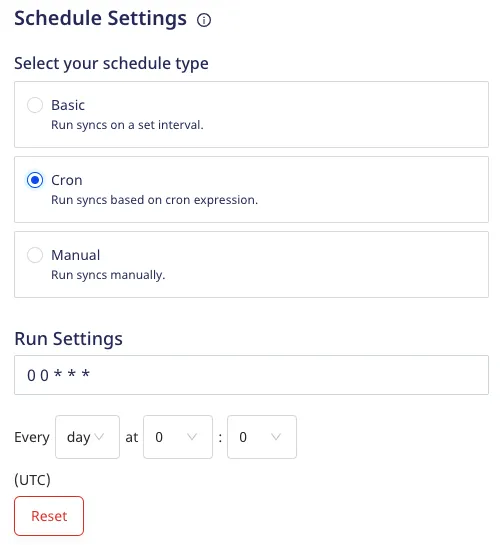
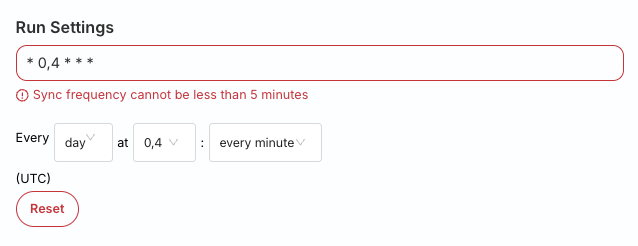
Note that the sync frequency specified under Run Settings needs to be greater than or equal to 5 minutes. Otherwise, you will encounter an error as shown below:
Manual
This schedule type lets you run your data syncs manually. RudderStack won’t sync the data until you explicitly trigger it.
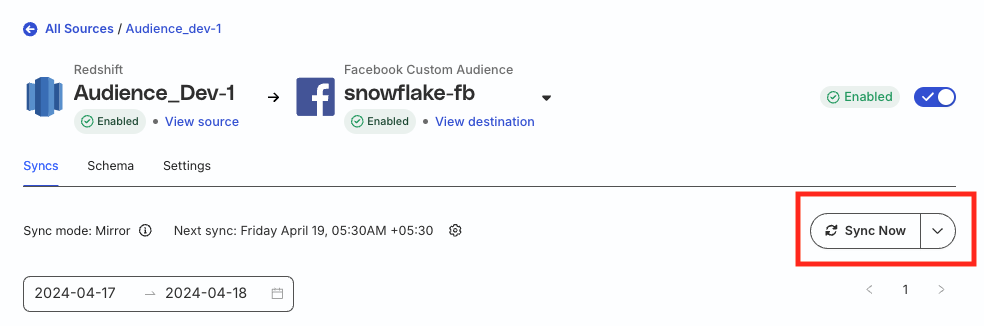
To trigger a sync manually, go to the Syncs tab in your Reverse ETL connections page and click Sync Now:
To programmatically schedule and trigger a sync from outside RudderStack, see the RudderStack Airflow Provider documentation.
Sync modes behavior
The following sections explain the behavior of the two sync modes(Upsert and Mirror) when a sync schedule is set in RudderStack.
Upsert mode
For upsert mode, you can trigger a new sync anytime by pressing the Sync Now button. Multiple syncs can run simultaneously.
Mirror mode
For mirror mode, you can run only one sync at any given point of time. A new sync starts only after the previous one is completed.
Suppose you have a sync scheduled for every 30 minutes. If there is a sync running for more than 30 minutes, then the next scheduled sync will be skipped when using the mirror mode.
FAQ
Can I change my sync schedule type?
Yes, you can.
- Go to the Settings tab of your Reverse ETL connection details page and click the edit icon next to Schedule:
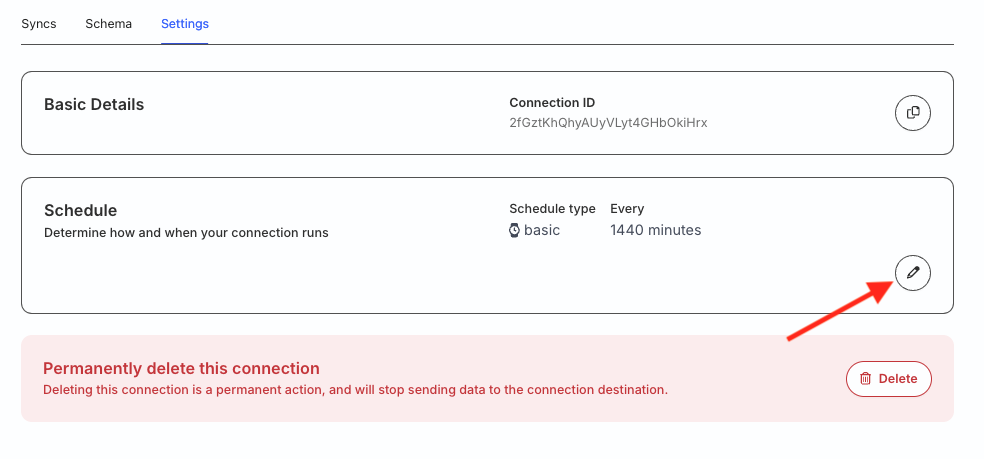
- Then, select your new sync schedule type.
What happens if I don’t set the Sync Starting At time?
RudderStack considers strict time windows to schedule syncs if you do not explicitly set the time under Sync Starting At.
Suppose you create a source at 12:30 hrs UTC, specify the Frequency as 3 hours, and do not specify any time under Sync Starting At. In this case, as the time falls in the 12:00-13:00 time window, RudderStack will run the next sync at 15:00 hrs UTC (12:00 + 03:00 = 15:00 hrs).
