Data Catalog Events
2 minute read
This guide walks you through creating and managing your events in the Data Catalog.
Required permissions
- Admins have full access to manage event properties in the Data Catalog.
- Members must have the following permission in their workspace policy:
| Resource | Permission | Description |
|---|---|---|
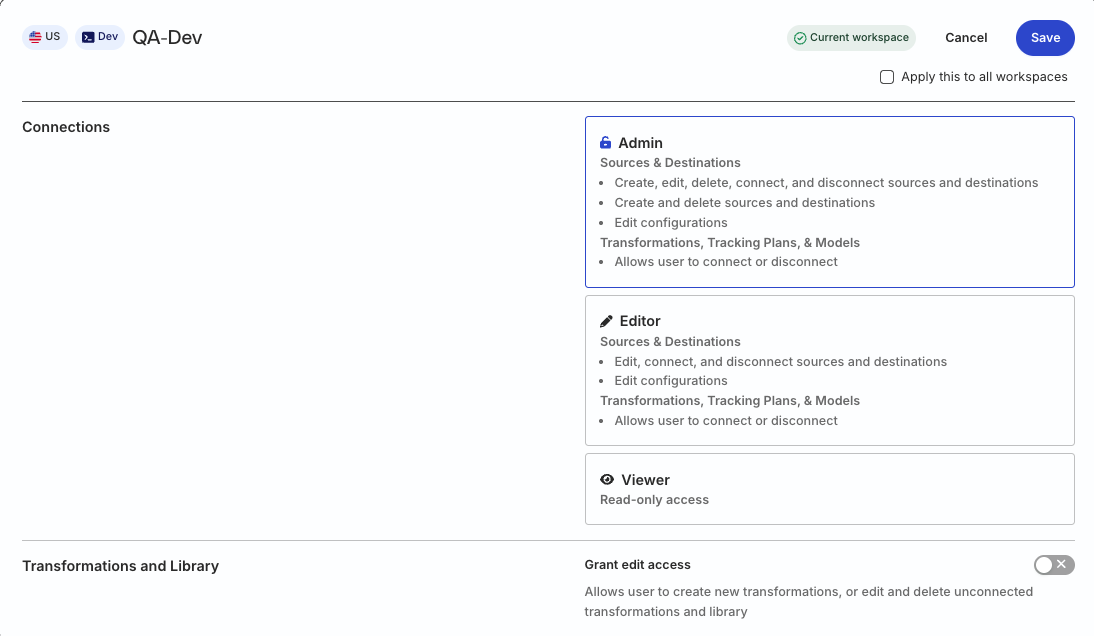
| Data Catalog | Edit | Make changes to the configuration of Data Catalog |
Click here to see how these permissions appear in the workspace policy.

Permissions for legacy RBAC system
In the legacy Permissions Management (RBAC) system:
- Org Admins have full access to manage the Data Catalog
- Members must have the Connections Admin role in their workspace policy to manage events in the Data Catalog
Add event
RudderStack provides two ways of creating and adding events to your Data Catalog:
In Data Catalog
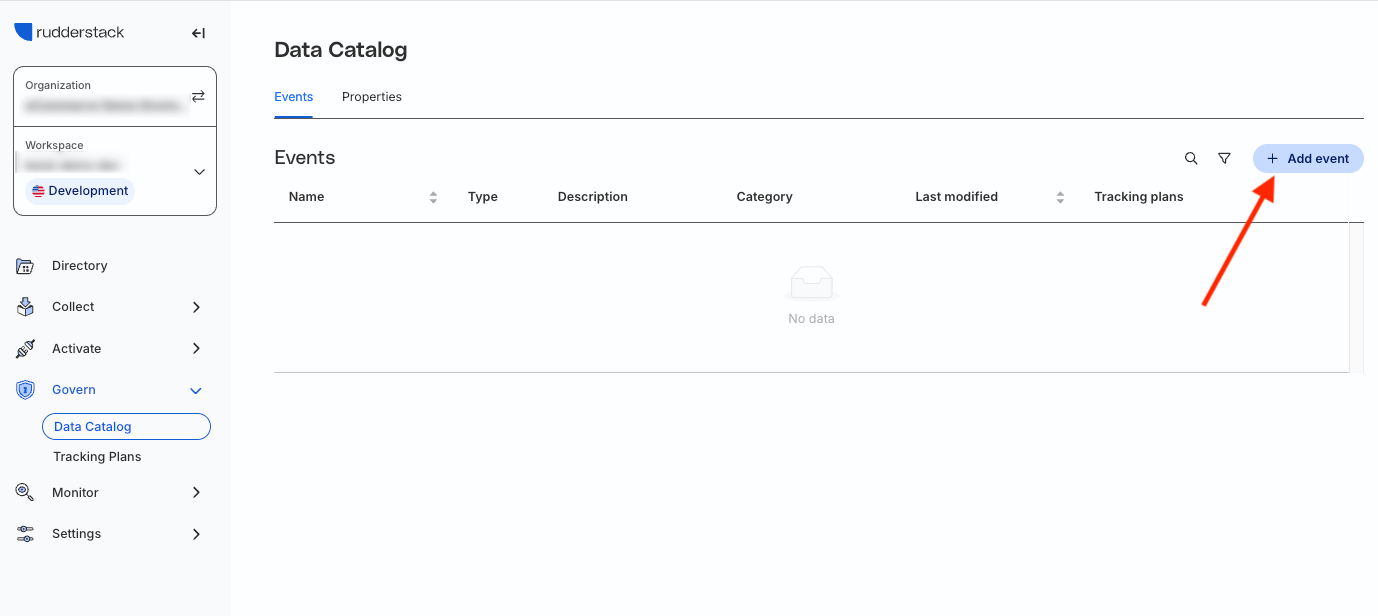
- Log in to the RudderStack dashboard and go to Govern > Data Catalog in the left sidebar.
- In the Events tab, click Add event.
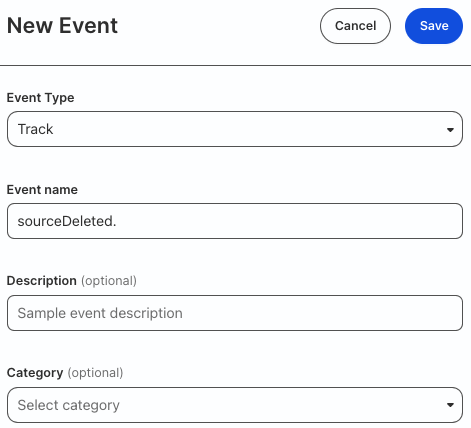
- Select event type from the dropdown. Note that you cannot update the event type later.
- Specify the event name and description.
Note that:
You cannot set a blank event name - it must be at least 1 character long.
RudderStack supports all UTF-8 characters in event names.
The event name can start with a letter, number, or special character. Some examples of valid event names:
Test Event5Test Event@4Test Event
- Optionally, specify the event category from the dropdown.
- Click Save.
While editing a tracking plan
You can also create a new event while adding a new event schema to your tracking plan configuration.
RudderStack automatically adds this event to your Data Catalog.
- Go to Govern > Tracking Plans to see all the tracking plans in your workspace.
- Click the Add event schema button.
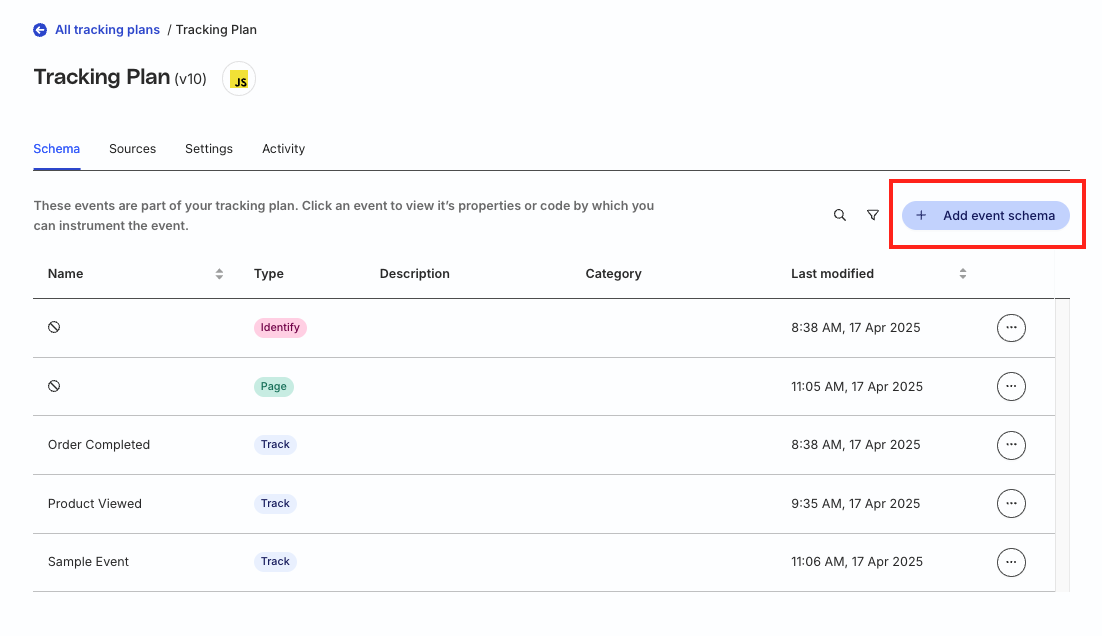
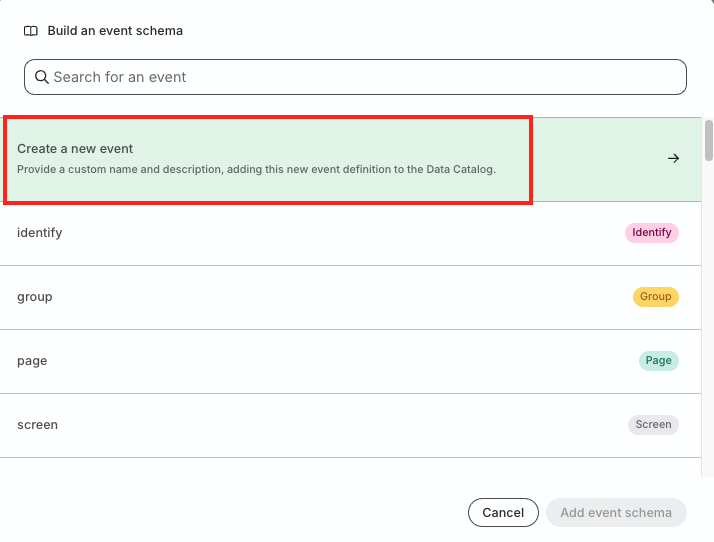
- Click Create a new event.
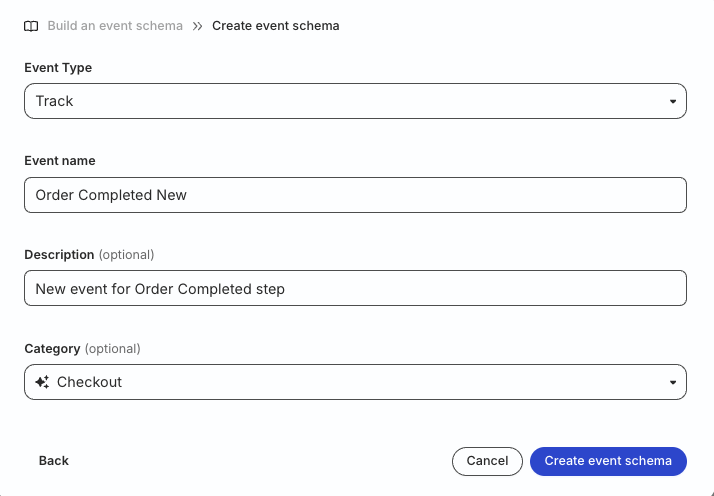
- Specify the event type, name, description, and category.
- Click Create event schema.
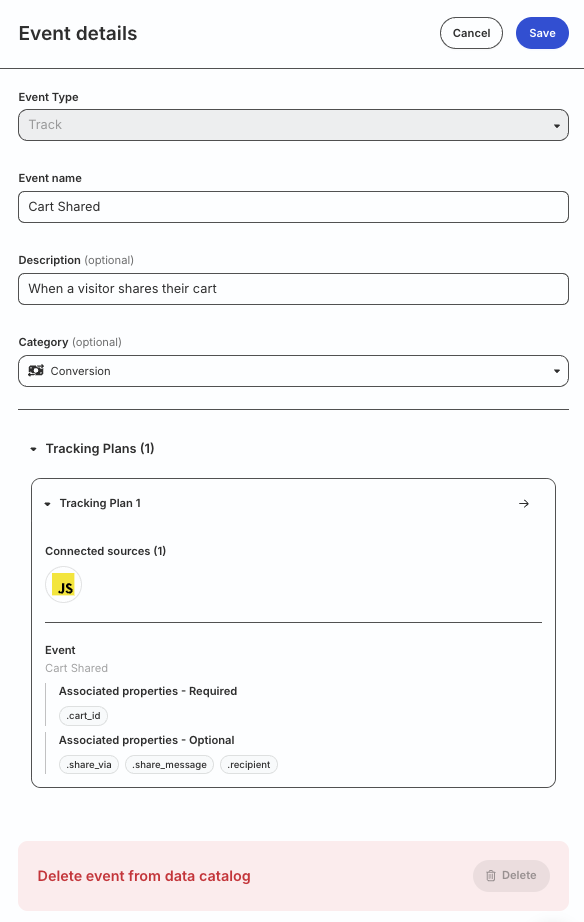
Event details
Click an event in the Data Catalog to see the following information:
- Event details.
- Connections to tracking plans, along with the connected sources and associated properties (only visible after you use the event to create a tracking plan).
- Option to delete the event. Note that you cannot delete any event that is already connected to any tracking plan.
You can also make any changes to the event and click Save for the changes to take effect: