Consent Management Overview
5 minute read
RudderStack’s robust consent management solution offers the following features:
- Dedicated OneTrust, Ketch, and iubenda consent management integrations.
- Full support for custom consent management integration.
- Implement and run multiple consent integrations, that is, run OneTrust and a custom consent solution in the same environment.
- Configurable blocking or delivery of events to each destination based on consent IDs and custom logic.
- Configurable pre-consent user tracking for category IDs and cookies (JavaScript SDK only).
Consent filtering requirements
Consent filtering works only when both of the following are in place — if either is missing, RudderStack cannot evaluate events against your consent rules:
Destination-level consent settings in the RudderStack dashboard, which include:
- A consent provider
- One or more consent category IDs
- A resolution strategy in case of the Custom provider
Consent data in the event payload, which include:
- A consent provider
- Non-empty
allowedConsentIdsanddeniedConsentIds - For the native OneTrust, Ketch, and iubenda integrations, a provider-matching resolution strategy
Important consideration
RudderStack does not infer consent from CMP regional defaults or other implicit signals — for example, a default opt-out for California users. Your application must resolve those into explicit category IDs and control when the SDKs should load.
Workflow
The following steps give a high-level overview of how to implement RudderStack’s consent management feature.
Step 1: Configure consent settings for destination
Configure destination-level consent settings in the RudderStack dashboard. These settings define which consent categories are required before RudderStack delivers events to that destination.
- Go to the destination’s Configuration settings > Consent settings to configure the consent settings for each source.
- Choose your consent management provider from the dropdown. You can also add multiple providers based on your requirements.
- Enter the consent category IDs relevant for that destination in the Enter consent category IDs field.
To specify multiple consent category IDs, press the Enter key after each ID.
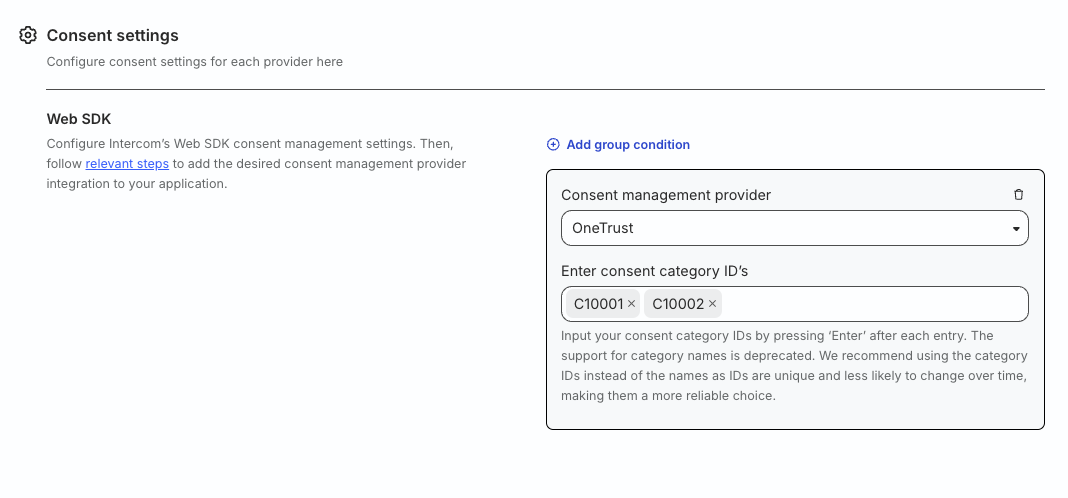
Note that the settings for specifying multiple consent IDs vary slightly for some destinations. In such cases, click Add more after specifying each consent category ID.
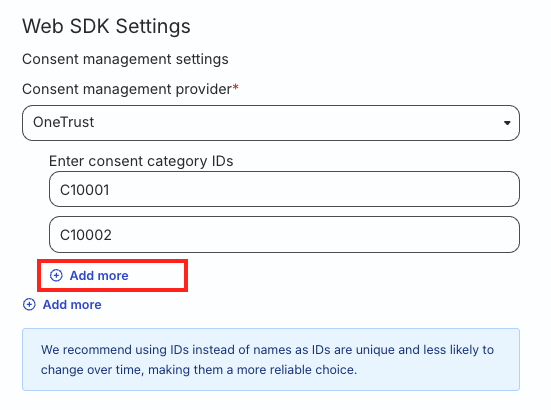
Note that:
- The consent category IDs are case-sensitive.
- For Custom provider, you must also specify the consent logic to be applied on the category IDs while resolving them against user consent data. See Custom Consent Management for more information.
Add multiple consent managers
RudderStack supports adding consent settings for multiple providers. However, note that only one of them will be used for filtering events to a destination, based on the provider specified in the client SDK’s load instrumentation or in the context.consentManagement object in the event payload.
You can configure only one consent settings block per provider for each source type.
If you try to add a duplicate provider block for the same source type, RudderStack rejects the save or update request in the dashboard and API. This validation is enforced at write time.
You can add multiple consent management providers for each source while configuring the destination-specific consent settings:
- Specify the consent provider settings.
- Click Add group condition.
- Specify the consent settings for the other provider.
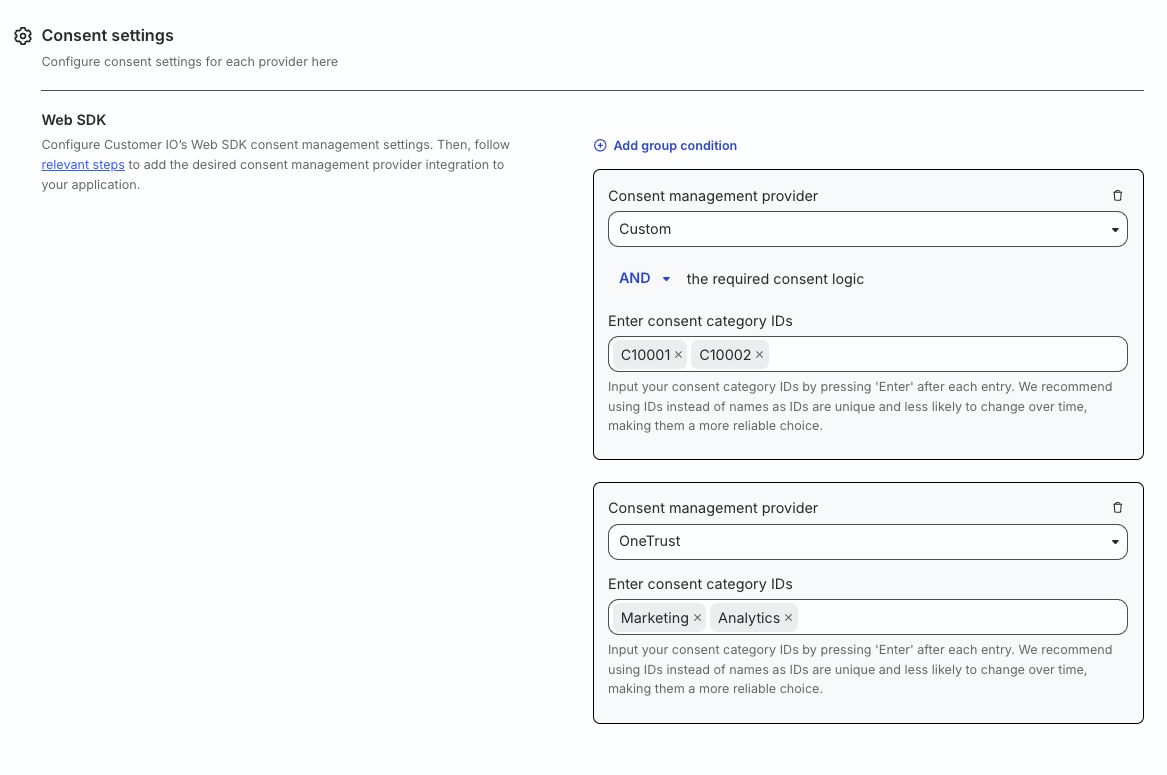
Note that the settings for specifying multiple consent managers vary slightly for some destinations. Click Add more after specifying the consent settings for each provider.
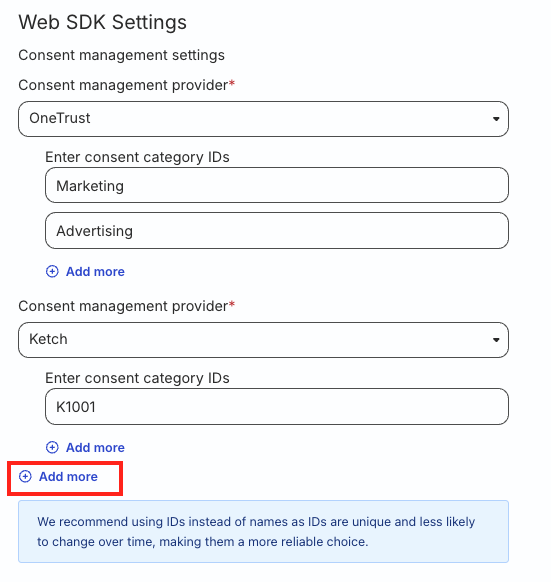
Step 2: Instrument website to capture consent data
After specifying the consent settings in the RudderStack dashboard, you need to instrument your website to capture the consent IDs and add them to your event payloads.
See the Consent Management Support Matrix for help in planning your implementation.
There are two ways to set up consent instrumentation. If you are tracking consent across client and server-side SDKs, you will likely use both:
- Automatically capture consent data through SDK integrations: The JavaScript SDK, iOS (Obj-C) SDKiOS (Obj-C) refers to the legacy RudderStack iOS SDK. Note that it will be deprecated soon.
For new implementations, use the iOS (Swift) SDK instead. , and Android (Java) SDKAndroid (Java) refers to the legacy RudderStack Android SDK. Note that it will be deprecated soon.
For new implementations, use the Android (Kotlin) SDK instead. support provider integrations that automatically append consent data to event payloads. - Add consent data directly to event payloads: For server-side SDKs, HTTP source, and SDKs without native provider integrations, pass
context.consentManagementmanually in each event payload. See Add the Consent Object to Event Payloads for more information.
Pre-consent user tracking
RudderStack’s JavaScript SDK lets you configure user tracking before the user provides consent.
Sample implementation workflow
RudderStack’s pre-consent user tracking feature lets you configure a preConsent object that defines the JavaScript SDK’s cookie storage and event delivery behavior in pre-consent mode.
The following steps give a high-level implementation overview of the pre-consent user tracking feature:
- Configure the storage options while loading the JavaScript SDK.
- In the loading snippet, set
preConsent.enabledtotrue. You can also define the SDK’s cookie storage and events delivery strategy before the user provides consent.
rudderanalytics.load(WRITE_KEY, DATA_PLANE_URL, {
    storage: {
        encryption: {
            version: "v3" / "legacy"
        },
        type: "cookieStorage", // Other available options are "localStorage", "sessionStorage", "memoryStorage", and "none".

        // Other storage options
    },
  consentManagement: {
    enabled: true,
    provider: "oneTrust" / "ketch" / "iubenda" / "custom" // Specify your consent management provider
  },
  preConsent: {
    enabled: true,
    storage: { // Optional; defines SDK's cookie storage strategy
      strategy: "session" // Optional; other accepted values are "none", "session"
    },
    events: { // Optional; defines SDK's events delivery behavior
      delivery: "buffer" // Optional; other accepted value is "immediate"
    },
  },
  // Other load options
});- Invoke the
consentAPI once the user provides consent. You can also define the SDK’s post-consent storage options here and determine if the SDK should discard the buffered pre-consent events, if any.
rudderanalytics.consent({
  trackConsent: true,
  discardPreConsentEvents: true, // Optional; default value is false
  storage: {
    type: "localStorage" // Other available options are "cookieStorage", "sessionStorage", "memoryStorage", and "none".
  }
});
See the following guides for more information on using this feature with the specific consent management platform:
