OneTrust Consent Management for Web
5 minute read
RudderStack’s JavaScript SDK seamlessly integrates with the OneTrust SDK. It lets you map the OneTrust cookie consent categories to specific RudderStack destinations.
How the integration works
- Whenever a user starts browsing a website, OneTrust pops up a modal to take consent from the user. This modal contains a list of cookie categories representing the consent categories that the user needs to decline or accept.
- The JavaScript SDK fetches the OneTrust consent data and the consent settings specified in the RudderStack dashboard.
- The SDK loads the device mode destinations based on the above data.
- The user must consent to all the consent categories corresponding to the category IDs specified in the dashboard settings for sending events to the destination (both in cloud and device mode).
- The SDK attaches the consent management data in the event payloads sent to the RudderStack backend (data plane) for performing the same consent-based filtering for cloud mode destinations.
Prerequisites
- You must have a OneTrust account with a subscription to their Cookie Consent product.
Setup
The following sections highlight the steps to set up the JavaScript SDK integration with OneTrust.
Step 1: Configure OneTrust
- Navigate to Websites > Add Websites.
- Enter your top-level website URL to scan and click Start Scan.
- Go to the Categorizations tab and define the new categories or modify the existing ones, as required.
- Go to the Scripts tab, select the domain to be published and click Publish to publish the script.
- Obtain the consent category IDs from the OneTrust dashboard by going to Preference & Consent Management > Cookie Compliance > Categorizations > Categories.
Step 2: Specify OneTrust Cookie Category IDs
Specify the consent category IDs obtained above for each destination connected to your JavaScript source. You can specify multiple consent category IDs by pressing the Enter key after each ID.
The OneTrust consent category IDs are case-sensitive.
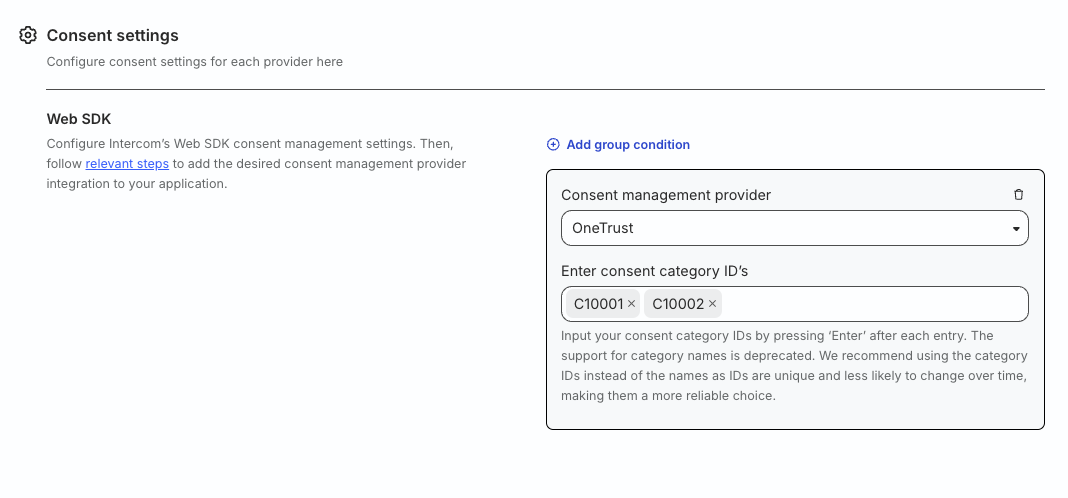
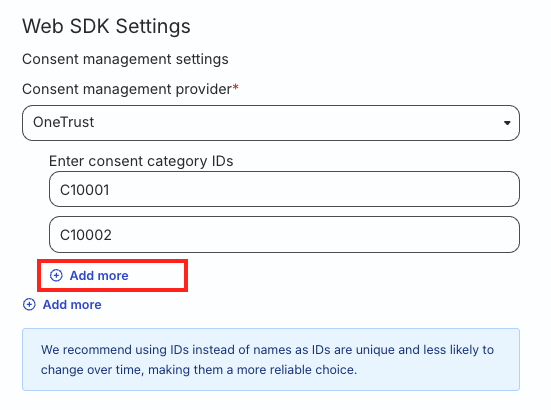
Note that the settings for specifying multiple consent IDs vary slightly for some destinations. Click Add more after specifying each consent category ID.
Step 3: Set up your website
You can set up your website depending on the following use cases:
| Use case | Description |
|---|---|
| Post-consent user tracking | Call the load API of the JavaScript SDK only after OneTrust confirms that the user has interacted with their consent banner. This is the most common implementation. |
| Pre-consent user tracking | This approach is helpful in cases where you need to track some user activity and control the SDK and cookie behavior before and after the user provides their consent. |
Post-consent user tracking
Note that:
- In this approach, you must load the JavaScript SDK after the OneTrust script.
- If the user updates their consent preferences, you must refresh the web page for the changes to take effect in the SDK (for both cloud and device mode destinations).
- Load the OneTrust script that you published in Step 1:
<script
  src="https://cdn.cookielaw.org/scripttemplates/<sample>.js"
  type="text/javascript"
  charset="UTF-8"
  data-domain-script="xxxxxxxx-xxxx-xxxx-xxxx-xxxxxxxxxxxx" >
</script>- Configure the RudderStack SDK
loadAPI options as follows:
<script type="text/javascript">
  // Required OneTrust callback
  function OptanonWrapper() {
    if (window.OneTrust.IsAlertBoxClosed()) {
      // Insert the rest of the JS SDK loading snippet here
      rudderanalytics.load(WRITE_KEY, DATA_PLANE_URL, {
        consentManagement: {
          enabled: true,
          provider: "oneTrust"
        },
        // Other options
      }),
    }
  }
</script>OptanonWrapperis a callback function supported by the OneTrust SDK. It is invoked when the user consent is available.
In the above instrumentation, the SDK is notified that consent management should be enabled, and the user has configured the OneTrust provider on their site. The SDK then fetches the user consents from OneTrust and filters the destinations and events accordingly.
Pre-consent user tracking
Note that:
- In this mode, you can choose to track users as fully anonymous, track only their sessions, or track only with
anonymousIdas the user identifier. This minimizes any data loss related to attribution, acquisition, and the overall user journey. - Unlike post-consent user tracking, there is no restriction on the loading order of the JavaScript and OneTrust SDKs for this use case.
- If the user updates their consent preferences, you must invoke the
consentAPI again for the changes to take effect for the cloud mode destinations. For the device mode destinations tied to the consent preferences, reload the web page for the changes to take effect.
Step 1: Configure the preConsent object
Use the preConsent object while loading the JavaScript SDK to define the SDK’s cookie storage and events delivery behavior in pre-consent mode.
The website instrumentation in this case looks as follows:
rudderanalytics.load(WRITE_KEY, DATA_PLANE_URL, {
  consentManagement: {
    enabled: true,
    provider: "oneTrust"
  },
  preConsent: {
    enabled: true,
    storage: { // Optional; defines SDK's cookie storage strategy
      strategy: "session" // Optional; other accepted values are "none", "session"
    },
    events: { // Optional; defines SDK's events delivery behavior
      delivery: "buffer" // Optional; other accepted value is "immediate"
    },
  }
  // Other load options
});
followed by the OneTrust script:
<script
  src="https://cdn.cookielaw.org/scripttemplates/<sample>.js"
  type="text/javascript"
  charset="UTF-8"
  data-domain-script="xxxxxxxx-xxxx-xxxx-xxxx-xxxxxxxxxxxx" >
</script>
In the above example, the JavaScript SDK is configured to load in the pre-consent mode. Note that:
- The storage strategy is to persist only the session ID.
- Any events instrumented to the SDK are buffered till the user provides consent.
- The SDK does not load any device mode destination connected to the source.
Step 2: Invoke consent API once user provides consent
Once the user consent is available, invoke the JavaScript SDK’s consent API. The SDK then comes out of the pre-consent mode and resumes normal functioning.
rudderanalytics.consent({
  trackConsent: true,
  discardPreConsentEvents: true, // Optional; default value is false
  storage: {
    type: "localStorage"
  }
});
In the above snippet, SDK does the following:
- Loads device mode integrations based on the consent data.
- Stores information like the user ID, anonymous user ID, user traits, etc. in the local storage henceforth.
- Discards the buffered pre-consent events, if any.
- Sends a
trackevent namedConsent Management Interaction, indicating the consent interaction has happened.
