OneTrust Consent Management for iOS
4 minute read
The iOS (Obj-C) SDKiOS (Obj-C) refers to the legacy RudderStack iOS SDK. Note that it will be deprecated soon.
For new implementations, use the iOS (Swift) SDK instead.
lets you specify the user’s consent during initialization.
This guide lists the steps to develop a consent interceptor for the iOS (Obj-C) SDK and use the interceptor to initialize the SDK after the user gives their consent.
The iOS (Swift) SDK does not have a dedicated OneTrust consent management integration
The new iOS (Swift) SDK does not have a dedicated integration for OneTrust consent management. To implement OneTrust consent-based event filtering for cloud mode destinations, add the
consentManagementobject within the context of your event payload.See Consent Management Support Matrix for more information.
Overview
The consent management is designed to be a filter for the event destinations and the natively added factories. Since the SDK initializes the native integration factories during the startup, you must first capture the user’s consent to the cookie categories.
Note that:
- The iOS (Obj-C) SDK supports the OneTrust consent management feature only in v1.10.0 and above.
- You can add only one consent filter to the iOS (Obj-C) SDK.
For filtering, RudderStack uses the getConsentStatus(forCategory categoryId: String) method of the OneTrust SDK.
Install OneTrust consent
This setup assumes the iOS (Obj-C) SDK and the OneTrust SDK are already added to your application.
- Install
RudderOneTrustConsentFilterby adding the following line to yourPodfile:
pod 'RudderOneTrustConsentFilter', '~> 1.0.0'- Import the iOS (Obj-C) SDK:
@import RudderOneTrustConsentFilter;import RudderOneTrustConsentFilter- Add the imports to your
AppDelegatefile under thedidFinishLaunchingWithOptionsmethod, as shown:
@interface AppDelegate ()<OTEventListener>

@end

- (BOOL)application:(UIApplication *)application didFinishLaunchingWithOptions:(NSDictionary *)launchOptions {
    [[OTPublishersHeadlessSDK shared] startSDKWithStorageLocation:STORAGE_LOCATION domainIdentifier:DOMAIN_IDENTIFIER languageCode:@"en" params:nil loadOffline:NO completionHandler:^(OTResponse *response) {
        if (response.status) {

        }
    }];

    [[OTPublishersHeadlessSDK shared] addEventListener:self];
}

- (void)initializeRudderSDK {
    RSConfigBuilder *builder = [[RSConfigBuilder alloc] init];
    [builder withLoglevel:RSLogLevelDebug];
    [builder withDataPlaneUrl:DATA_PLANE_URL];
    [builder withConsentFilter:[[RudderOneTrustConsentFilter alloc] init]];

    [RSClient getInstance:rudderConfig.WRITE_KEY config:builder.build];
}

- (void)onPreferenceCenterConfirmChoices {
    [self initializeRudderSDK];
}class AppDelegate {
func application(_ application: UIApplication, didFinishLaunchingWithOptions launchOptions: [UIApplication.LaunchOptionsKey: Any]?) -> Bool {
OTPublishersHeadlessSDK.shared.startSDK(
storageLocation: STORAGE_LOCATION,
domainIdentifier: DOMAIN_IDENTIFIER,
languageCode: "en"
) { response in
if response.status {
}
}
OTPublishersHeadlessSDK.shared.addEventListener(self)
}
func initializeRudderSDK() {
let builder: RSConfigBuilder = RSConfigBuilder()
.withLoglevel(RSLogLevelDebug)
.withDataPlaneUrl(DATA_PLANE_URL)
.withConsentFilter(RudderOneTrustConsentFilter())
RSClient.getInstance(rudderConfig.WRITE_KEY, config: builder.build())
}
}
extension AppDelegate: OTEventListener {
func onPreferenceCenterConfirmChoices() {
initializeRudderSDK()
}
}Make sure you load the SDK only if the user provides their consent.
Create custom consent filter
- Create a
CustomConsentIFilter.hfile by extendingRSConsentFilter:
#import <Foundation/Foundation.h>
#import <Rudder/Rudder.h>
NS_ASSUME_NONNULL_BEGIN
@interface CustomConsentFilter : NSObject<RSConsentFilter>
@end
NS_ASSUME_NONNULL_END- Create a
CustomConsentFilter.mfile.
#import "CustomConsentFilter.h"

@implementation CustomConsentFilter

- (NSDictionary <NSString *, NSNumber *> * __nullable)filterConsentedDestinations:(NSArray <RSServerDestination *> *)destinations {
    NSDictionary <NSString *, NSNumber *> *filteredConsentedDestinations;
    // Do someting
    return filteredConsentedDestinations;
}

@end- Create a
CustomConsentFilterfile by extendingRSConsentFilter.
@objc
open class OneTrustInterceptor: NSObject, RSConsentFilter {
    @objc
    public override init() {
        super.init()
    }

    public func filterConsentedDestinations(_ destinations: [RSServerDestination]) -> [String: NSNumber]? {
        let filteredConsentedDestinations: [String: NSNumber]
        // Your code
        return filteredConsentedDestinations
    }
}
Register consent filter with iOS (Obj-C) SDK
You can register CustomConsentFilter with the iOS (Obj-C) SDK during its initialization, as shown:
RSConfigBuilder *builder = [[RSConfigBuilder alloc] init];
[builder withLoglevel:RSLogLevelDebug];
[builder withDataPlaneUrl:DATA_PLANE_URL];
[builder withConsentInterceptor:[[CustomConsentFilter alloc] init]];
[RSClient getInstance:WRITE_KEY config:builder.build];let builder: RSConfigBuilder = RSConfigBuilder()
.withLoglevel(RSLogLevelDebug)
.withDataPlaneUrl(DATA_PLANE_URL)
.withConsentFilter(CustomConsentFilter())
RSClient.getInstance(rudderConfig.WRITE_KEY, config: builder.build())Additional settings for cloud mode
RudderStack supports OneTrust integration in cloud mode from iOS (Obj-C) SDK v1.12.0 and above, andRudderOneTrustConsentFilter1.1.0.
You can specify your OneTrust cookie categories when sending events from your iOS (Obj-C) source in the cloud mode.
- Set up your iOS (Obj-C) source in the RudderStack dashboard.
- Connect it to a destination.
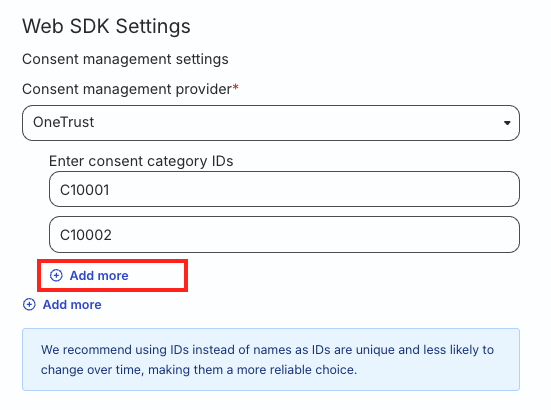
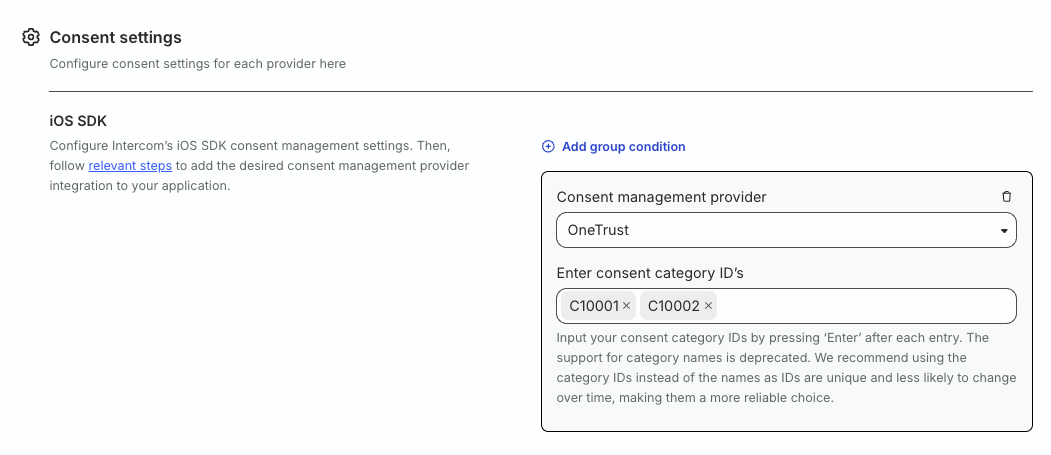
- In the destination settings, enter the OneTrust category IDs in the Enter consent category IDs field. You can specify multiple consent category IDs by pressing the Enter key after each ID.
You can find the category IDs in your OneTrust dashboard under Preference & Consent Management > Cookie Compliance > Categorizations > Categories.
Note that the settings for specifying multiple consent IDs vary slightly for some destinations. Click Add more after specifying each consent category ID.