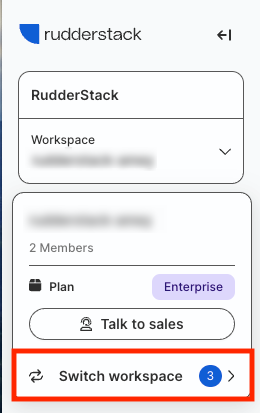
Switch between multiple workspaces in your RudderStack organization.
Available Plans
free
growth
enterprise
4 minute read
RudderStack’s Workspaces feature lets you switch between multiple environments within a RudderStack organization. It provides a clean user experience with organization-level clarity on billing and usage.
Organization and workspace hierarchy
This section defines an organization and workspace in RudderStack.
Organization
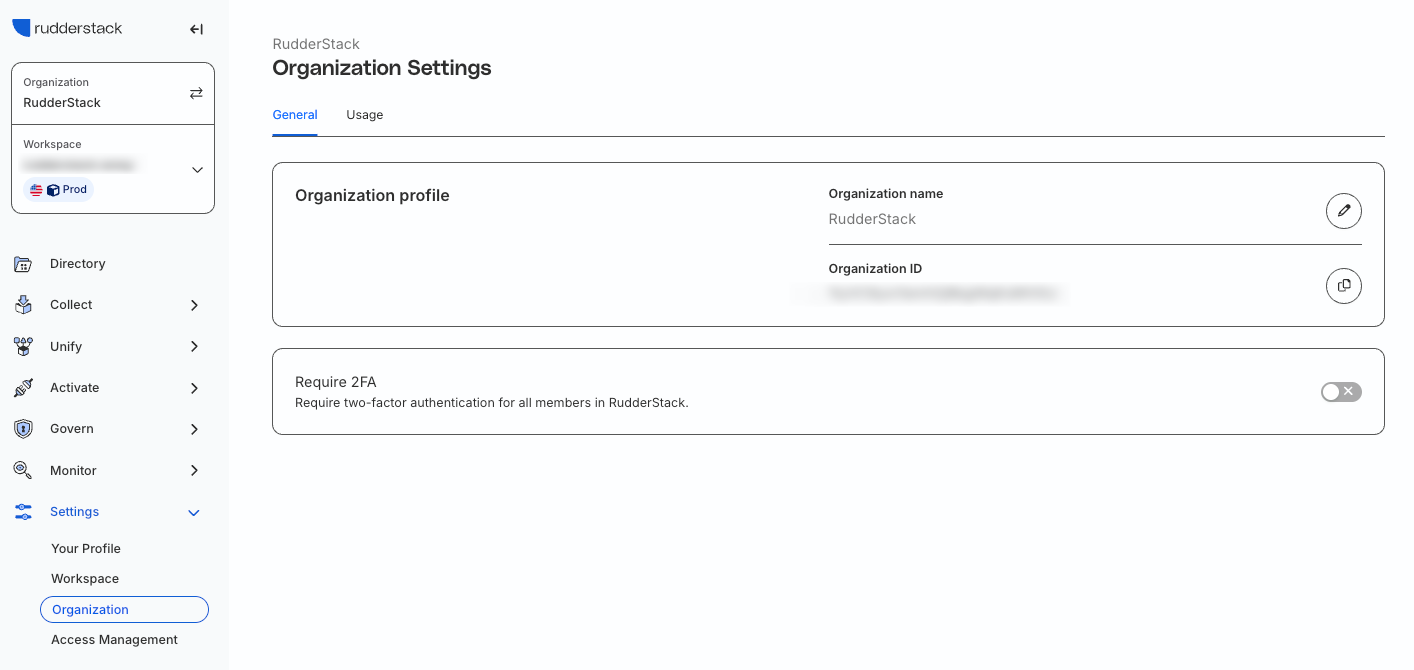
When you sign up for RudderStack, your email is associated with a top-level user account, also referred to as an organization.
RudderStack calculates billing and events usage at an organization level.
To view the organization details and manage its settings, go to Settings > Organization in your RudderStack dashboard.
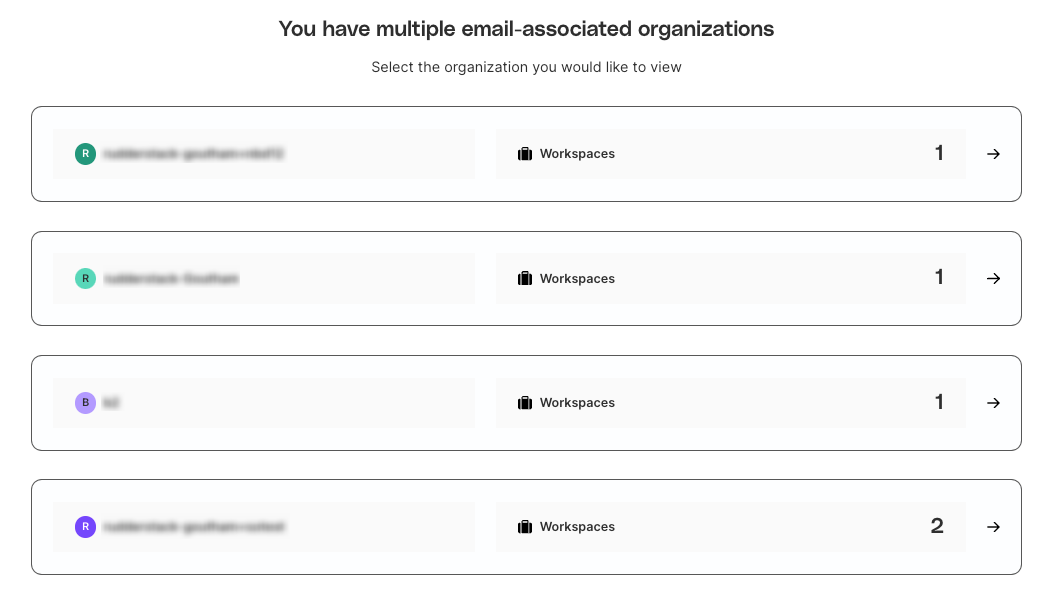
If your email is associated with multiple RudderStack organizations, you will see multiple organizations along with the number of workspaces in it once you log in:
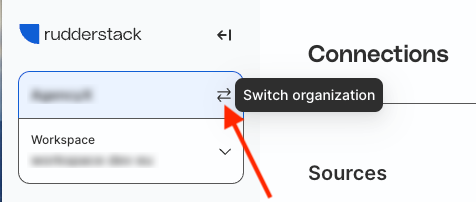
You can select your preferred organization. To switch to a different organization and view the associated workspaces, click the Switch organization button:
Workspaces
A workspace is an environment or nested grouping of resources and related settings. It is walled from other workspaces and you can use it for your development and production use-cases. See Workspace types for more information.
Depending on your RudderStack plan, your organization can have multiple workspaces. See Available workspaces by plan for more information.
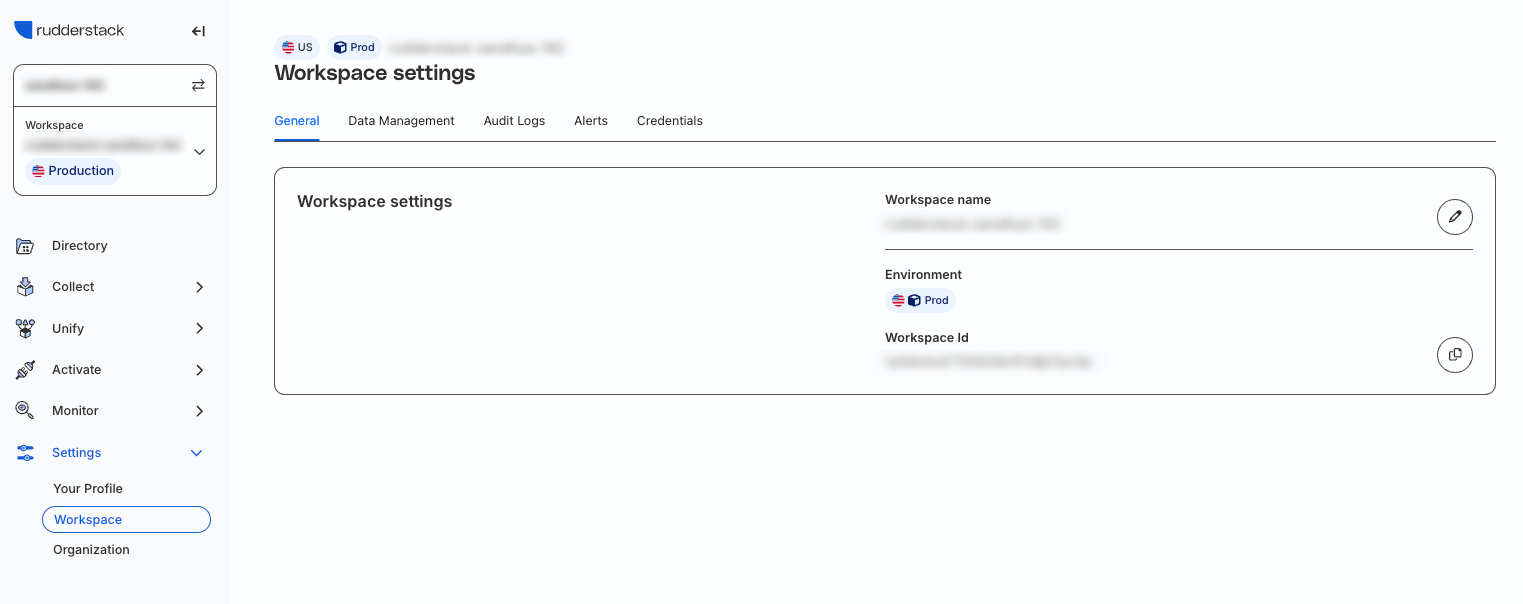
To view the workspace details and manage its settings, go to Settings > Workspace in your RudderStack dashboard.
You will see the following tabs in this view:
General
Option
Description
Workspace name
Name of the workspace — click the Edit icon to update the workspace name
Environment
Workspace type (Dev/Prod) — see Workspace types for more information
Workspace ID
Unique identifier for the workspace — click to copy the ID to the clipboard
RudderStack provides the following workspace types:
Production: In this workspace, you can set up stable and optimized data pipelines made available to your customers and end-users.
Development: In this workspace, you can set up, test, and debug your data pipelines for optimal performance without affecting your end-users. You can also experiment with various RudderStack features.
See Available workspaces by plan for more information on the number of workspaces you can set up based on your RudderStack plan.
Key differences between the Development and Production workspaces in RudderStack
Users can have different resource permissions in the Development and Production workspaces. For example, a user might have the permissions to create and delete a source in the Development workspace but not in the Production workspace.
The Development workspace users will not be able to push sources, destinations, and pipeline configurations into the Production workspace and vice versa.
The Development workspace exists on a slightly different infrastructure to the Production workspace. There could be slightly longer processing times for features like Live Events as compared to the Production workspace, which runs in a dedicated environment for the users.
Add members to a workspace
You can add members to a workspace while inviting them to your organization.
To switch between workspaces, click Workspace > Switch workspace. Then, select the workspace you want to view.
Access control
The owner of the RudderStack account is assigned the role of an Admin by default. They can invite other members as Admins or Members.
Important consideration while inviting users
If you invite a user to your organization as Admin, they will have admin permissions for all the workspaces within the organization that you add them to.
Available workspaces by plan
RudderStack plan
Number of workspaces
Availability
Free
1 (Production)
Available by default
Growth
2 (1 Production, 1 Development)
Available by default
Enterprise
Custom
Contact the RudderStack team to set up workspaces based on your contract
Questions? We're here to help.
Join the RudderStack Slack community or email us for support
This site uses cookies to improve your experience while you navigate through the website. Out of
these
cookies, the cookies that are categorized as necessary are stored on your browser as they are as
essential
for the working of basic functionalities of the website. We also use third-party cookies that
help
us
analyze and understand how you use this website. These cookies will be stored in your browser
only
with
your
consent. You also have the option to opt-out of these cookies. But opting out of some of these
cookies
may
have an effect on your browsing experience.
Necessary
Always Enabled
Necessary cookies are absolutely essential for the website to function properly. This
category only includes cookies that ensures basic functionalities and security
features of the website. These cookies do not store any personal information.
This site uses cookies to improve your experience. If you want to
learn more about cookies and why we use them, visit our cookie
policy. We'll assume you're ok with this, but you can opt-out if you wish Cookie Settings.