RudderStack Sources
3 minute read
A source is a platform or an application (web, mobile, server-side, or a third-party cloud app) from where RudderStack tracks and collects the data.
RudderStack supports the following source types:
Add a source
- Log in to your RudderStack dashboard.
- From the left sidebar, go to Collect > Sources.
- Click New source.
- Select the source from the list.
- Assign a name to the source and click Continue to complete the setup.
Setting up Reverse ETL sources require some additional configuration. See the source-specific documentation for detailed steps.
Overview
Once you set up a source, you will see the following information on the source page:

Just below your source name, you will see the following options:
| Option | Description |
|---|---|
| Resource ID | Unique identifier for the RudderStack source — click to copy the ID to the clipboard. |
| Write key | The source write key used to send events to the source. |
| Setup guide | Link to the source-specific documentation |
| Live events | Lets you view the source live events |
| Alerts | The bell icon on the top right corner indicating the number of active alerts for the source.
|
Click the meatballs menu (…) to access the following options:
| Setting | Description |
|---|---|
| Rename | Lets you rename the source |
| Enable / Disable | Lets you enable or disable the source |
| Delete | Lets you delete the source
|
Note that:
- RudderStack does not accept any events if the source is disabled.
- You will get a
404error with the messageSource is disabledif you send events to a disabled source.- RudderStack does not count events sent to a disabled source in the total event volume and does not charge for them.
Tab details
The following sections explain the various tabs available on the source page.
Setup
The Setup tab includes the installation snippet and write key to set up your source.
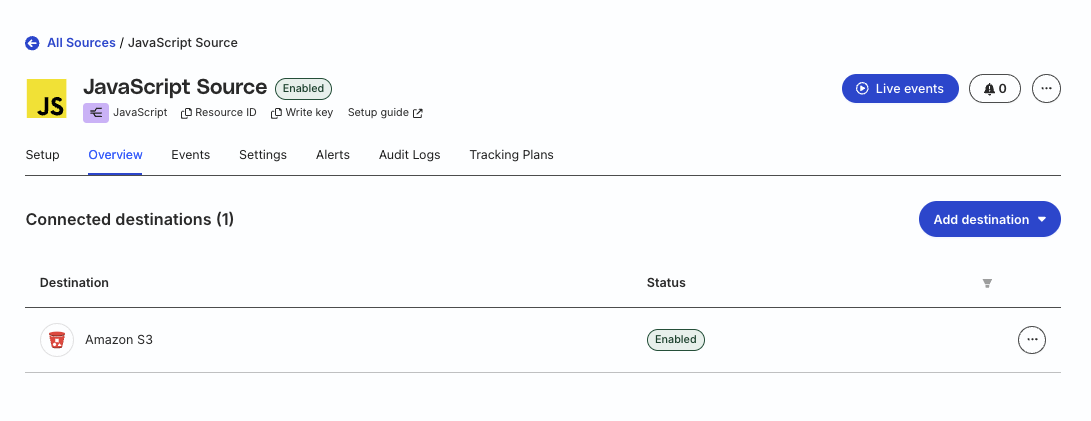
Overview
The Overview tab gives you a quick overview of the source, including:
- List of the connected destinations
- Option to connect to a new or existing destination via the Add destination button
Events
The Events tab displays the event delivery metrics like total number of events, bot events, blocked events and number of ingested events.
If you have a Tracking Plan connected to the source, you can also see the event validation metrics like number of successfully validated events and events that violate Tracking Plan rules.
See Source Event Metrics for more information on this tab.
Settings
The Settings tab displays the following source-specific settings:
| Setting | Description |
|---|---|
| Temporarily store data in staging area | If enabled, lets RudderStack resend your events in case of failure. |
| Enable geolocation enrichment | If enabled, lets you enrich your events with geolocation data. See Geolocation Enrichment at Source for more information. |
| Bot event management | Lets you override the bot management settings set at the workspace level for this particular source. See Bot Management for more information. |
Alerts
The Alerts tab lets you set specific alert overrides applicable to this source.
See Configurable Alerts for more information.
Audit Logs
Audit Logs are available only in the RudderStack Enterprise plan.
The Audit Logs tab lets you view the Audit Logs for the source.
Tracking Plans
The Tracking Plans tab lets you link or unlink a Tracking Plan with the source.
Permissions
This setting is visible only to Org Admins in the legacy Permissions Management (RBAC) system in the RudderStack Enterprise plan.
You can use the Permissions tab to determine which members in your workspace can make changes to the source. This is useful when you want to set granular controls for the resources within your workspace.
See Permissions Management for more details.
