Security Settings in RudderStack Dashboard
Change your account password and set up two-factor authentication in the RudderStack dashboard.
2 minute read
This guide explains the security settings available in the RudderStack dashboard.
Overview
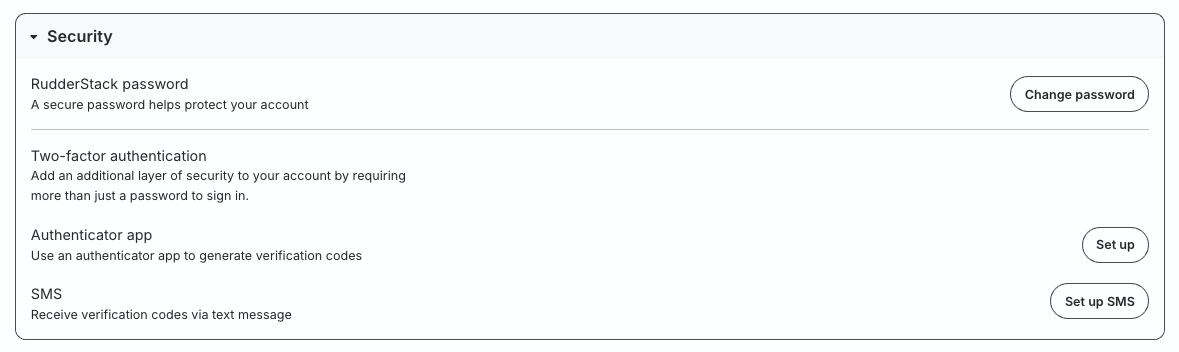
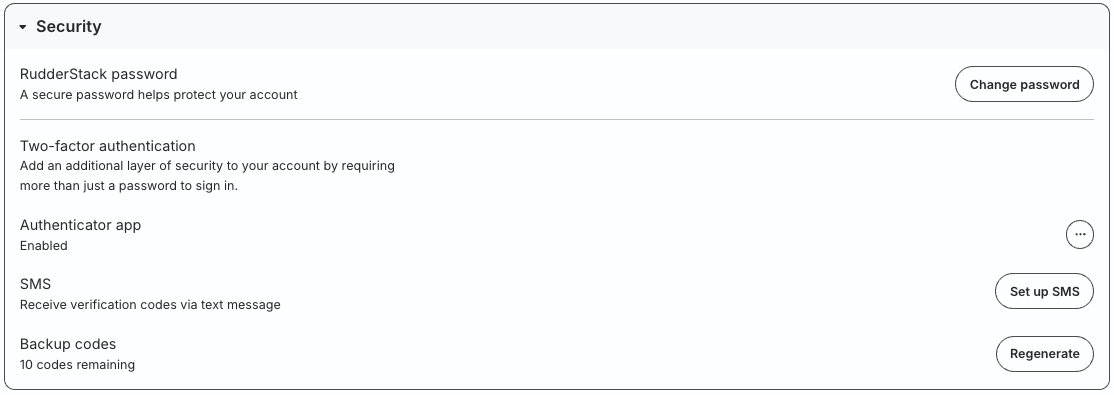
Go to Settings > Your Profile > Security to review and update your security settings.
In this section, you can:
- Change the RudderStack account password
- Set up two-factor (2FA) authentication for your personal account
Change account password
Click the Change password button to change the password you use to log in to the RudderStack dashboard.
Two-factor authentication
Two-factor authentication (2FA) adds an extra layer of security to your account by requiring more than just a password to sign in.
Important considerations
- If you’re an Admin and want to enforce 2FA for all organization members, use the Require 2FA toggle in the Organization settings.
- Org Admins cannot update an individual user’s 2FA settings.
- Once the 2FA setup is complete, you will be automatically logged out of the RudderStack dashboard and prompted to log in again.
- If you disable a 2FA method (authenticator app or SMS), you must set it up from scratch to use it again.
RudderStack provides the following two-factor authentication methods:
Authenticator app
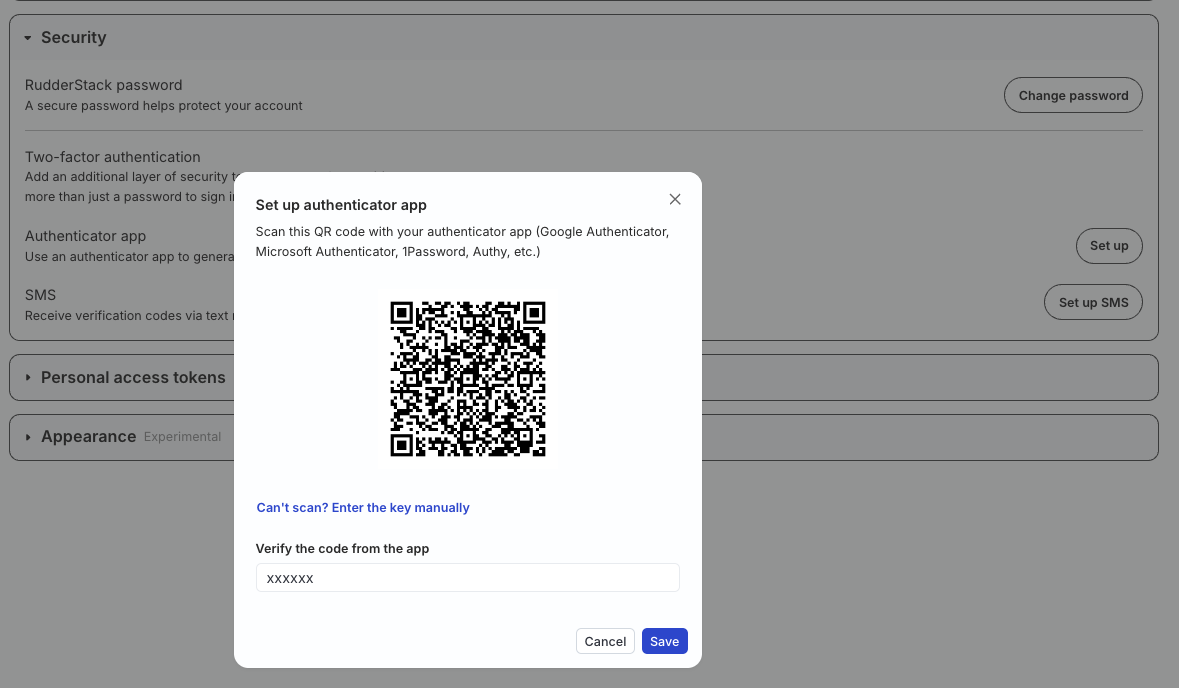
- Click Set up next to the Authenticator app setting.
- Scan the QR code with your preferred authenticator app.
- Enter the code generated by the authenticator app and click Save to complete the setup.
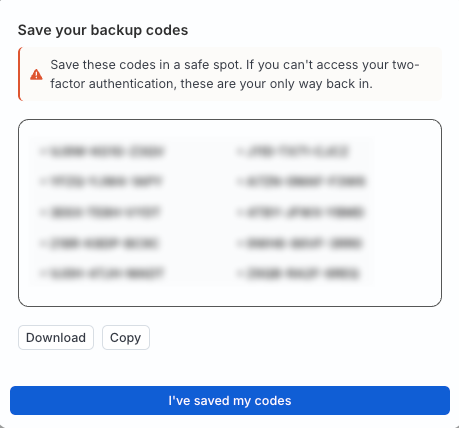
- You will see a dialog containing the backup codes. Download or copy the backup codes and save them in a secure location. Then, click I’ve saved my codes to confirm and close the dialog.
SMS
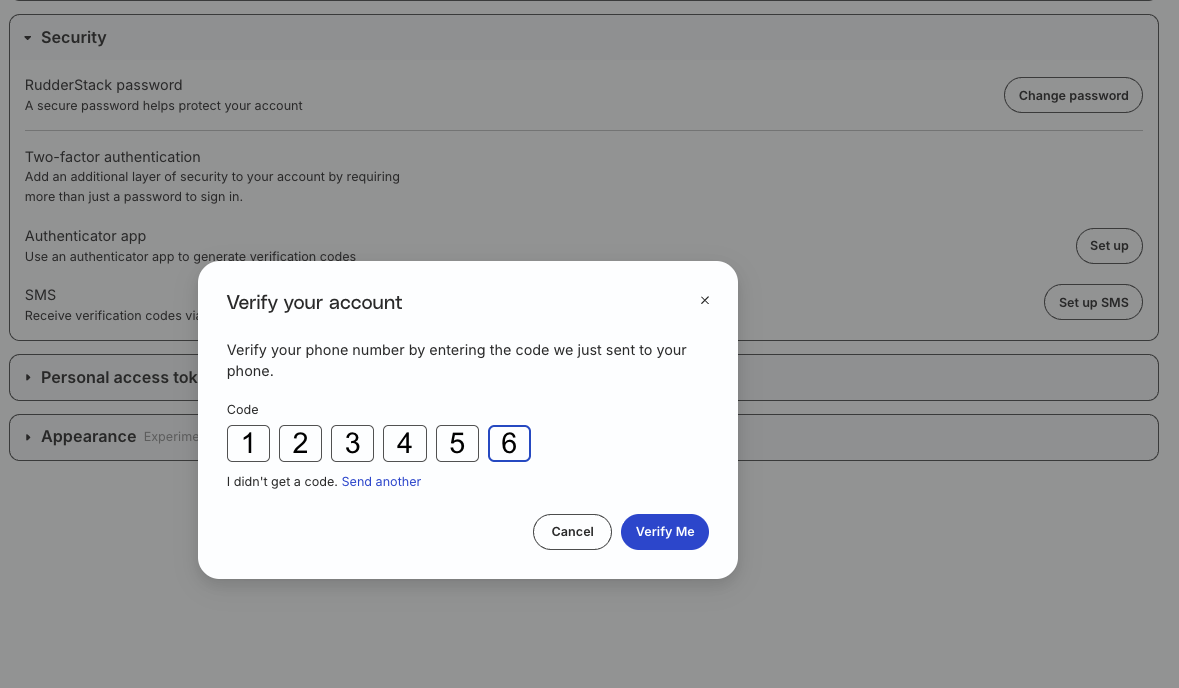
- Click Set up SMS next to the SMS setting.
- Enter your phone number (including the country code) and click Send code.
- Enter the code received on your phone and click Verify Me to complete the setup.
- You will see a dialog containing the backup codes. Download or copy the backup codes and save them in a secure location. Then, click I’ve saved my codes to confirm and close the dialog.
Regenerate backup codes
Note that:
- This setting is hidden if neither of the two-factor authentication methods (authenticator app or SMS) is enabled.
- You can regenerate backup codes only 10 times.
- Regenerating backup codes will invalidate the existing codes.
- Click Regenerate to generate backup codes to recover RudderStack access if you can’t use your two-factor authentication.
- Download or copy the backup codes and save them in a secure location.
- Click I’ve saved my codes to confirm and close the dialog.