Dashboard Guides
7 minute read
Once you sign up for RudderStack, you are directed to the RudderStack dashboard where you can set up and manage your sources, destinations, and various RudderStack features.
This guide walks you through all the settings seen in the RudderStack dashboard.
Directory
Directory is a catalog of all the RudderStack-supported sources and destinations. You can search for any source/destination from this view and set them up.
Collect
This section lets you set up your data pipelines by connecting different sources and destinations across your customer data stack.
Connections
This option shows all the connections between your sources and destinations. You also see the following options:
- Add source
- Add destination
- Data Plane URL: Required for routing and processing events to RudderStack.
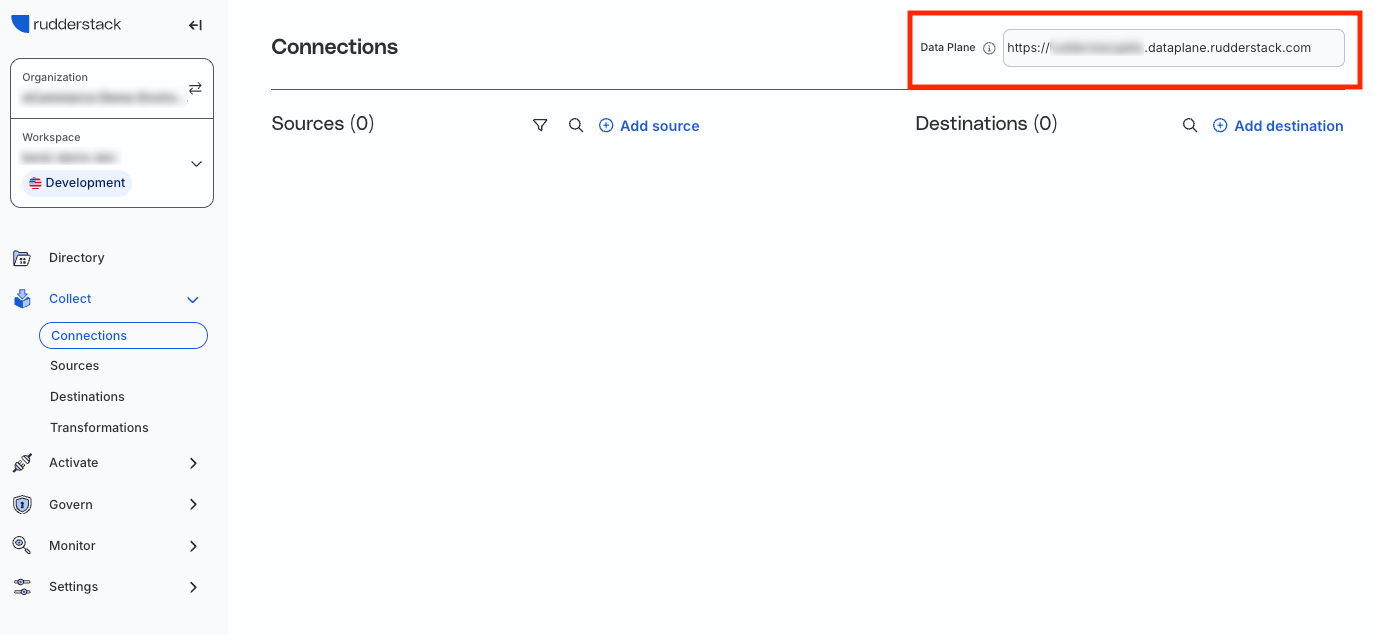
If you’re using RudderStack Open Source, you must set up your own data plane in your preferred environment.
An open source data plane URL looks like
http:localhost:8080where8080is typically the port where your RudderStack data plane is hosted.
Sources
This option lists all the configured sources in your workspace. You can add a new source by clicking the New Source button.
Destinations
This option lists all the configured destinations in your workspace. You can add a new destination by clicking the New Destination button.
Transformations
Transformations let you transform your events using custom JavaScript/Python functions before sending them to your destinations. You can also create your own Transformation Libraries to reuse code in other transformations.
Unify
This section highlights the following RudderStack features to unify your data.
Profiles
Profiles let you centralize and resolve customer identities and build features on top of it to create a customer 360 view.
Activate
This section highlights the following RudderStack features to activate your data for a variety of use cases.
Audiences
Audiences lets you create customer sets that meet a specific criteria and sync them to the destinations connected to your Reverse ETL sources. This is helpful when you want to send targeted messaging to different customer groups.
Models
Models lets you define and execute custom SQL queries on your warehouse, fetch the resultant data, and send it specific destinations via RudderStack.
Govern
This section provides various data governance options related to data quality and compliance.
Data Catalog
Data Catalog lets you create events and properties for configuring tracking plans. You can use this option to define all the necessary details for your events and properties like name, type, description, category, etc.
Tracking Plans
Tracking plans let you proactively monitor and act on non-compliant event data coming into your RudderStack sources based on predefined plans. You can ensure data quality by validating live events delivered to RudderStack against the expected events and their properties.
Monitor
The options in this section let you monitor your warehouse syncs and get better observability into the events flowing in and out of RudderStack.
Health
RudderStack’s Health dashboard lets you monitor all your Event Stream and Reverse ETL pipelines. It also provides realtime observability metrics for the tracking plans linked to your sources, including validation errors, violation types, etc.
Syncs
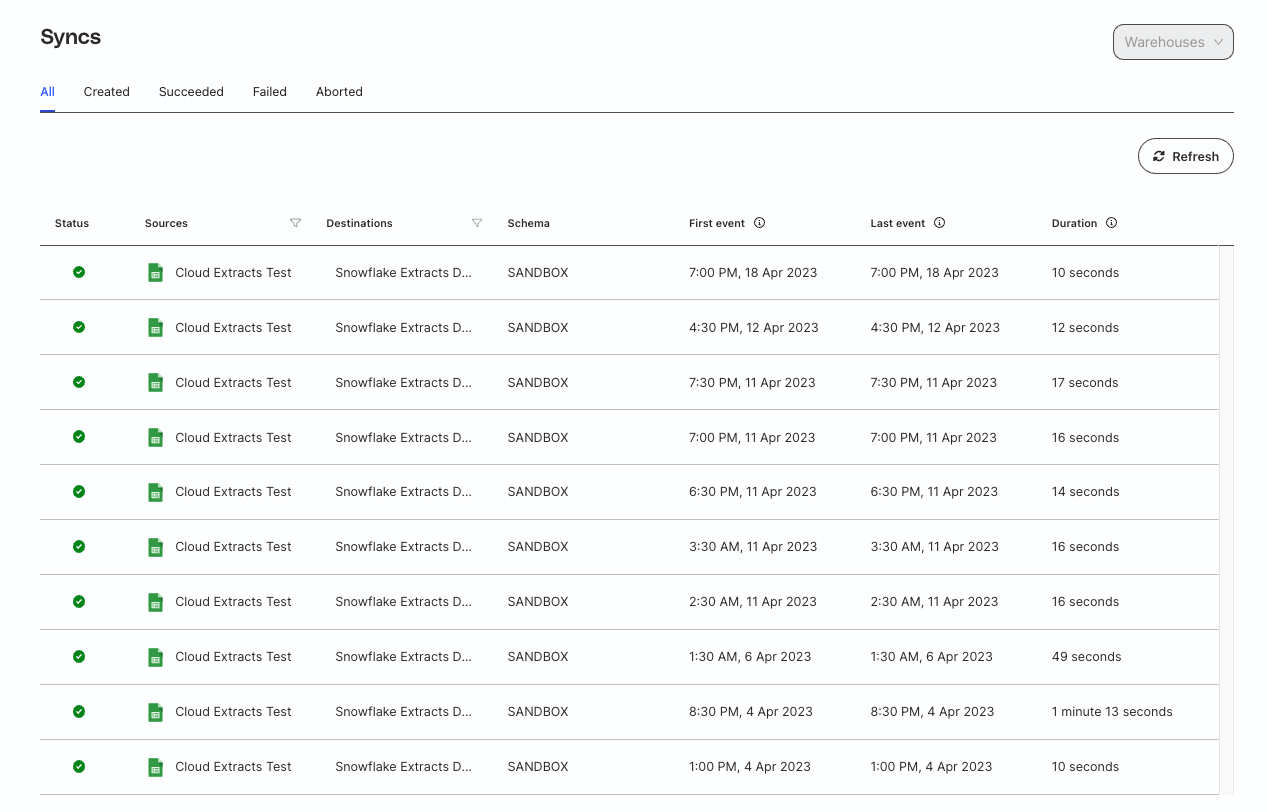
This option provides detailed metrics on the events synced to your warehouse destinations. You can also filter the event data based on a specific source or destination by using the filter option in the header or sync the data manually by using the Sync Now button.
Grafana
Grafana dashboards are available in the RudderStack Growth and Enterprise plans.
The Grafana dashboard gives you a real-time view of the events sent and received by RudderStack. It provides better observability and performance monitoring of your RudderStack setup.
Note that only Admins in your workspace can access the Grafana dashboard.
Settings
This option lets you manage various account, workspace, and organization-specific settings.
Your Profile
This section lists the various profile-specific settings related to your account.
Access policy
This section gives you an overview of your organization access role and the workspace-level roles and permissions assigned to you.
See Access Management to set and manage these access policies for your organization members.
Security
This section lets you review and update your security settings like:
- Changing the RudderStack account password
- Setting up two-factor (2FA) authentication for your personal account
See Security Settings for more information on these settings.
Personal Access Tokens
You can generate a Personal Access Token to use the RudderStack APIs for testing and development purposes.
Workspace
This section lists the various workspace-specific settings.
General
This section displays your workspace information like name and workspace ID. The RudderStack team uses this ID for tracking data internally and enabling specific features for your account.
Workspace token
The workspace token is available only in the Free and Open Source plans to help you set up a self-hosted deployment.
The workspace token is a unique identifier of your RudderStack workspace.
To get your workspace token, go to Settings > Workspace. The workspace token is present in the General tab.
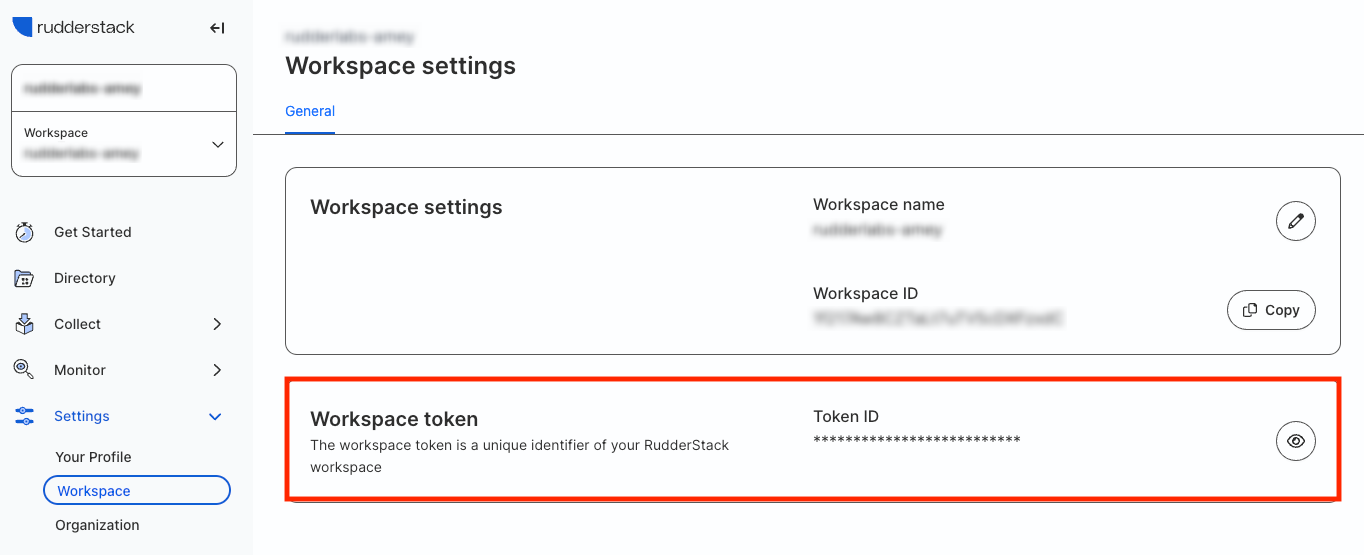
To view the workspace token, click the show icon and enter the password associated with your RudderStack account.
By default, the workspace token is hidden for security purposes — only Admins can access the workspace token.
Data management
This section lets you configure the data retention and data privacy settings for your workspace.
See Data management to learn more about this feature.
Audit Logs
Audit Logs are available only in the RudderStack Enterprise plan.
The Audit Logs feature lets you track user activities within your workspace, like creating or modifying sources and destinations, transformations, implementing Multi-Factor Authentication (MFA), and more.
Alerts
The Alerts tab lets you configure workspace-level alerts for event processing or delivery failures across your Event Stream and Reverse ETL pipelines.
Credentials
The Credential Store feature is available only in RudderStack Growth and Enterprise plans.
Credential Store is a central repository in the RudderStack dashboard for securely storing and efficiently managing your configuration data like user secrets and API keys.
By storing secrets and variables in the credential store, you can avoid hardcoding sensitive information in your Transformations and prevent any security risks.
Organization
This section lists the various organization-specific settings.
General
The General tab lets you change your organization name and enforce two-factor authentication for all members in your RudderStack organization.
You can also view the Organization ID in this tab.
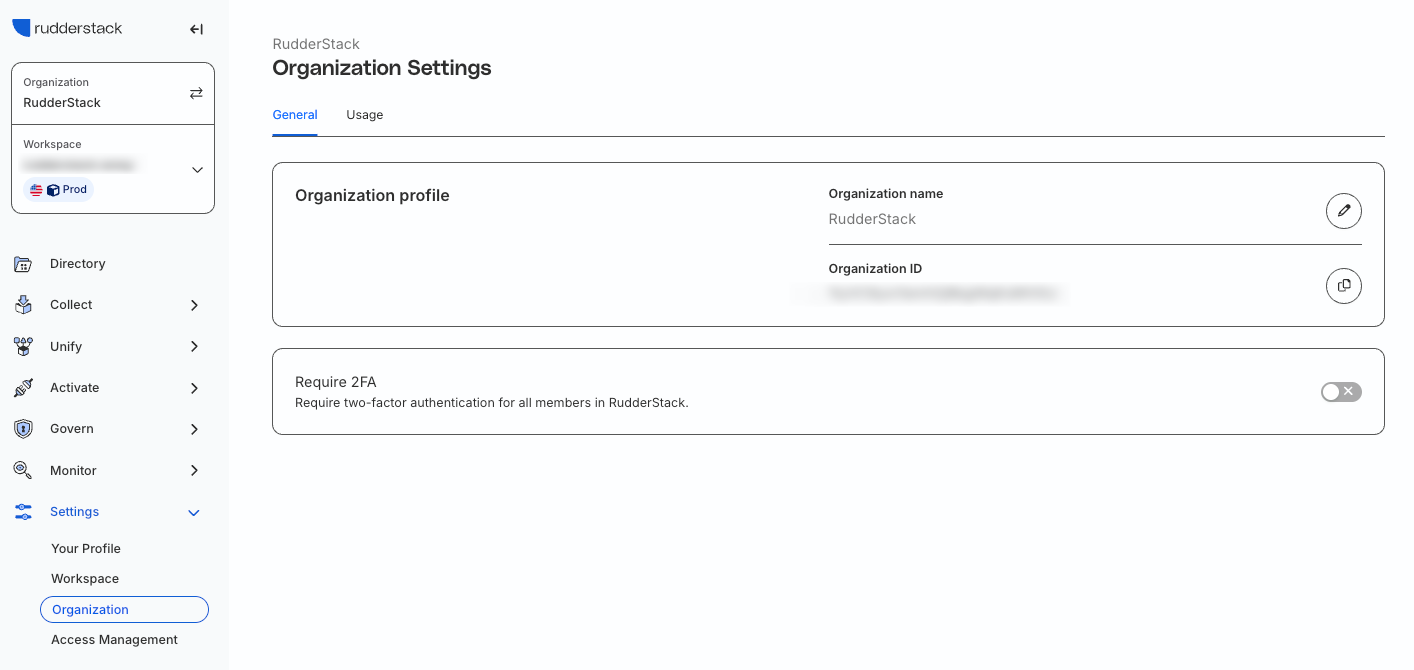
Require 2FA toggle
The Require 2FA toggle is an organization-level setting that mandates all the organization members to have multi-factor authentication (MFA) enabled to access the RudderStack dashboard.

When you turn on Require 2FA, members who don’t already have MFA configured get a 7-day grace period to set it up in their Security settings. After the grace period, they can still log in but can’t proceed to the dashboard until they complete MFA setup.
This setting does not affect users who already have MFA configured.
Note that:
- The Require 2FA setting is different from the individual user’s 2FA settings. It only mandates MFA setup — it does not disable or modify the existing user-level MFA settings configured in the Your Profile section.
- If a member belongs to multiple organizations and at least one organization has the Require 2FA toggle enabled, they are required to set up and use MFA as long as they are a member of that organization.
Usage
In this section, you can view your organization’s event usage by product (Event Stream and Reverse ETL). It also indicates your current RudderStack plan and when your billing cycle resets.
RudderStack calculates the monthly event volume based on the events ingested at source and not the events sent to the destinations.
Filtering selective events to destinations using Transformations will not result in a lower event volume.
Access Management
RudderStack’s Access Management system lets you control access by configuring policies for workspaces, groups, members and Service Access Tokens.
Base Workspace Policies
The Base Workspace Policies tab lets you configure the baseline policy applicable to each workspace in your RudderStack organization.
All the groups, members, and Service Access Tokens in that workspace automatically inherit this baseline policy.
See Manage Baseline Workspace Policy for more information.
Groups
The Groups tab lets you create groups, configure a group policy for each workspace, and add members to groups. All group members automatically inherit this workspace policy.
See Manage Group Policies for more information.
Users
The Users tab lets you:
- View member details, upgrade or downgrade their organization role, or remove them from the organization
- Customize a member’s workspace policy
- Manage group membership
See Manage Member Workspace Policy for more information.
Invitations
Use the Invitations tab to invite new members to your organization’s workspaces.
See Member Management for more information.
Service Access Tokens
Use the Service Access Tokens tab to generate and manage Service Access Tokens.
A Service Access Token (SAT) enables applications access to RudderStack APIs, providing a flexible, secure, and centralized way for you to programmatically interact with resources and services in the platform.
For production use cases, RudderStack recommends using a Service Access Token instead of Personal Access Token.
