RudderStack Destinations
3 minute read
A destination is a cloud tool or platform where you want to send events via RudderStack.
RudderStack currently supports over 180 cloud and warehouse destinations.
Add a destination
- Log in to your RudderStack dashboard.
- From the left sidebar, go to Collect > Destinations.
- Click New destination.
- Select the destination from the list.
- Assign a name to the destination and click Continue.
- Select a source to connect to this destination.
You will see all the compatible sources for the destination in this view.
- Configure the destination with the relevant connection settings. See the destination-specific documentation for details.
Overview
Once you set up a destination, you will see the following information on the destination page:
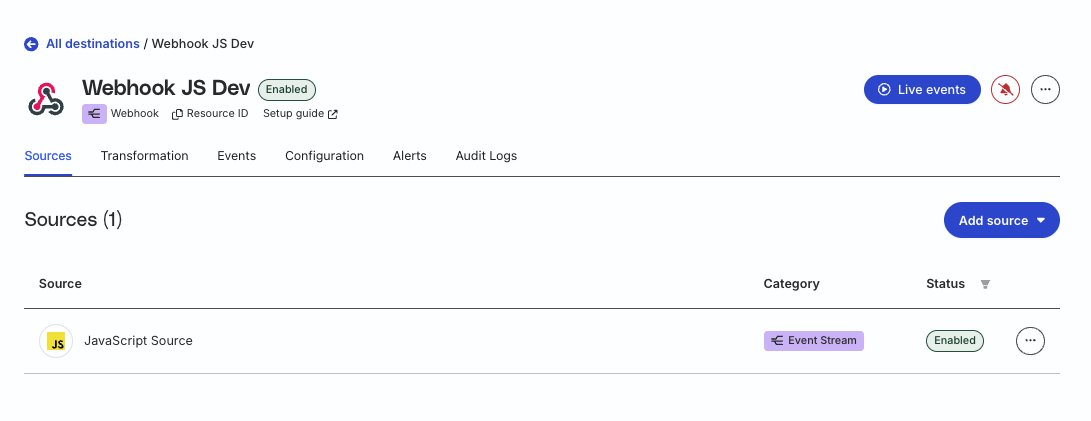
Just below your destination name, you will see the following options:
| Option | Description |
|---|---|
| Resource ID | Unique identifier for the RudderStack destination — click to copy the ID to the clipboard. |
| Setup guide | Link to the destination-specific documentation |
| Live events | Lets you view the destination live events |
| Alerts | The bell icon on the top right corner indicating the number of active alerts for the destination.
|
Click the meatballs menu (…) to access the following options:
| Setting | Description |
|---|---|
| Rename | Lets you rename the destination |
| Clone | Lets you clone/duplicate the destination with the same configuration settings |
| Enable / Disable | Lets you enable or disable the destination |
| Delete | Lets you delete the destination
|
Tab details
The following sections explain the various tabs available on the destination page.
Sources
The Sources tab displays all the sources connected to the destination and their status.
Click the meatballs menu (…) to disconnect a source.
Transformation
The Transformation tab lets you connect a Transformation to transform your events before sending them to this destination.
Click Add a transformation to connect a new transformation or choose an existing transformation from the list.
Events
The Events tab displays the event delivery metrics like:
- Events delivered successfully
- Failed events (due to processing, transformation, and delivery errors)
- P95 latency across all Event Stream sources
Important consideration
RudderStack shows the P95 latency metric only for Event Stream destinations connected to sources in cloud mode. It is not applicable for:
- Reverse ETL connections
- Warehouse destinations
- Event Stream destinations connected to sources in device mode
You can filter these metrics by source and duration (past 2 hours, 1 day, 7 days, or 30 days). The 2 hours filtering option is available only in the Growth and Enterprise plans. RudderStack also shows you the event delivery and latency trends in this view along with details on delivery failures.
See Destination Event Metrics for more information on this tab.
Configuration
The Configuration tab lets you edit the destination’s connection settings.
Click the Edit configuration button to make the required changes.
Make sure to click the Finish button for the changes to take effect.
Syncs
The Syncs tab is present in all warehouse destinations. It shows the sync details for the sources connected to the warehouse, like:
- Source and schema name
- Timestamp of the first and last event in the upload batch
- Duration of the sync
Alerts
The Alerts tab lets you set specific alert overrides applicable to this destination.
See Configurable Alerts for more information.
Audit Logs
Audit Logs are available only in the RudderStack Enterprise plan.
The Audit Logs tab lets you view the Audit Logs for the destination.
Permissions
This setting is visible only to Org Admins in the legacy Permissions Management (RBAC) system in the RudderStack Enterprise plan.
You can use the Permissions tab to determine which members in your workspace can make changes to the destination. This is useful when you want to set granular controls for the resources within your workspace.
See Permissions Management for more details.
