Sync Audiences to LinkedIn Audience
Private Beta6 minute read
Setup
- Set up an audience in RudderStack using the Audience Builder.
- Go to the Syncs tab of the audience page and click Add sync. Then, select LinkedIn Audience.
- Click New destination — you can also select an already-configured destination here.
- Specify a unique name to identify this destination in RudderStack.
- In the Event delivery account section, click Select to choose from an existing LinkedIn account from the list. You can also click Add account and authenticate via OAuth, by specifying the following settings:
| Setting | Description |
|---|---|
| Account Name | Specify a unique account name |
| oAuth settings | Click Connect account, sign in with LinkedIn, and give RudderStack the required permissions to access your LinkedIn Ads account. |
- Proceed to configure the mapping settings.
Configure sync
This section lists the settings to correctly configure your audience syncs to the LinkedIn Audience destination.
Select LinkedIn account
Select your LinkedIn Ads account from the dropdown — all the data will be synced with this account.
Audience type
Select the audience type from the dropdown. Two types are supported - User and Company.
Select audience
In this section, you can create a new audience or use an existing one.
- Create new audience: Use this option to create a new custom audience in LinkedIn. You can specify the name and description of the new LinkedIn audience.
- Use existing audience: Select an existing audience in LinkedIn. This field is populated based on your connection settings and audience type.
Sync mode
RudderStack supports only Mirror mode for this integration.
Mapping settings
- Select warehouse columns that act as identifiers for your records and map them to LinkedIn identifiers based on your audience type — see Identifier mappings for more information.
- Map the other warehouse columns to specific LinkedIn fields that represent your audience’s identity.
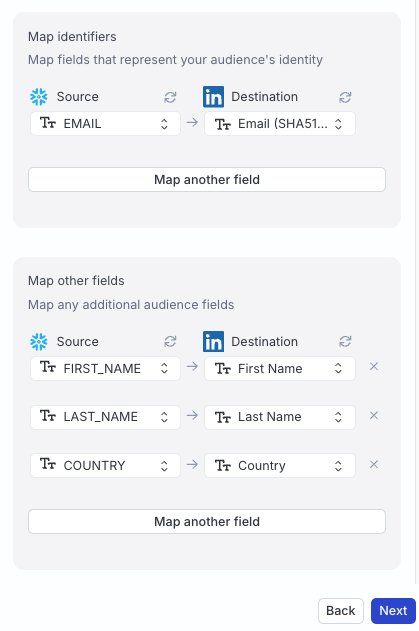
Identifier mappings
Multiple identifiers are supported for both the User and Company audience types.
- For the User audience type, the following LinkedIn identifiers are supported to which you can map your warehouse columns:
| Identifier | Description |
|---|---|
| Email (SHA256) | User’s email in a hex-encoded string format with a maximum length of 64 characters. |
| Email (SHA512) | User’s email in a hex-encoded string format with a maximum length of 128 characters. |
| Google Advertising ID | Plain text string (in lower case) with a maximum length of 32 characters. |
- For the Company audience type, the following identifiers are supported:
| Identifier | Description |
|---|---|
| Company Name | The company name. |
| Company Email Domain | Company’s email domain string in a URL format, for example, linkedin.com. |
| Company Website Domain | Company’s website domain string in a URL format, for example, www.linkedin.com. |
| Company Page URL | The LinkedIn company page URL with a maximum length of 100 characters, for example, linkedin.com/company/acmecorp. |
| Organization URN | The LinkedIn company page URN, for example, urn:li:organizationUrn:123. |
Other mappings
Apart from the identifier mappings, the User audience type also supports the below field mappings:
| Field | Description |
|---|---|
| First Name | User’s first name with a maximum length of 35 characters, for example, Alex. |
| Last Name | User’s last name with a maximum length of 35 characters, for example, Keener. |
| Title | User’s title in the company with a maximum length of 50 characters, for example, Engineer. |
| Company | User’s company name with a maximum length of 50 characters, for example, Acme Corp. |
| Country | ISO standard two letter country code, for example, US. |
For the Company audience type, The following field mappings are supported:
| Field | Description |
|---|---|
| Stock Symbol | Stock symbol of the company with a maximum length of 5 letters, for example, ACME. |
| Industries | Three industry names for the company with a maximum length of 50 characters, for example, Technology, Software. |
| City | City of the company with a maximum length of 50 characters, for example, New York. |
| State | State or province of the company with a maximum length of 50 characters, for example, Louisiana. |
| Country | ISO standard two letter country code, for example, US. |
| Postal Code | Postal code of the company with a maximum length of 20 characters, for example, 560001. |
Advanced settings
| Setting | Description |
|---|---|
| Automatically hash PII data | When set to Yes, User data is hash-encoded before sending to LinkedIn. Note that:
|
Sync settings
Two options are available to schedule your audience syncs:
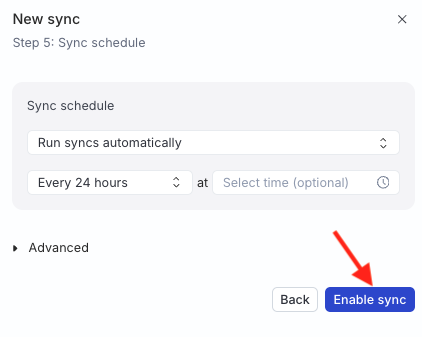
- Run syncs automatically based on a specified frequency (every 5 minutes, 10 minutes, 15 minutes, 30 minutes, 1 hour, 3 hours, 6 hours, 12 hours, or 24 hours) and a specific time (in UTC).
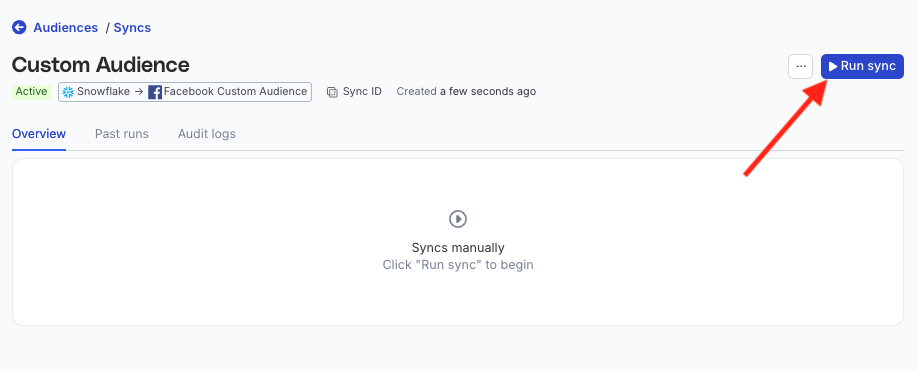
- Run syncs manually — trigger a sync from the sync details page. You will need to run the sync each time.
Sync observability settings
| Setting | Description | ||||||
|---|---|---|---|---|---|---|---|
| Retain sync logs | This setting is toggled on by default and instructs RudderStack to store the sync logs in your warehouse. You can also configure the below settings:
| ||||||
| Retry failed records | This setting is toggled on by default and causes RudderStack to continually retry sending the failed records. | ||||||
| Retain and show failures | This setting is toggled off by default. Turn it on to have RudderStack write the error recorded for every failed record to a failed records table in your warehouse and show it in the sync’s failed records view. It applies from the next sync and can take up to a minute to reach your data plane.
|
Storing sync logs, snapshot tables, and failed records may incur additional warehouse costs.
Enable sync
Once the setup is complete, enable the sync.
Data hashing
The Automatically hash PII data setting lets you hash your user data before sending it to LinkedIn. This setting is enabled by default.
- Configure the setting to Yes if your incoming data is not pre-hashed
- Configure this setting to No if your data is already hashed
Incorrect configuration of the Automatically hash PII data setting will result in failures.
- If the Automatically hash PII data setting is configured to Yes and your data is pre-hashed, the event will fail.
- If the Automatically hash PII data setting is configured to No and your data is not pre-hashed, the event will fail.
Such events are rejected with a clear error message, for example:
Automatically hash PII data is disabled but the value for field EMAIL appears to be unhashed. Either enable hashing or send pre-hashed data.You will also see errors in the Events tab for cases that were previously marked as successful but resulted in no matches, helping you identify and fix data quality or configuration issues.
