Sync Audiences to HubSpot Audience
Private Beta5 minute read
The HubSpot Audience destination is in Private Beta.
Reach out to Customer Success to enable it for your workspace.
This guide lists the steps to configure HubSpot Audience as a destination in RudderStack and sync the created audiences to it.
HubSpot Audience is separate from the Event Stream HubSpot destination.
- Use HubSpot to create and update contacts and send Event Stream traffic.
- Use HubSpot Audience only to change list membership. This sync does not create or update contacts.
Prerequisites
- Authenticate with a HubSpot Service Key that has
crm.lists.read,crm.lists.write,crm.objects.contacts.read, andcrm.objects.contacts.write. - Use a dedicated Service Key limited to those scopes. Contact write only updates list membership; this sync does not create or update contacts.
See Prerequisites for details.
Setup
- Set up an audience in RudderStack using the Audience Builder.
- Go to the Syncs tab of the audience page and click Add sync. Then, select HubSpot Audience.
- Click New destination — you can also select an already-configured destination here.
- Specify a unique name to identify this destination in RudderStack.
- In the HubSpot account section, select an existing account or add a new one with an account name and Service Key:
| Setting | Description |
|---|---|
| Account name | Enter an account name. |
| Service Key | Enter a HubSpot Service Key with the scopes in Prerequisites. |
- Proceed to configure the sync.
Configure sync
This section lists the settings to correctly configure your audience syncs to the HubSpot Audience destination.
Choose a list
Choose how the connection targets a HubSpot static contact list. Use existing list is the default.
- Use existing list: Select a static contact list. Active lists do not appear in the picker.
- Create new list: Enter a list name. RudderStack creates an empty HubSpot static contact list when you finish setup, then saves the generated list ID on the connection.
HubSpot requires a unique list name in the portal. If HubSpot rejects the name (for example, because it is already in use) or the Service Key lacks crm.lists.write, fix the name or permissions and try again. RudderStack does not rename HubSpot lists after the sync is created, and renaming the audience does not rename the HubSpot list.
If setup creates the HubSpot list but saving the RudderStack connection fails, select that list with Use existing list and continue. Do not create another list for the same connection.
If RudderStack cannot confirm whether HubSpot created the list, check HubSpot for an empty list with that name before creating again. Recovery prompts in the UI do not survive a page reload.
The connection stays locked to the selected list. Editing a connection keeps that list fixed. To sync a different list, create a new connection. The previous list and its memberships stay unchanged. Lists created during setup are not deleted automatically when you disconnect.
Sync mode
RudderStack supports only Mirror mode for this integration.
Map identifiers
Map audience columns to HubSpot contact identifiers. At least one complete identifier mapping is required.
| Identifier | Behavior |
|---|---|
| HubSpot Record ID (used first) | Used first when the mapped value is present. |
| Email (used when Record ID is empty) | Used only when the Record ID is empty. |
A bad Record ID does not fall back to email.
Note that:
- Deduplicate the audience first. Within a sync, each resolved HubSpot contact must correspond to one audience member. If two members resolve to the same contact and only one leaves, that delete can remove the contact while the other member does not re-add it.
- Preview shows audience members only. It does not confirm which HubSpot contacts will match.
- Mirror mode only removes contacts represented by this source. Other existing list members stay unchanged.
Sync settings
Two options are available to schedule your audience syncs:
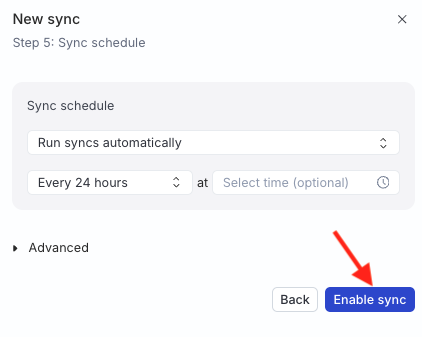
- Run syncs automatically based on a specified frequency (every 5 minutes, 10 minutes, 15 minutes, 30 minutes, 1 hour, 3 hours, 6 hours, 12 hours, or 24 hours) and a specific time (in UTC).
- Run syncs manually — trigger a sync from the sync details page. You will need to run the sync each time.
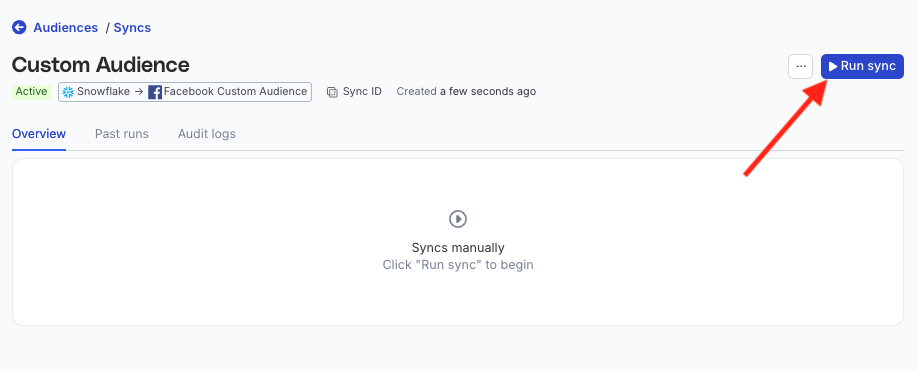
Sync observability settings
| Setting | Description | ||||||
|---|---|---|---|---|---|---|---|
| Retain sync logs | This setting is toggled on by default and instructs RudderStack to store the sync logs in your warehouse. You can also configure the below settings:
| ||||||
| Retry failed records | This setting is toggled on by default and causes RudderStack to continually retry sending the failed records. | ||||||
| Retain and show failures | This setting is toggled off by default. Turn it on to have RudderStack write the error recorded for every failed record to a failed records table in your warehouse and show it in the sync’s failed records view. It applies from the next sync and can take up to a minute to reach your data plane.
|
Storing sync logs, snapshot tables, and failed records may incur additional warehouse costs.
Enable sync
Once the setup is complete, enable the sync.
How membership is written to HubSpot
- Insert or update adds the resolved contact to the list. Delete removes the contact from the list.
- A full sync adds current members but removes none.
See How membership is written to HubSpot for when a full sync runs, row outcomes, and batch sizes.
If a sync fails
Membership updates fail if the key lacks required write scopes, HubSpot rejects the key, or the selected list has been deleted.
See If a sync fails for how to fix each case.
Stop a sync
Disabling or deleting the sync does not call HubSpot. The list and its members stay as they are, including lists created during setup. Remove members or delete the list in HubSpot if you no longer want them.
