Sync Audiences to Google Ads Remarketing Lists (Customer Match)
Private Beta8 minute read
This guide lists the steps to configure Google Ads Remarketing Lists (Customer Match) as a destination in RudderStack and sync the created audiences to it.
Prerequisites: Google Ads permissions
This integration relies on the authorizing Google Ads user’s underlying permissions.
Note that the API calls to Google Ads will fail if you authorize this integration without the Standard or Admin permissions.
Setup
- Set up an audience in RudderStack using the Audience Builder.
- Go to the Syncs tab of the audience page and click Add sync. Then, select Google Ads Remarketing Lists.
- Click New destination — you can also select an already-configured destination here.
- Specify a unique name to identify this destination in RudderStack.
- In the Event delivery account section, click Select to choose from an existing Google Ads account from the list. You can also click Add account and authenticate via OAuth, by specifying the following settings:
| Setting | Description |
|---|---|
| Account Name | Specify a unique account name |
| oAuth settings | Click Connect account, sign in with Google, and give RudderStack the required permissions to access your Google Ads account. |
- The Custom ID is pre-populated associated with your Google Ads account — select the ID from the dropdown.
- Turn on the Subaccount setting if you are using a Google Ads subaccount.
Note: See this guide for more information on subaccounts. - If Subaccount is toggled on, enter the Login Customer ID of the parent (manager) account associated with the subaccount. See the FAQ for guidance on when this field is required.
- Proceed to configure the mapping settings.
Mapping settings
This section lists the settings to correctly map data from your audience to the Google Ads Remarketing Lists destination.
Select user list
In this section, you can create a new user list or use an existing one.
- Create new list: Use this option to create a new list in Google Ads. You can specify the name and description of the new list.
- Use existing list: Select an existing list in Google Ads. This field is populated based on your connection settings.
Sync mode
RudderStack supports only Mirror mode for this integration.
Select list type
If you select the Create new list option, you need to select the type of list where you want to sync the data. Three options are available:
| List type | Description |
|---|---|
| CONTACT_INFO | You can send email, phone number, and address information in this list |
| CRM_ID | You can send internal customer IDs in this list |
| MOBILE_ADVERTISING_ID | You can send mobile advertising IDs (IDFA/GAID) in this list Note: If selected, specify the App ID of the mobile app the data was collected from.
|
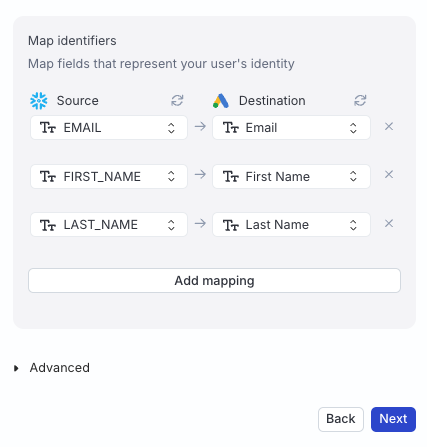
Map identifiers
In this section, you can map your warehouse columns to specific Google Ads fields that represent your audience’s identity.
The fields available for mapping depend on the list type you select.
Advanced settings
| Setting | Description |
|---|---|
| Automatically hash PII data | When set to Yes, Sensitive user data is hash-encoded like email, phone, first name, and last name in the SHA-256 format. See Data hashing section for more information. |
| Specify user consent | Specify the consent type for the uploaded users for using their data in Google Ads. Four options are available:
|
| Specify ad personalization consent | Specify consent for uploaded users for personalizing ads. Four options are available:
|
Sync settings
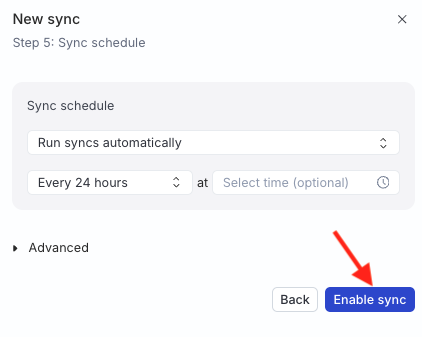
Two options are available to schedule your audience syncs:
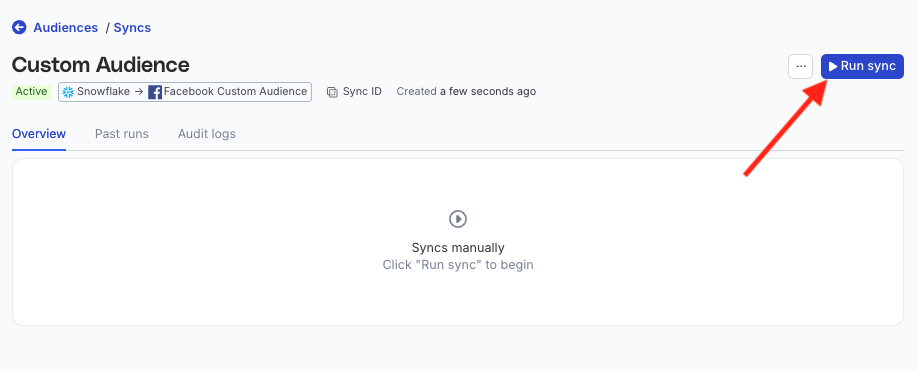
- Run syncs automatically based on a specified frequency (every 5 minutes, 10 minutes, 15 minutes, 30 minutes, 1 hour, 3 hours, 6 hours, 12 hours, or 24 hours) and a specific time (in UTC).
- Run syncs manually — trigger a sync from the sync details page. You will need to run the sync each time.
Sync observability settings
| Setting | Description | ||||||
|---|---|---|---|---|---|---|---|
| Retain sync logs | This setting is toggled on by default and instructs RudderStack to store the sync logs in your warehouse. You can also configure the below settings:
| ||||||
| Retry failed records | This setting is toggled on by default and causes RudderStack to continually retry sending the failed records. | ||||||
| Retain and show failures | This setting is toggled off by default. Turn it on to have RudderStack write the error recorded for every failed record to a failed records table in your warehouse and show it in the sync’s failed records view. It applies from the next sync and can take up to a minute to reach your data plane.
|
Storing sync logs, snapshot tables, and failed records may incur additional warehouse costs.
Enable sync
Once the setup is complete, enable the sync.
Data normalization
By default, data is cleaned and standardized as prescribed by Google Ads.
After normalization, each field is validated before sending to Google Ads:
- Invalid fields are not sent to Google Ads.
- If all fields in a row are invalid, then the entire row is rejected and marked as failed
Data is first normalized, then validated (skipping invalid rows), then hashed before sending to Google Ads.
Data hashing
The Automatically hash PII data setting lets you hash your user data before sending it to Google Ads. This setting is enabled by default.
- Configure the setting to Yes if your incoming data is not pre-hashed
- Configure this setting to No if your data is already hashed
Incorrect configuration of the Automatically hash PII data setting will result in failures.
- If the Automatically hash PII data setting is configured to Yes and your data is pre-hashed, the event will fail.
- If the Automatically hash PII data setting is configured to No and your data is not pre-hashed, the event will fail.
Such events are rejected with a clear error message, for example:
Hashing is disabled but the value for field EMAIL appears to be unhashed. Either enable hashing or send pre-hashed data.You will also see errors in the Events tab for cases that were previously marked as successful but resulted in no matches, helping you identify and fix data quality or configuration issues.
FAQ
What are the account permissions required for the Google Ads Remarketing Lists integration?
Make sure the customer account used for OAuth verification adheres to Google’s Customer Match policy and has Standard or higher (Administrative) access level permissions.
For more information on the access level permissions, refer to this Google Ads support page.
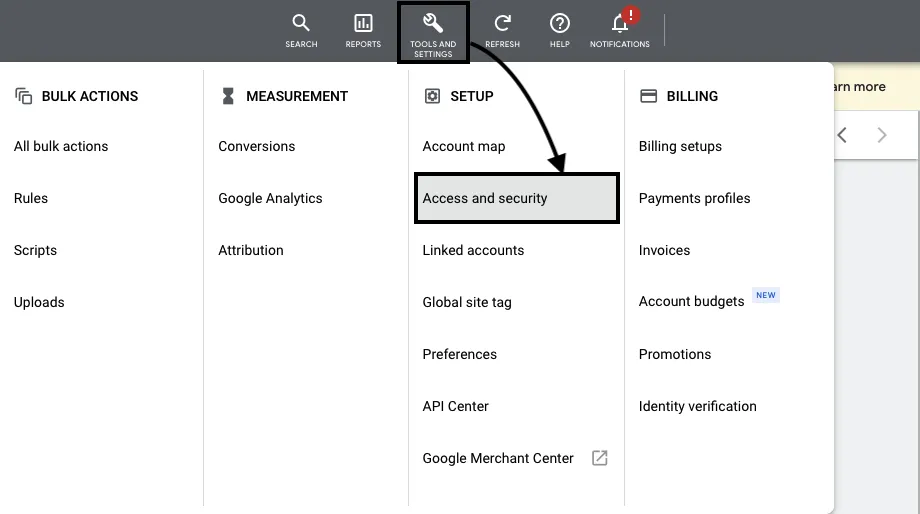
Follow these steps to set the access level:
- Sign into to your Google Ads account and go to TOOLS AND SETTINGS > Access and security:
- Enter the email address of the account. From the list of permissions, select Standard or Administrative. Then, click SEND INVITATION:
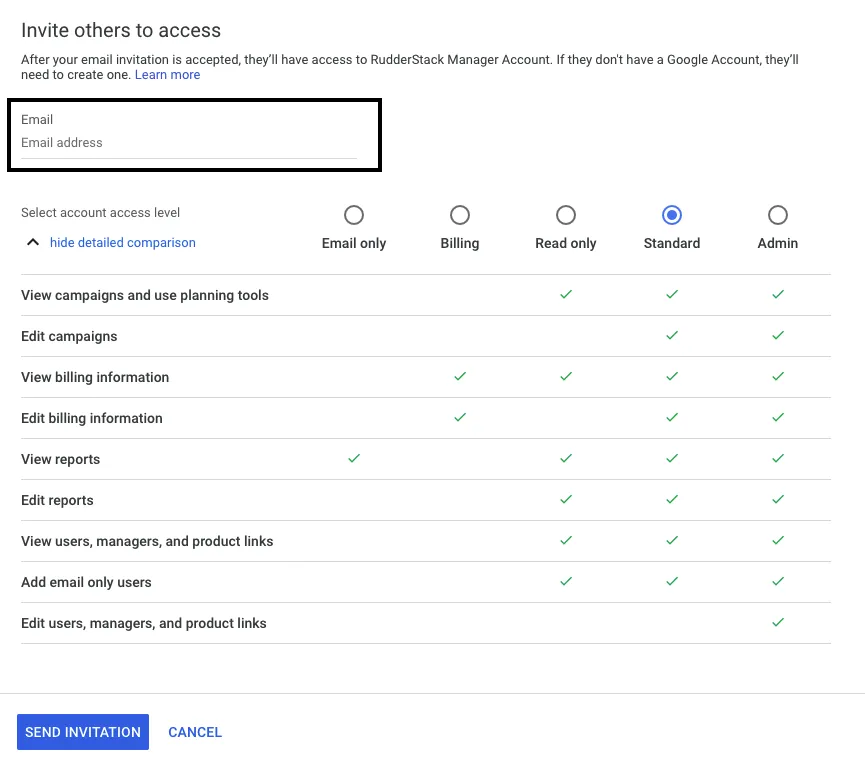
The account will have the required access-level permissions once the user accepts the invitation.
When do I need to provide a Login Customer ID?
You need to provide the Manager Account ID (Login Customer ID setting in the dashboard) only when:
- The Manager Account ID is a manager of the Customer ID
- The Google account you authenticated with does not have direct user access to the Customer ID.
You can leave the Login Customer ID field empty if the authenticated Google account has direct access to the Customer ID.
See About manager accounts for more information.
How do I know which Customer ID and Login Customer ID combination applies to my setup?
| Setup | Customer ID | Login Customer ID |
|---|---|---|
| Standalone account, direct OAuth access | The account itself | Leave empty |
| Standalone account, OAuth access via a manager | The account itself | The manager |
Why am I getting the USER_PERMISSION_DENIED, INVALID_CUSTOMER_ID, or CUSTOMER_NOT_ACCEPTED_CUSTOMER_DATA_TERMS errors?
These errors usually mean the Customer ID or Manager Account ID (Login Customer ID setting in the dashboard) is misconfigured or you are hitting the API rate limits.
| Error | Notes |
|---|---|
USER_PERMISSION_DENIED | The authenticated Google account doesn’t have permission to act on the Customer ID or you’re trying to modify a customer list created by a different account (only the owning account can edit a list). Verify the Login Customer ID is correct, and that this manager is linked to the Customer ID in Google Ads. |
INVALID_CUSTOMER_ID | Either the Customer ID is wrong, or the Login Customer ID isn’t authorized to access it. |
RESOURCE_EXHAUSTED | Too many requests are sent in a short period — this is a quota/rate limit issue rather than a configuration error. Batch your operations and review Google’s API limits and quotas. |
For other Customer Match-specific errors, see Google’s Customer Match Troubleshooting Guide.
Why am I getting a 400 Bad Request error message while setting up the Google Ads Remarketing Lists destination?
If you get a 400 Bad Request error while configuring the destination, make sure your customer account is allowlisted and configured to have Standard or Administrative access levels in Google Ads.
See the above FAQ for steps on setting the access level permissions for the account.
