Custom Audience Setup Guide Private Beta
4 minute read
The Audiences feature is in Private Beta, where we work with early users and customers to test new features and get feedback before making them generally available.
Reach out to Customer Success if you are interested in enabling this feature for your workspace.
Use this guide to set up a Custom Audience destination in RudderStack.
To sync a saved audience to your Custom Audience destination, see How to Sync Audiences to Custom Audience.
Setup
- Go to Collect > Destinations > New Destination.
- Search and select Custom Audience.
- Creating a source is optional. Click Continue to skip this step.
- Configure the following settings to specify how RudderStack connects to your API and complete the setup:
| Setting | Description |
|---|---|
| Name | A unique name that identifies this destination in your workspace. |
Audience delivery API configuration
| Setting | Description |
|---|---|
| Enter base URL | Specify the root URL for your API (for example, https://api.example.com). All requests are sent to this URL. |
| Specify authentication | Choose how RudderStack authenticates with your API. See Authentication section below for details. |
| Custom headers | This optional setting lets you add extra key-value headers to every request (for example, Content-Type, X-API-Version). |
Authentication
| Method | Description |
|---|---|
| No authentication | None — use this for public endpoints only |
| Basic Auth | Enter a username and password |
| API Key | Specify a header name (for example, X-API-Key) and API key value |
| Bearer Token | Enter a bearer token value |
Endpoint configurations
Configure how RudderStack adds, updates, and removes audience members:
| Setting | When it runs |
|---|---|
| Add record | A user enters the audience |
| Update record | A member’s mapped attributes change.
|
| Remove record | A user leaves the audience |
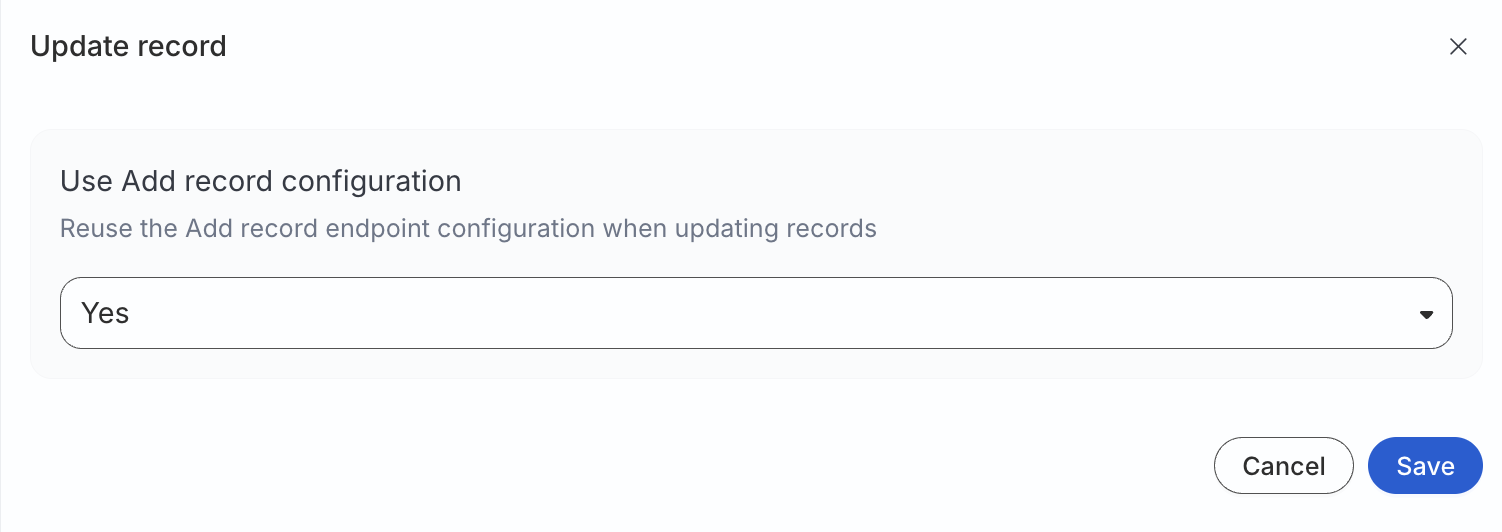
Action-specific settings
Each action’s (add/update/remove record) settings follow the same structure.
HTTP method and endpoint path
| Setting | Description |
|---|---|
| HTTP method | POST, PUT, PATCH, GET, or DELETE for this action. |
| Endpoint path URL | Path appended to the base URL. It supports simple interpolation with connection values, for example /audiences/{{connection.audienceId}}/members. |
The resolved URL is the base URL plus the evaluated endpoint path.
Batch size
| Setting | Description | Default value |
|---|---|---|
| Batch size | Maximum records per HTTP request for this action. Range 1–5000 | 5000 |
Request body template
Define the JSON body sent to your API. The template follows JSONata syntax.
Templates are validated when you save the destination. An invalid syntax is rejected with an error that identifies the action and issue.
A sample request body template is shown below:
{
  "audience_id": $$.connection.audienceId,
  "elements": [$$.records.{
    "userIds": [
      {"idType": "SHA256_EMAIL", "idValue": sha256_email},
      {"idType": "GOOGLE_AID", "idValue": google_aid}
    ],
    "firstName": first_name,
    "lastName": last_name,
    "nested": {
      "org": "static_value"
    }
  }]
}
Global objects available at runtime
| Object | Description |
|---|---|
$$.records | Array of records in the current batch (after field processing and hashing) |
$$.connection | Sync connection metadata, including audienceId |
Allowed operations
- Object and array construction
- Path expressions (
$$.records,$$.connection.audienceId) - Iteration with
{ ... }— for example,$$.records.{ "email": email, "user_id": user_id } - String, number, and boolean literals
Number()casting where needed, for example,$number($$.connection.audienceId)
Template example
A template for generic batched members is shown below:
{
   "audienceId": $$.connection.audienceId,
   "users": [$$.records.{
    "email": email,
     "user_id": user_id
  }]
}
Template fields
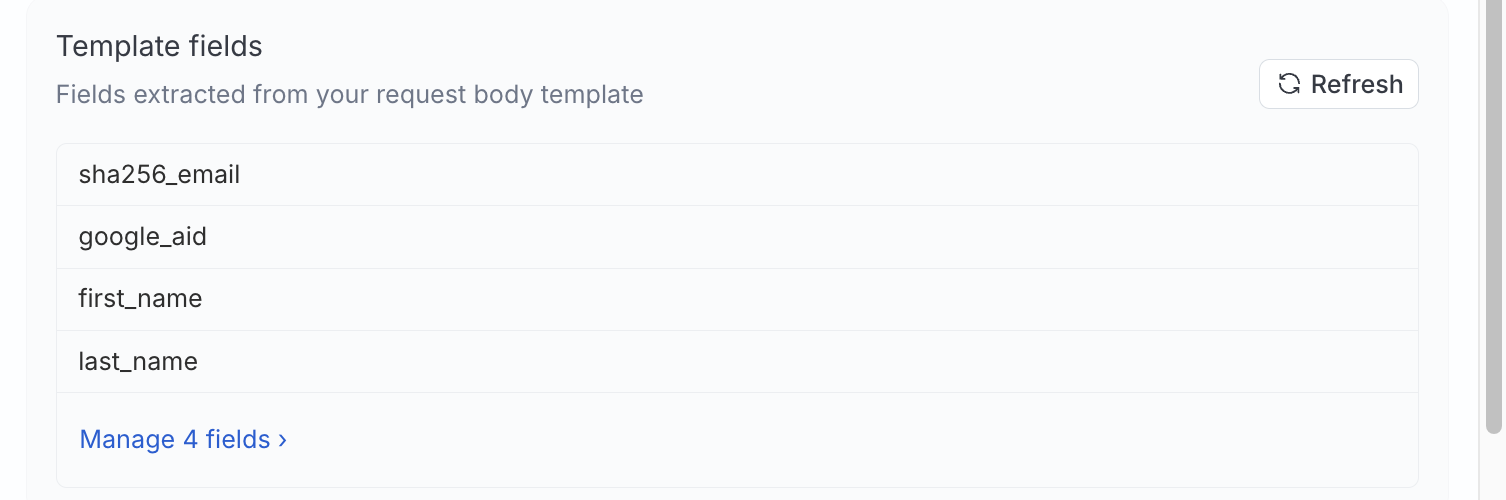
After you define a template, RudderStack extracts field names referenced under $$.records and lists them under Template fields. Click Refresh to re-scan the template, or Manage fields to configure each field.
| Field setting | Description |
|---|---|
| Name | Destination-side field name used in the template |
| Required | If enabled, you must map the field to a warehouse column during sync setup |
| Static | If enabled, the value is a literal you provide while adding a sync |
| Hash | Hash algorithm applied before the template runs. You can choose between None, SHA256, SHA512, or MD5. |
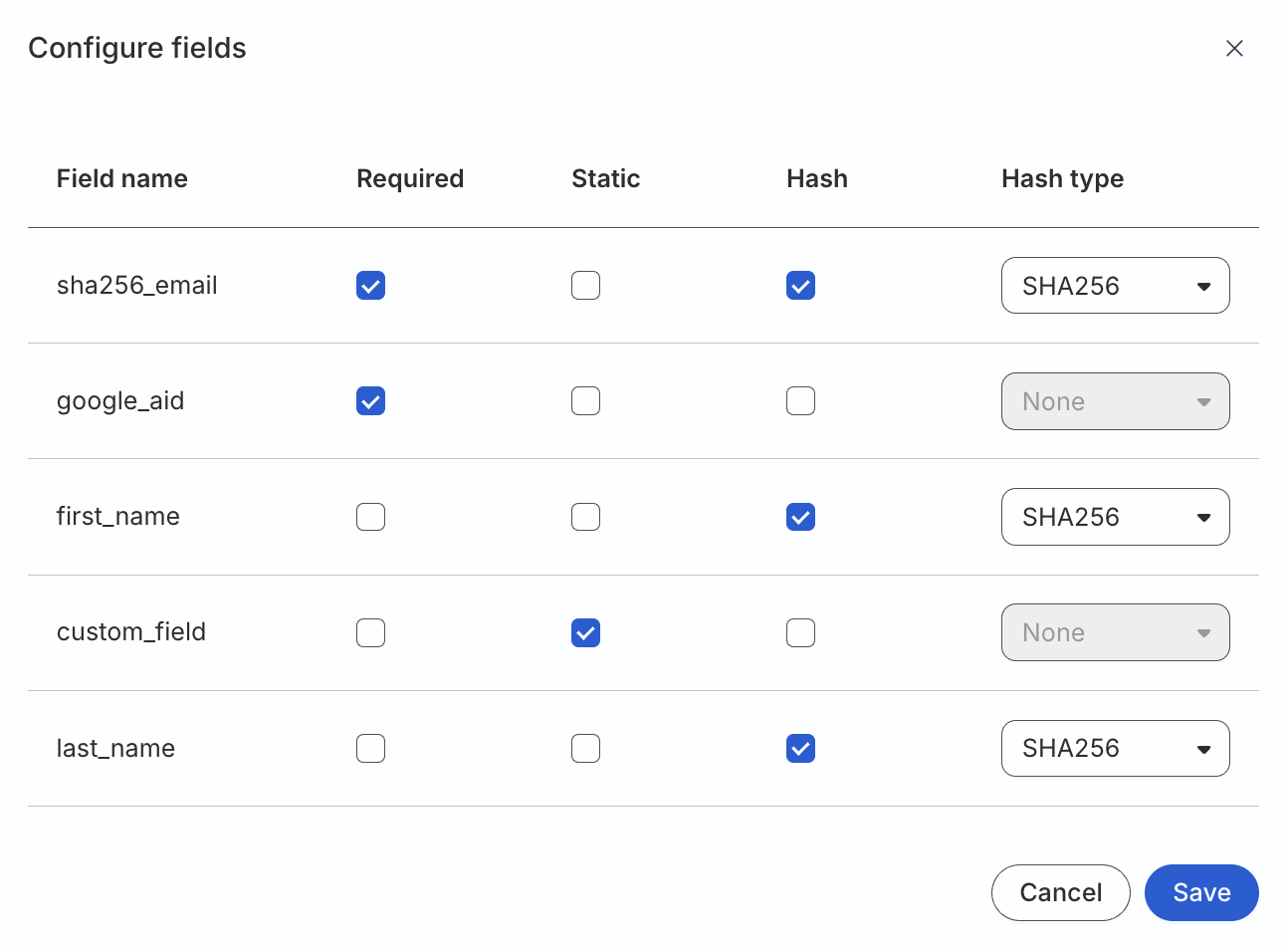
If you rename or remove template fields after syncs exist, make sure to update mappings on each affected sync manually.
See Troubleshooting for more information.
Request preview
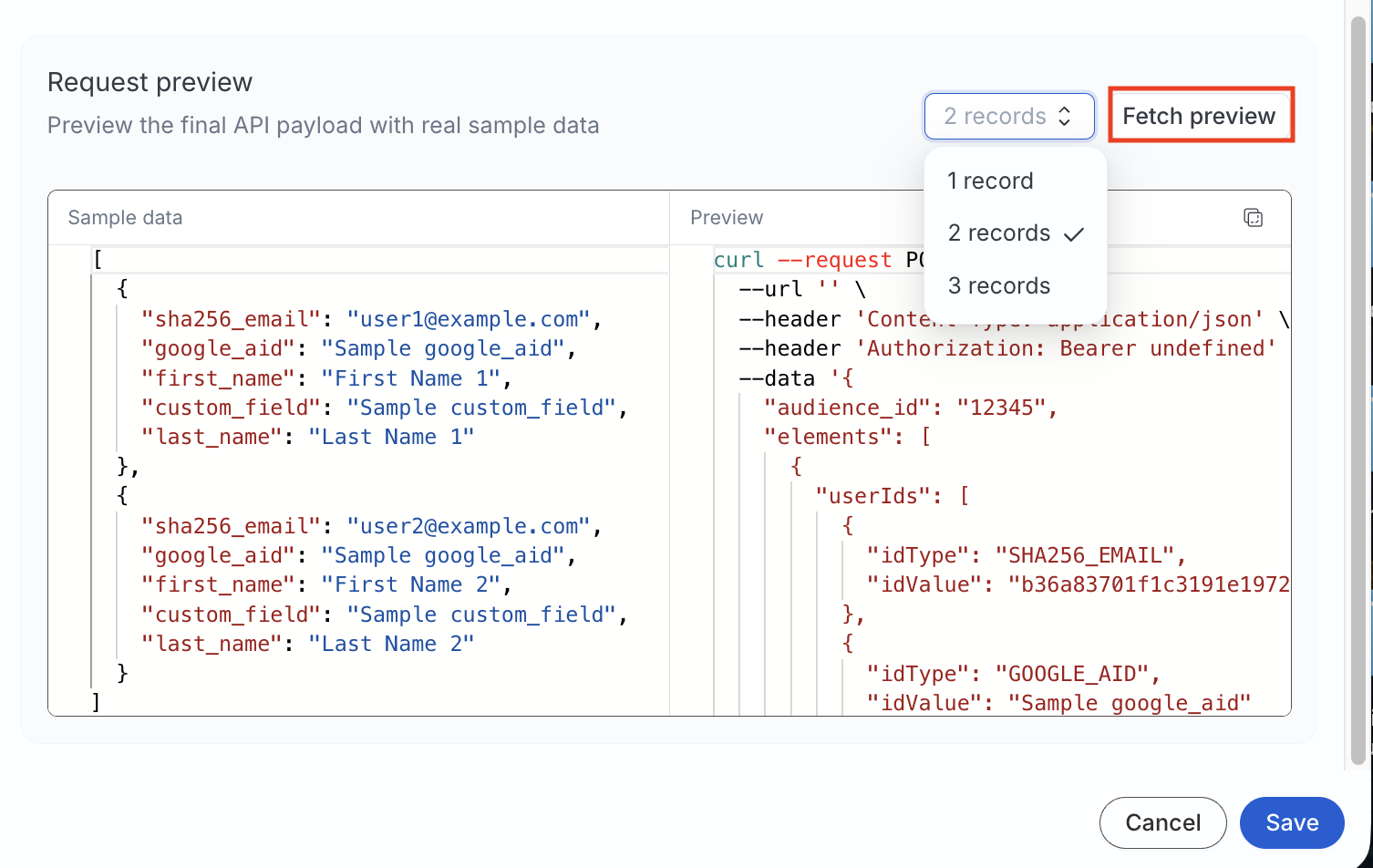
Use Fetch preview to build a sample HTTP request from test records.
Preview does not send traffic to your API.
- Choose how many sample records to include (for example, 1 record).
- Edit sample data if needed.
- Click Fetch preview to see the resolved method, URL, headers, and JSON body.
Troubleshooting
| Issue | Resolution |
|---|---|
| Template is rejected on save | The syntax is outside the allowlisted operations — the error message names the action and position |
| Unexpected payload shape | Use the Fetch preview with the same sample records and action type (INSERT, UPDATE, or DELETE) to verify the payload shape |
Next steps
To sync a saved audience to your Custom Audience destination, see How to Sync Audiences to Custom Audience.
