Data Graph
Private Beta- growth
- enterprise
2 minute read
The Audiences feature is in Private Beta, where we work with early users and customers to test new features and get feedback before making them generally available.
Reach out to Customer Success if you are interested in enabling this feature for your workspace.
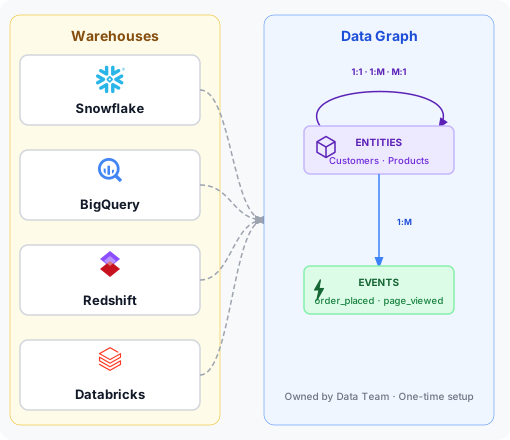
The Data Graph is an entity mapping layer that maps your warehouse tables to entities and events and defines the relationships between them. This gives marketers a business-friendly interface to build audiences from. Your data team configures it once, pointing at warehouse tables or your own pipelines, and marketers self-serve from there.
Core concepts
A data graph has three key components: entities, events, and relationships.
| Term | Description |
|---|---|
| Entity | A warehouse table that represents a business object, for example, Customers, Accounts, or Products. Entities are the “nouns” marketers build audiences around. |
| Event | A warehouse table with a timestamp column that captures something that happened, for example, product_viewed, order_placed, or cart_abandoned. You can filter events with a time window in the Audience Builder. |
| Relationship | A 1:many, many:1, or 1:1 link between two entities, or between an entity and an event. Relationships let marketers filter one entity using conditions on related records, for example, “customers with 3 or more orders”. |
Create a data graph
You can create a data graph in two ways:
Both methods produce the same data graph. Pick whichever best fits your team’s workflow.
1. Visual Builder
Configure the data graph directly in the RudderStack dashboard using the visual builder. Pick warehouse tables, mark them as entities or events, and draw relationships between them. This is the recommended way to build a data graph.
See How to Create a Data Graph using Visual Builder for a step-by-step guide.
2. Rudder CLI
Define your data graph as a YAML file and sync it to your workspace using the Rudder CLI. This is the right choice for teams that want to version-control the data graph in Git, review changes via pull requests, or manage multiple environments (dev, staging, prod) as code.
See the Data Graph YAML reference for the full schema and a complete example.
Prerequisites
You need a connected warehouse account before you can build a data graph.
The following warehouses are supported:
- Snowflake
- BigQuery
- Redshift
- Databricks
See Configure a warehouse connection for detailed steps on configuring a warehouse connection.
Current limitations
The data graph has the following limitations in the current release:
- Direct many-to-many relationships between entities is not supported
- Event-to-event relationships are not supported
See also
- How to Create an Audience from a Data Graph: Build and activate audiences by leveraging the data graph
