You are viewing documentation for an older version.

How to Import Workspace Resources into Your Rudder CLI Project
Alpha- free
- growth
- enterprise
5 minute read
This guide walks you through importing workspace resources into a Rudder CLI project and running apply so the CLI manages them.
Overview
Rudder CLI manages Data Catalog, Tracking Plans, SQL Models, and Event Stream Sources as YAML.
If those resources already exist in your workspace, you can use the import workspace command to generate files under imported/, adjust them if needed, then run apply to attach them to your CLI project — you do not need to recreate everything manually.
Required permissions
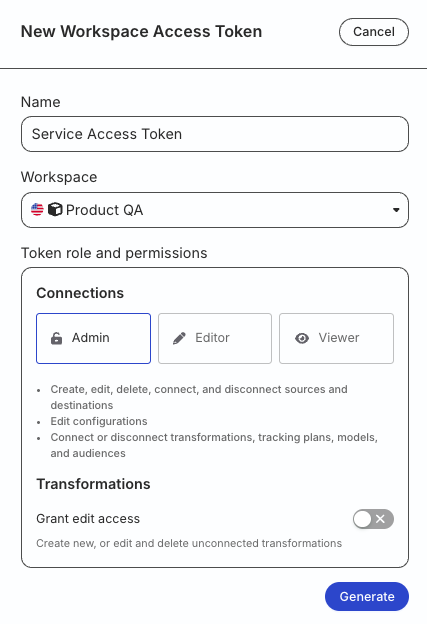
Generate a workspace-level Service Access Token with the permissions required for each resource type you want to import and manage:
Include permissions only for the resource types you use. The same scope applies forapplylocally or in CI/CD. See Manage Workspaces for a deployment-oriented workflow.
| Resource type | Resource | Permissions |
|---|---|---|
| Data Catalog and Tracking Plans | Data Catalog | Edit |
| Tracking Plans | Edit | |
| SQL Models | SQL Models | Create & Delete, Edit |
| Event Stream Sources | Event Stream Sources | Create & Delete, Edit, Connect |
| Tracking Plans | Edit, Connect |
- If you’re on Free or self-hosted plan, or for testing and development only: Generate a Personal Access Token with Read-Write role
Any action authenticated by a Personal Access Token will break if the user generating the token is removed from the organization or there is a breaking change to their permissions.
Token permissions for legacy RBAC system
If you are on the legacy Permissions Management (RBAC) system, your workspace-level Service Access Token should have minimum Admin permissions.
See Generate a workspace-level Service Access Token for steps to create the token.
Import workspace resources
Before you import workspace resources
Before starting the import process, make sure:
- You have a Rudder CLI project directory (can be empty)
- You have no unsynced changes in your project — apply any existing changes first by running the
applycommand.- You don’t have an existing directory named
importedin your CLI project.Otherwise, the import process will fail.
To import all resources from your current workspace into a CLI project, run the import workspace command — replace <project-directory> with the path to your CLI project directory.
rudder-cli import workspace -l <project-directory>The command scans your workspace for resources not yet managed by Rudder CLI, writes YAML under imported/, and adds import metadata that maps local IDs to workspace IDs.
What gets imported and where
project/
├── imported/
│   ├── data-catalog/
│   │   ├── events/
│   │   ├── properties/
│   │   ├── categories/
│   │   ├── trackingplans/
│   │   └── custom-types/
│   ├── retl-sources/
│   │   ├── <model-name>.yaml
│   │   └── sql/
│   │       └── <model-name>.sql
│   ├── sources/
│   │   └── <source-name>.yaml
If a resource type has no instances, its folder is empty or omitted.
| Resource | Path (under imported/) | Notes |
|---|---|---|
| Events | data-catalog/events/ | One YAML file per event definition |
| Properties | data-catalog/properties/ | One YAML file per property definition |
| Event Categories | data-catalog/categories/ | One YAML file per category |
| Custom Types | data-catalog/custom-types/ | One YAML file per custom type |
| Tracking Plans | data-catalog/trackingplans/ | One YAML per plan
|
| Event Stream Sources | sources/ | One YAML per source
|
| SQL Models | retl-sources/ | One YAML per model — SQL inline by default, or under sql/ when using external files |
Folder names underimported/follow the layout your Rudder CLI version generates. If you upgrade the CLI and the structure changes, compare the new output with this table and move files as needed before you runapply.
Import metadata
YAML from an import includes metadata.import so Rudder CLI can match local definitions to workspace resources.
For how workspace_id behaves when you target another workspace, see Manage Workspaces.
Example:
version: "rudder/v0.1"
kind: "categories"
metadata:
  import:
    workspaces:
      - workspace_id: "3NrueK2Hu7ooXVQqQJhKqKlnofE"
        resources:
          - local_id: "abc"
            remote_id: "cat_343HNkcWRt8YXHphthHwa8QEdXE"
          - local_id: "webapp"
            remote_id: "cat_2ohsVV9iKuw7GfLFITwsVLn6Nhy"
  name: "categories"
spec:
  categories:
    - id: "abc"
      name: "ABC"
    - id: "webapp"
name: "Webapp"| Property | Type | Description |
|---|---|---|
workspace_id | String | Workspace the resources were imported from. |
resources | Array | Maps each local_id to a workspace remote_id. Do not change remote_id after import; see Key considerations. |
For the full metadata schema, see the CLI Project Resources YAML Reference.
Complete the import
The import workspace command only writes files; it does not register them with your CLI project.
Review and adjust files
Confirm the generated YAML matches what you expect. You may move files out of imported/ to match your layout and edit fields such as names or descriptions. Before you run apply, read Key considerations for rules on local_id, remote_id, import metadata, and dashboard changes.
Apply imported resources
Run:
rudder-cli apply -l <project-directory>apply finds resources marked for import, links them to the CLI project, prints a summary, and asks you to confirm.
Example:
$ rudder-cli apply -l ./my-rudder-project

Importable resources:
  - category:abc
  - category:webapp

? Do you want to apply these changes? (y/N)
After you confirm, you manage those resources through Rudder CLI.
Important considerations
This section covers important considerations when importing workspace resources and applying them to your CLI project.
Use Rudder CLI as the source of truth
For CLI-managed resources, use only Rudder CLI (not the dashboard or APIs) unless you intend to reconcile outside changes. After a successful apply, Rudder CLI is the source of truth for those resources.
IDs, metadata, and the dashboard
- Do not change
remote_idvalues in imported YAML — updates will fail. - You may change
local_idonly beforeapply. Keep the import metadata mapping in sync with anylocal_idyou change. - After
apply, do not changelocal_id. - Do not delete a resource in the dashboard after import but before
apply— otherwiseapplywill fail withResource with ID not found. See Resource Deleted from Dashboard Before Apply.
Workflow tips
- Try the flow in a development workspace before production.
- Commit imported YAML to version control so changes stay reviewable and reversible.
Next steps
- See Manage Workspaces for workspace promotion and CI/CD
- See Troubleshooting for common import and
applyerrors
