Personal Access Tokens
Learn about Personal Access Tokens and how they enable individual users to authenticate and consume RudderStack APIs.
2 minute read
This guide explains the concept of Personal Access Tokens in RudderStack. It also describes the steps to generate a Personal Access Token and all the operations associated with it.
Overview
You can use Personal Access Tokens to authenticate and consume RudderStack APIs. This token is associated with an individual’s RudderStack account.
Use Personal Access Tokens for development or testing purposes only. For production use cases, RudderStack recommends using a Service Access Token
Permissions
You can create and use Personal Access Tokens with the following scopes:
| Token scope | Description |
|---|---|
| Read-Only | Access tokens will have read-only permissions. |
| Read-Write | Access tokens will have both read-only and read-write permissions of the user.
|
| Admin |
|
Personal Access Tokens vs. Service Access Tokens
| Personal Access Tokens (PAT) | Service Access Tokens (SAT) |
|---|---|
| Tied to a specific user within a workspace. | Not tied to an individual user. |
| Used for individual tasks and testing. | Used for centralized, shared access and production use cases. |
| Any processes dependent on these tokens will break if the user is removed from the organization or a breaking change is made to their permissions. | Exist at an organization or workspace level, ensuring continuity in essential workflows and pipelines using these tokens. |
Generate Personal Access Token
- Log in to your RudderStack dashboard.
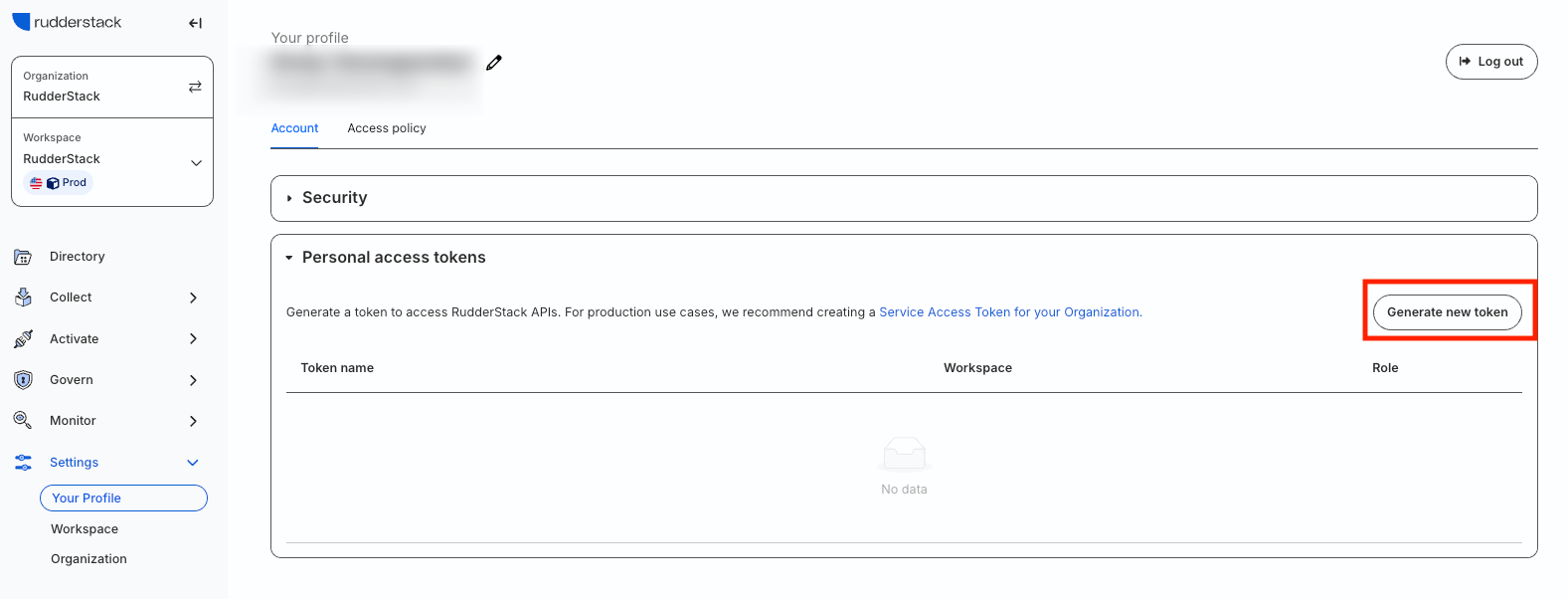
- Go to Settings > Your Profile and scroll down to Personal Access Tokens. Then, click Generate new token:
- Enter the Token name, select the Workspace and the Scope from the respective dropdowns:
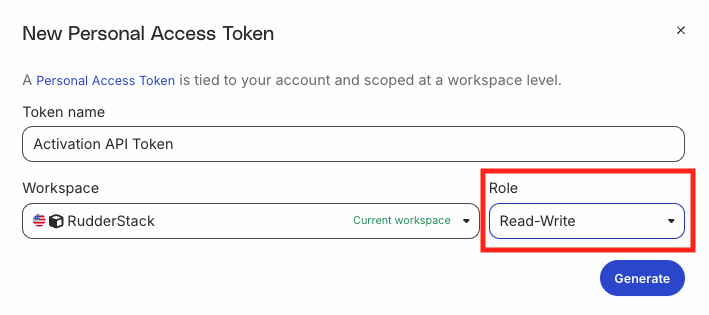
- Click Generate.
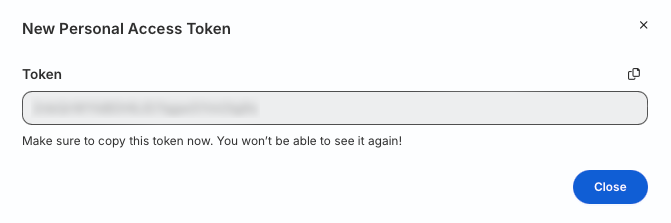
- Note the Personal Access Token value.
Make sure to secure the generated token — the token value is not visible again once you close this window.
Delete Personal Access Token
- Go to Settings > Your Profile and scroll down to Personal Access Tokens.
- Click the Delete option next to the token and confirm by clicking Yes, delete.
