RudderAI in Dashboard
Beta2 minute read
RudderAI in dashboard is currently in Public Beta and is available for new signups only.
RudderAI is available directly in the RudderStack dashboard as a side-panel chat assistant. It provides the same core RudderAI capabilities, including pipeline monitoring, issue debugging, data quality analysis, and documentation answers.
See RudderAI Key Capabilities for the complete list of supported tasks and example questions.
Access the assistant
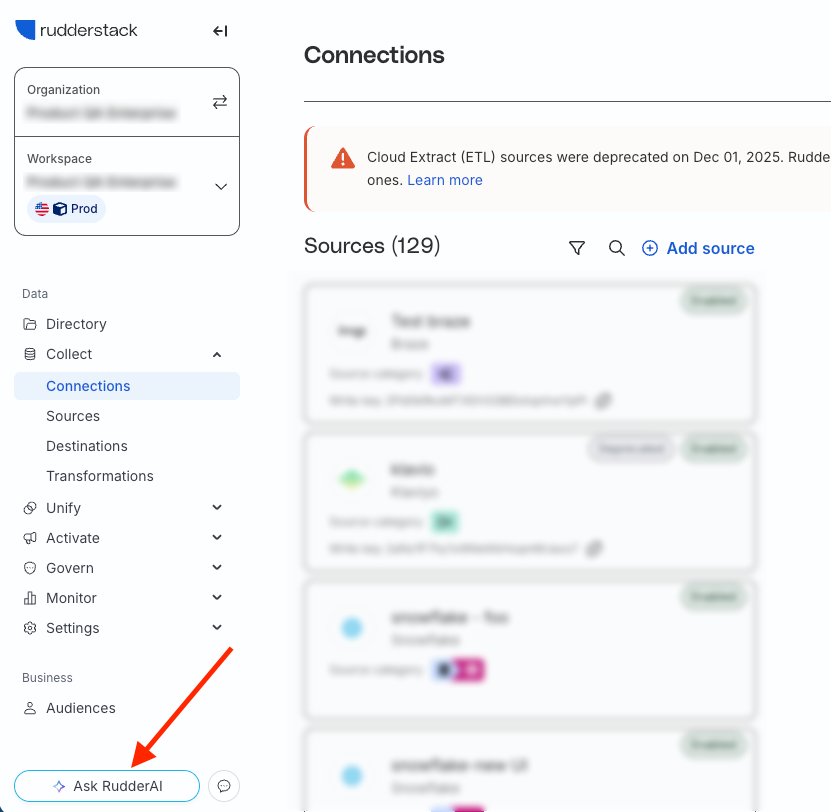
Click the Ask RudderAI button in the sidebar footer to open the chat panel.
If the Ask RudderAI button appears locked with a Not available on your plan tooltip, the feature is not available for your organization yet.
Organization access
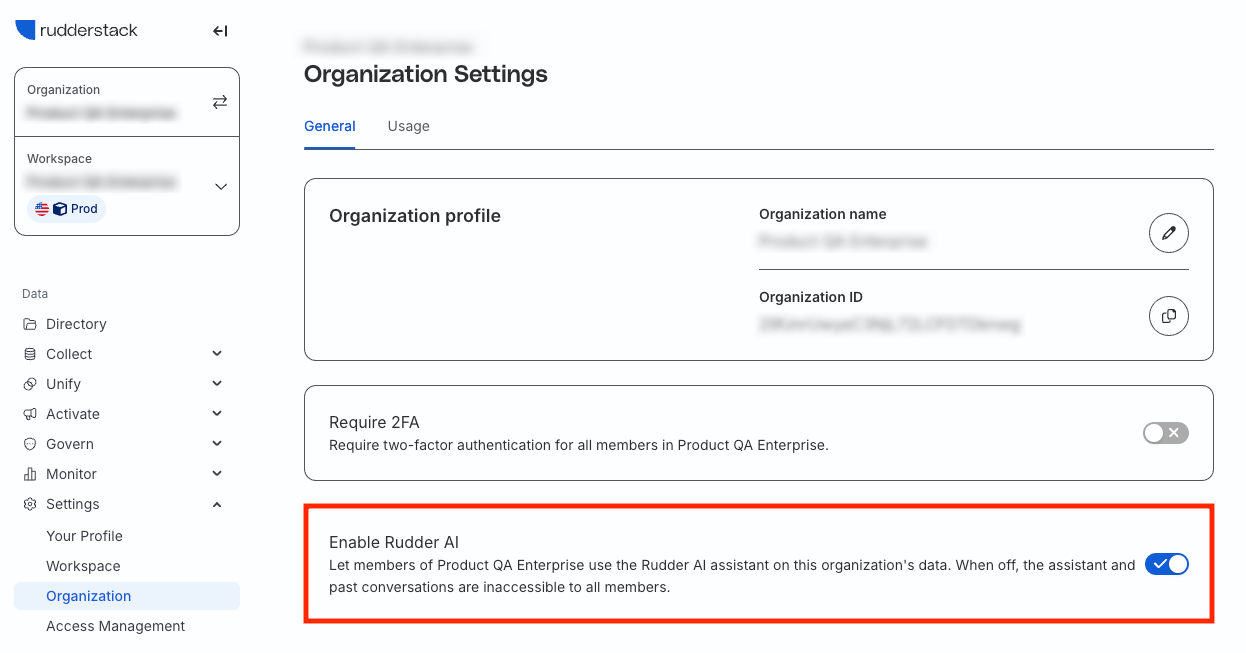
The Enable RudderAI toggle in Settings > Organization controls dashboard access for all organization members. On self-serve organizations that have access, this setting is on by default.
Turn the toggle off to opt out — the assistant becomes fully inaccessible to all organization members. Turn it on to restore access.
Key features
- Page-aware context: The composer shows a context chip for the dashboard page or resource you’re currently viewing, such as a specific source or destination. Toggle this context on or off to include or exclude the current page in your question. For example, asking “why are events failing?” while viewing a destination automatically scopes the question to that destination.
- Conversations: Create multiple conversation threads, switch between them, and delete old ones. Each conversation retains its full history — use separate threads to organize different investigations.
- Docked or full-screen: The chat panel opens as a resizable side panel. Drag the left edge to resize it, or click the expand icon to switch to full-screen mode for focused work.
- Rich response cards: Responses can include interactive cards, such as resource lists with clickable links, error details, documentation answers with sources, and suggested follow-up actions you can click to continue the conversation.
- Background processing: Closing the panel doesn’t stop a running response. Reopen the panel to see the completed answer.
- Feedback: Rate responses with 👍 or 👎 on each answer to help improve the assistant.
- Keyboard shortcut: Press Escape to close the panel.
Access and permissions
RudderAI cannot create, modify, or delete any workspace configuration. It works within your production workspace and follows the same access model described in RudderAI Security and Compliance.
RudderAI can make mistakes. Verify responses before acting on them.
