How to Create Transformations
Add a new transformation in RudderStack.
3 minute read
This guide covers how to add a new transformation in the RudderStack dashboard.
To verify your transformation before you save a draft or publish it, see Test Transformations.
Required permissions
- Admins have full access to create and manage transformations.
- Members can have the following permissions depending on their workspace policy:
| Resource | Permission | Description |
|---|---|---|
| Transformations | Edit | Make changes to the configuration of transformations |
| Transformations | Connect | Connect a transformation to a destination |
| Transformations | Create & Delete | Create or delete transformations |
To make a connection, that is, connect a transformation to a destination, the member must have both Edit and Connect permissions on both the resources.
Click here to see how these permissions appear in the workspace policy.
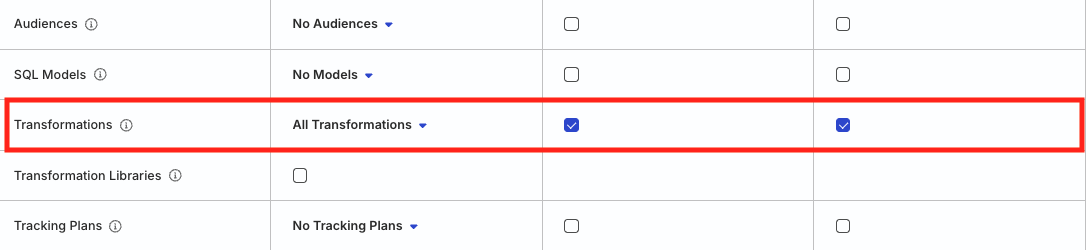
Permissions for legacy RBAC system
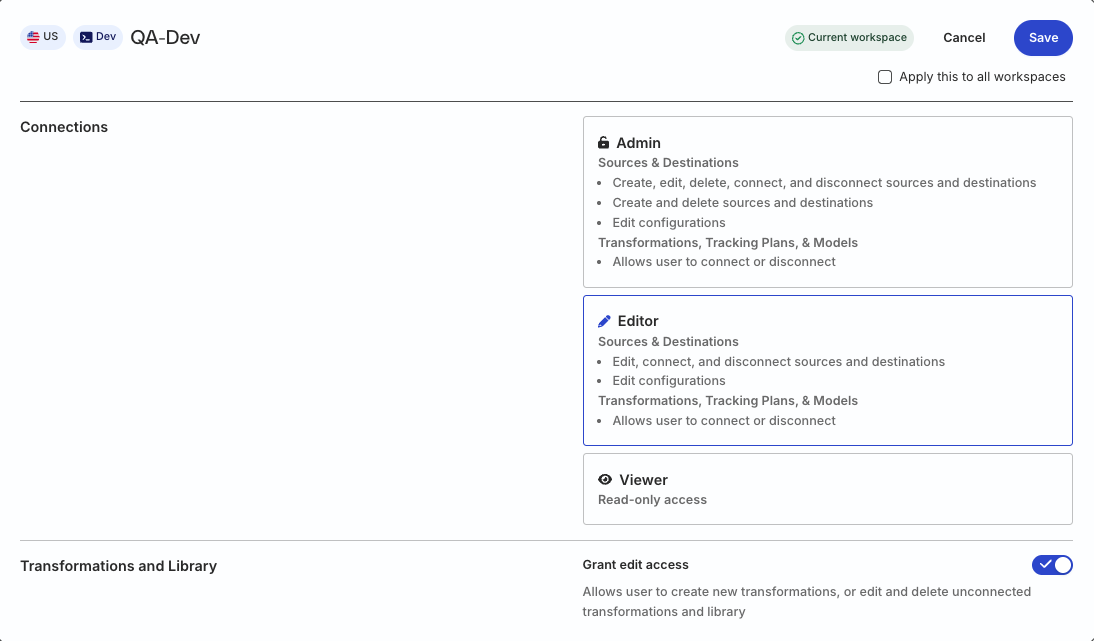
In the legacy Permissions Management (RBAC) system:
- Org Admins can create, edit, delete, and connect transformations to destinations
- Members must have the Grant edit access permission in Transformations and Library toggled on to create, edit, delete, and manage transformations
- Members with the Connections Admin or Connections Editor role in their workspace policy can only connect transformations to destinations
Add new transformation
- Log in to the RudderStack dashboard.
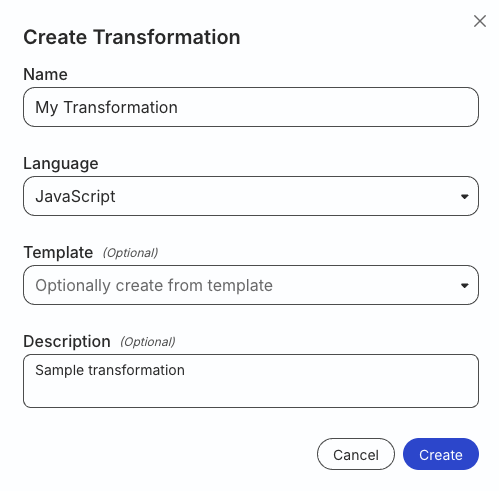
- Go to Collect > Transformations and click Create Transformation.
- Name your transformation. It must contain at least 2 characters.
- In the Transformation window, select the language to write your transformation. RudderStack provides two options — JavaScript and Python 3.11.
Important considerations
- RudderStack uses this Node.js version for JavaScript transformations and libraries.
- Python transformations are available only in the RudderStack Growth and Enterprise plans.
- JavaScript transformations run in an isolated environment — no Node.js modules (like
fs,require) or browser APIs (likewindow,btoa) are available. Only standard JavaScript features are supported.
- Optional: Choose a transformation template that contains prefilled code for implementing specific use cases on your event data.
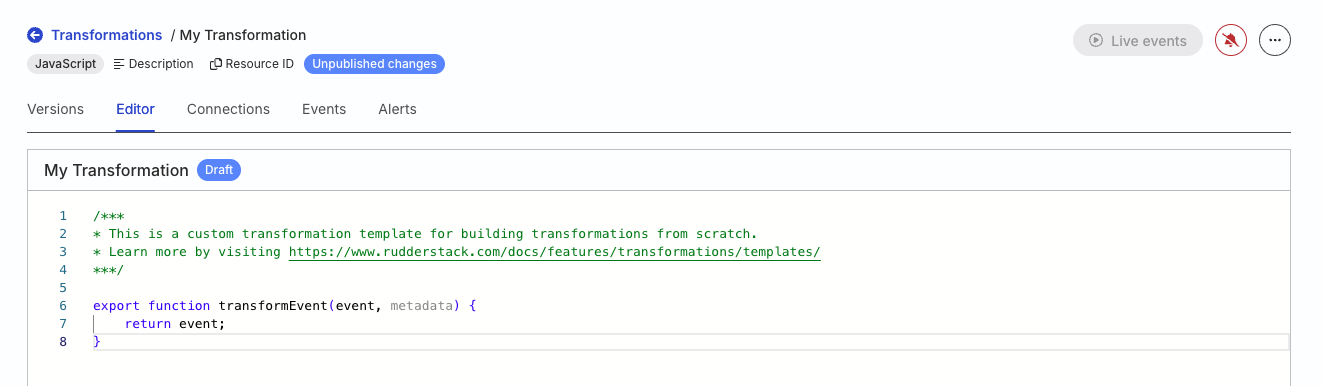
- Click Create to create the transformation — you will be automatically redirected to the Editor tab.
- Add your transformation function. You can also add other functions and call them from within the
transformEventfunction.
- Test your transformation to confirm it produces the output you expect.
Publish the transformation
After you add and test your transformation code:
- Click Save draft to store unpublished changes without affecting production.
- Click Publish to create a tagged version and make it Active.
You can publish a transformation without saving it as a draft first.
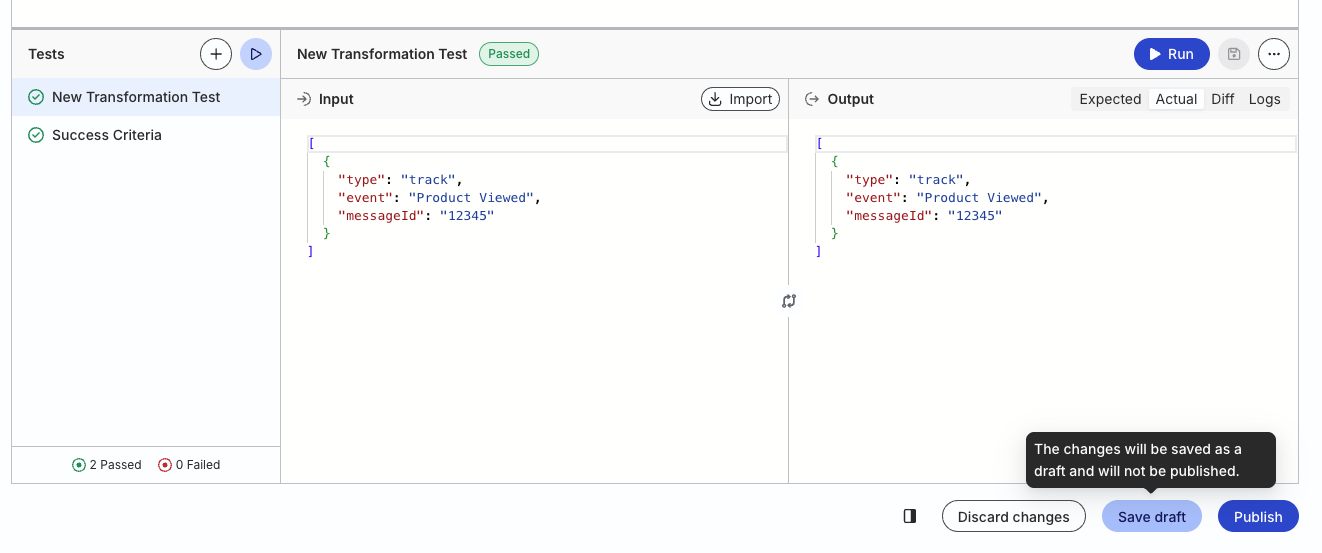
Only a published Active transformation can be connected to a destination.
See Version and Deploy Transformations for more information on versioning and publishing a transformation.
See more
- Test Transformations: Create test cases, import event payloads, and capture logs while testing
- Version and Deploy Transformations: Save drafts, publish versions, and deploy older transformation versions
- Transformation Templates: Use a transformation template for common use cases
- Manage Transformations: Connect, edit, and delete existing transformations
