# How to Invite Teammates in Rudder Lookout


<blockquote class="announcement">
  <div class="tip-quote">
    
    <div class="tip-text"><strong>Rudder Lookout</strong> is currently in <strong>Public Beta</strong>. <a href="mailto:product@rudderstack.com" >Contact the Product team</a> if you have any questions.</div>
  </div>
</blockquote>

<p>This guide explains how to manage invitations in Rudder Lookout.</p>
<!-- end-chunk -->
<!-- begin-chunk -->
<h2 id="send-an-invitation">Send an invitation</h2>
<blockquote class="warning">
  <div class="tip-quote">
    
    <div class="tip-text">Only owners and admins can invite people to a workspace.</div>
  </div>
</blockquote>
<ol>
<li>Go to <strong>Settings</strong> &gt; <strong>Members</strong> and select <strong>Invite</strong>.</li>
<li>Enter the person&rsquo;s email address and choose whether they join as a <strong>Member</strong> or an <strong>Admin</strong>.</li>
<li>Select <strong>Send invite</strong>.</li>
</ol>
<p>Lookout emails the invitation to that address. Each invitation is for one person and one address — there is no shareable link that lets anyone join.</p>
<p>See <a href="https://www.rudderstack.com/docs/activate/lookout/workspaces/roles/" >Roles and Permissions</a> for what each role can do.</p>
<!-- end-chunk -->
<!-- begin-chunk -->
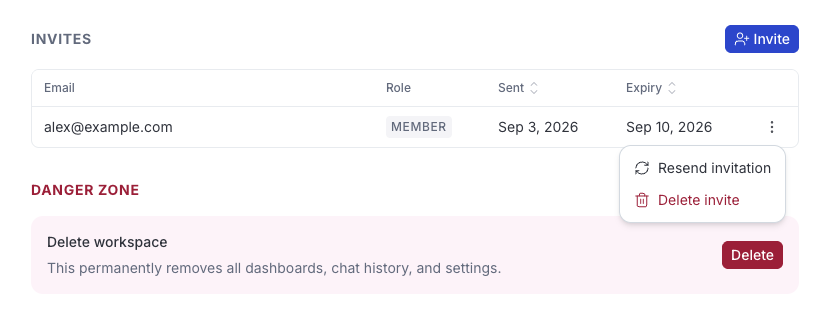
<h2 id="manage-pending-invitations">Manage pending invitations</h2><p>Invitations you have sent are listed under <strong>Members</strong> until they are accepted. Each one <strong>expires after seven days</strong>, and from its actions menu you can:</p>
<ul>
<li><strong>Resend invitation</strong>: Sends the email again, for anyone who lost it. Only available while the invitation is still pending.</li>
<li><strong>Revoke</strong>: Cancels it immediately, before or after it expires.</li>
</ul>

<figure class="image--main "  >
    <a 
         href="/docs/images/lookout/manage-invitations.webp"
        
        >
        <img src="/docs/images/lookout/manage-invitations.webp" 
         alt="Manage pending invitations in Lookout"  
         
         
        decoding="async" loading="lazy" class="img-shortcode"/>
    </a>
    
</figure>

<!-- end-chunk -->
<!-- begin-chunk -->
<h2 id="accept-an-invitation">Accept an invitation</h2><p>The recipient opens the invitation from their email and accepts, which adds them to the workspace in the role you chose.</p>
<p>They can sign in with whichever method they prefer — accepting an invitation doesn&rsquo;t require a RudderStack account. Sign-in identifies a person rather than a workspace, so once they have accepted they can open the workspace and start working.</p>

<html lang="en">
<blockquote class="info">
  <div class="tip-quote">
    
    <div class="tip-text">Owners and admins can change a member&rsquo;s role later, or remove them, from <strong>Settings</strong> &gt; <strong>Members</strong>.</div>
  </div>
</blockquote>

</html>

