# How to Connect Your RudderStack Workspace to Lookout


<blockquote class="announcement">
  <div class="tip-quote">
    
    <div class="tip-text"><strong>Rudder Lookout</strong> is currently in <strong>Public Beta</strong>. <a href="mailto:product@rudderstack.com" >Contact the Product team</a> if you have any questions.</div>
  </div>
</blockquote>

<p>Every Lookout workspace is linked to one RudderStack workspace. That link is what lets you <a href="https://www.rudderstack.com/docs/activate/lookout/audiences/activate-an-audience/" >activate audiences</a> to your destinations, and what lets the agent talk about your sources, transformations, and Tracking Plans.</p>
<!-- end-chunk -->
<!-- begin-chunk -->
<h2 id="link-a-workspace">Link a workspace</h2><p>Choose <strong>Sign in with RudderStack</strong> on the login page.</p>
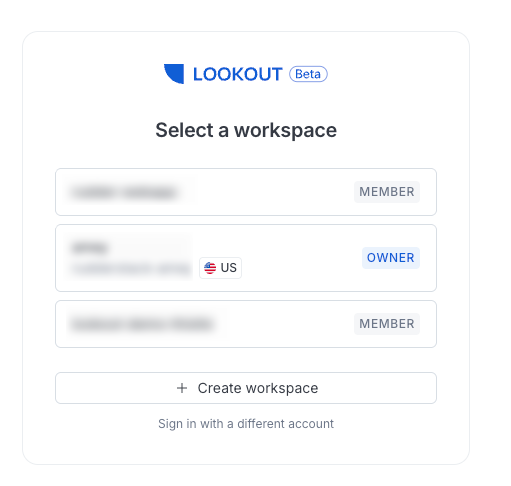
<p>Lookout shows the RudderStack workspaces you belong to and lists them when you create your Lookout workspace. Pick one, name the workspace, and the link is made — there is no access token to generate or paste anywhere.</p>
<ul>
<li><strong>Link</strong>: Create a Lookout workspace connected to that RudderStack workspace</li>
<li><strong>Join</strong>: If a teammate already linked one, join theirs so your team&rsquo;s audiences and dashboards stay together</li>
</ul>

<figure class="image--main "  >
    <a 
         href="/docs/images/lookout/lookout-workspaces.webp"
        
        >
        <img src="/docs/images/lookout/lookout-workspaces.webp" 
         alt="Select Lookout workspace to link"  
         
         
        decoding="async" loading="lazy" class="img-shortcode"/>
    </a>
    
</figure>

<html lang="en">
<blockquote class="info">
  <div class="tip-quote">
    
    <div class="tip-text"><p>The link is made <strong>once per workspace</strong> when it is created. Once it exists, any member can use the RudderStack tools in chat.</p>
<p>See <a href="https://www.rudderstack.com/docs/activate/lookout/workspaces/roles/" >Roles and Permissions</a> for more details.</p>
</div>
  </div>
</blockquote>

</html>
<!-- end-chunk -->
<!-- begin-chunk -->
<h2 id="access-in-rudderstack">Access in RudderStack</h2><p>To create a Lookout workspace, you need read-write access in the RudderStack workspace you are linking to. If you only have read access, creating the workspace fails and tells you so — ask a RudderStack admin for read-write access there, then try again.</p>
<!-- end-chunk -->
<!-- begin-chunk -->
<h2 id="if-you-signed-in-another-way">If you signed in another way</h2><p>Google and email sign-in get you into a workspace a teammate has invited you to, and everything inside it works normally.</p>
<p>They can&rsquo;t create one. Lookout offers only the RudderStack workspaces the account you signed in with belongs to, so with any other sign-in there is nothing to link, and the create-workspace screen tells you a RudderStack account is required. Sign in with RudderStack from that screen to continue — the workspaces you already belong to are unaffected either way.</p>
<!-- end-chunk -->
<!-- begin-chunk -->
<h2 id="what-the-link-gives-you">What the link gives you</h2><ul>
<li><strong>Destinations to activate to</strong>: The accounts and destinations you choose from in the Activate flow are the ones configured in the linked RudderStack workspace. Each audience you activate appears there as a source feeding that destination.</li>
<li><strong>Answers that span both sides</strong>: The agent can inspect sources, destinations, transformations, and Tracking Plans, and review live event metrics, schemas, and Tracking Plan violations — so one conversation can move from how an event is defined, to where it lands in the warehouse, to the audience built on it.</li>
</ul>
<br />

