# How to Build an Audience with the Agent


<blockquote class="announcement">
  <div class="tip-quote">
    
    <div class="tip-text"><strong>Rudder Lookout</strong> is currently in <strong>Public Beta</strong>. <a href="mailto:product@rudderstack.com" >Contact the Product team</a> if you have any questions.</div>
  </div>
</blockquote>

<p>Audiences start as a sentence. You say who you are after, and the agent finds them.</p>
<!-- end-chunk -->
<!-- begin-chunk -->
<h2 id="describe-your-campaign-objective">Describe your campaign objective</h2>
<html lang="en">
<blockquote class="info">
  <div class="tip-quote">
    
    <div class="tip-text">Every audience begins in chat. The <strong>Audiences</strong> page lists what you have built, but it has no <strong>New audience</strong> button — ask the agent for one instead.</div>
  </div>
</blockquote>

</html>
<p>In a chat, describe who you want to reach and why — the way you would brief a colleague:</p>
<blockquote>
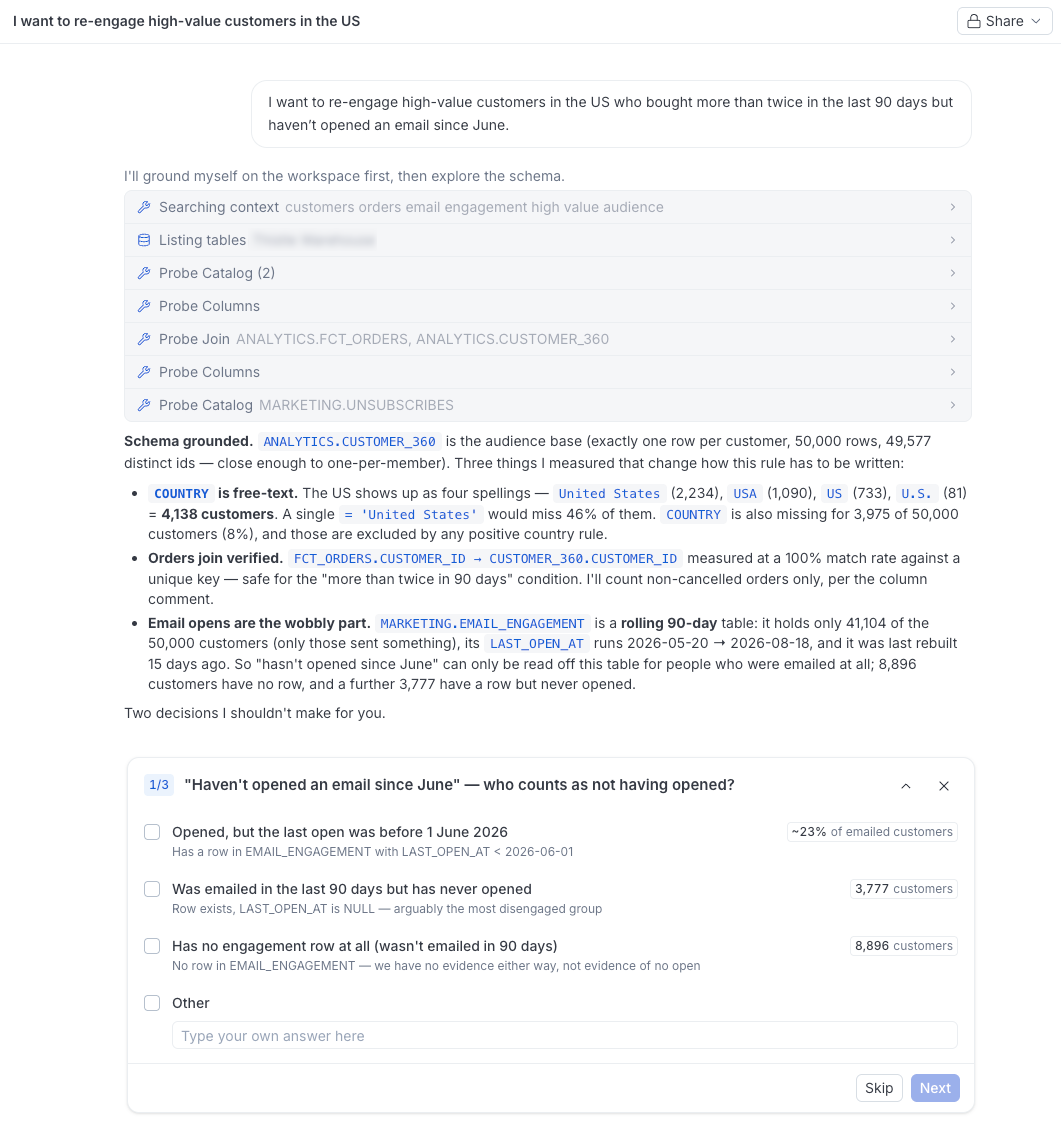
<p>I want to re-engage high-value customers in the US who bought more than twice in the last 90 days but haven&rsquo;t opened an email since June.</p>
</blockquote>
<p>You don&rsquo;t need to know which tables or columns hold this data. The agent explores your connected warehouse on your behalf — scanning the available tables, sampling the columns it plans to use, and checking how they join. It determines the best way to express your objective as a set of data rules, based on what your warehouse actually contains and what it has learned about your data through the <a href="https://www.rudderstack.com/docs/activate/lookout/working-with-lookout/context-hub/" >Context Hub</a>.</p>
<p><strong>Note</strong>: If something is ambiguous, for example, two tables both look like orders, or &ldquo;bought&rdquo; could mean an order placed or an order delivered, the agent asks you before choosing. This human-in-the-loop design means the agent does the data exploration, but you always make the decisions.</p>

<figure class="image--main "  >
    <a 
         href="/docs/images/lookout/fixing-ambiguity.webp"
        
        >
        <img src="/docs/images/lookout/fixing-ambiguity.webp" 
         alt="A chat asking for high-value European customers who have not purchased lately, with the agent probing the warehouse and asking which inactivity window to use"  
         
         
        decoding="async" loading="lazy" class="img-shortcode"/>
    </a>
    
</figure>

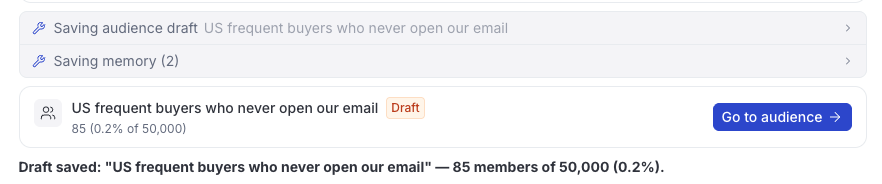
<p>When it has a draft, it saves the audience and shows you a card linking to it. Click <strong>Go to audience</strong> to see the rules it wrote.</p>

<figure class="image--main "  >
    <a 
         href="/docs/images/lookout/audience-draft.webp"
        
        >
        <img src="/docs/images/lookout/audience-draft.webp" 
         alt="Audience draft in Lookout"  
         
         
        decoding="async" loading="lazy" class="img-shortcode"/>
    </a>
    
</figure>

<!-- end-chunk -->
<!-- begin-chunk -->
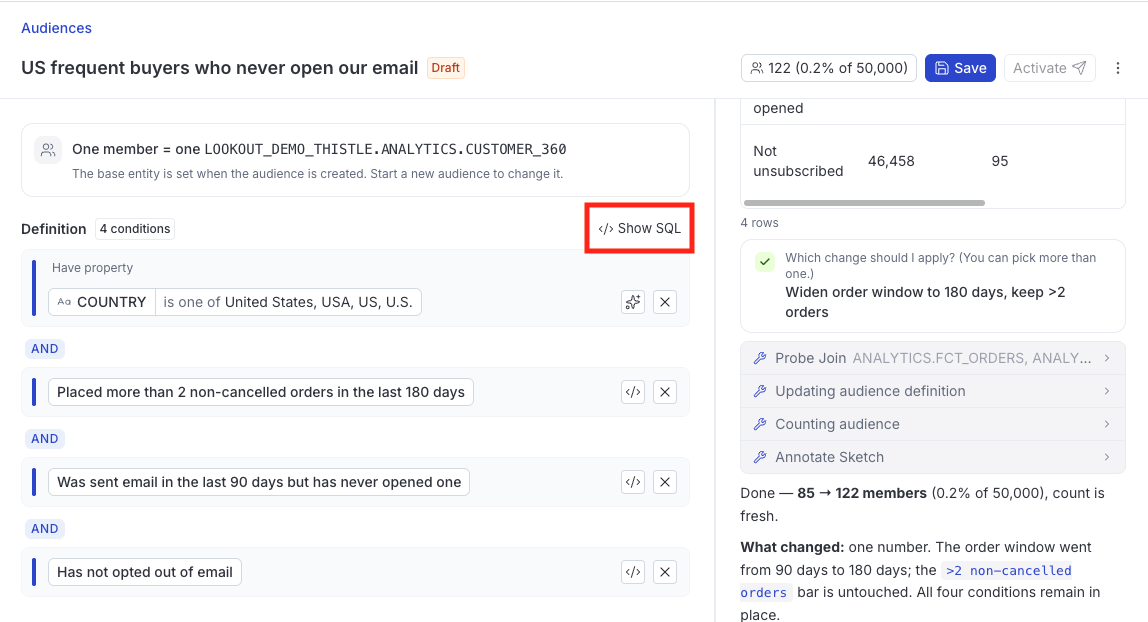
<h2 id="check-what-the-agent-built">Check what the agent built</h2><p>Open the audience to see it in two halves. The <strong>definition</strong> is on the left, and the agent stays with you on the right, so you can keep talking about the audience while you look at it.</p>
<p>Note that:</p>
<ul>
<li>The definition reads as a set of rules grouped under the customer table the audience is built from.</li>
<li>Each rule names a column, an operator, and a value. For example, <code>country is US</code>, <code>order_count is more than 2</code>.</li>
<li>Rules inside a group combine with <strong>AND</strong> or <strong>OR</strong>, and you can switch a group between the two by selecting the connector between its rules.</li>
</ul>
<p>To see the query behind the whole audience, select <strong>Show SQL</strong>.</p>

<figure class="image--main "  >
    <a 
         href="/docs/images/lookout/define-audience-conditions.webp"
        
        >
        <img src="/docs/images/lookout/define-audience-conditions.webp" 
         alt="Define audience conditions"  
         
         
        decoding="async" loading="lazy" class="img-shortcode"/>
    </a>
    
</figure>

<!-- end-chunk -->
<!-- begin-chunk -->
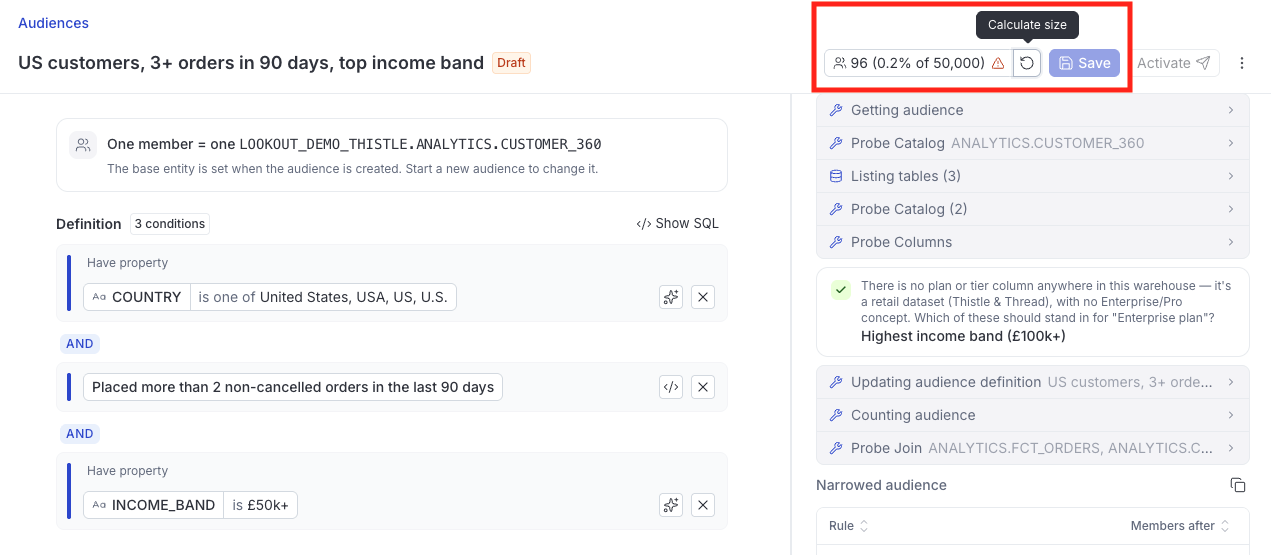
<h2 id="size-it">Size it</h2><p>The header carries the audience <strong>Size</strong>. A newly drafted audience shows <strong>Unknown</strong> until you run a count; refresh it to ask your warehouse how many people currently match.</p>
<p>The size goes <strong>Stale</strong> whenever the definition changes, because the number on screen no longer describes the rules on screen. Refresh it again to get a current figure.</p>

<figure class="image--main "  >
    <a 
         href="/docs/images/lookout/audience-definition.webp"
        
        >
        <img src="/docs/images/lookout/audience-definition.webp" 
         alt="Define audience conditions"  
         
         
        decoding="async" loading="lazy" class="img-shortcode"/>
    </a>
    
</figure>

<html lang="en">
<blockquote class="info">
  <div class="tip-quote">
    
    <div class="tip-text"><strong>Save</strong> stays disabled until the size is fresh. It is a deliberate check — you always know how many people you are about to save before you save them.</div>
  </div>
</blockquote>

</html>
<!-- end-chunk -->
<!-- begin-chunk -->
<h2 id="adjust-and-save">Adjust and save</h2><p>You can change the audience two ways, and they work together:</p>
<ul>
<li><strong>Ask the agent</strong>: Tell it what is wrong — &ldquo;drop the email rule&rdquo;, &ldquo;make it 3 purchases, not 2&rdquo; — and it rewrites the definition.</li>
<li><strong>Edit it yourself</strong>: Change an operator or a value directly in the definition. See <a href="https://www.rudderstack.com/docs/activate/lookout/audiences/refine-an-audience/" >Refine an Audience with AI Insights</a> for the controls that help you pick a value.</li>
</ul>
<p>Your own edits are a draft until you save them. If the agent rewrites the definition while you have unsaved edits open, neither version is thrown away — both are shown and you choose which to keep.</p>
<p>Refresh the size once more, then <strong>Save</strong>.</p>
<!-- end-chunk -->
<!-- begin-chunk -->
<h2 id="next-steps">Next steps</h2><ul>
<li><a href="https://www.rudderstack.com/docs/activate/lookout/audiences/refine-an-audience/" >Refine an Audience with AI Insights</a>: Tune a rule against what is actually in your data</li>
<li><a href="https://www.rudderstack.com/docs/activate/lookout/audiences/activate-an-audience/" >Activate an Audience</a>: Send it to a destination</li>
</ul>
<br />